
10.00 €
Office Preview for Attachments
Open Word, Excel, PowerPoint and Outlook attachments in the chatter, without downloading them and without any external service.
Get it on Odoo Apps
Inventory
Ready-made auto print scenarios for Inventory: delivery slip on validation, picking list when ready, carrier and package labels on the label printer, scale weight in put in pack.
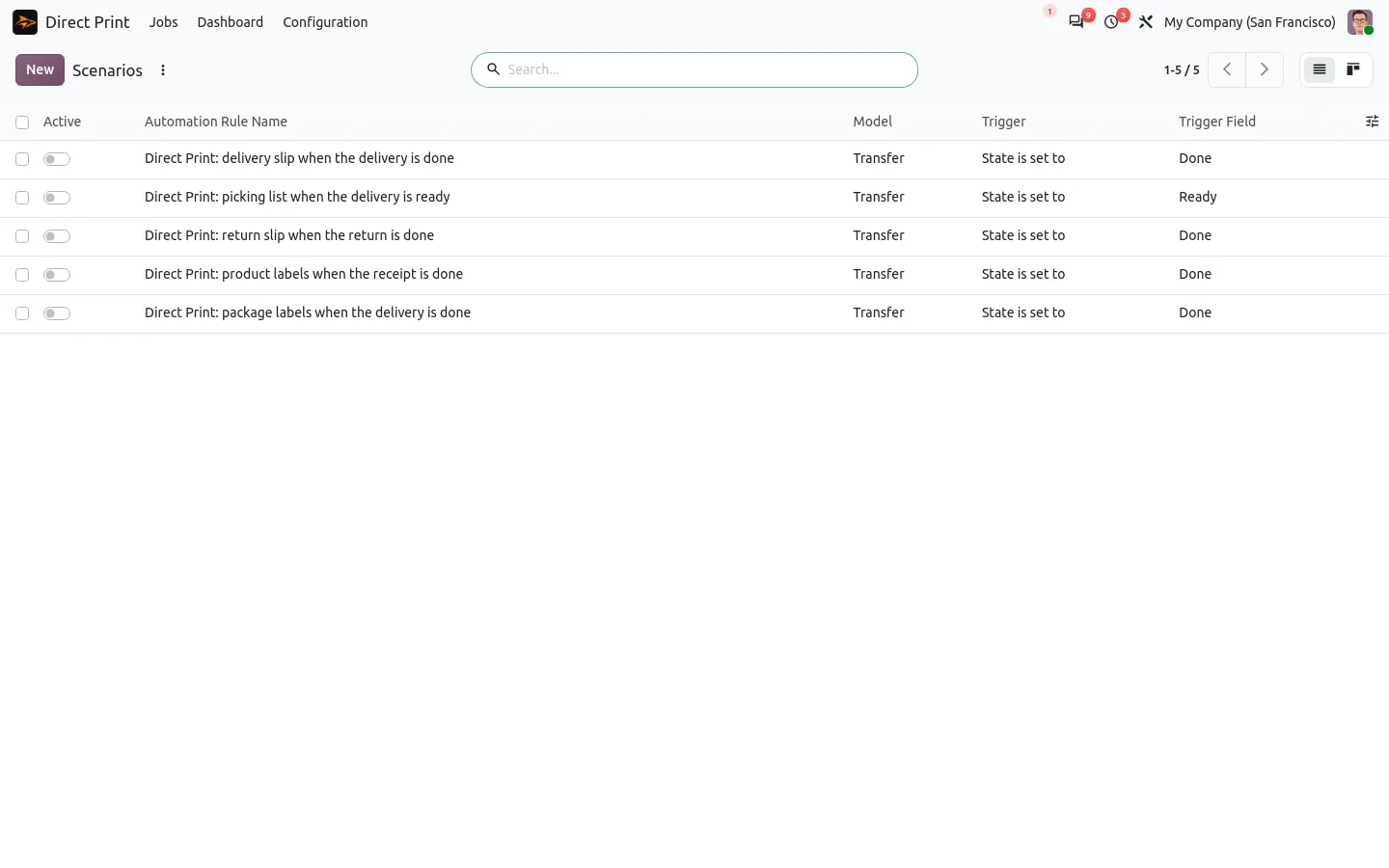
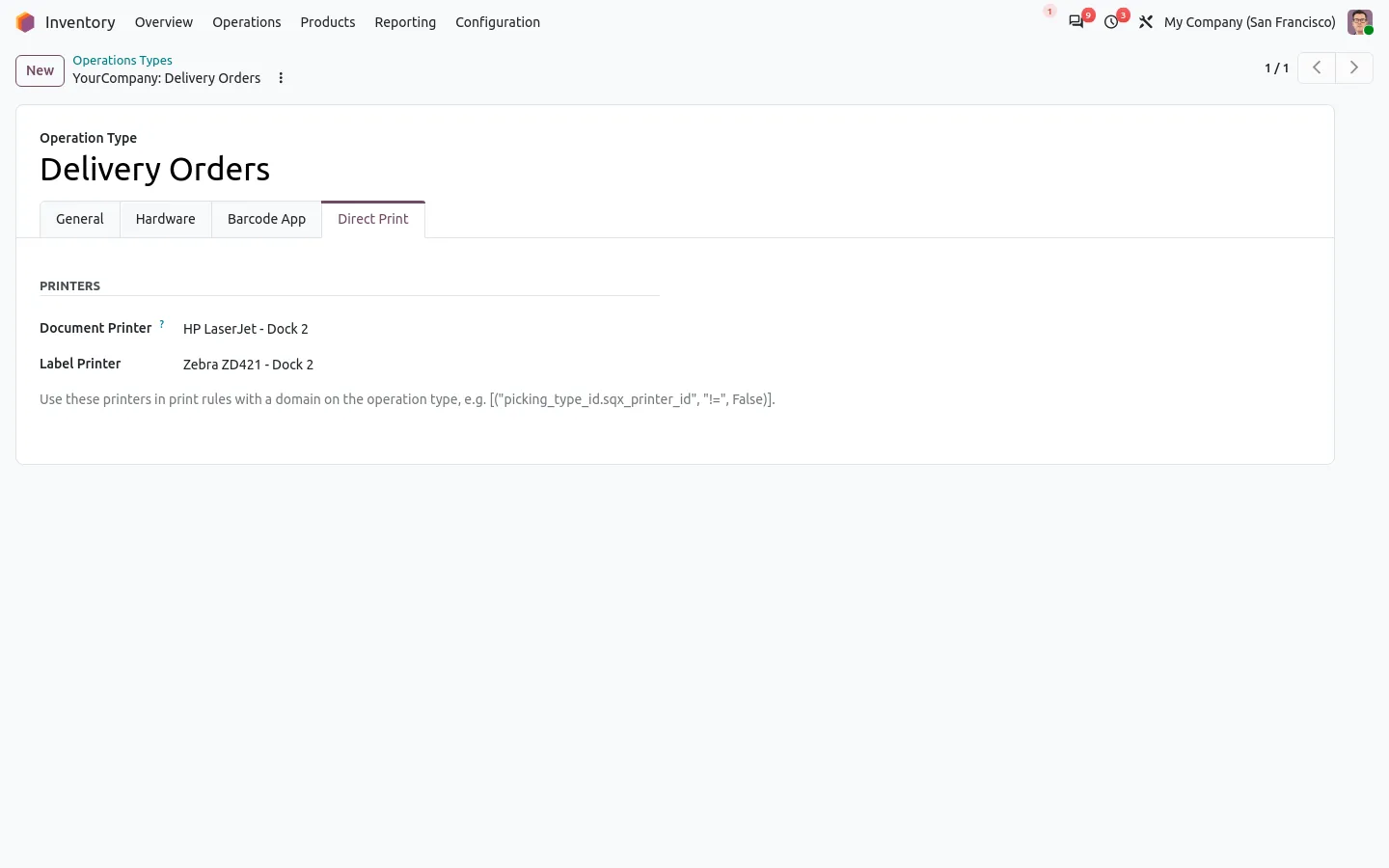
In standard Odoo, the delivery slip is a PDF to download and print by hand after Validate, the carrier label waits in the chatter until someone finds it, and the package weight is typed from the scale display. With this companion of Direct Print, validating a delivery sends the slip to the dock printer and the carrier label to the Zebra.
Each scenario is a standard automation rule, delivered switched off. Turn it on, narrow its filter, or duplicate it for another operation type, with no code. The printer comes from the Direct Print rules, the workstation of the user or the company default.
Documentation and installation are on the page of your Odoo version.
Odoo can produce labels in ZPL, but clicking Print gives you a file to download. Here is how to send them straight to the Zebra on the dock, without an IoT box.
Read the articleYes. This companion adds the Inventory scenarios; the print queue, the agent and the printers come from Direct Print. It installs itself when Direct Print and Inventory are both present.
Any connector that attaches its label to the transfer when the shipment is booked, Odoo's own connectors and third-party ones. PDF and ZPL labels are printed.
Yes. Add a print rule for the Delivery Slip report with two copies and the workstation of that dock. Rules win over the workstation and company defaults.
Open Word, Excel, PowerPoint and Outlook attachments in the chatter, without downloading them and without any external service.
Get it on Odoo Apps
Search the chatter as you type, filter notes, emails and logs, reply in threads, get reminded and hide the chatter in one click.
Get it on Odoo Apps
The same office preview in the kanban, list and activity views of Documents, with readable thumbnails.
Get it on Odoo Apps