
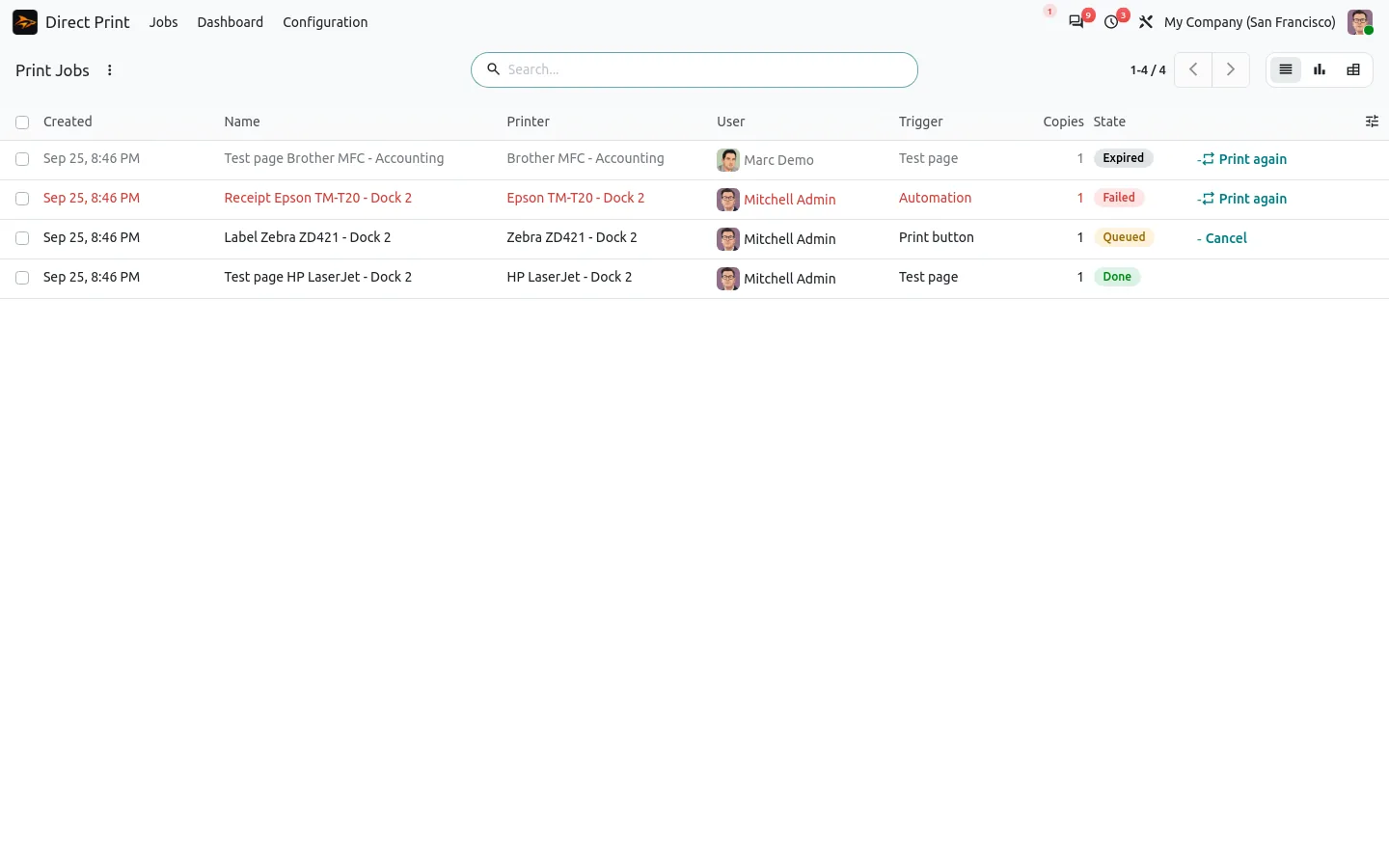
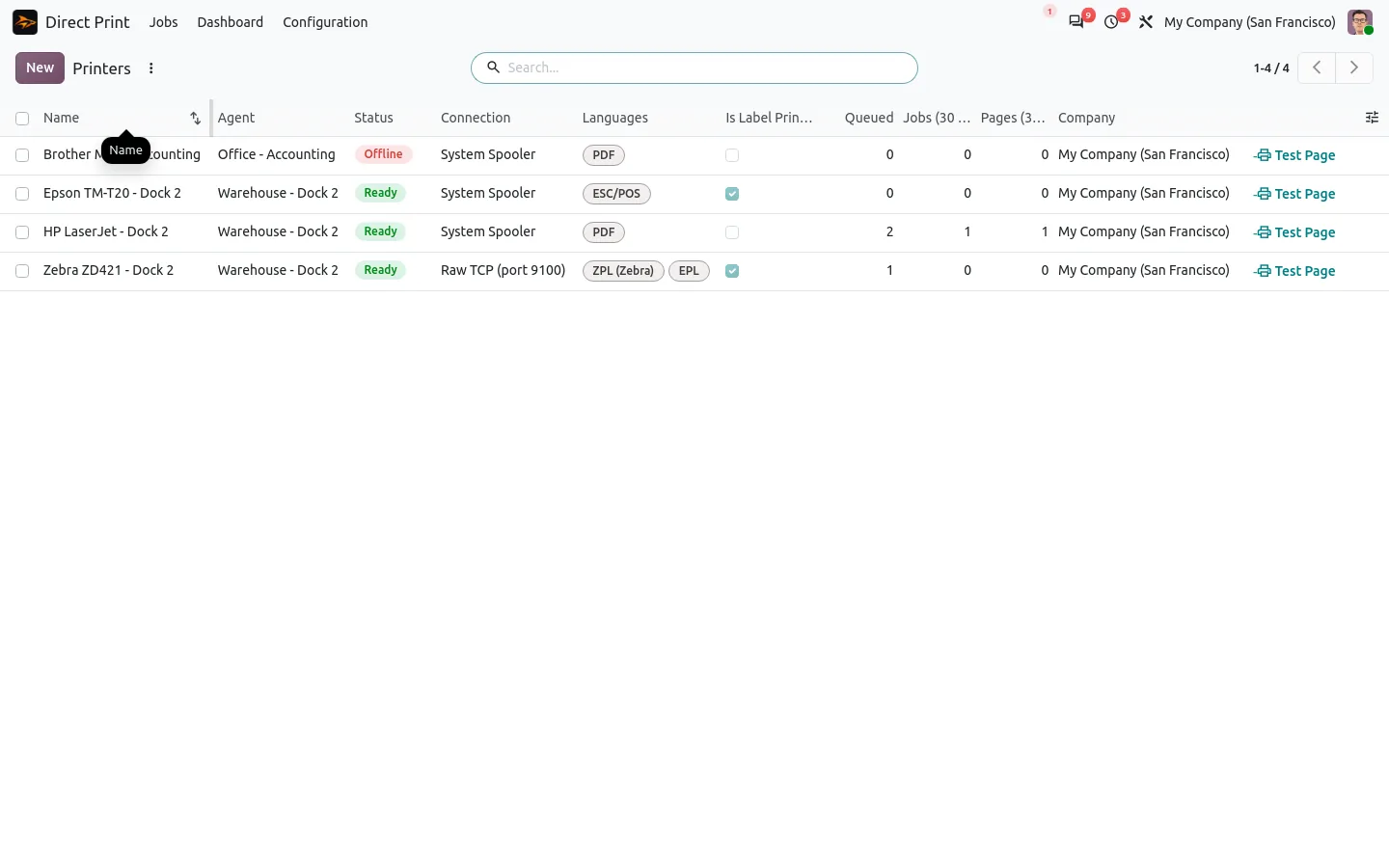
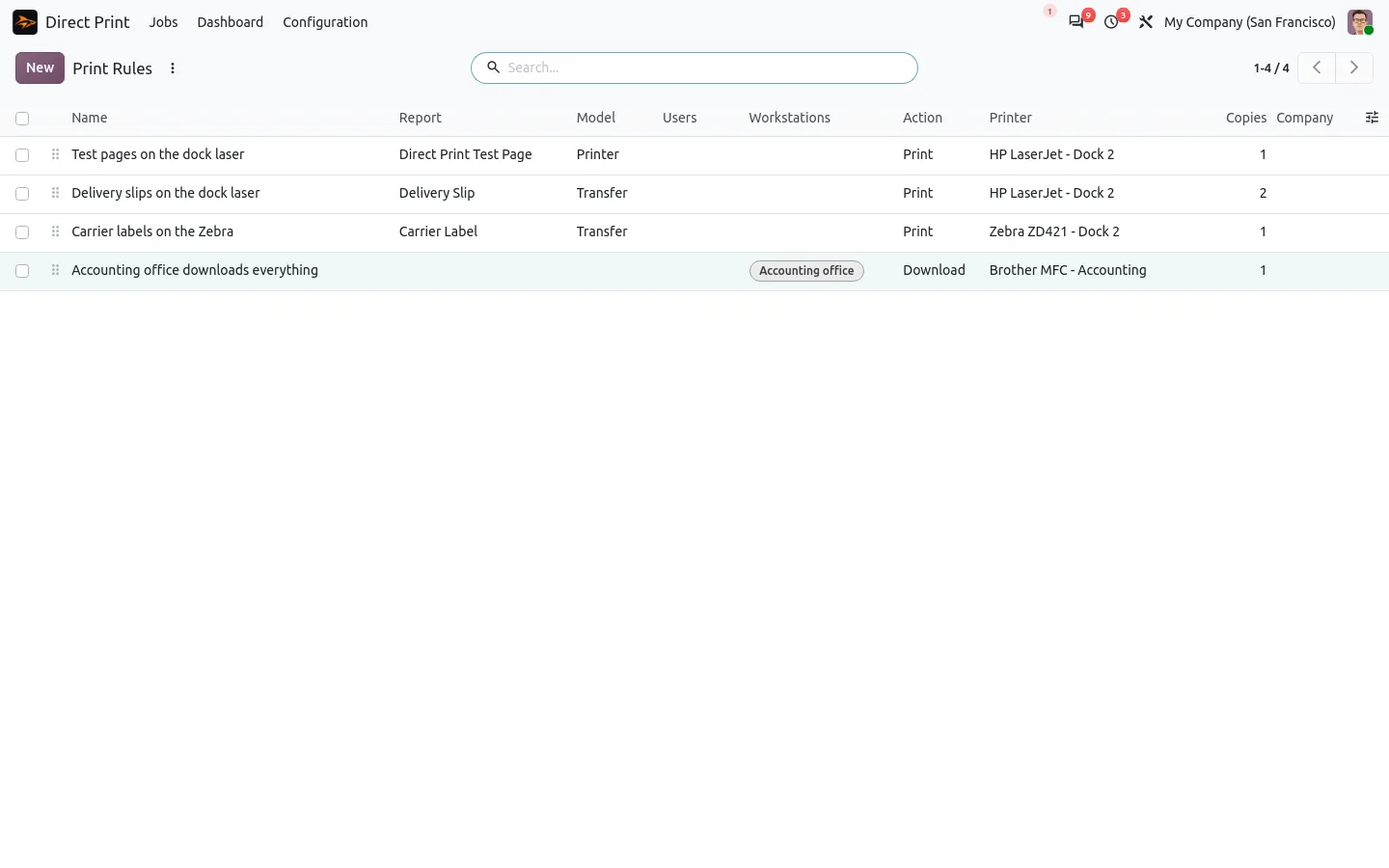
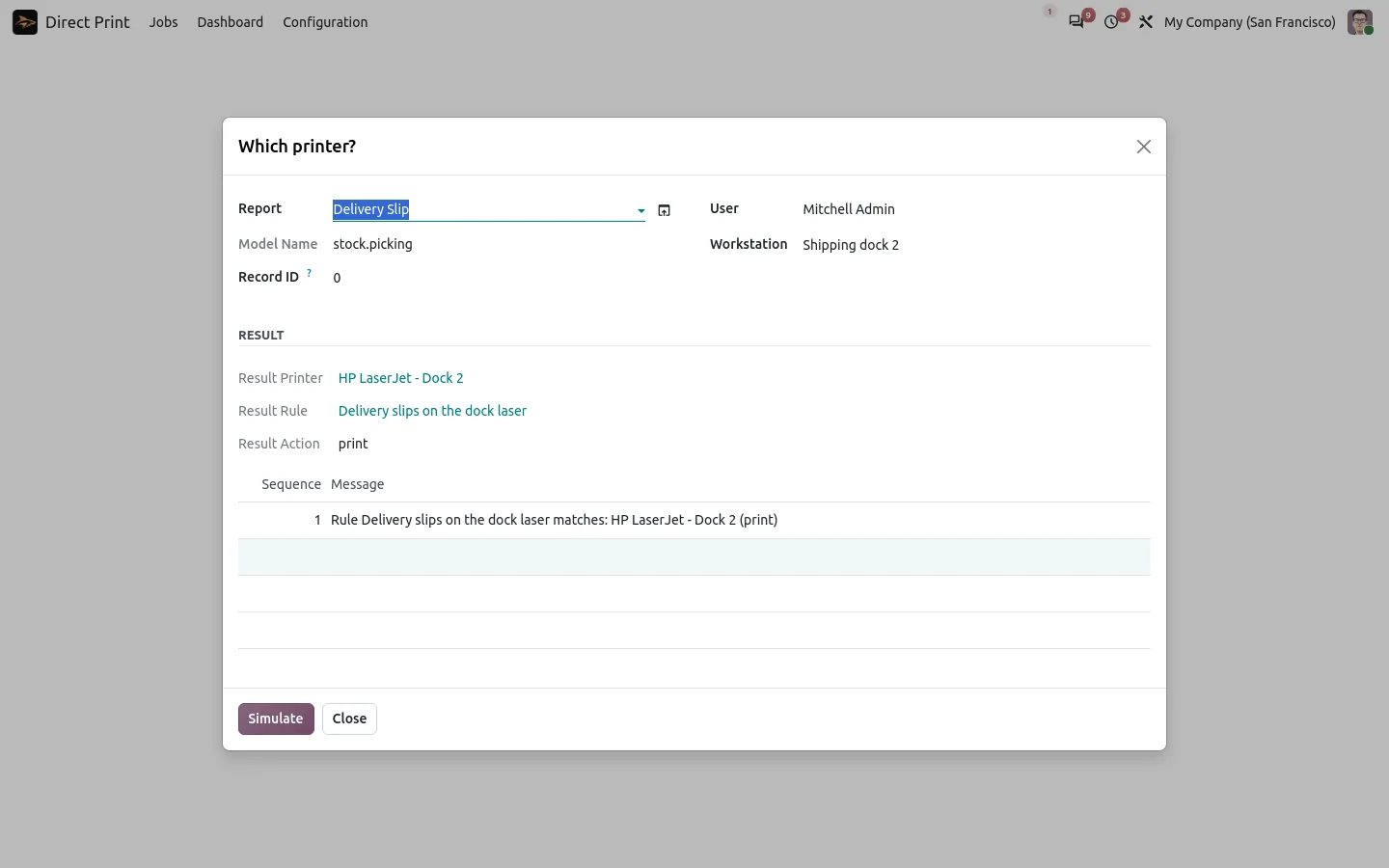
Odoo already knows how to make labels for Zebra printers: product labels, package labels, and the shipping labels returned by UPS, DHL or FedEx. But in the browser, Print gives you a .zpl file to download, and a browser cannot send it to a thermal printer. This guide shows how to print ZPL labels on a Zebra printer from Odoo without an IoT box.
Without a print bridge, the warehouse lives with this:
- Every label is a file to download, then to send to the printer by hand.
- The usual answers are an IoT box per site, or a cloud print service with a monthly fee.
- The carrier label sits in the chatter until someone finds it.
- A wrong template means a roll of wasted labels before anyone sees it.
Zebra labels from Odoo: before and after
Direct Print adds a small print agent that runs on any PC or Raspberry Pi next to your printers. Odoo puts each label in a queue, the agent takes it and sends the ZPL raw to the Zebra, USB or network.
Before
Download the .zpl file. Find a tool that sends it to the printer. Look for the carrier label in the chatter. Hope the layout is right.
After
Click Print, or validate the delivery: the label comes out of the Zebra.
A Zebra on USB or on the network, without an IoT box
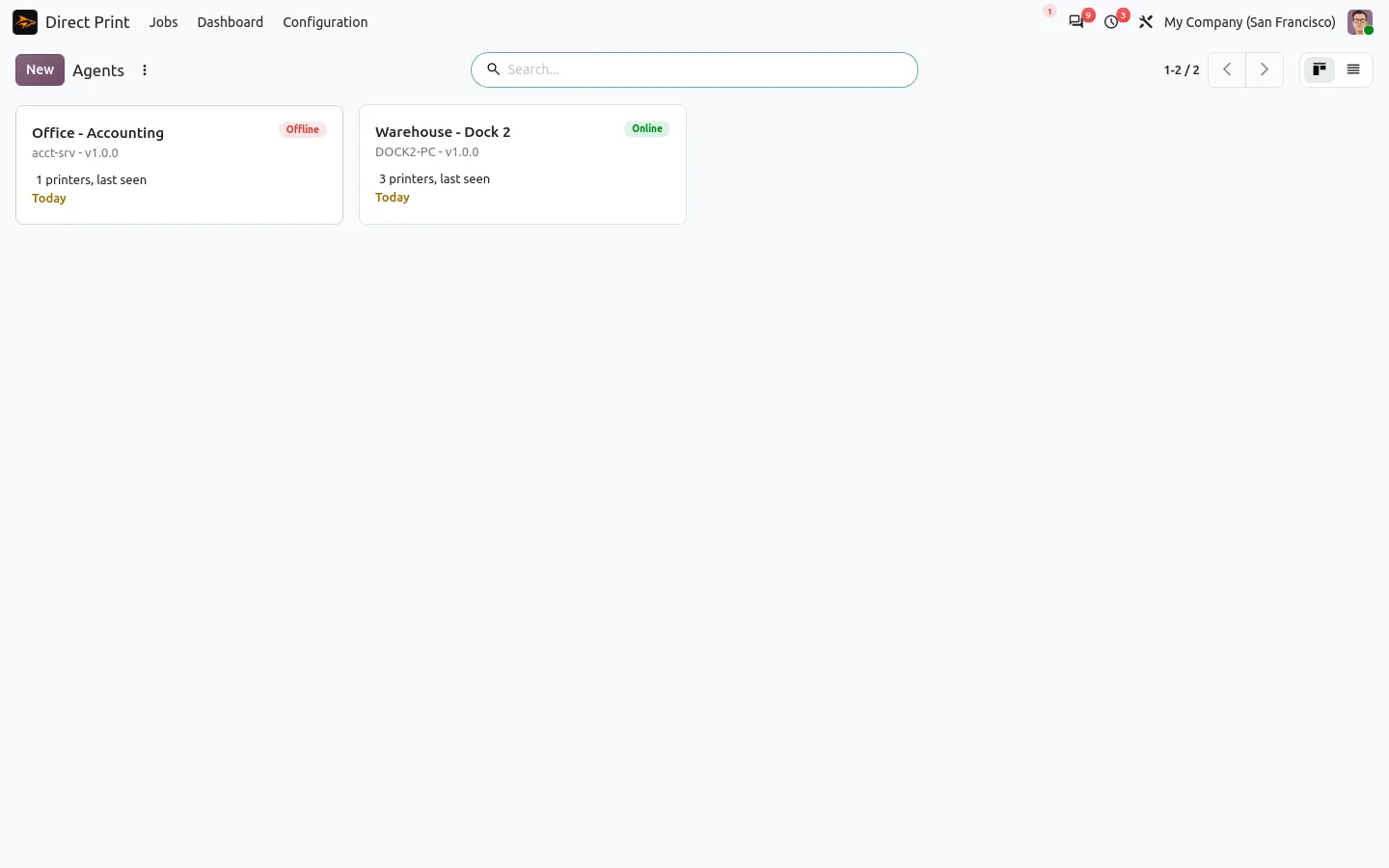
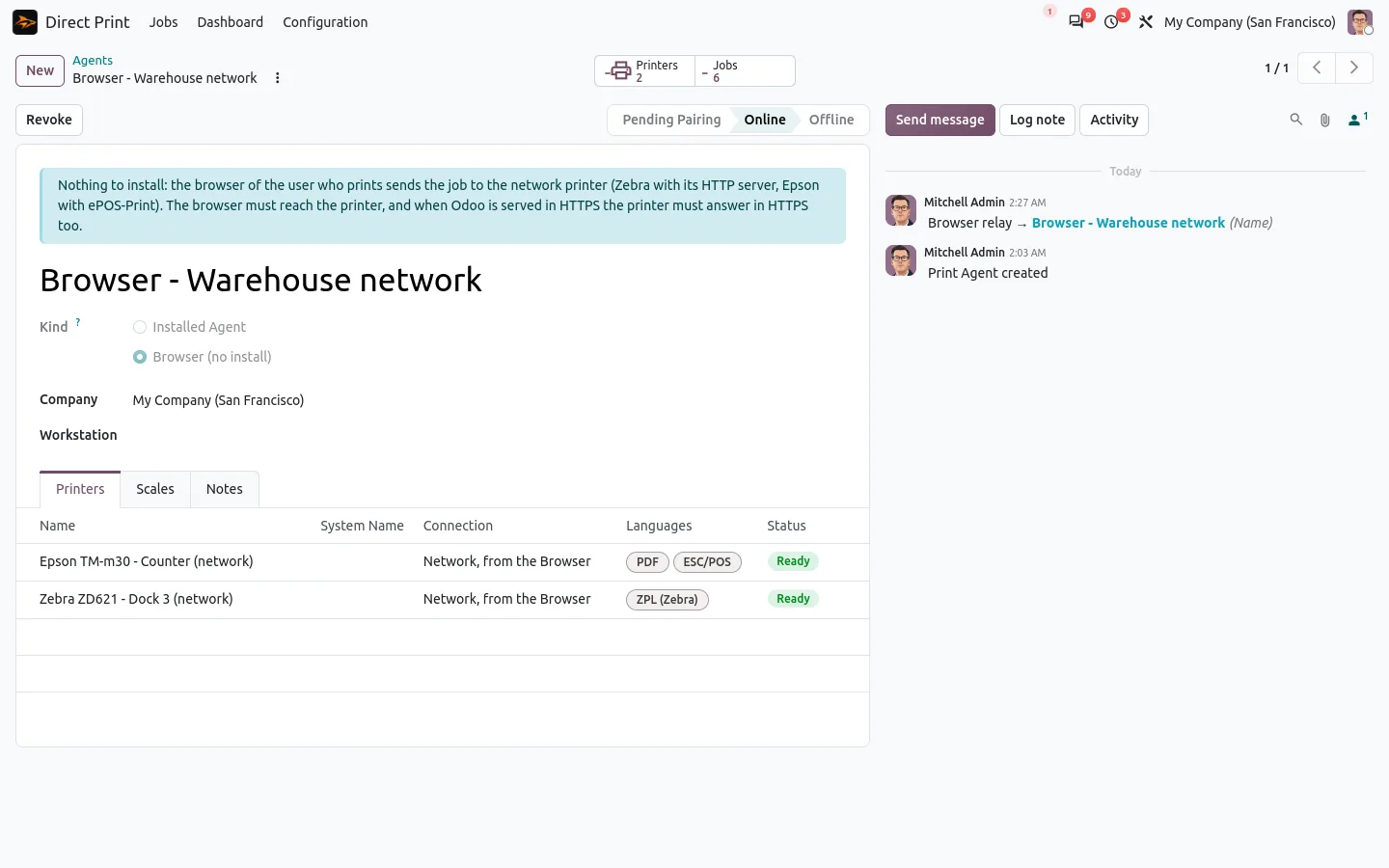
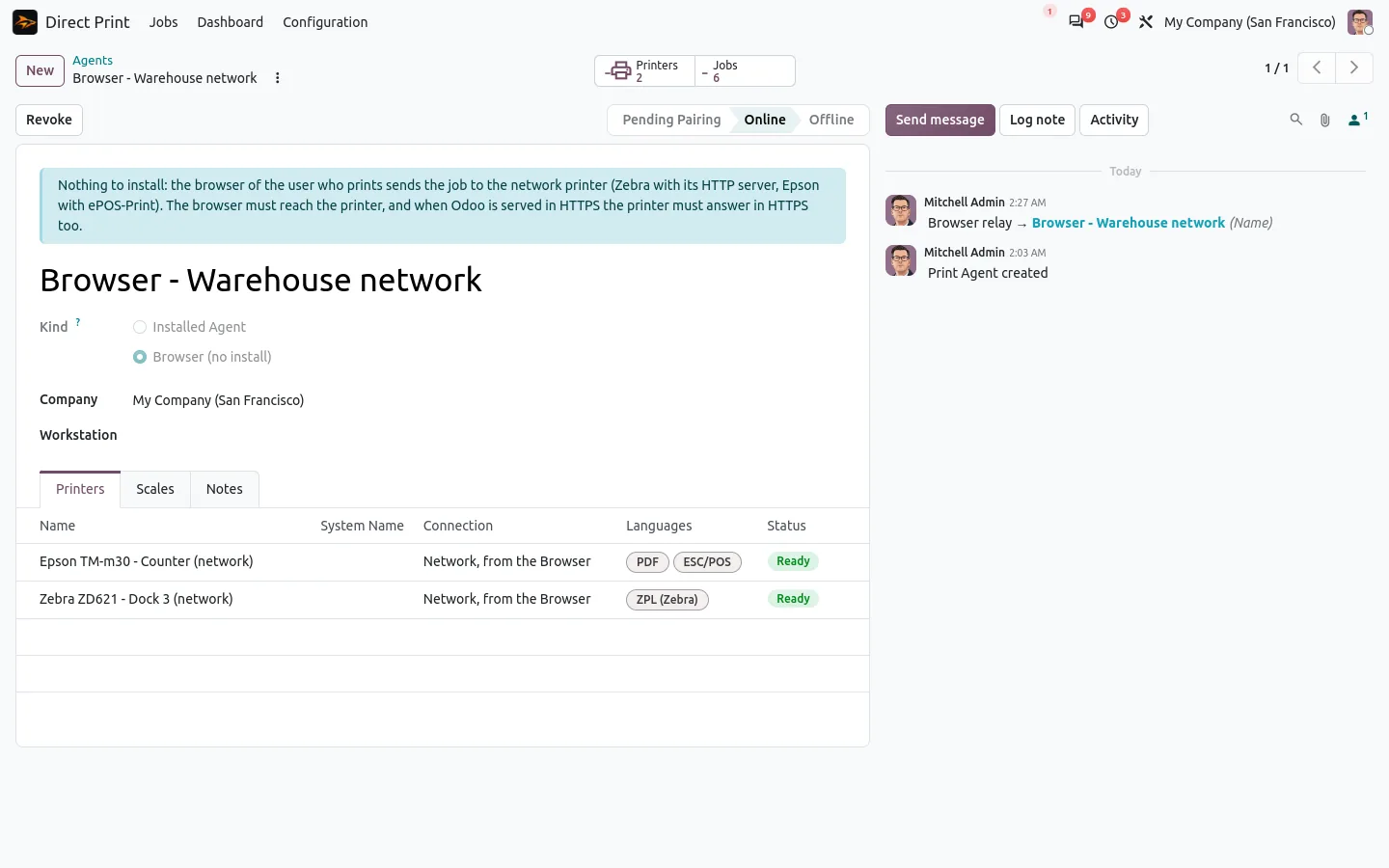
The agent runs on Windows, Linux or a Raspberry Pi and sees the printers of its machine, or reaches a network Zebra on its raw port. It connects out to Odoo over HTTPS, like a browser does: no port to open, no box to buy, and it works the same with Odoo.sh. A network Zebra can even print from the browser of the user, with nothing to install, as long as the printer answers in HTTPS when Odoo does.
See the ZPL label before it prints
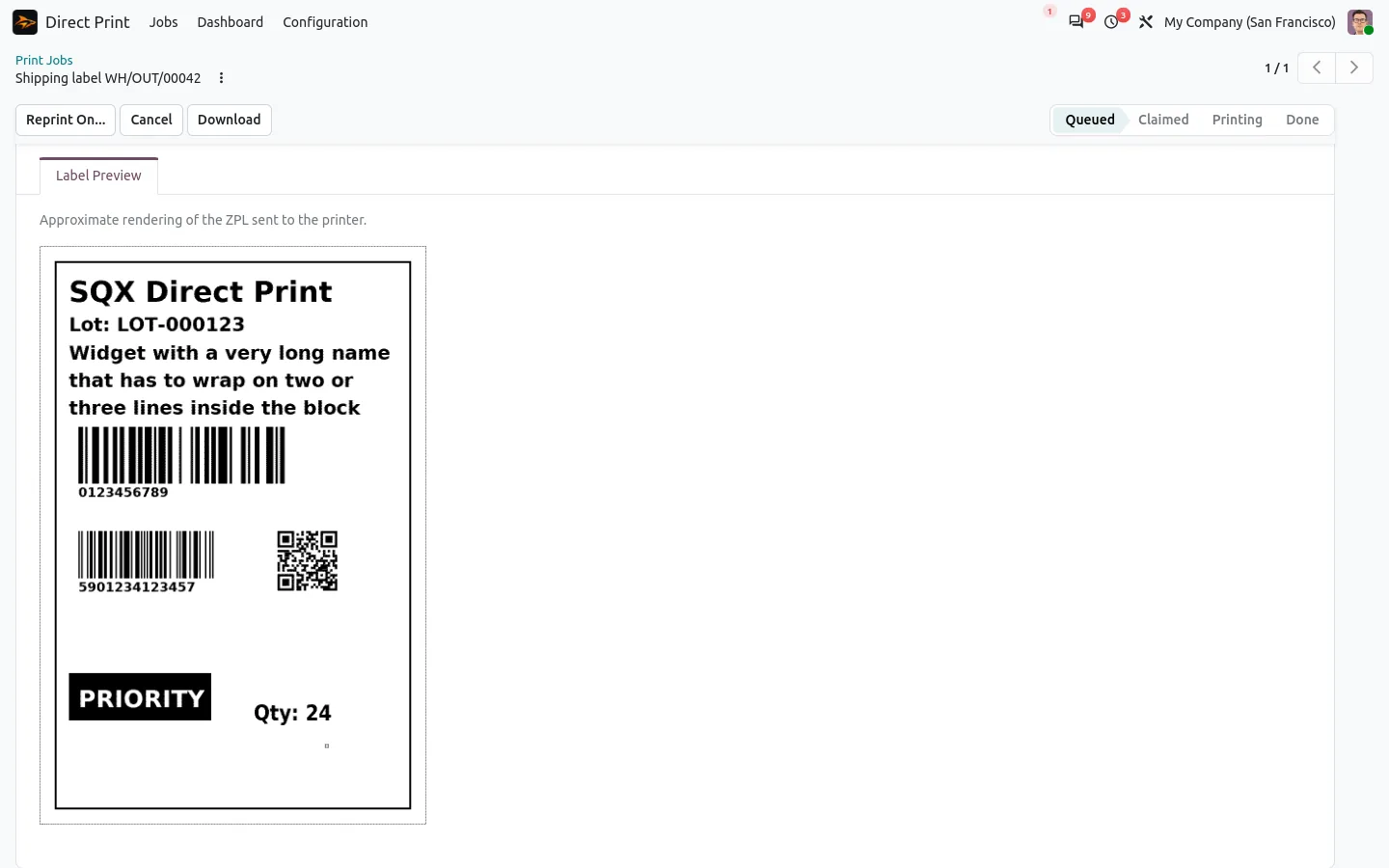
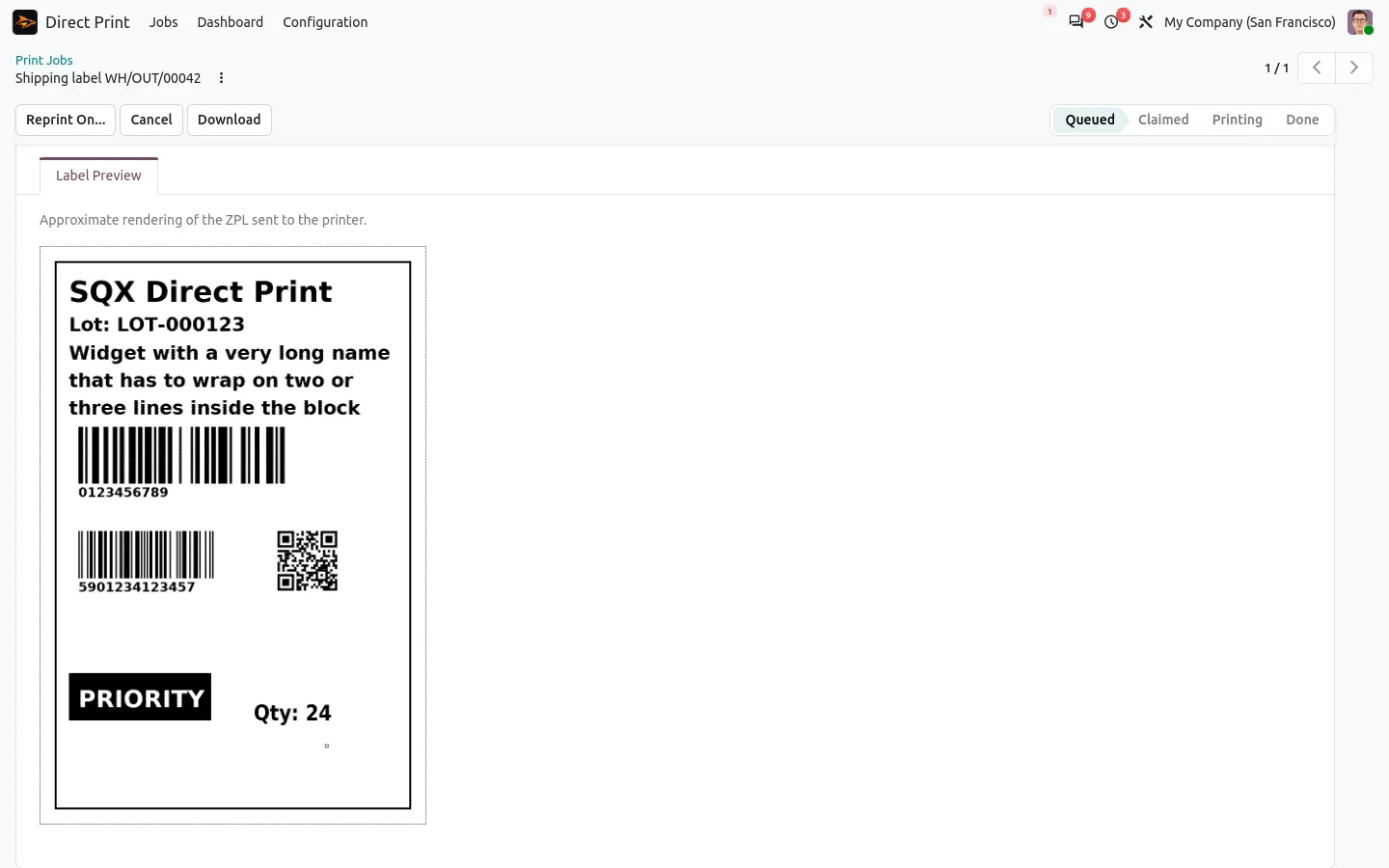
Each ZPL job shows a preview of the label: text, barcodes, QR codes and boxes, at the resolution of the printer. Check a new template on screen instead of on a roll of labels. A .zpl file you drop in Odoo gets the same preview before it goes to the printer.
Carrier and package labels printed on the dock
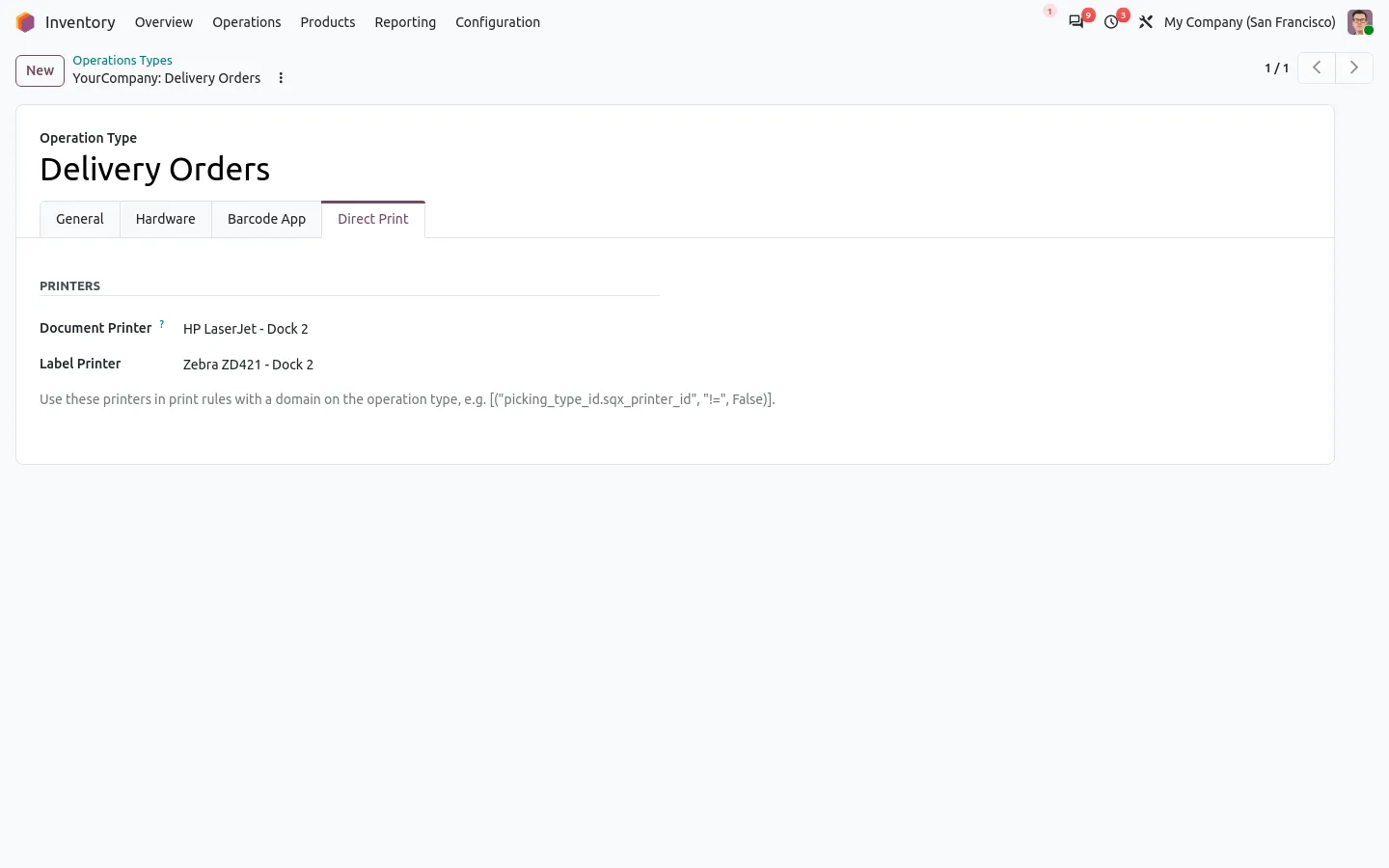
With the Inventory companion app, the carrier label goes to the Zebra the second the carrier returns it: a ZPL file is sent raw, a PDF label goes to the document printer. Package labels, reception labels, delivery slips and picking lists are ready-made scenarios you switch on. Each operation type gets its own label printer and document printer, so the dock prints on the dock and the receiving area on its own Zebra.
No label lost, none printed twice
Every label is a job with a state: queued, printing, done or failed. A failed job shows the printer error and a Print again button, and a job too old is never printed by surprise when the agent comes back. A double click prints once. Out of paper or offline, the people you choose get an activity.
100% tested
The apps ship with automated tests. No risk.
Up and running in two minutes
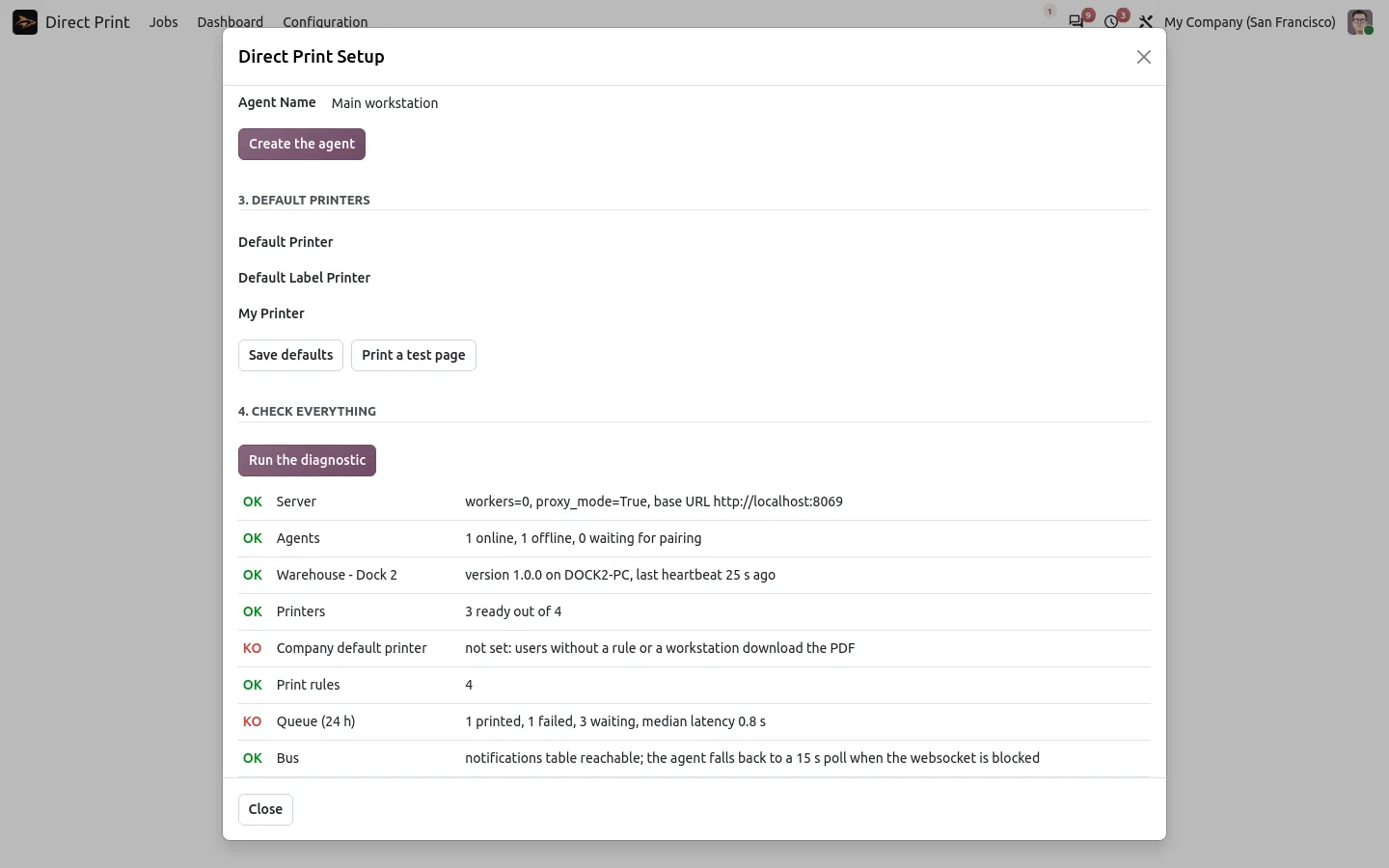
Install Direct Print, and Direct Print for Inventory for the dock scenarios. Get the agent on sharqix.com/direct-print with your order reference, install it next to your printers and pair it with a short code: a setup wizard checks that everything answers. EPL and TSPL label printers work the same way. Community and Enterprise, on Odoo.sh or on your own server (not Odoo Online), paid once, with no subscription. The same agent also prints every PDF report of Odoo and POS receipts.
Labels on the printer, not in the downloads
Keep the Zebra you have, skip the box and the monthly fee, and let the label come out where the parcel is.
For the dock scenarios: Direct Print for Inventory.
A question before you buy? Write to support@sharqix.com, we answer within one business day.