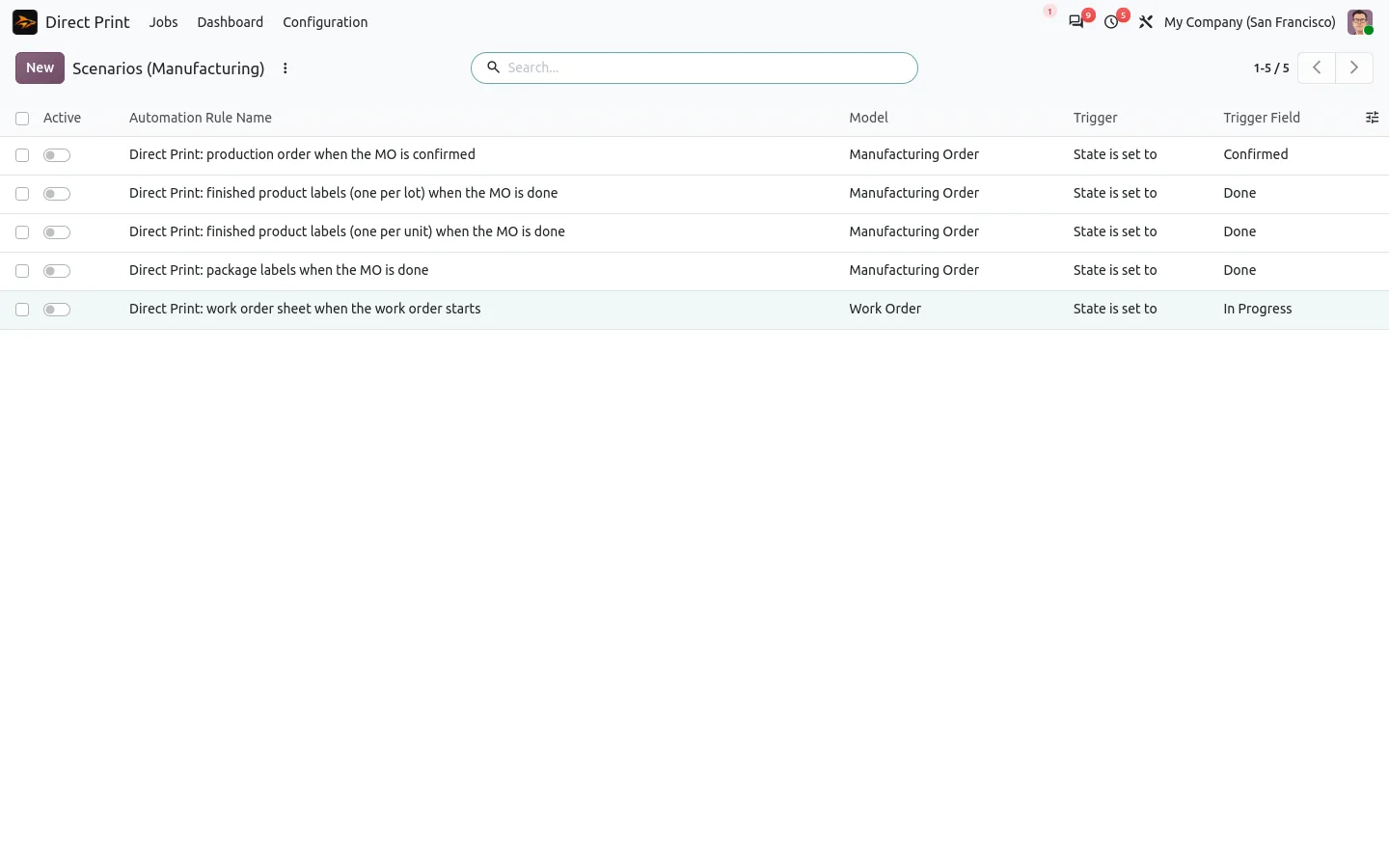
A manufacturing order is confirmed in the office, but the operator in the workshop needs it on paper. When the batch is done, each box needs a label with its lot or serial number before it goes to stock. In Odoo, each of these is a print button, a wizard or a PDF to download. Here is how to print manufacturing orders and lot labels automatically, at the right step and on the right printer.
A normal day in production looks like this:
- Someone prints the production order by hand before the job goes to the workshop.
- Finished product labels need a wizard, a format and a download.
- Serial numbers are copied from the screen onto labels, with the typos that go with it.
- The label printer sits next to the line, but the PDF opens on the office computer.
Print manufacturing orders and lot labels in Odoo: before and after
Direct Print for Manufacturing adds ready-made print scenarios to the Manufacturing app. It is a companion of Direct Print, which sends Odoo documents straight to your printers through a small local agent: no IoT box, no cloud print service, no subscription.
Before
Open the order. Click Print. Download. Walk to the printer. Open the label wizard. Pick the format. Download again.
After
Confirm the order, mark it done. The paper is already there.
Five scenarios you switch on, not program
Each scenario is a standard Odoo automation rule, delivered switched off: the production order when the order is confirmed, the work order sheet when an operator starts it, one label per lot or serial number, one label per unit produced, and package labels for finished goods in packages. Turn one on, narrow it to an operation type or a product category, or duplicate it: no code and no consultant.
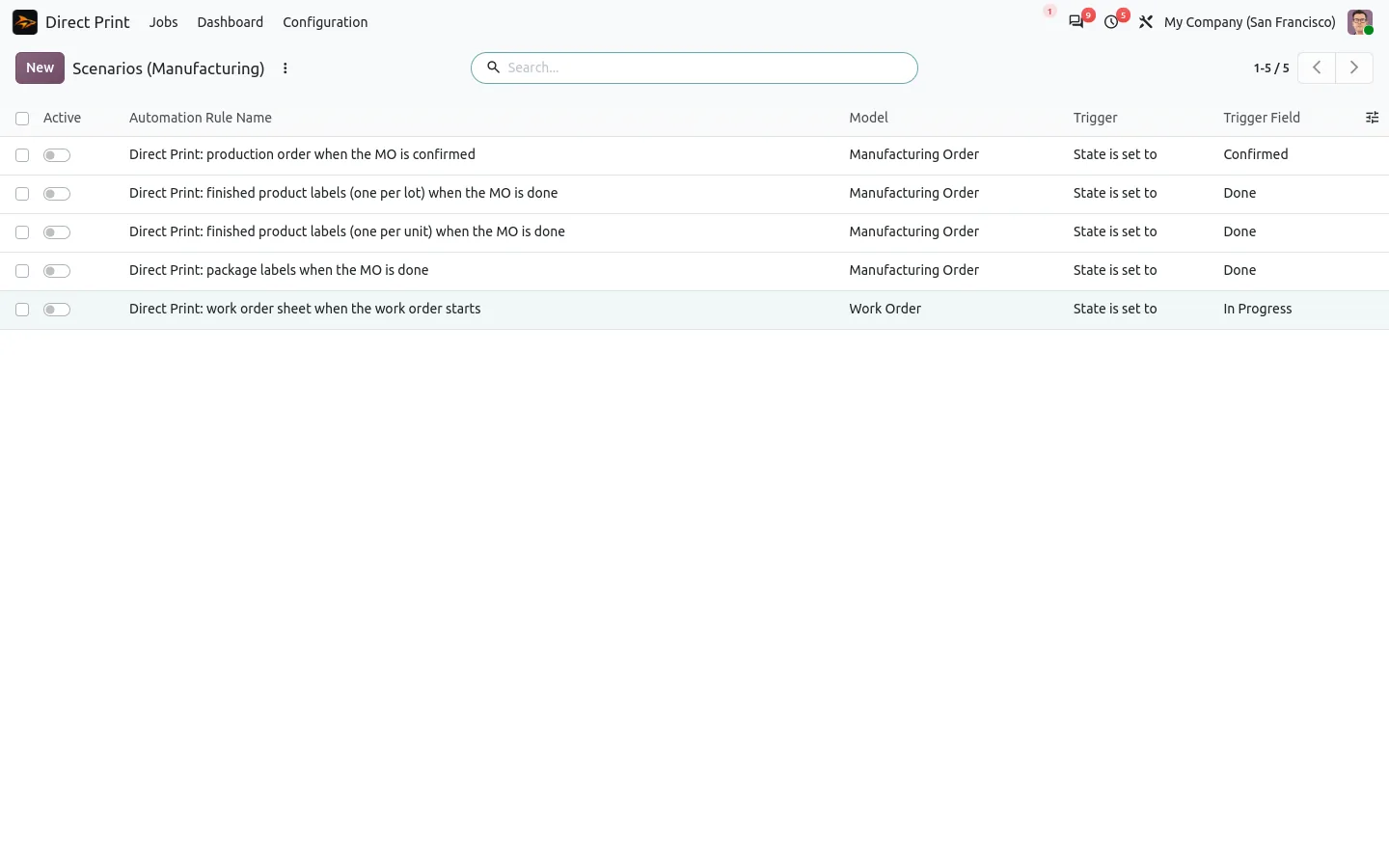
A label for every lot and serial number
When the manufacturing order is done, tracked products get one label per lot or serial number, with the quantity produced. Nobody copies a serial number from the screen any more. Labels go in raw ZPL when the label printer reads it, and as a PDF label sheet otherwise, and a preview shows the ZPL label before it prints, with its barcode and text.
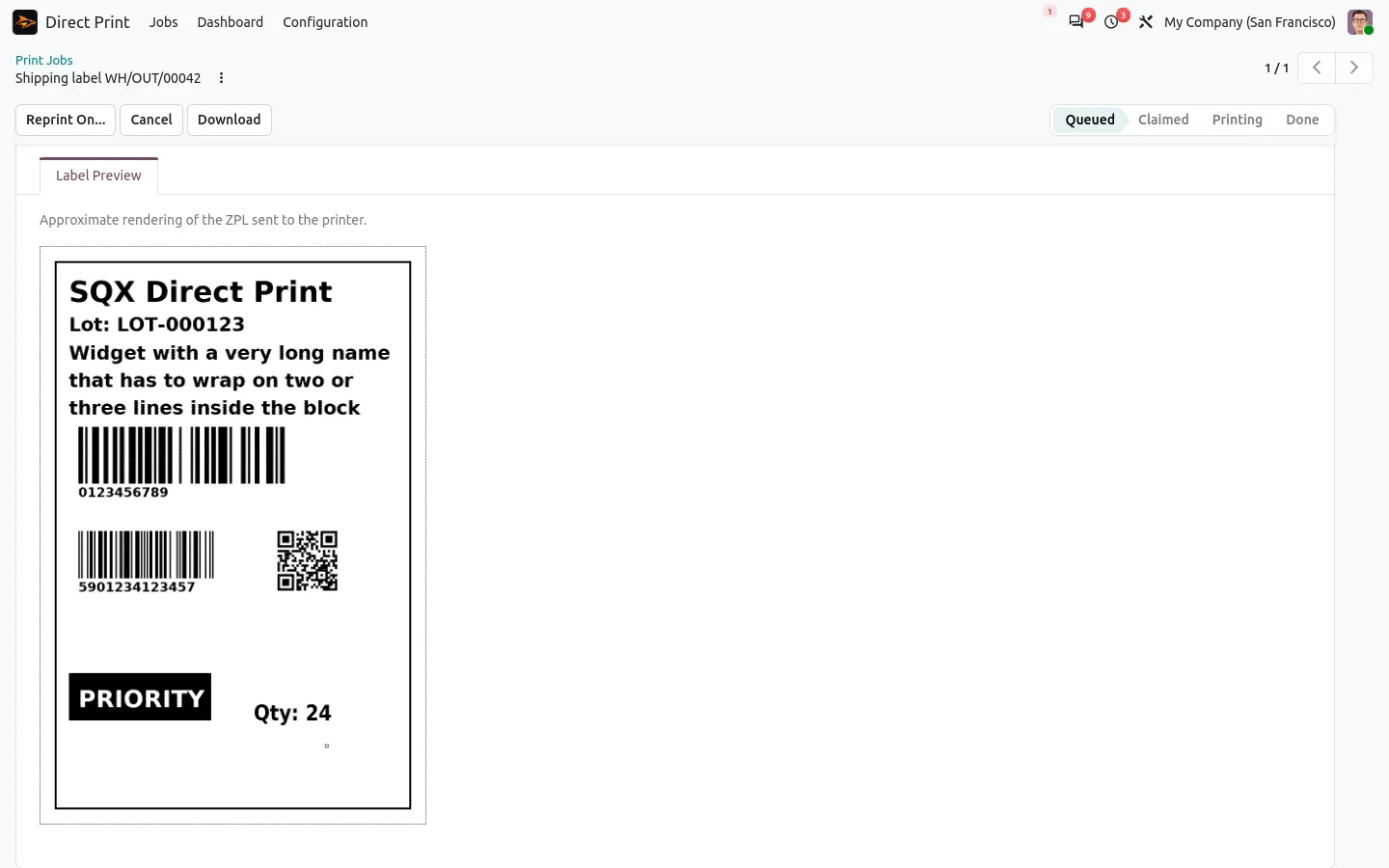
The right printer at each work center
Print rules choose the printer by report, user, workstation or company. Give each work center its workstation, and its work order sheets print on the printer next to it, while the labels of every station go to the right Zebra. The office laser keeps the production orders.
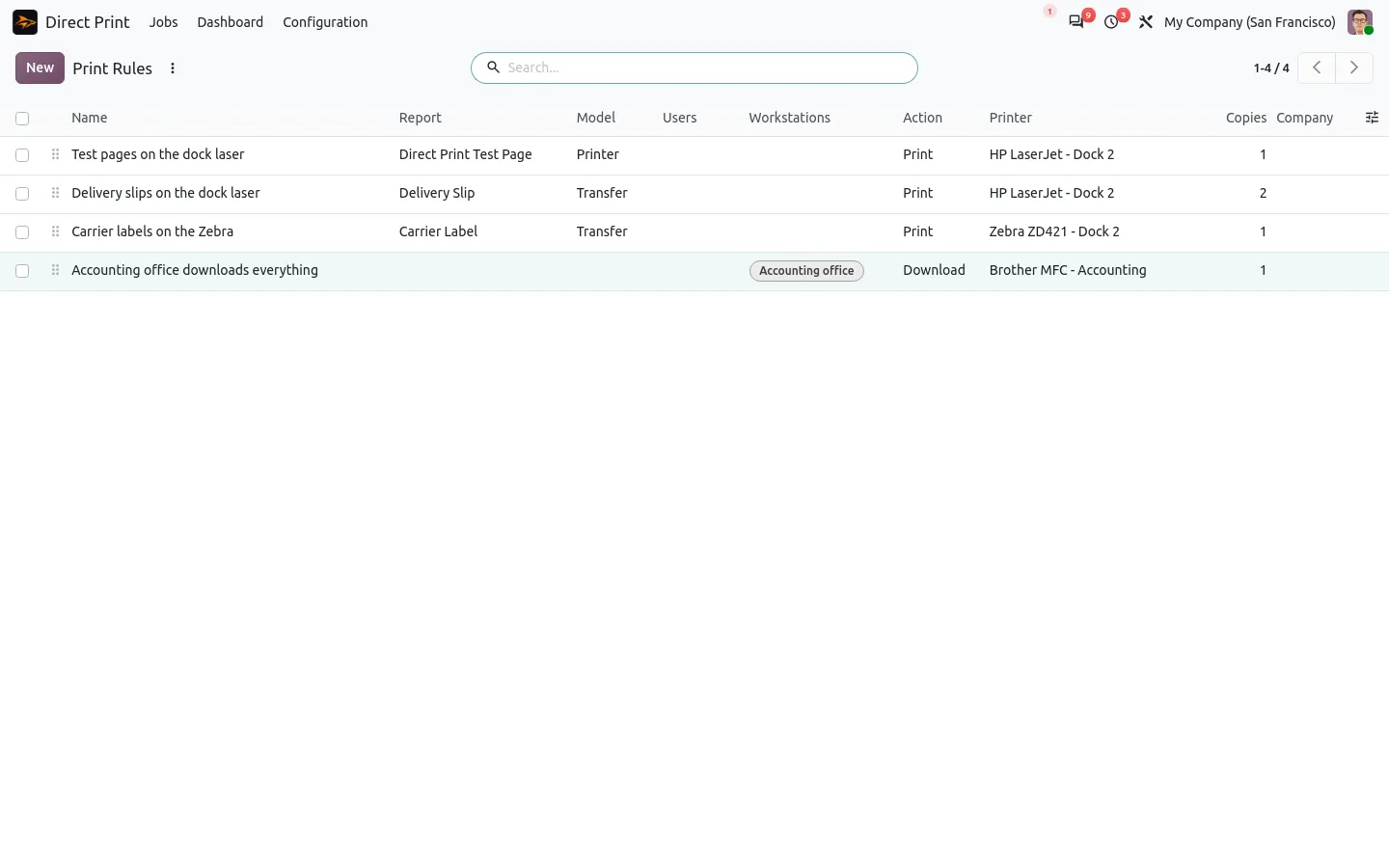
Production never waits for a printer
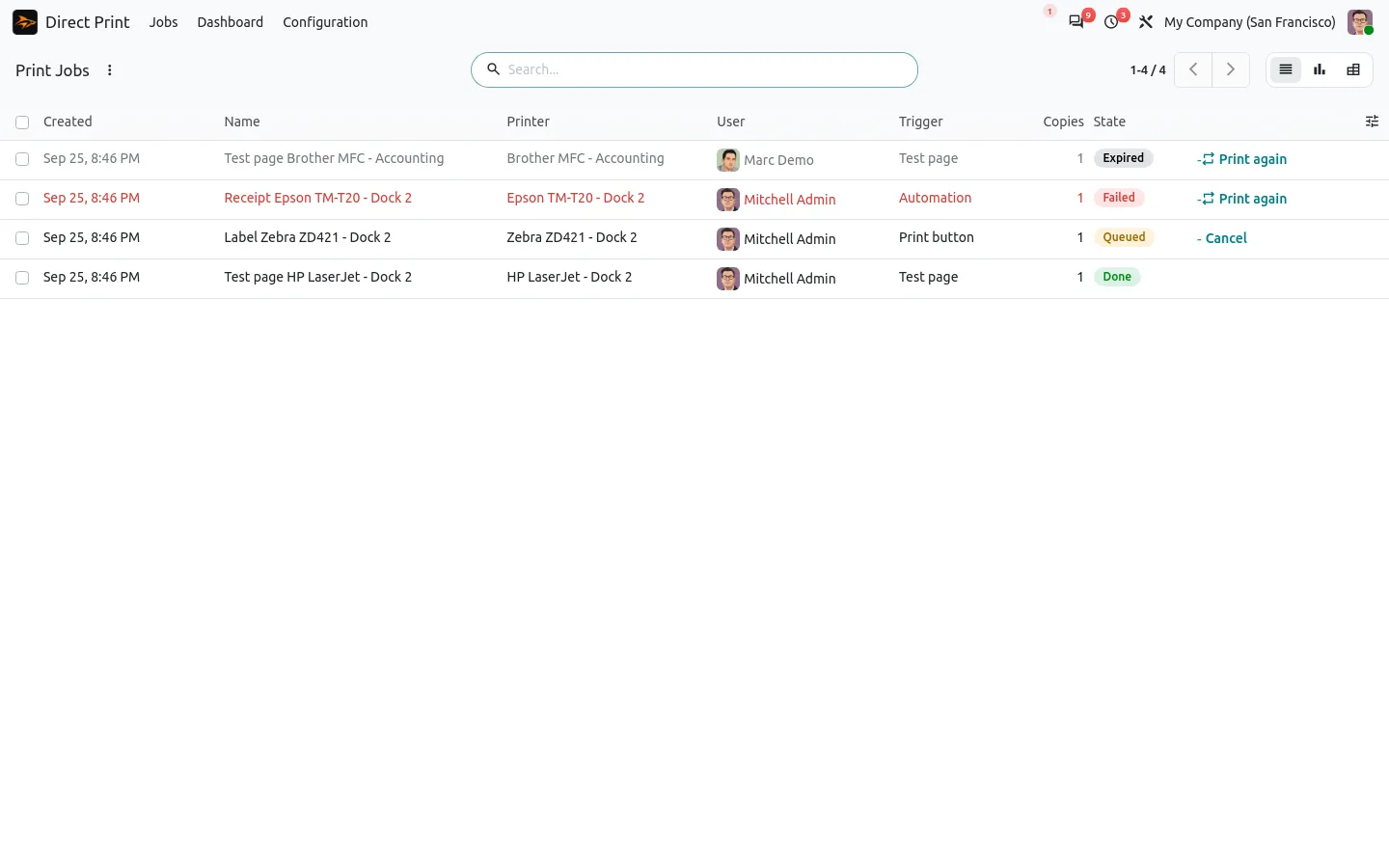
If a label cannot be printed, the order is still marked done and the error is logged; the other labels keep printing. Every job has a state in the print queue, with the printer error and a Print again button when something goes wrong, and a double click still prints only once.
100% tested
The apps ship with automated tests. No risk.
Up and running in an afternoon
Install Direct Print and its Manufacturing companion from the Odoo Apps Store: the companion installs itself when Direct Print and Manufacturing are both there. Put the print agent on a PC or a Raspberry Pi next to the printers, pair it from the setup wizard, then switch on the scenarios you need. Any Zebra or ZPL compatible printer works for raw labels, and any printer for PDF. Community and Enterprise, on Odoo.sh or on your own server (not Odoo Online). Add Direct Print for Inventory if you also want delivery slips and carrier labels.
The paperwork of production, done by Odoo
Stop printing production orders by hand and copying serial numbers onto labels. Confirm, start, finish: Odoo prints what each step needs, where it is needed.
Every scenario on the app page, and the base app on Direct Print.
A question before buying? Write to support@sharqix.com, tell us your printers and we answer within one business day.