
Electronic invoicing is spreading, but paper has not disappeared from accounting. Some private customers still expect an invoice in the mail, export customers ask for a signed copy, the last payment reminder carries more weight on paper, and many offices keep a printed file of their vendor bills. In Odoo, each of these means a PDF to download, open and print. Here is how to print invoices and reminder letters automatically, on the right printer.
A typical week in accounting:
- Each posted invoice to print is a download, then a print dialog.
- The scanned vendor bill stays in the chatter until someone prints it for the binder.
- Reminder letters are printed one customer at a time, and the overdue invoices separately, then stapled.
Automatic invoice printing in Odoo: before and after
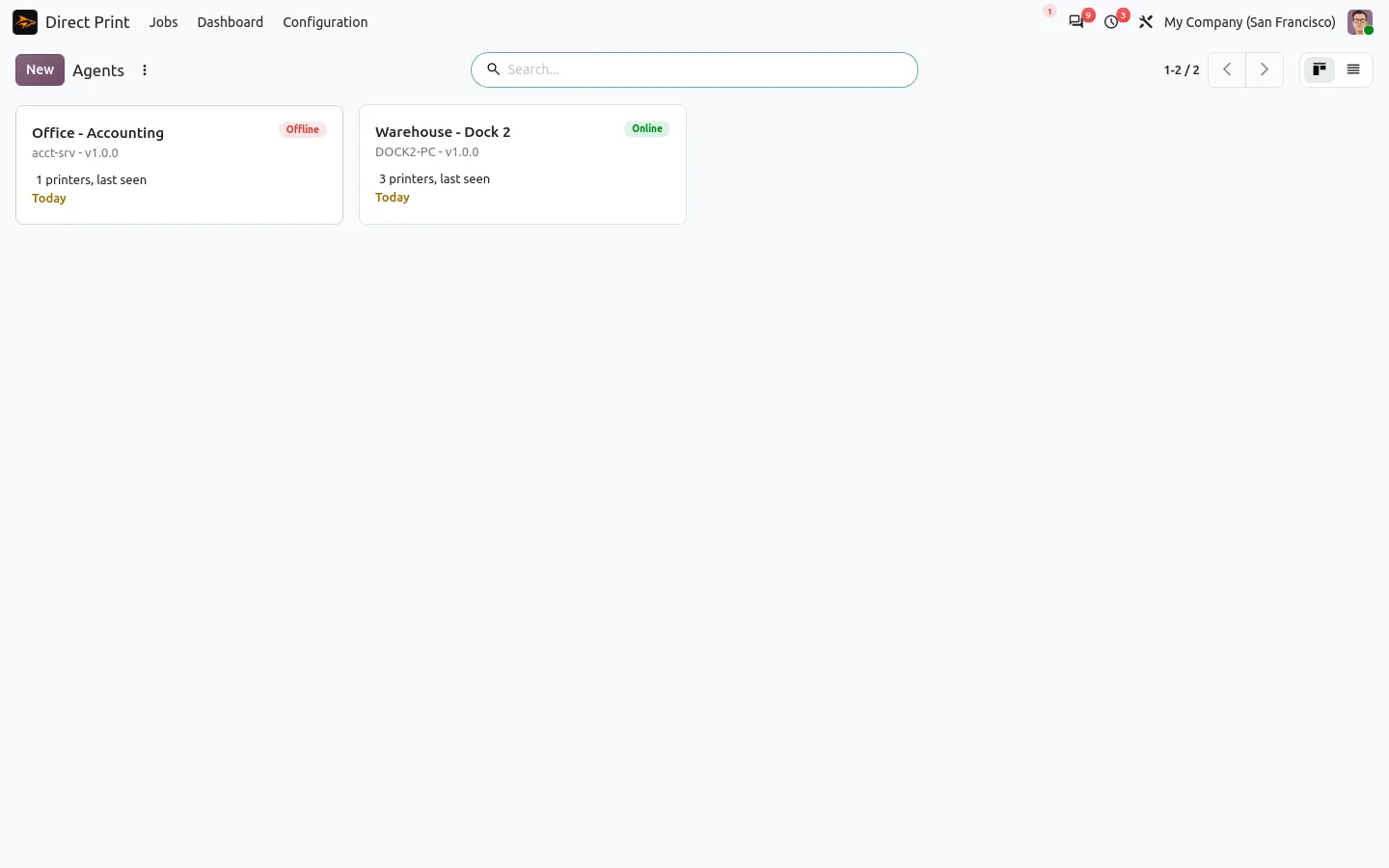
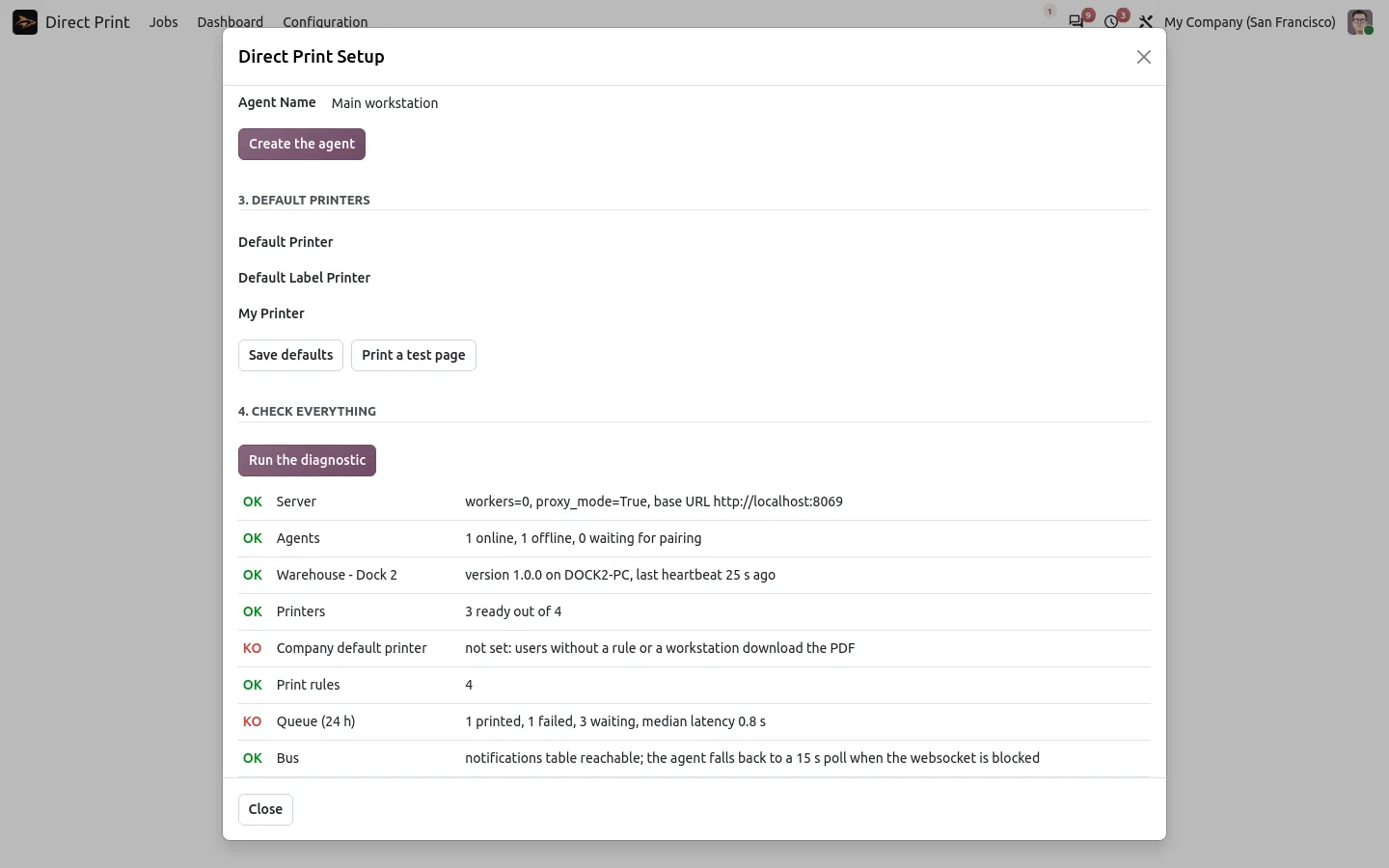
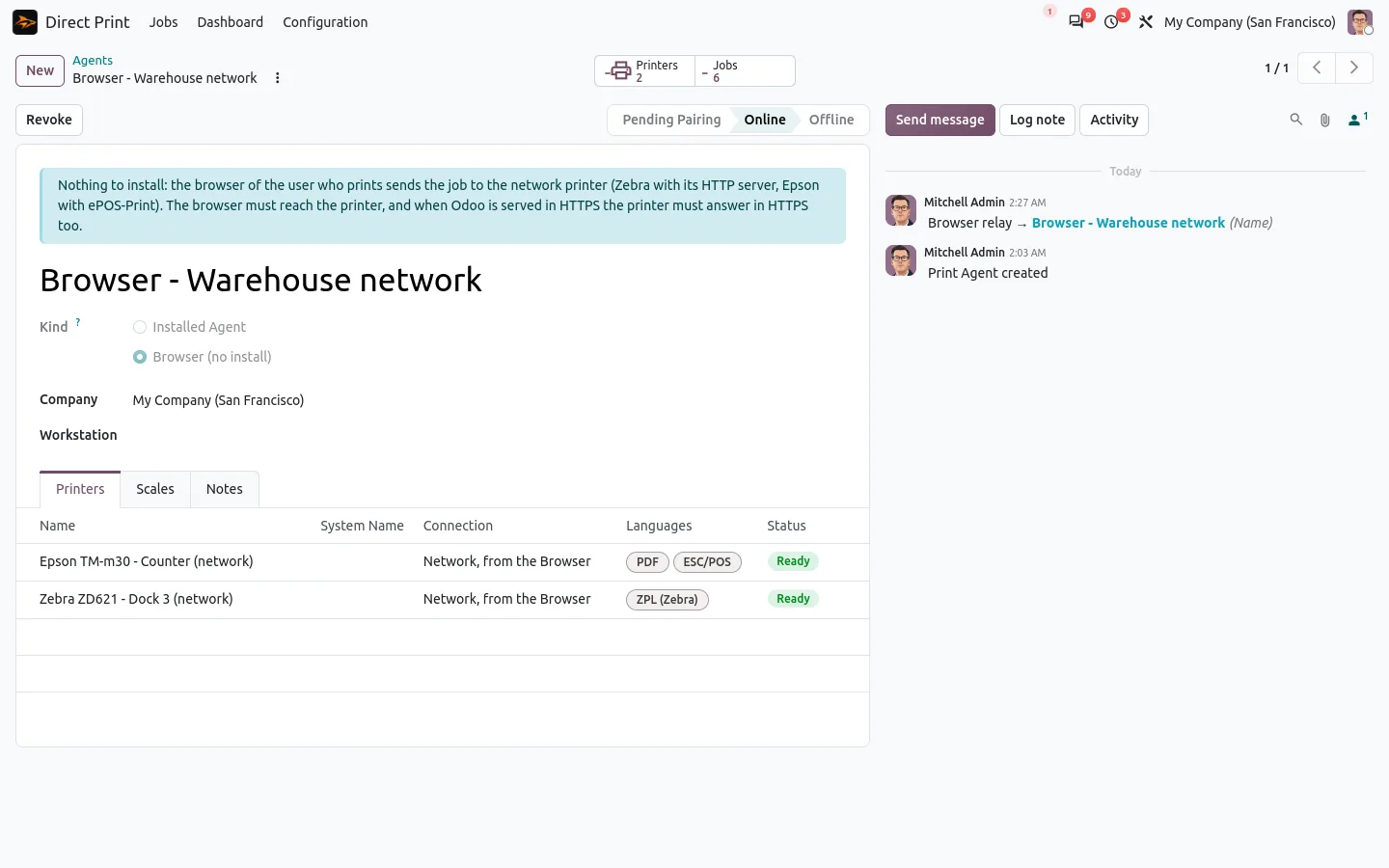
Direct Print sends Odoo documents straight to your printers through a small agent installed next to them. Its companion for Invoicing adds ready-made scenarios: you switch on the ones you need, and the document prints at the moment it should.
Before
Post the invoice. Download the PDF. Open it. Choose the printer. Do it again for the next one, and for the reminders.
After
Post the invoice: it is already printing.
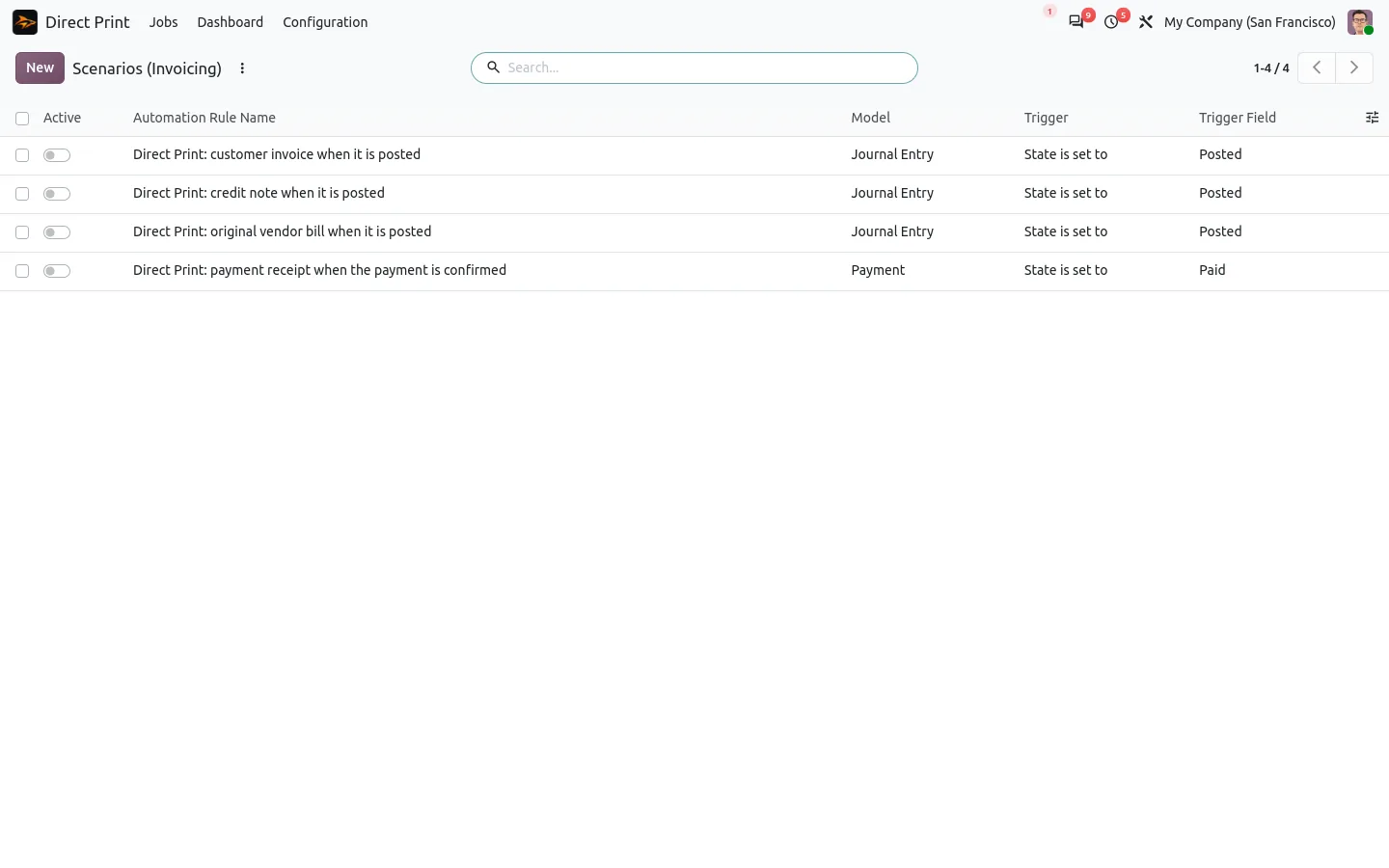
Invoices, credit notes and receipts printed when they are posted
Four scenarios come ready, all switched off until you decide: the customer invoice when it is posted, the credit note, the original document of a vendor bill with its reference in a banner, and the payment receipt when a payment is confirmed. Each scenario is a standard Odoo automation rule, so you can narrow it to one journal, one sales team or one country without writing code.
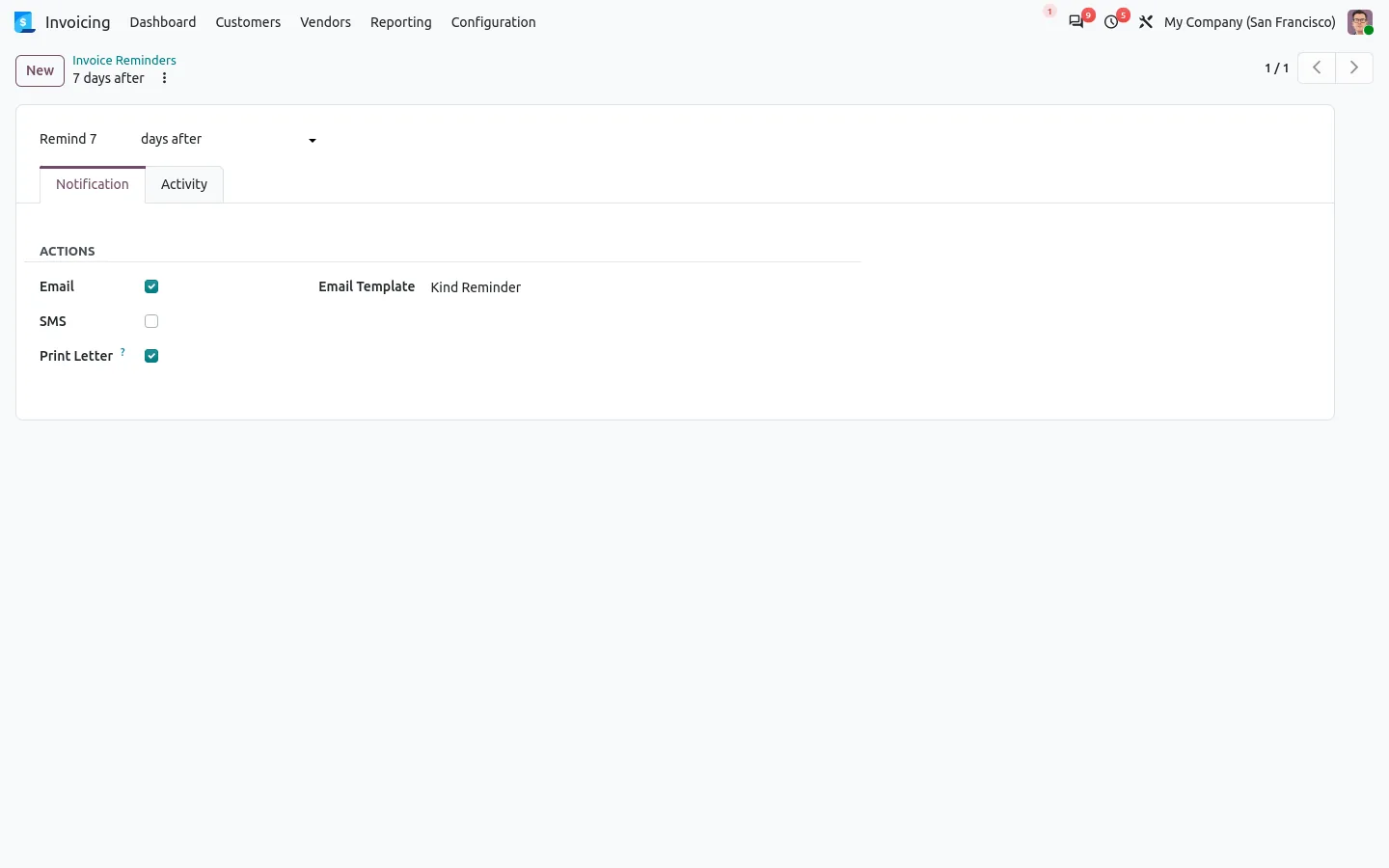
Payment reminder letters printed by the follow-up run
With Odoo Enterprise follow-ups, the follow-up companion adds Print Letter next to Email and SMS on each reminder level. When the automatic follow-up reaches a customer on that level, the letter and the PDF of the overdue invoices go to the printer as one document. Tick it on the last levels, where a paper letter makes the difference. If no printer answers, the email or SMS still leaves and the error is logged.
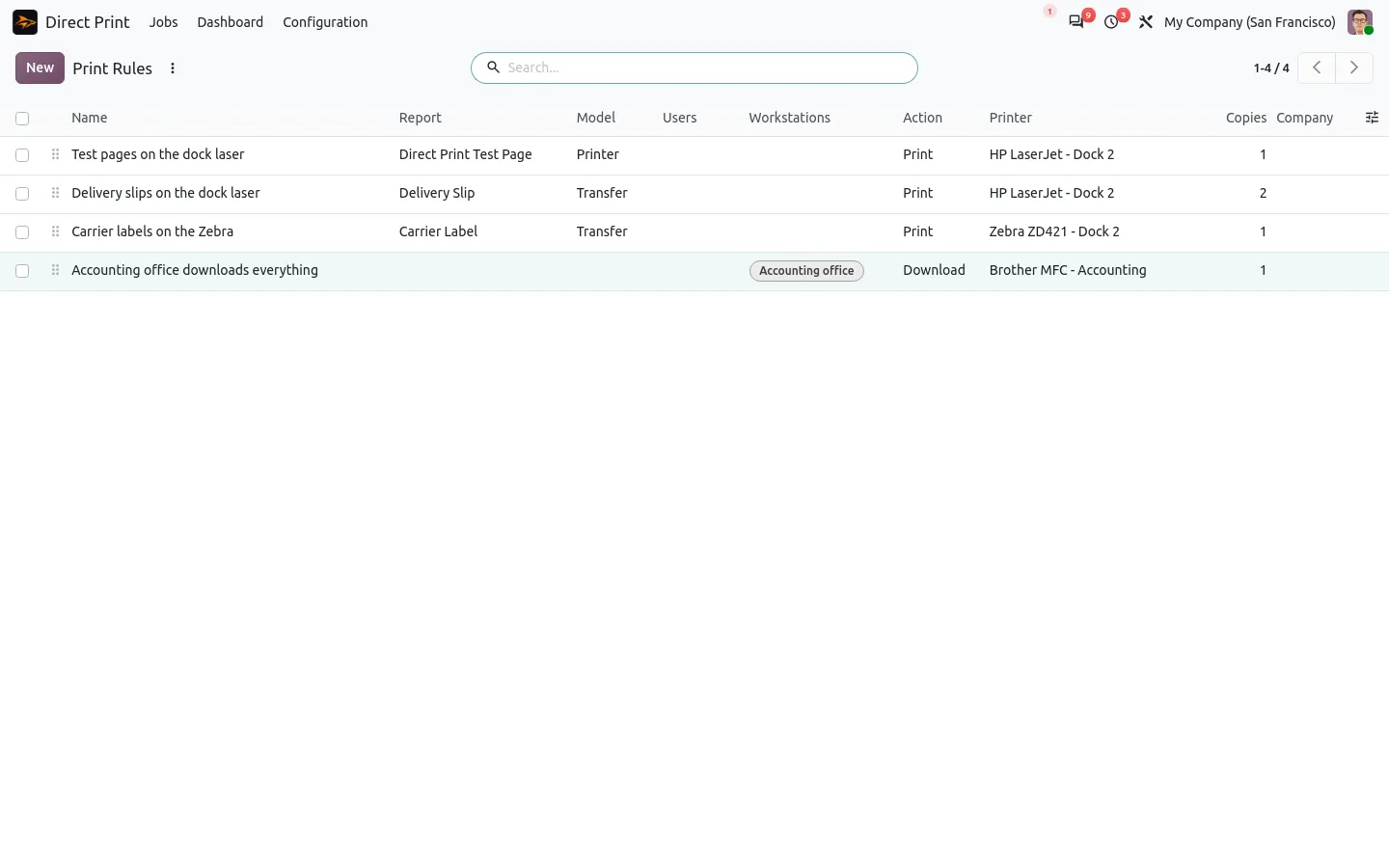
The right printer, the right tray, the right number of copies
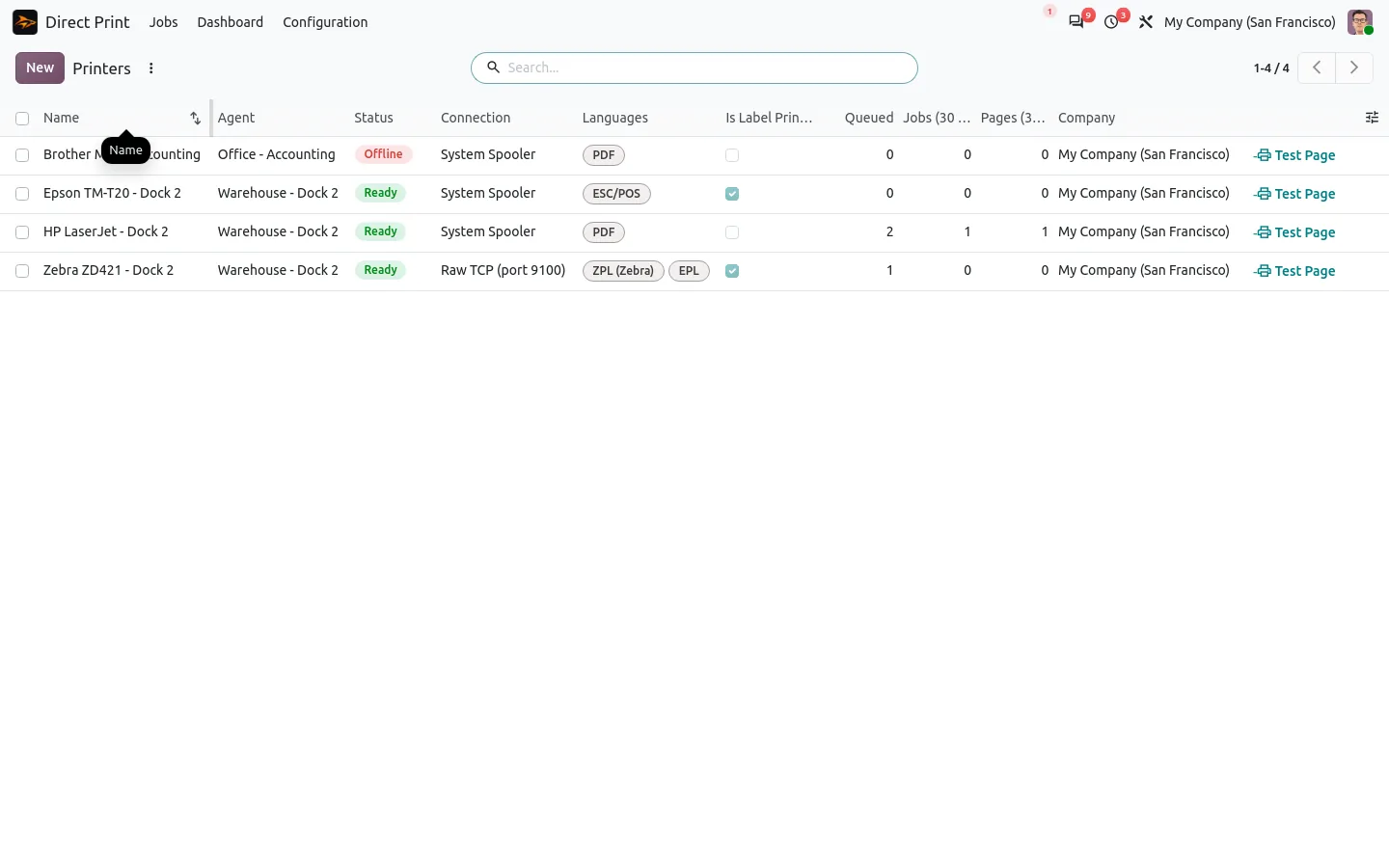
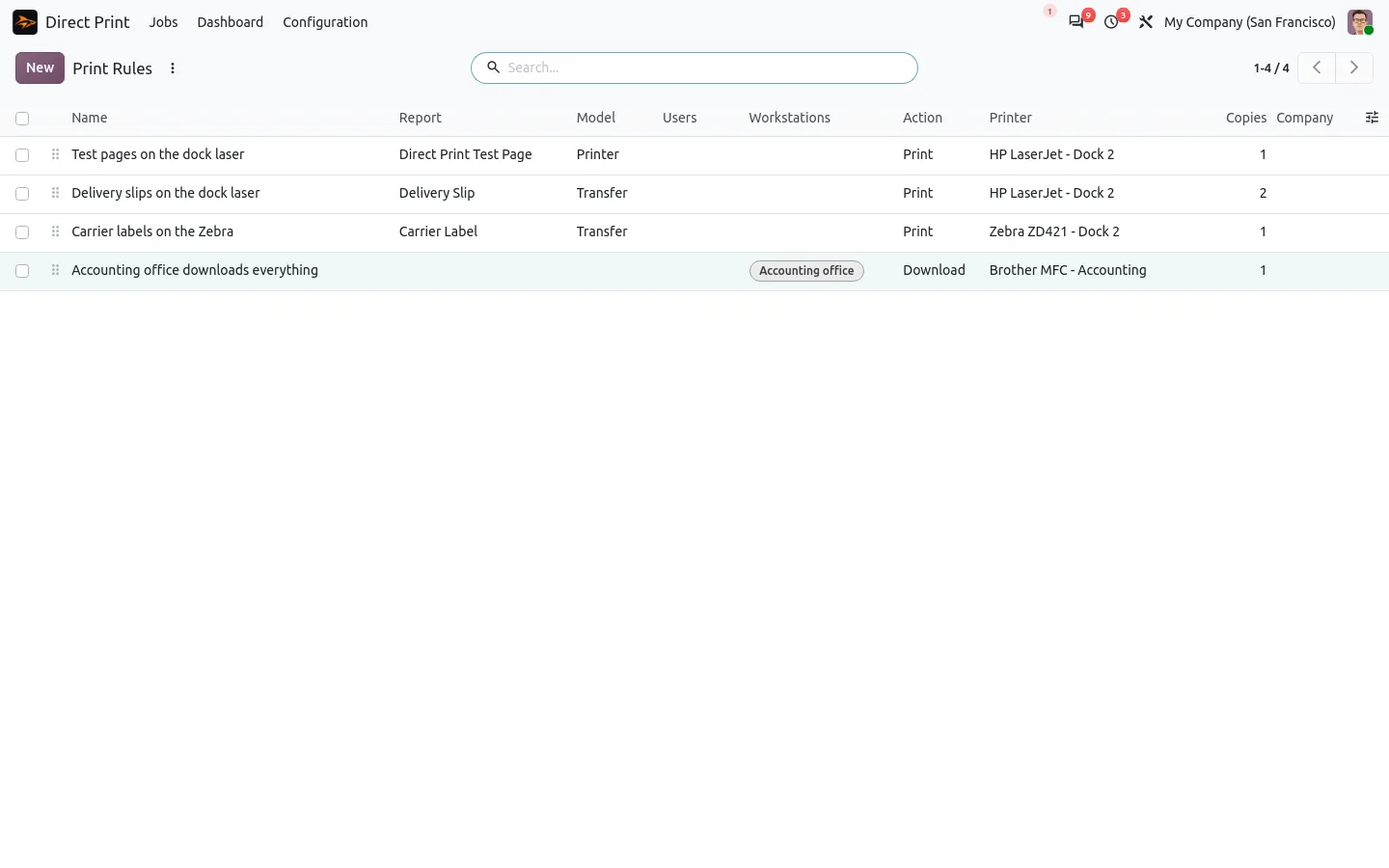
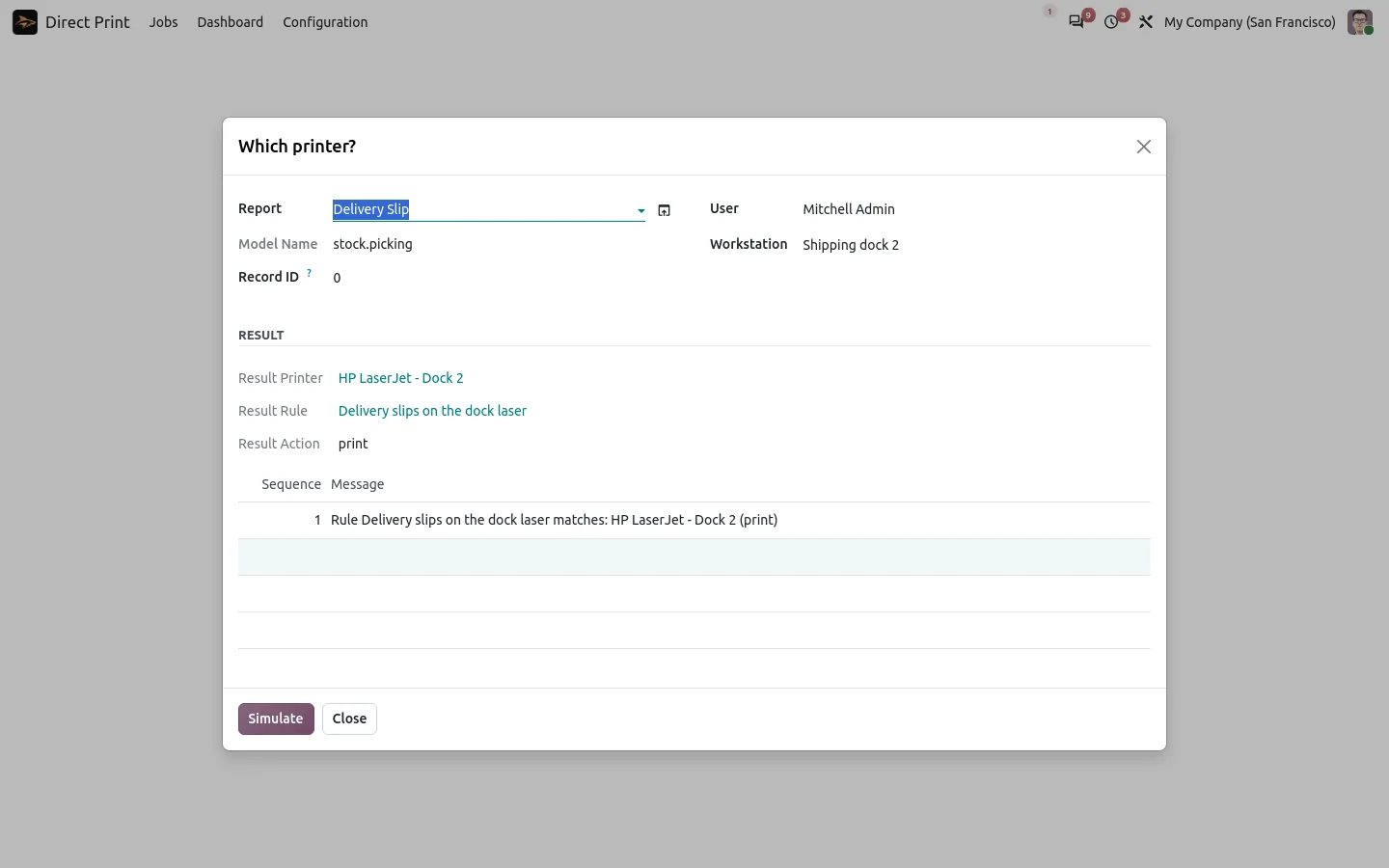
Print rules decide where each document goes: per report, per user, per workstation or per company. Two copies of the invoice, duplex, the letterhead tray of the accounting printer: it is set once, not chosen at every print. Everyone else in the company keeps their own printer, or keeps downloading if they prefer.
Safe with month-end and imports
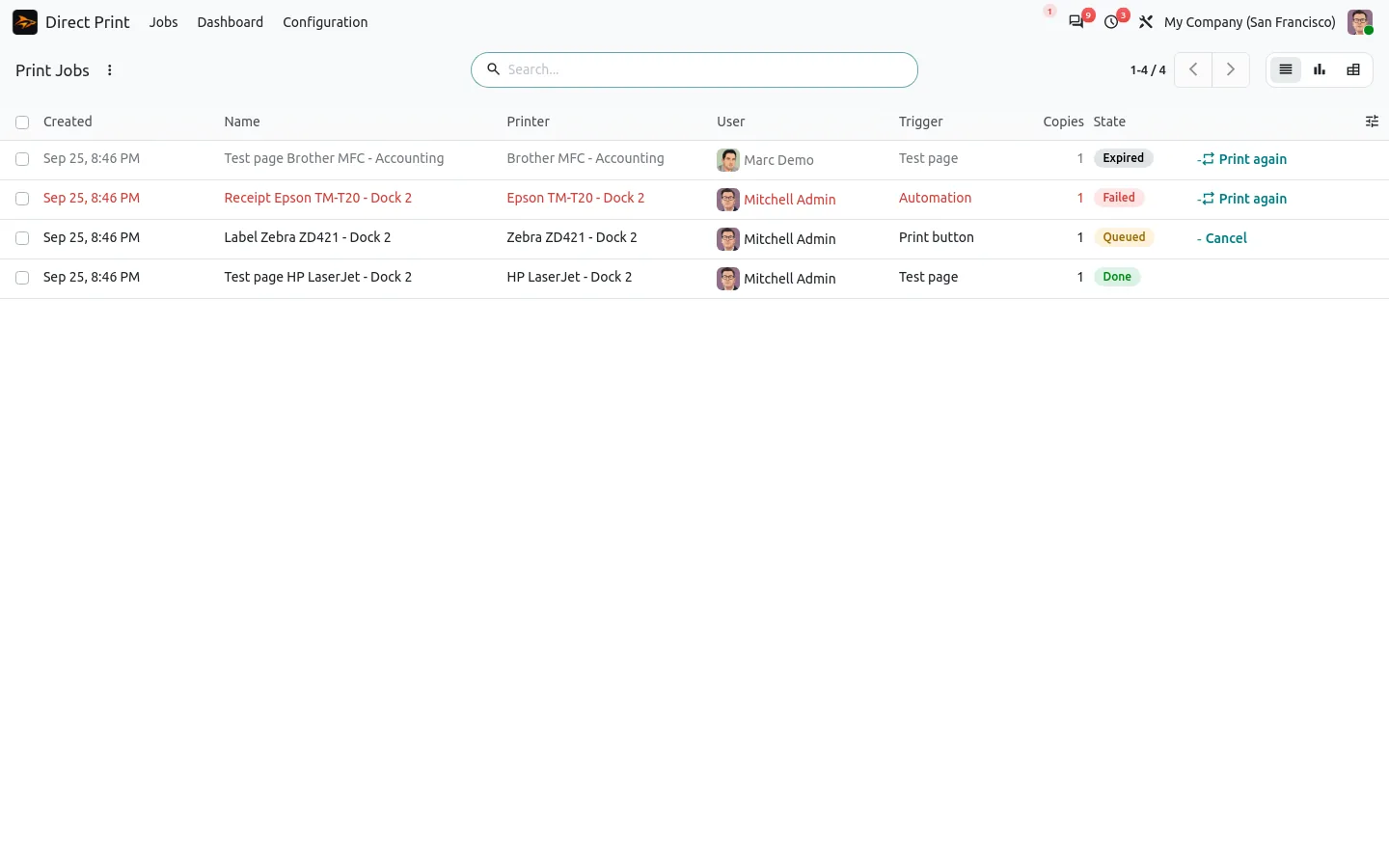
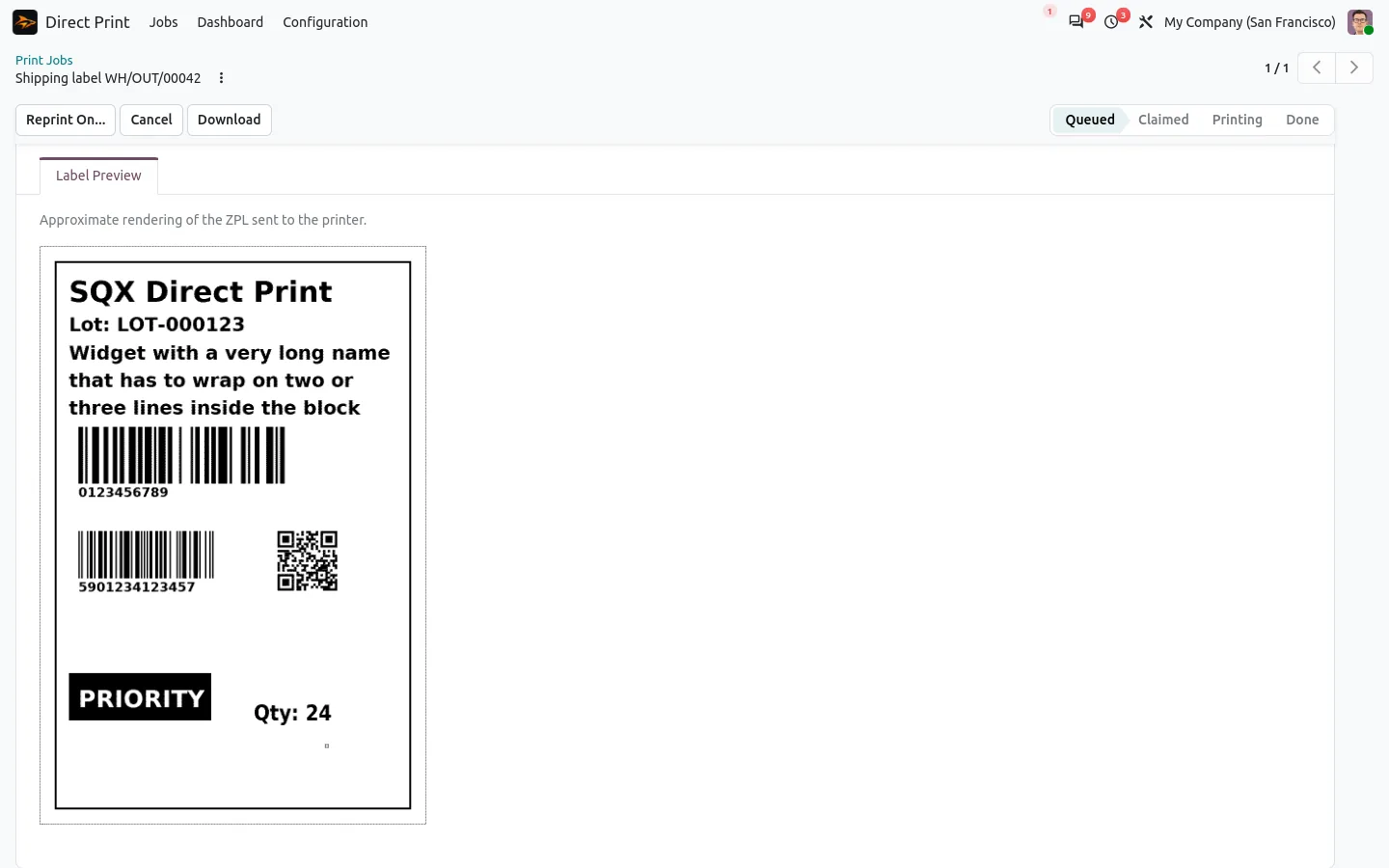
Posting five hundred invoices in one go does not send five hundred jobs one by one: a guard blocks or groups them. Every document is a job with a state, so a jammed printer never loses an invoice: the failed job shows the error and a Print again button.
100% tested
The apps ship with automated tests. No risk.
Up and running in two minutes
Install Direct Print for Invoicing: it brings Direct Print with it, and the follow-up companion installs itself when the Follow-up app of Odoo Enterprise is there. Get the agent on sharqix.com/direct-print, pair it with a short code, and switch on the scenarios you want. Invoicing works on Community and Enterprise, on Odoo.sh or on your own server, paid once with no subscription. How the agent works is explained in our Direct Print guide.
Paper when it matters, without the clicks
Keep paper for the customers and the files that need it, and let Odoo print it at the right moment.
For reminder letters: Direct Print for Follow-ups.
A question before you buy? Write to support@sharqix.com, we answer within one business day.