
10.00 €
Office Preview for Attachments
Open Word, Excel, PowerPoint and Outlook attachments in the chatter, without downloading them and without any external service.
Get it on Odoo Apps
Productivity
Send PDF reports and ZPL, EPL or ESC/POS labels straight to local printers through a small local agent: auto print on any event, a queue that never loses a job, no cloud, no subscription.

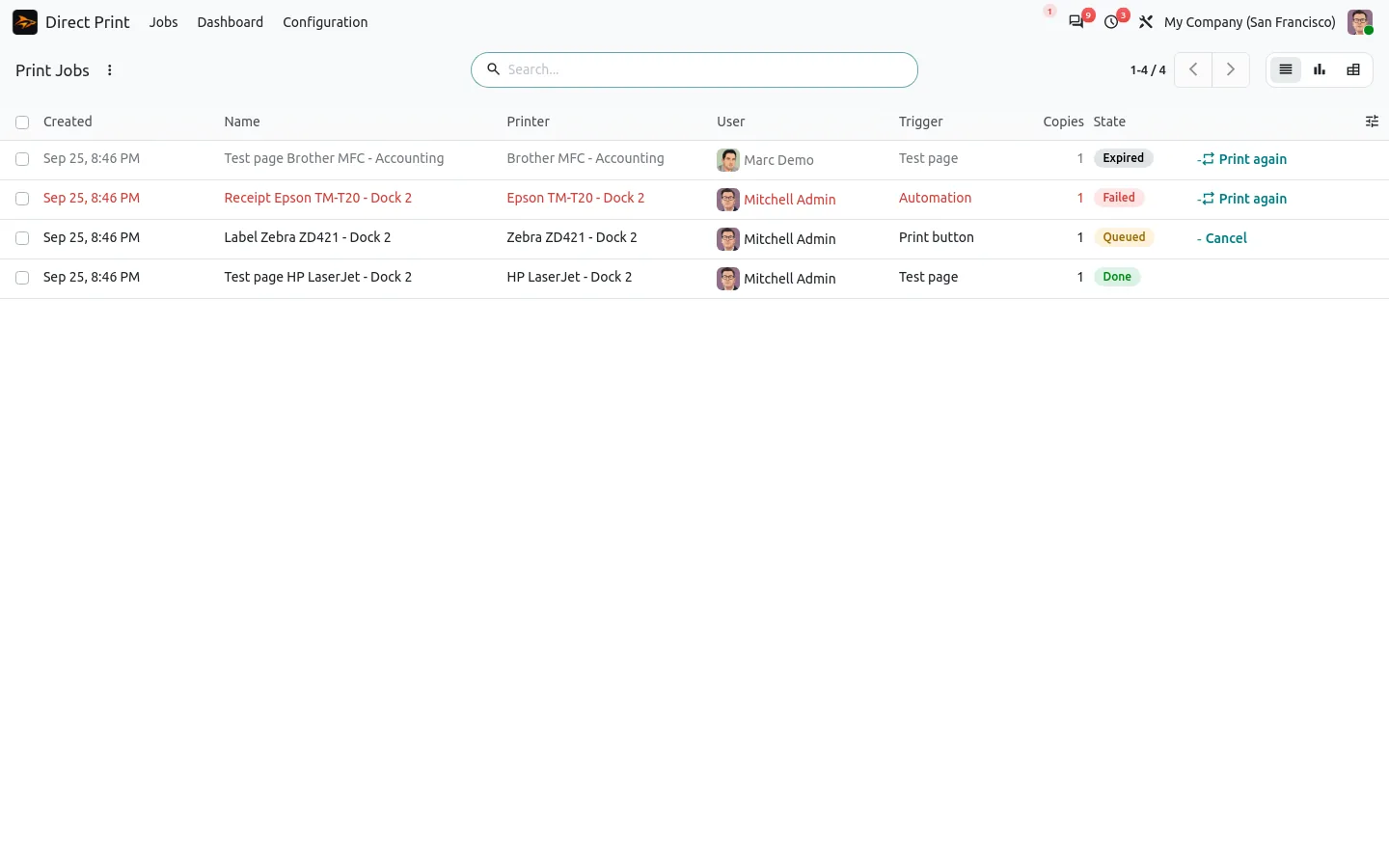
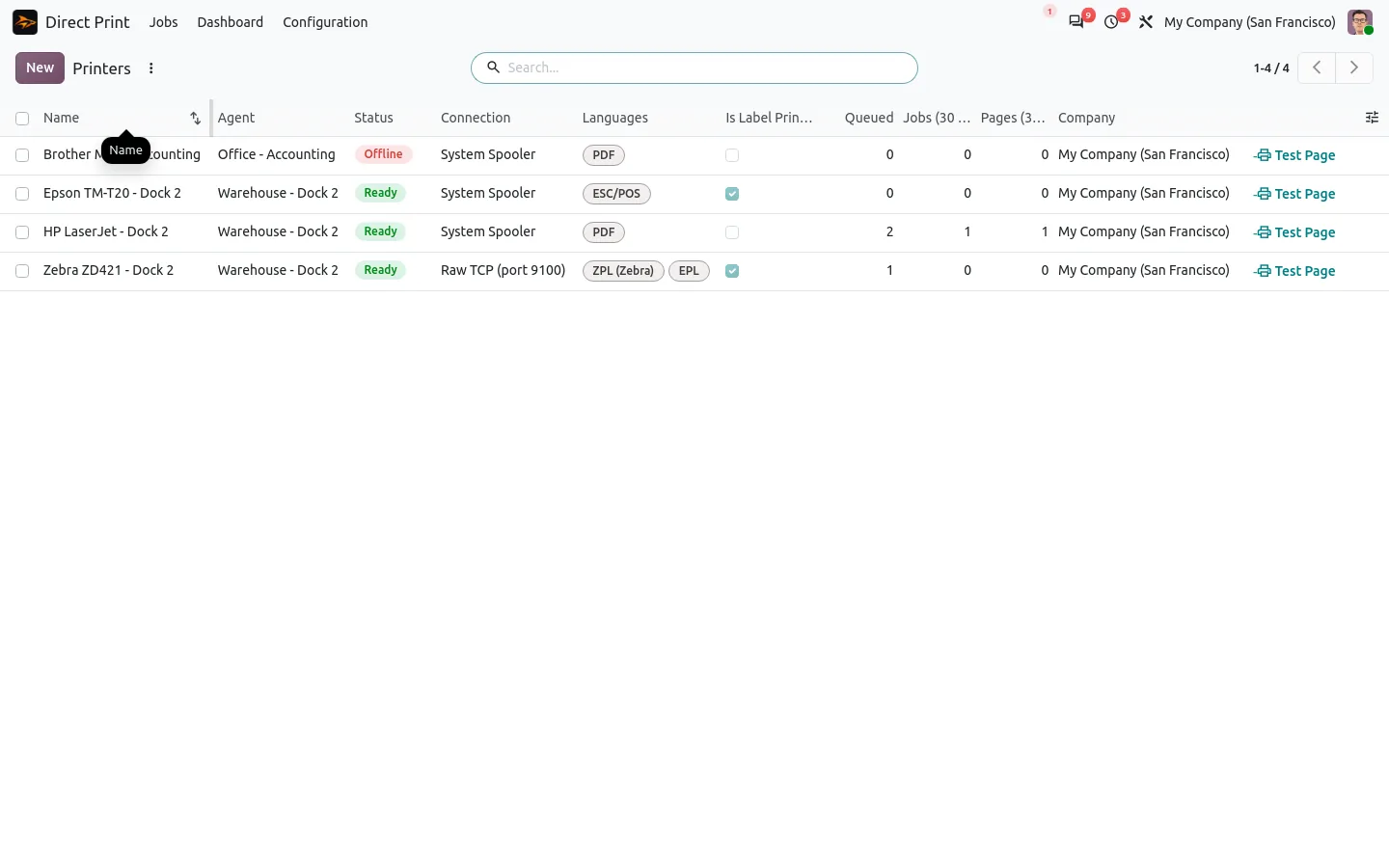
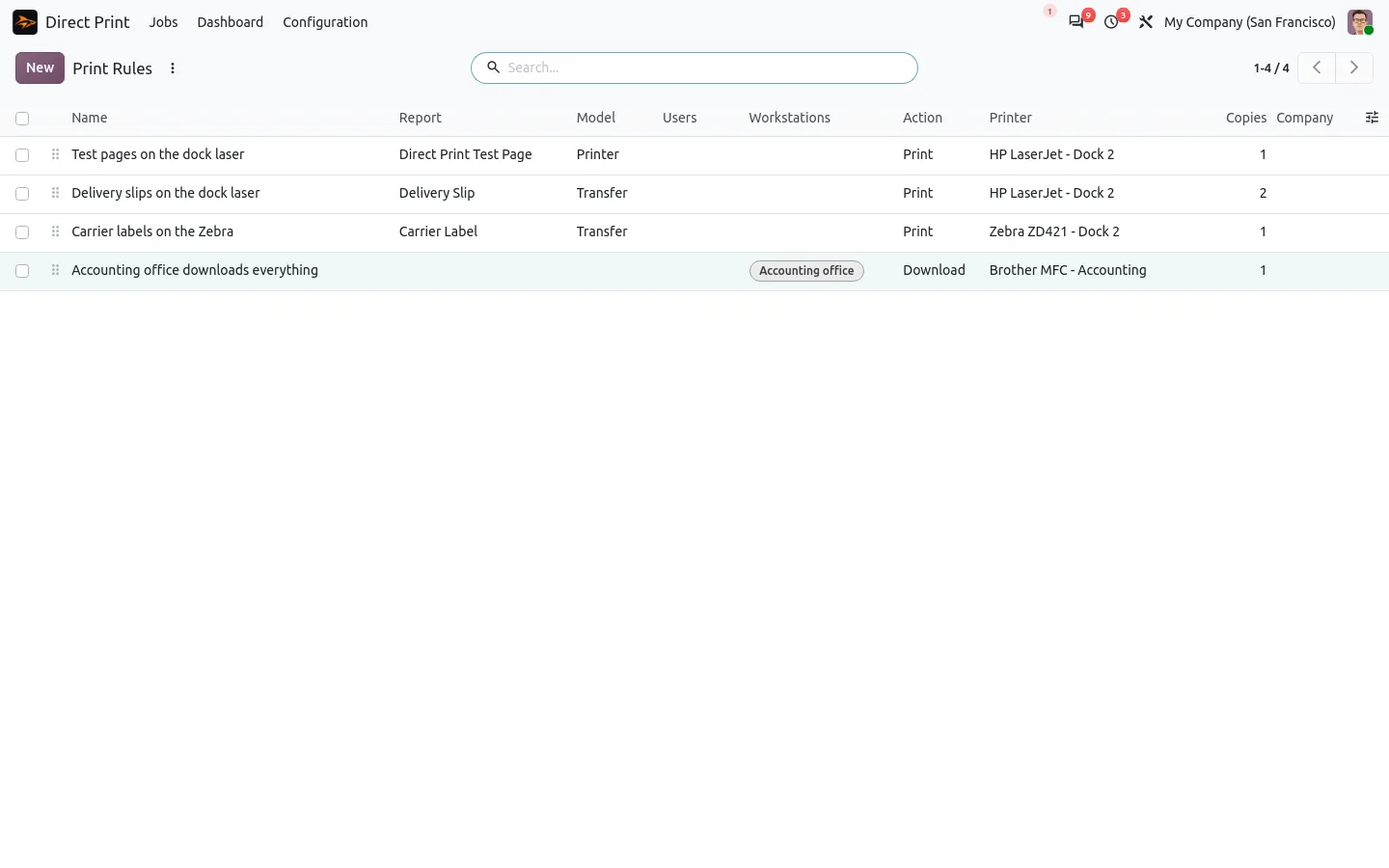
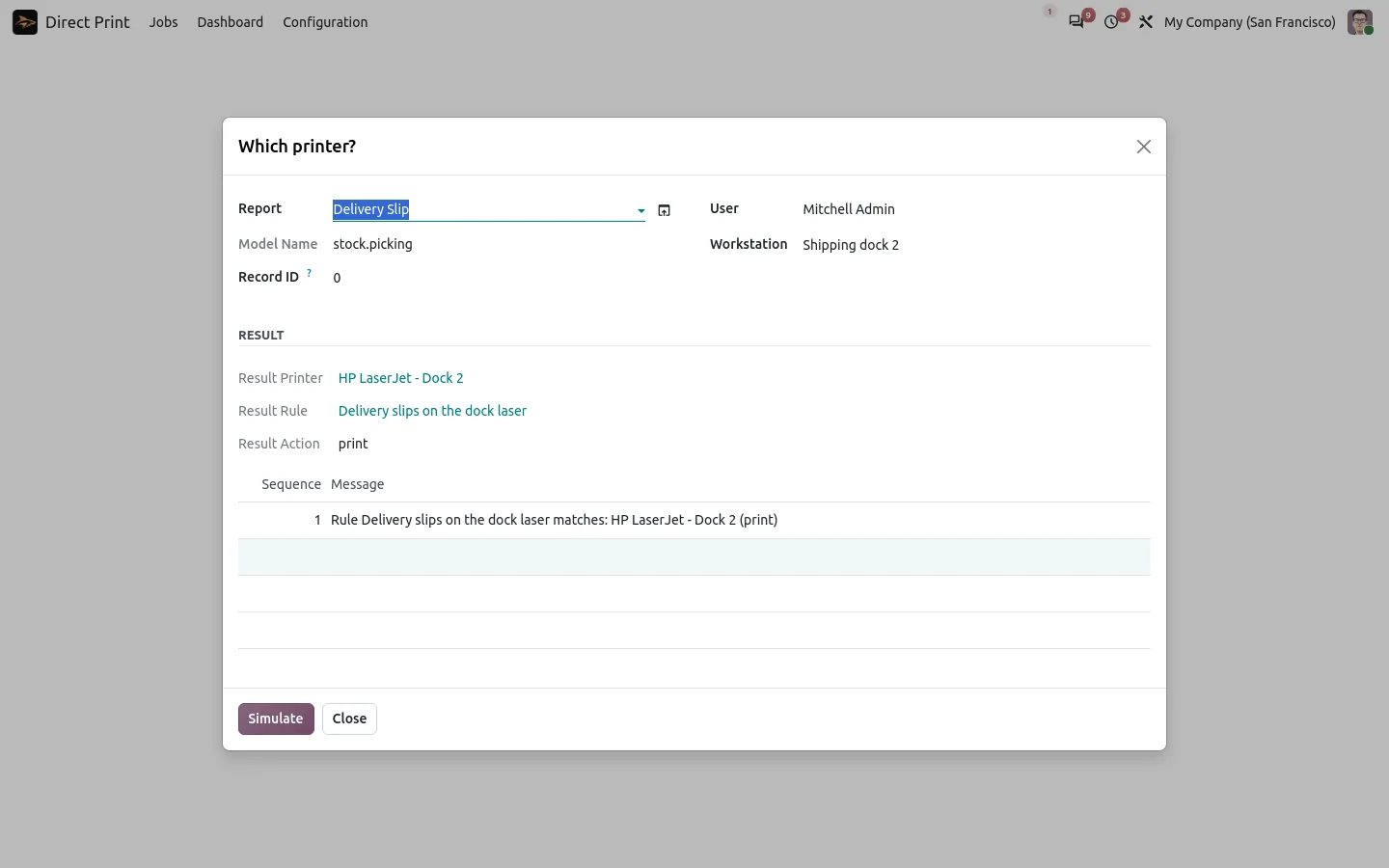
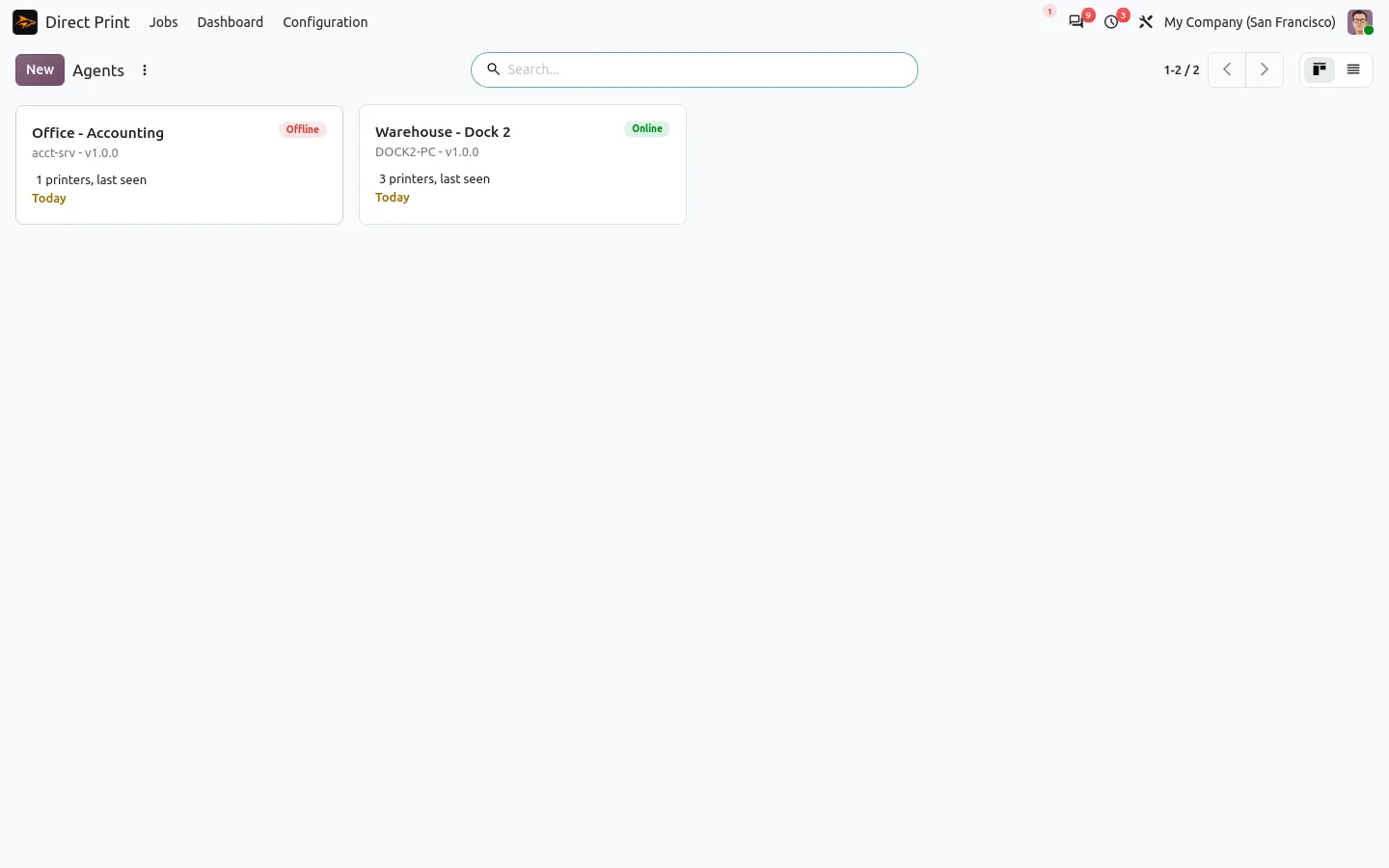
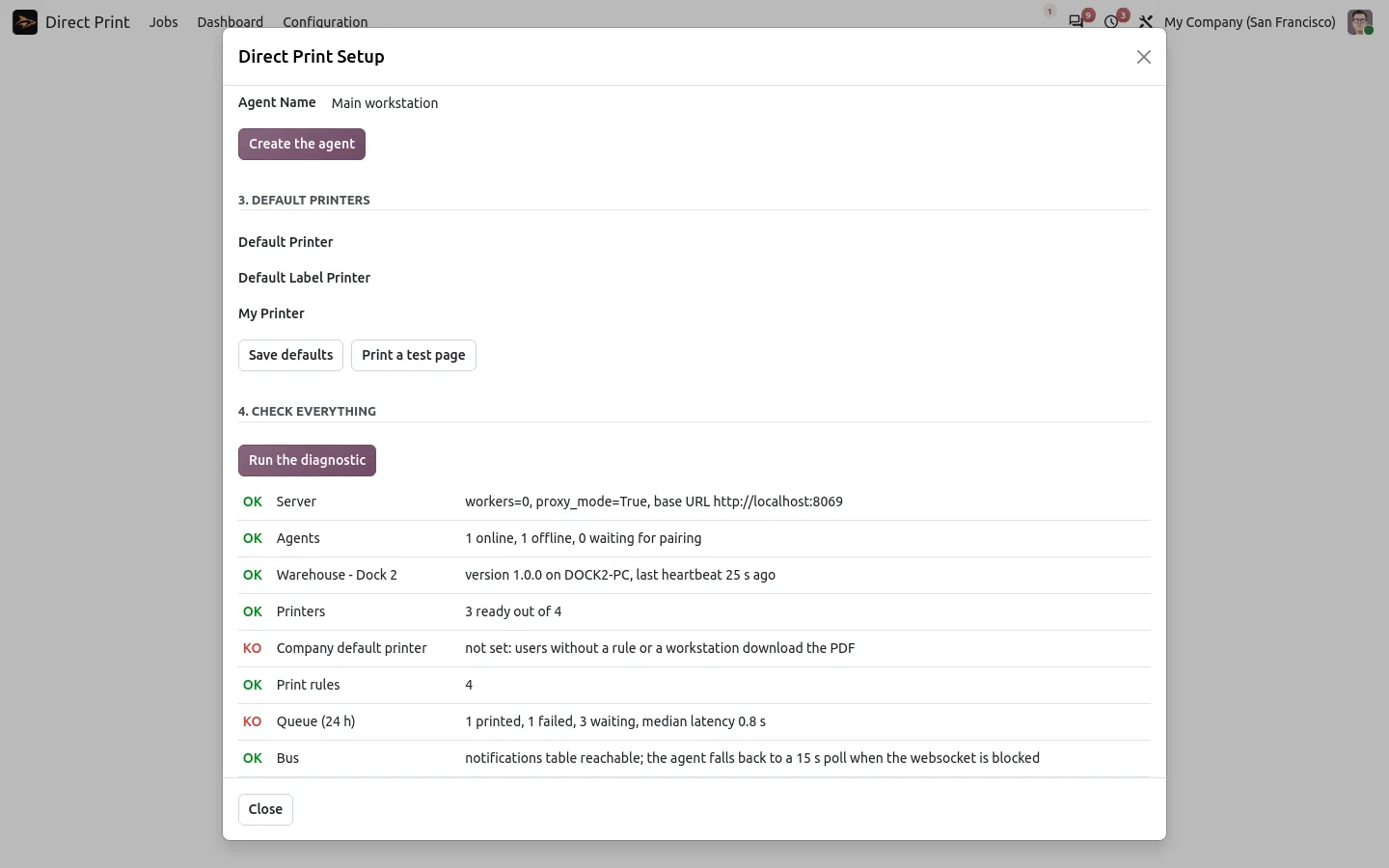
In standard Odoo, Print downloads a PDF that you open and send to a printer yourself, and label printers need an IoT box or a cloud print service. With Direct Print, a click on Print sends the document to the right printer, with a message to confirm it.
You pay once: no subscription and no fee per print.
Odoo renders the document and puts it in a print queue. A small agent for Windows, Linux or macOS, installed on a PC or a Raspberry Pi next to the printers, connects out to Odoo over HTTPS, takes the job, prints it and confirms. No port to open, no Odoo user license used, and the documents stay between your Odoo and your printers.
Each job has a state: queued, printing, done, failed or expired. A failed job shows the printer error and a Print again button, and a double click still prints only once.
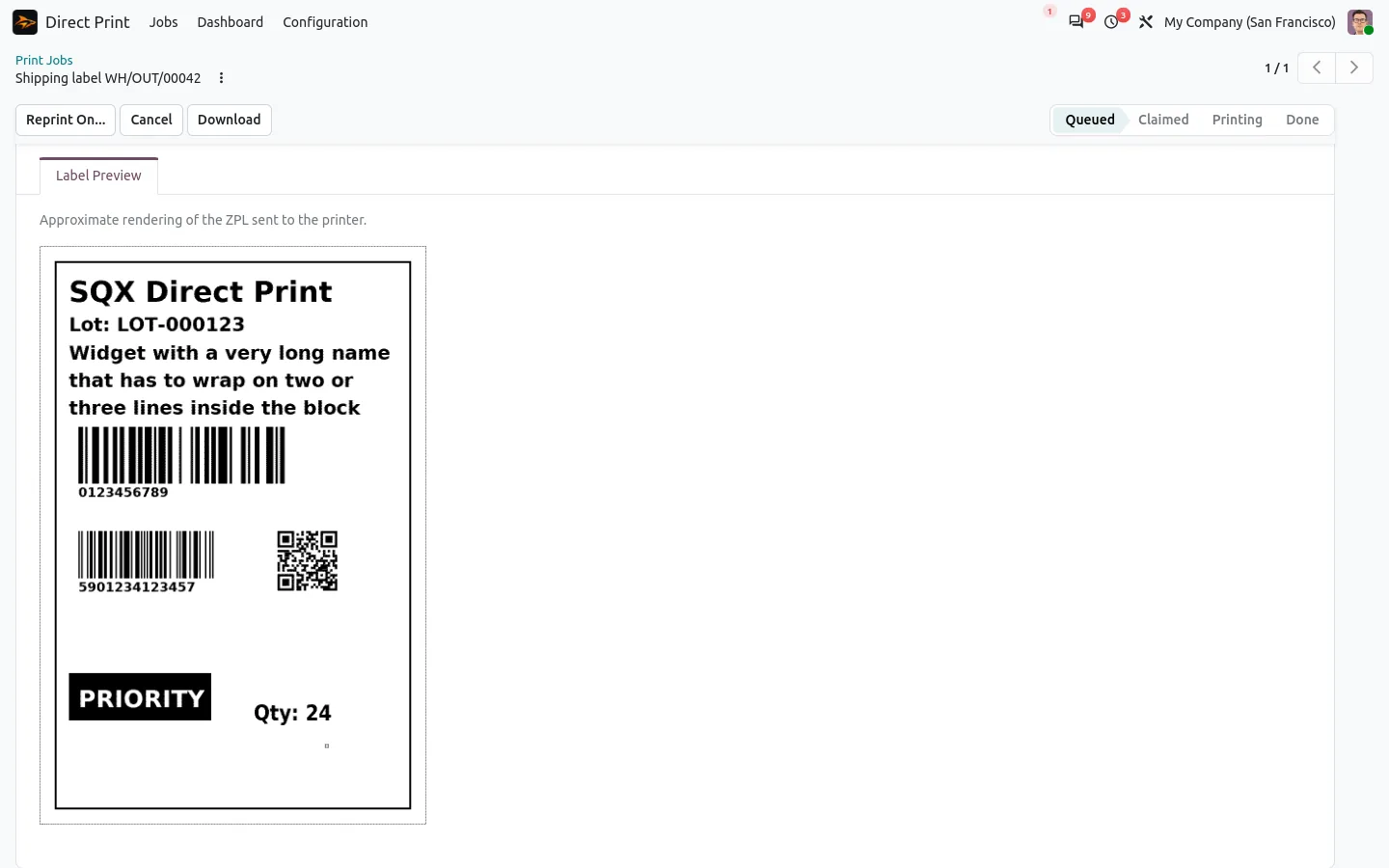
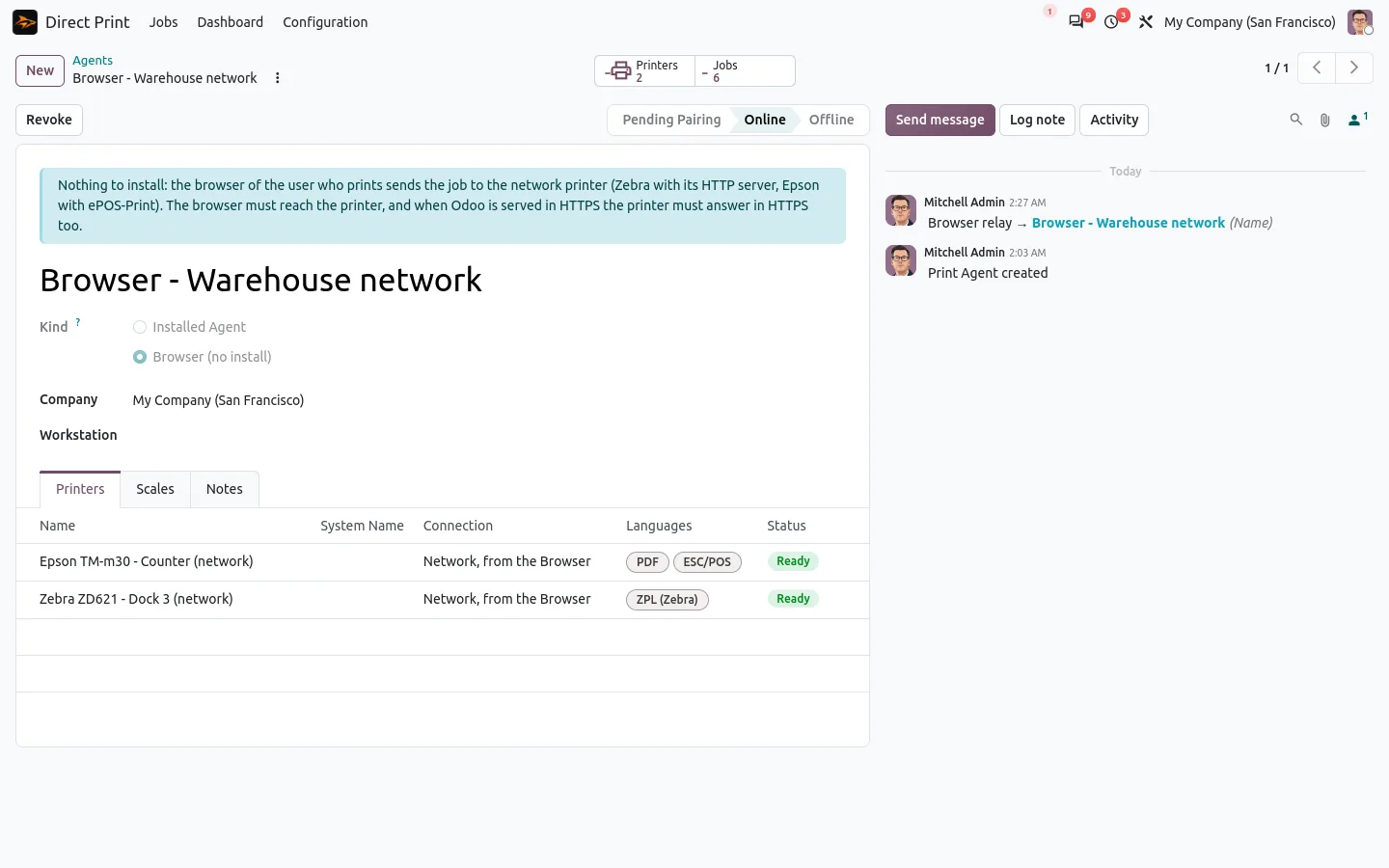
Label reports in ZPL are sent raw to the Zebra printer, USB or network, through the agent or on port 9100. Before a ZPL job prints, a preview shows the label at the resolution of the printer, with its text, barcodes, QR codes and boxes, so no label roll is wasted on a wrong layout. Network Zebra printers can also be reached straight from the browser of the user who prints, with nothing to install.
The app adds a Print Document action to the standard Odoo automation rules. Choose the trigger, a state change, a creation, a date or a webhook, and the report: an invoice posted is printed, a delivery validated prints its slip. Print rules then choose the printer by report, user, workstation or company, with the number of copies, the tray and duplex.
Direct Print alone prints any report. Companion apps add scenarios you switch on, and the documents that are not reports:
Documentation and installation are on the page of your Odoo version.
Some customers still want paper, and the accounting binder too. Here is how Odoo can print invoices and reminder letters by itself, on the right printer.
Read the articleNo. The Direct Print agent replaces them, with no subscription and no fee per print.
Any USB or network printer the agent machine can print to through its system spooler, and label or receipt printers reached in raw TCP on port 9100. The agent reports each printer with its trays and paper formats, and a label printer only receives raw label data.
Yes. The agent connects out to your Odoo address over HTTPS, as a browser does. If the internet line drops, jobs wait in the queue and print once it is back, never twice. Odoo Online does not accept third-party modules.
Yes. Hold Shift when you click Print to download it, hold Ctrl to pick a printer, or add a rule that downloads for a given user or workstation.
Yes. Printers and settings can be imported from the Odoo Printer app, OCA report-print-send or Ventor in a few clicks.
After your purchase, open the download page and enter your Odoo Apps order reference: the link arrives by email. Then pair the agent from the setup wizard in Odoo.
Open Word, Excel, PowerPoint and Outlook attachments in the chatter, without downloading them and without any external service.
Get it on Odoo Apps
Search the chatter as you type, filter notes, emails and logs, reply in threads, get reminded and hide the chatter in one click.
Get it on Odoo Apps
The same office preview in the kanban, list and activity views of Documents, with readable thumbnails.
Get it on Odoo Apps