
10.00 €
Office Preview for Attachments
Open Word, Excel, PowerPoint and Outlook attachments in the chatter, without downloading them and without any external service.
Get it on Odoo Apps
Purchase
Paste quotation lines in a purchase order at the vendor price, insert and move lines where they belong, and number them on screen and on the PDF.
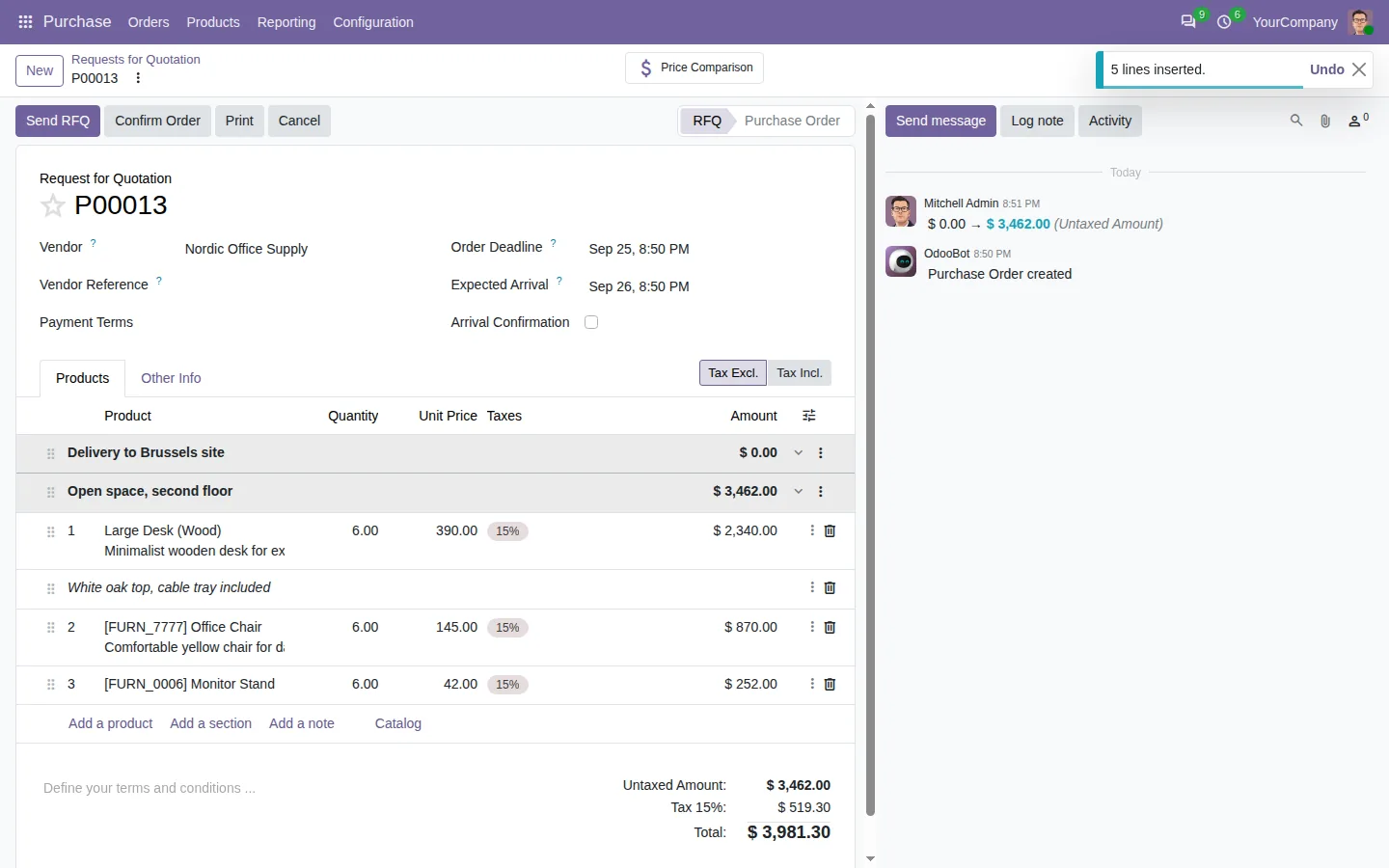
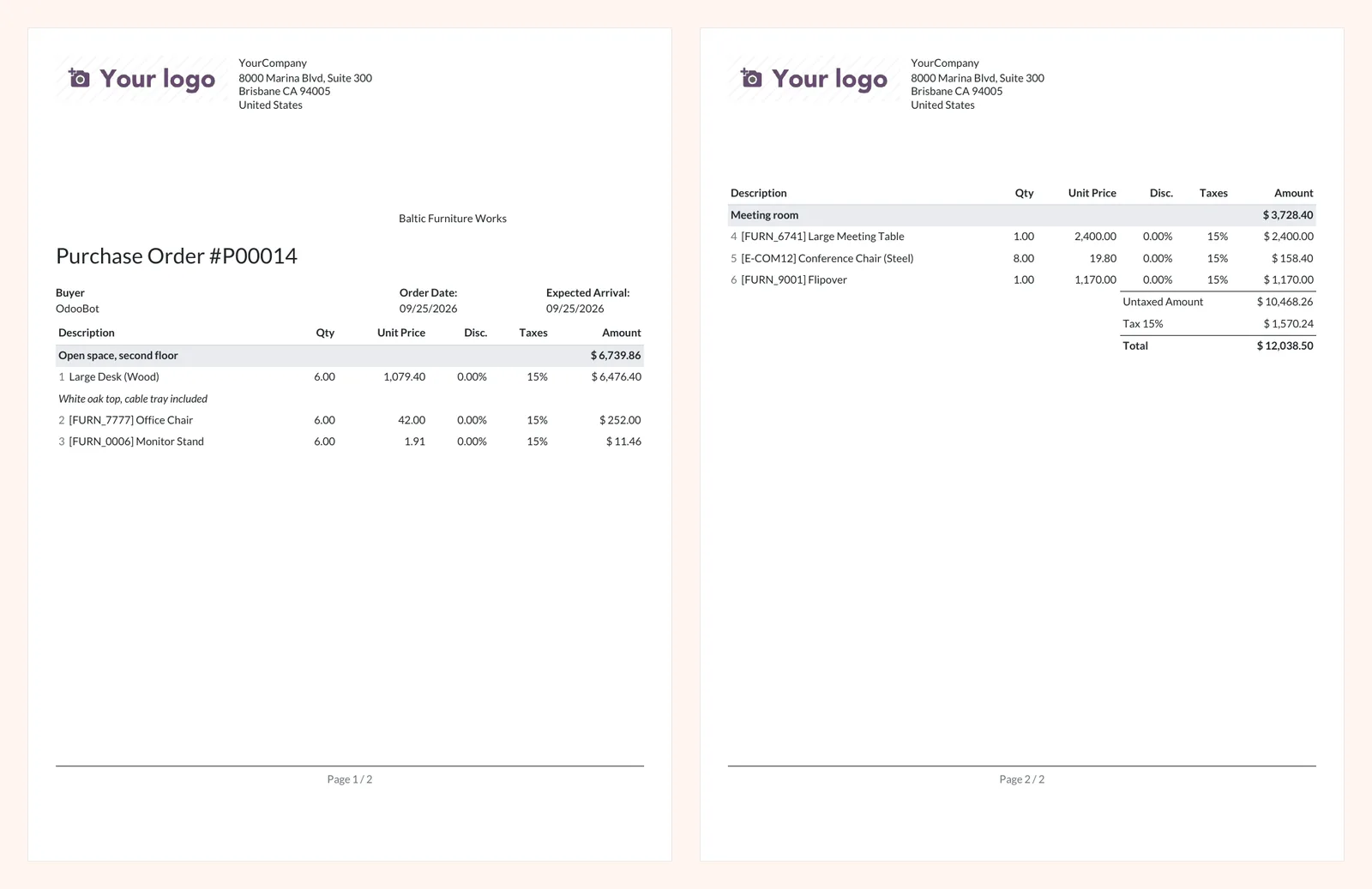
In standard Odoo, the lines of a customer quotation are typed again in the purchase order. With this app, copy a section of the quotation, open the request for quotation and press Ctrl+V: quantities and notes follow, and Odoo prices each line for the vendor, from the vendor price list first, then the product cost.
Turn the numbers on in the Purchase settings: lines are numbered 1, 2, 3 on screen and on both PDFs, the request for quotation and the purchase order. Every line also gets the menu of Insert Line, to insert, duplicate and move lines, with foldable sections, page breaks and undo.
Documentation and installation are on the page of your Odoo version.
In Odoo, a new line goes to the end of the section and you drag it back up. Here is how to insert a line exactly where it belongs, and reuse lines between quotations, purchase orders and invoices.
Read the articleThis app and Insert Line Base. Once both are in your database, this one installs itself with the Purchase app.
The one Odoo gives when you type the product: the vendor price list first, then the product cost. Prices are kept only between two purchase orders.
Open Word, Excel, PowerPoint and Outlook attachments in the chatter, without downloading them and without any external service.
Get it on Odoo Apps
Search the chatter as you type, filter notes, emails and logs, reply in threads, get reminded and hide the chatter in one click.
Get it on Odoo Apps
The same office preview in the kanban, list and activity views of Documents, with readable thumbnails.
Get it on Odoo Apps