
You are building a quotation of forty lines and the customer adds one desk, in the middle of the second section. In Odoo, the new line goes to the end of the section, and you drag it back up. Here is how to insert a line between two lines in Odoo, right where it belongs, on quotations, purchase orders and invoices.
If you prepare long documents, these moments probably sound familiar:
- Every new line lands at the bottom, then you drag it to its place.
- The same three lines are needed again, so you type them again.
- The lines of the quotation are typed a second time in the purchase order for the vendor.
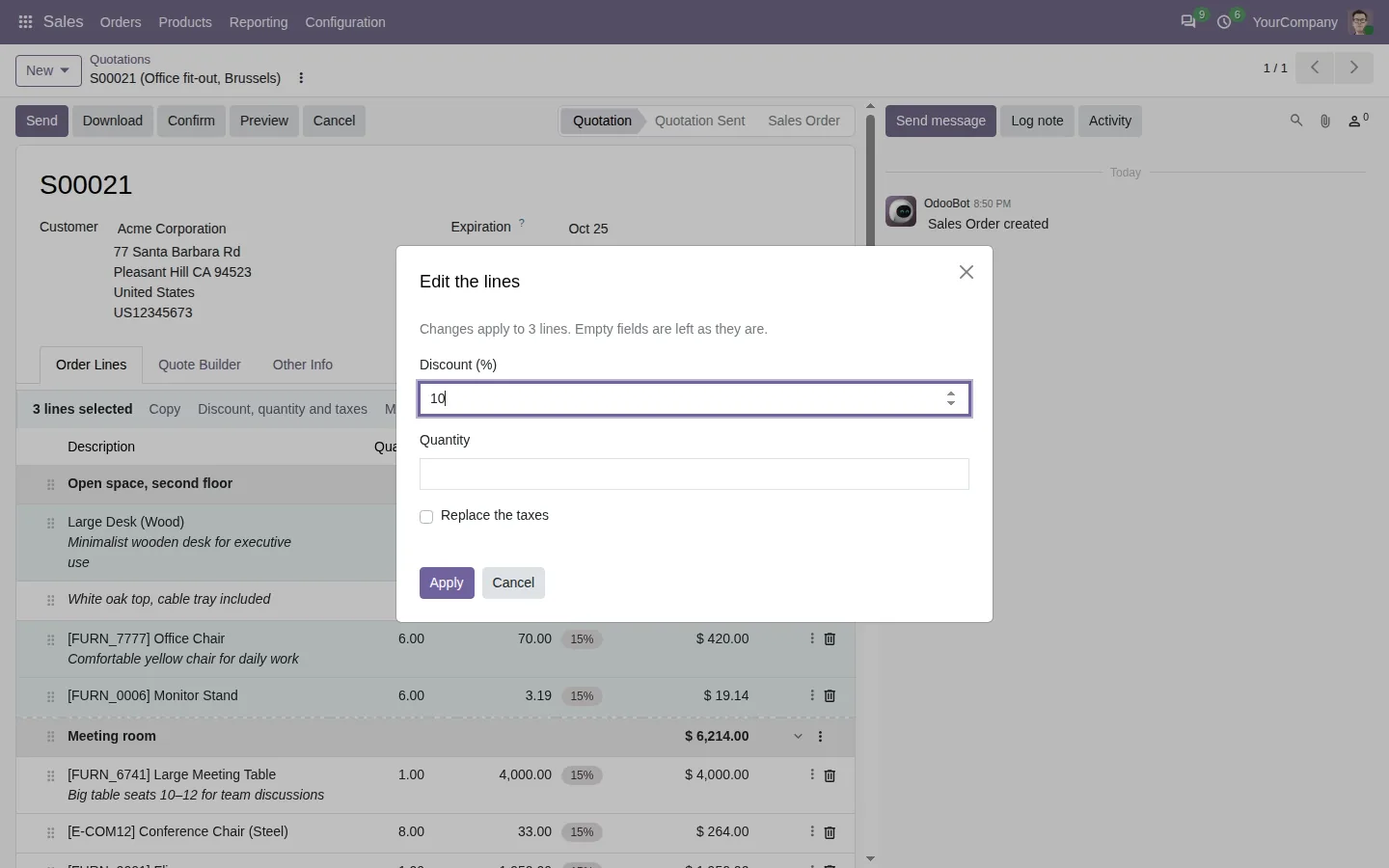
- A 10% discount on twenty lines means twenty edits.
Insert a line in Odoo where you need it: before and after
With the Insert Line apps, every line of the document gets a small menu. Click it on the line above the place you want, and the new line opens right there, ready to type.
Before
Add the line at the end. Drag it up. Retype the lines you need twice. Edit twenty discounts one by one.
After
Insert, duplicate, move, copy and paste lines, right where they belong.
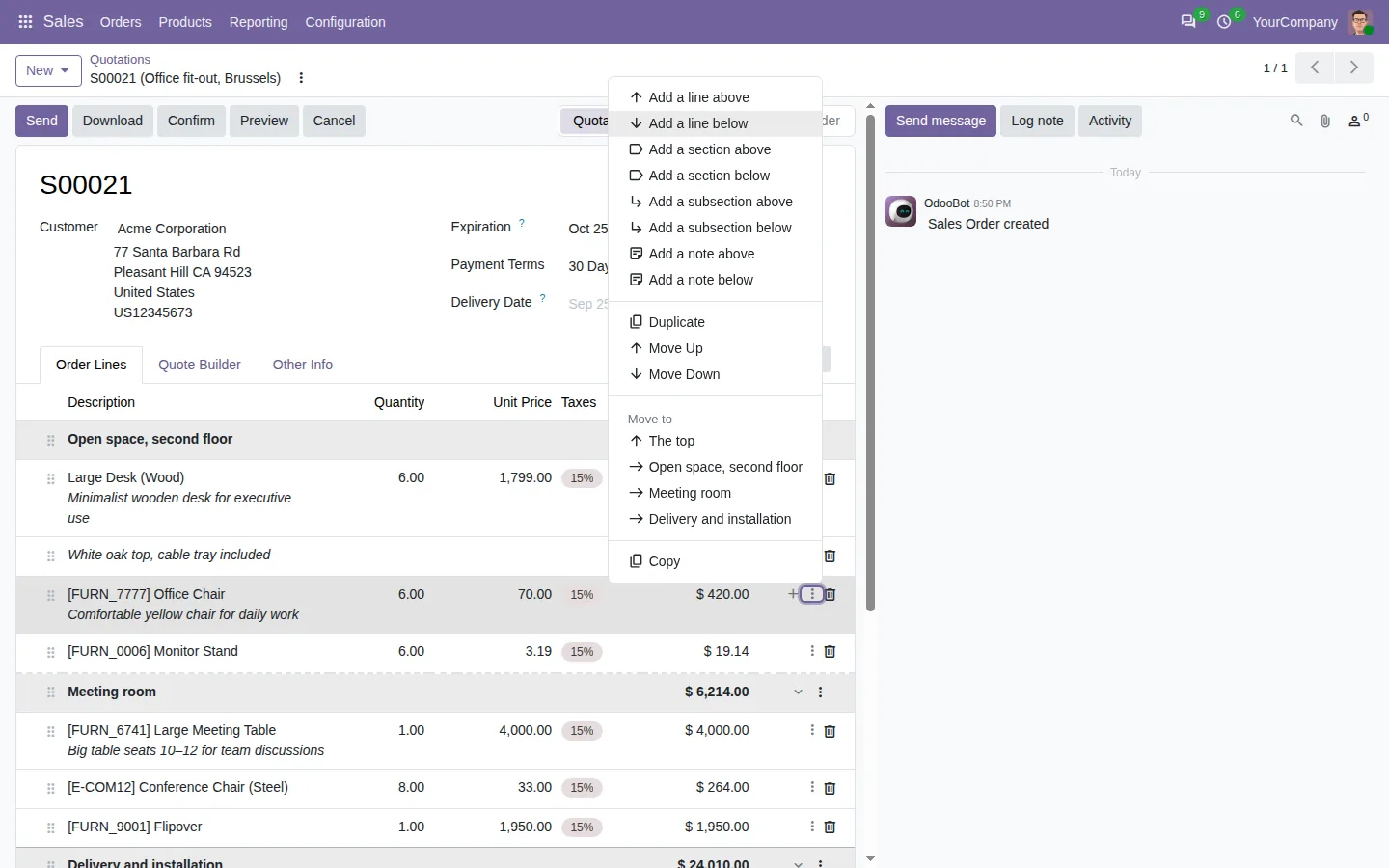
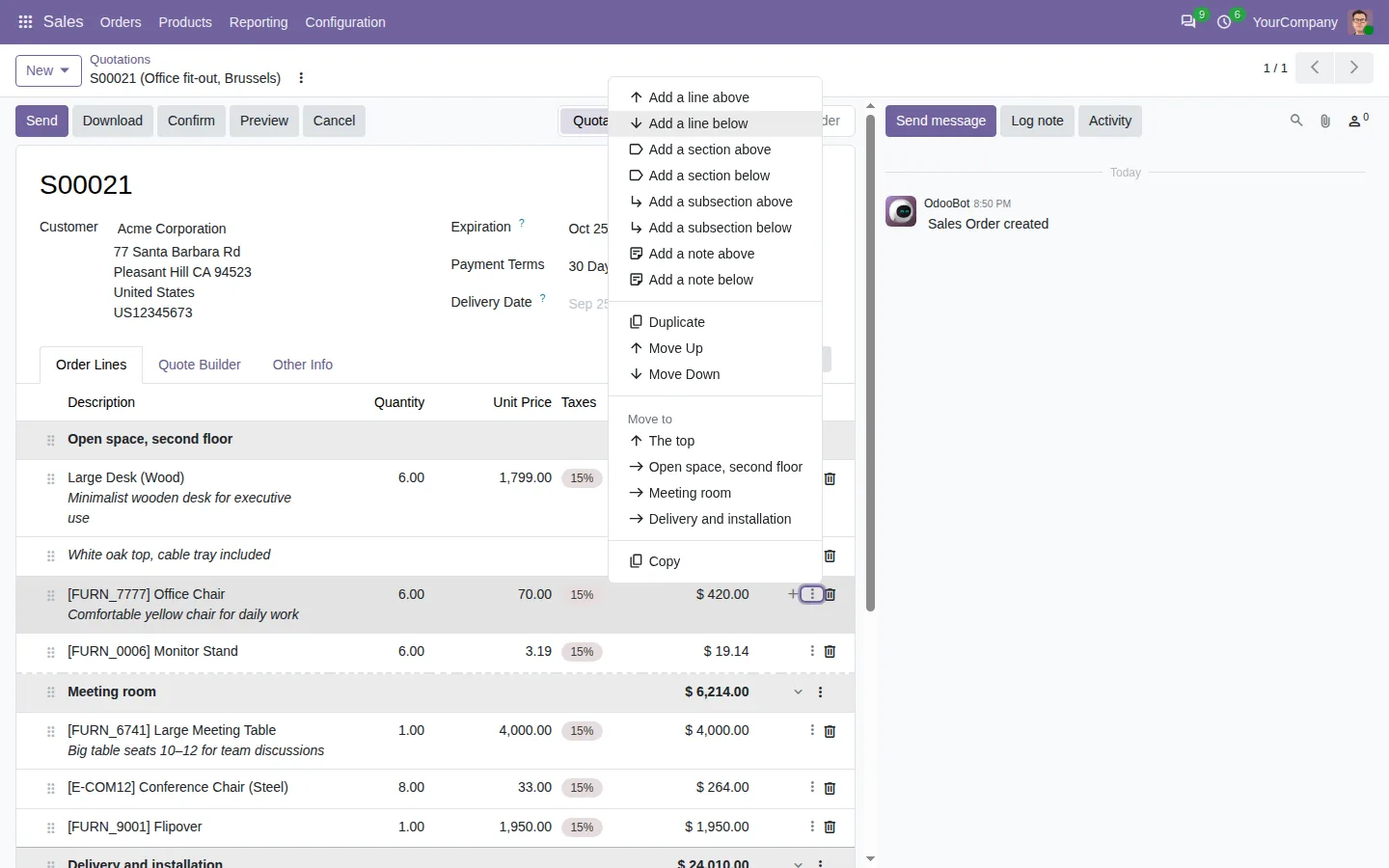
Add a line above or below any line
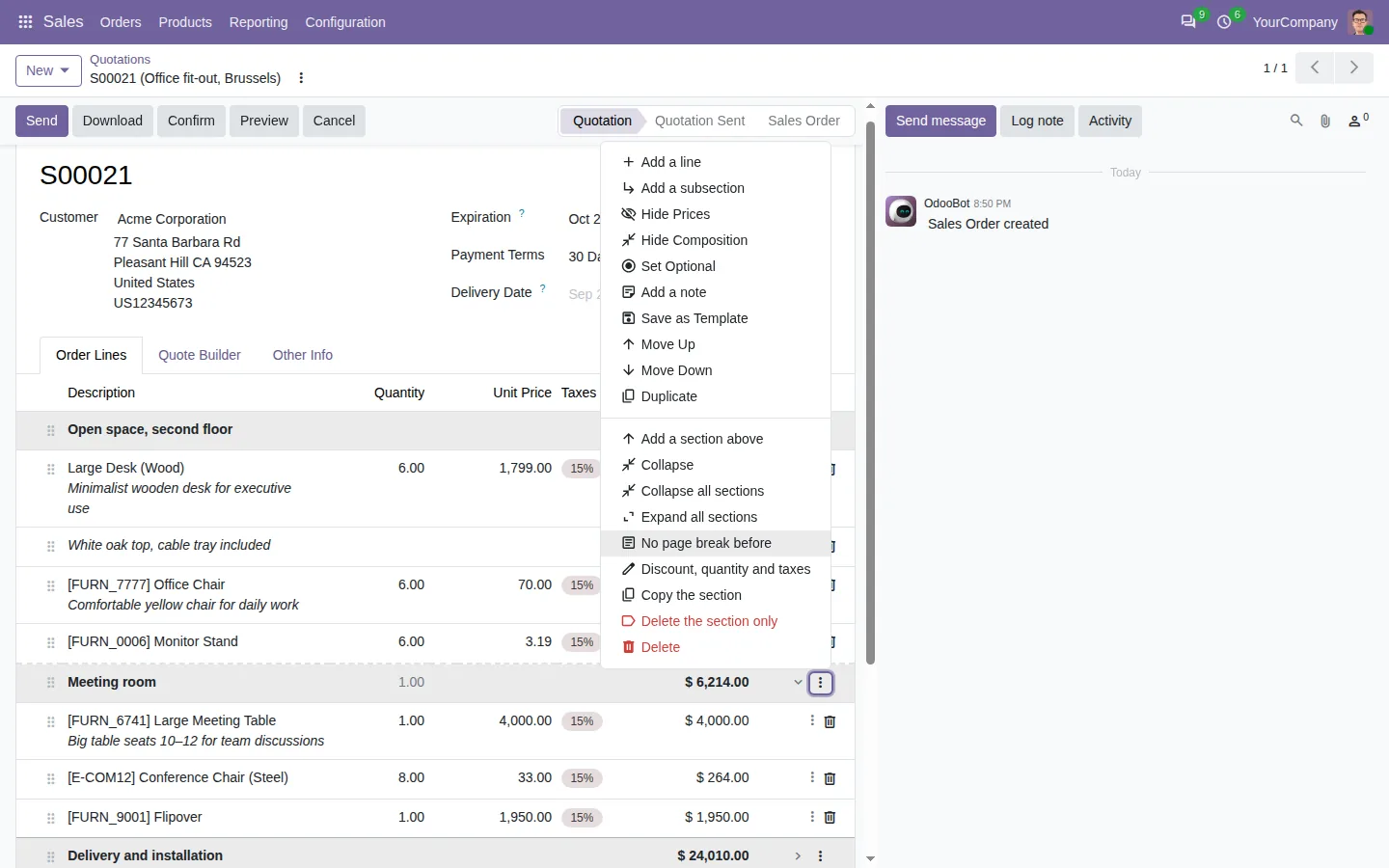
The line menu adds a product line, a section, a subsection or a note, above or below the line you clicked. It also duplicates a line with its notes, moves it up or down, sends it to the top or to another section. From the keyboard, Ctrl+Enter opens a new line below, Ctrl+Shift+Enter above, and Ctrl+D duplicates. Made a mistake? An Undo button follows each move, paste and delete, and Ctrl+Z takes back the last change.
Copy lines from a quotation into a purchase order
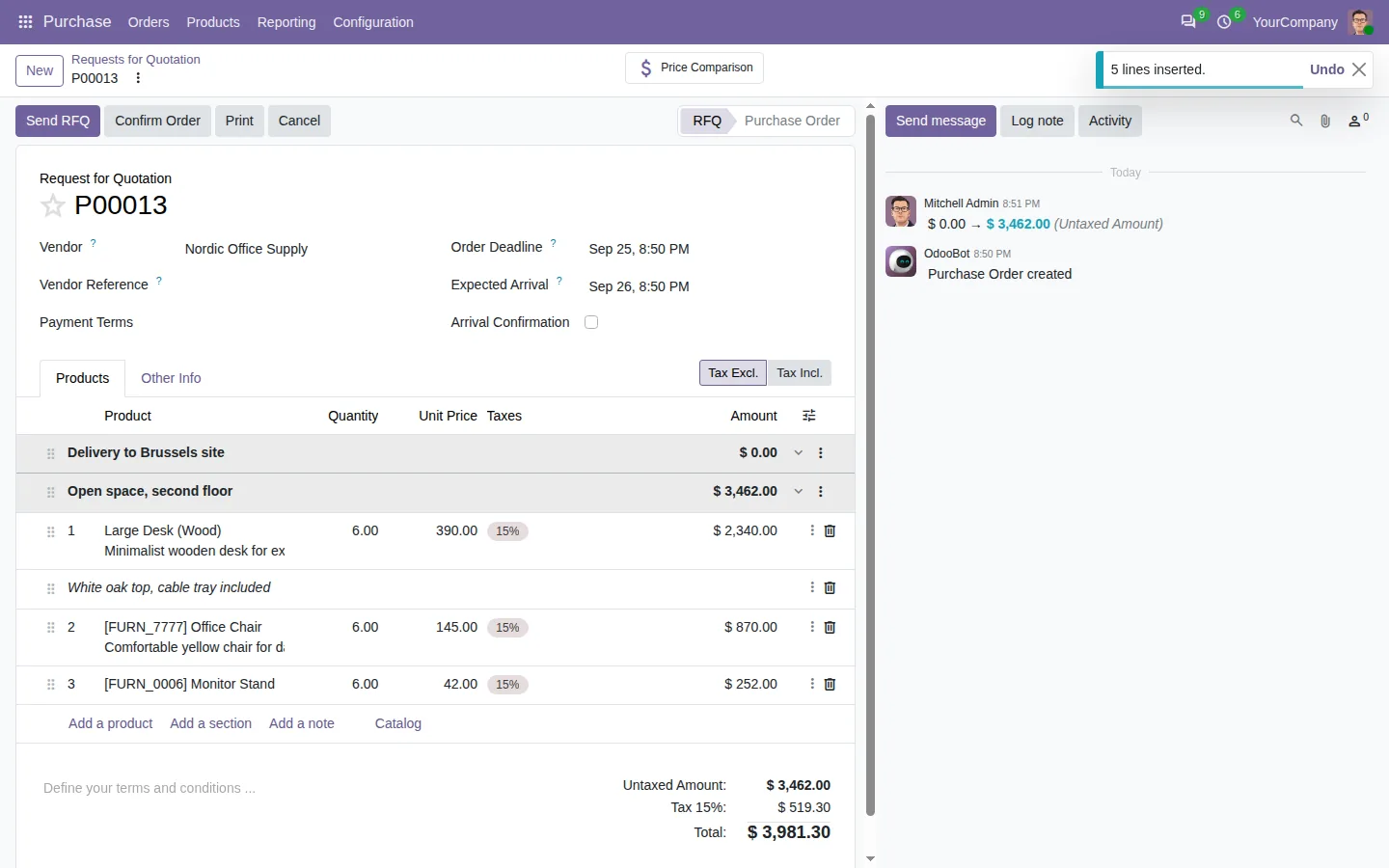
Select a section of the quotation, press Ctrl+C, open the request for quotation and press Ctrl+V. Quantities and notes follow, and Odoo prices each line for the vendor, as if you had typed the product. Between two documents of the same kind, prices and discounts are kept, so last month's quotation becomes this month's in seconds.
Set one discount for twenty lines
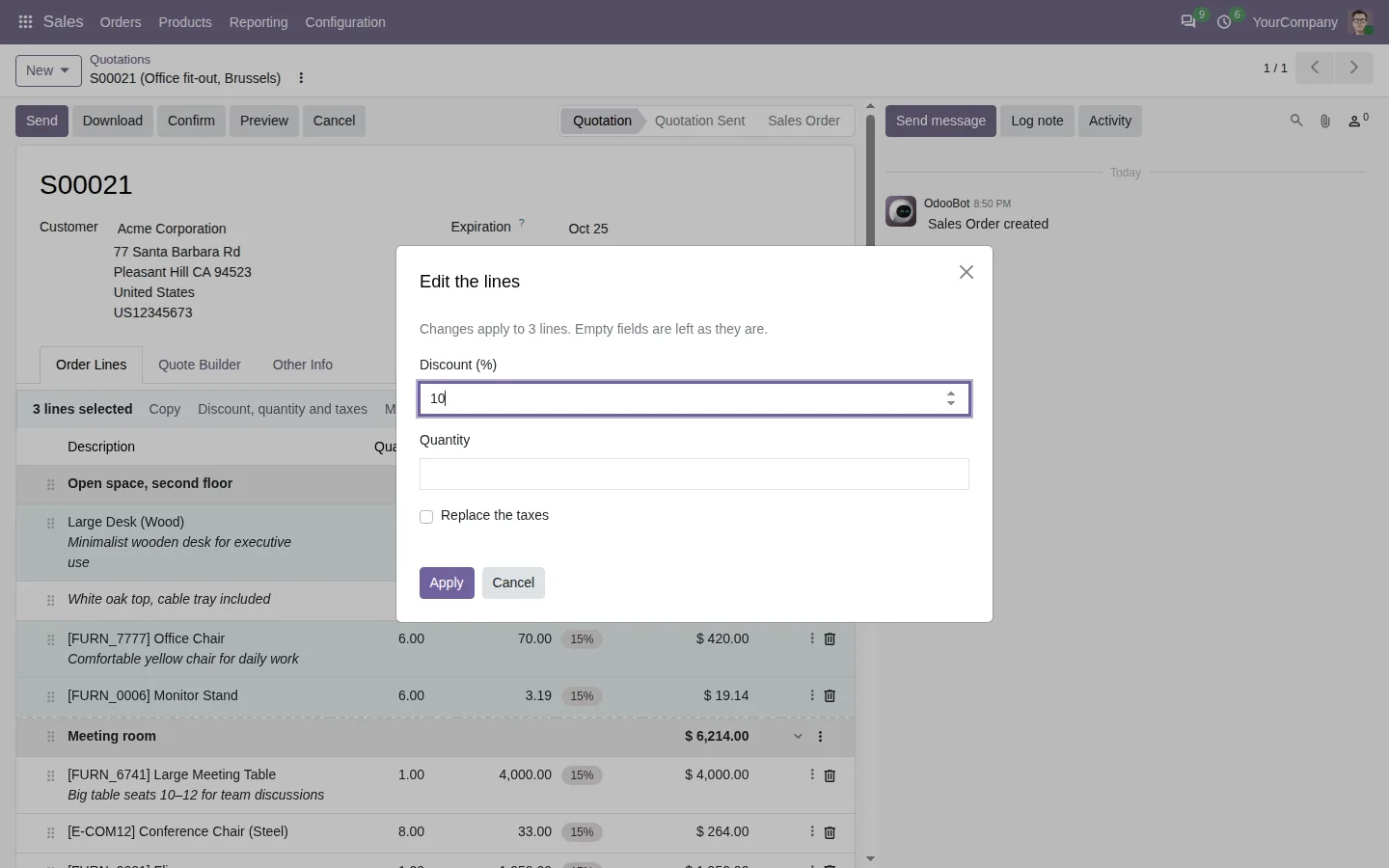
Ctrl+click or Shift+click the lines you want, then choose Discount, quantity and taxes. Type 10 once and every selected line gets it. The same works on a whole section from its menu. Quantities and prices also accept a small formula such as 2*3, and the result is kept.
Long quotations and invoices that stay readable
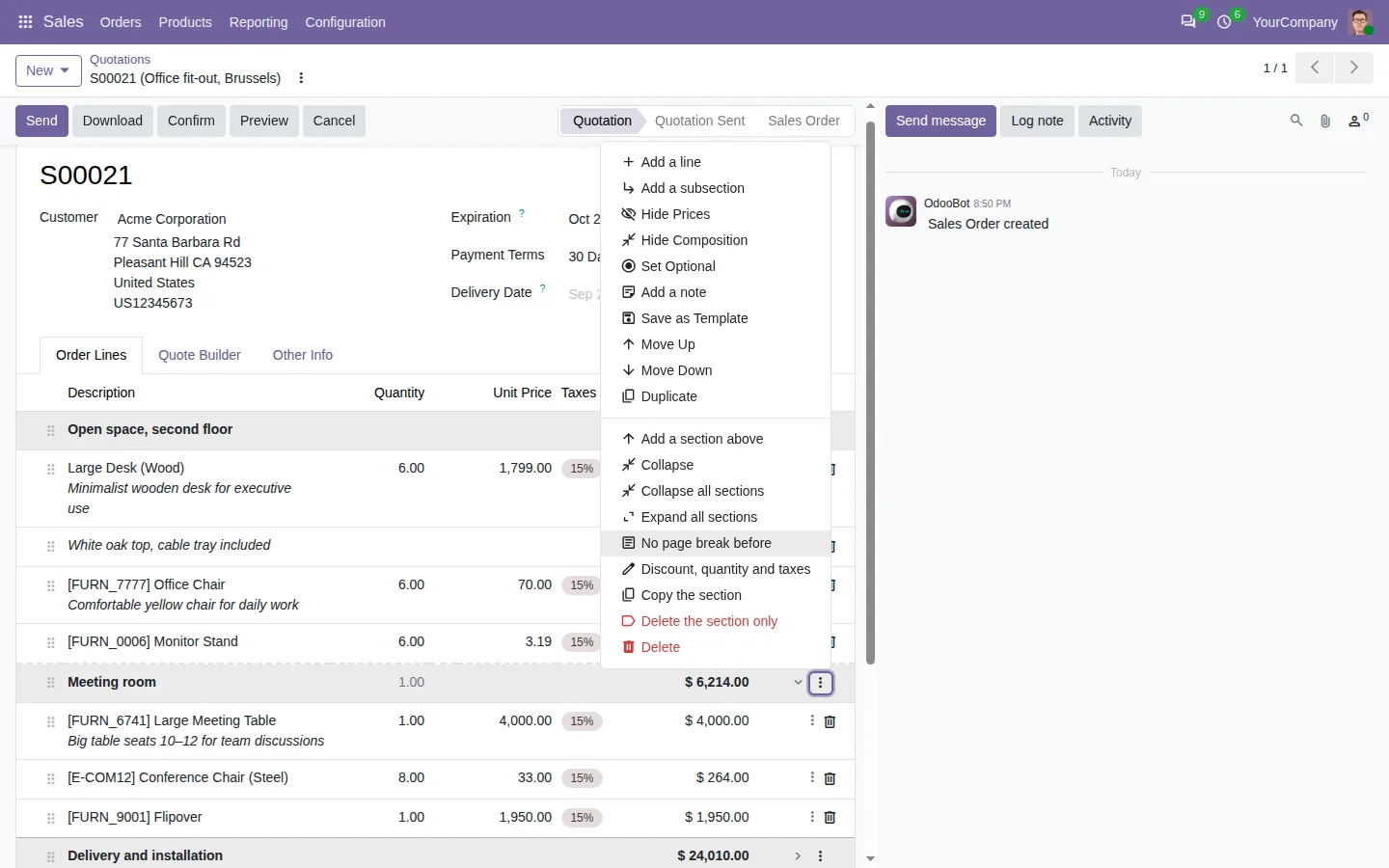
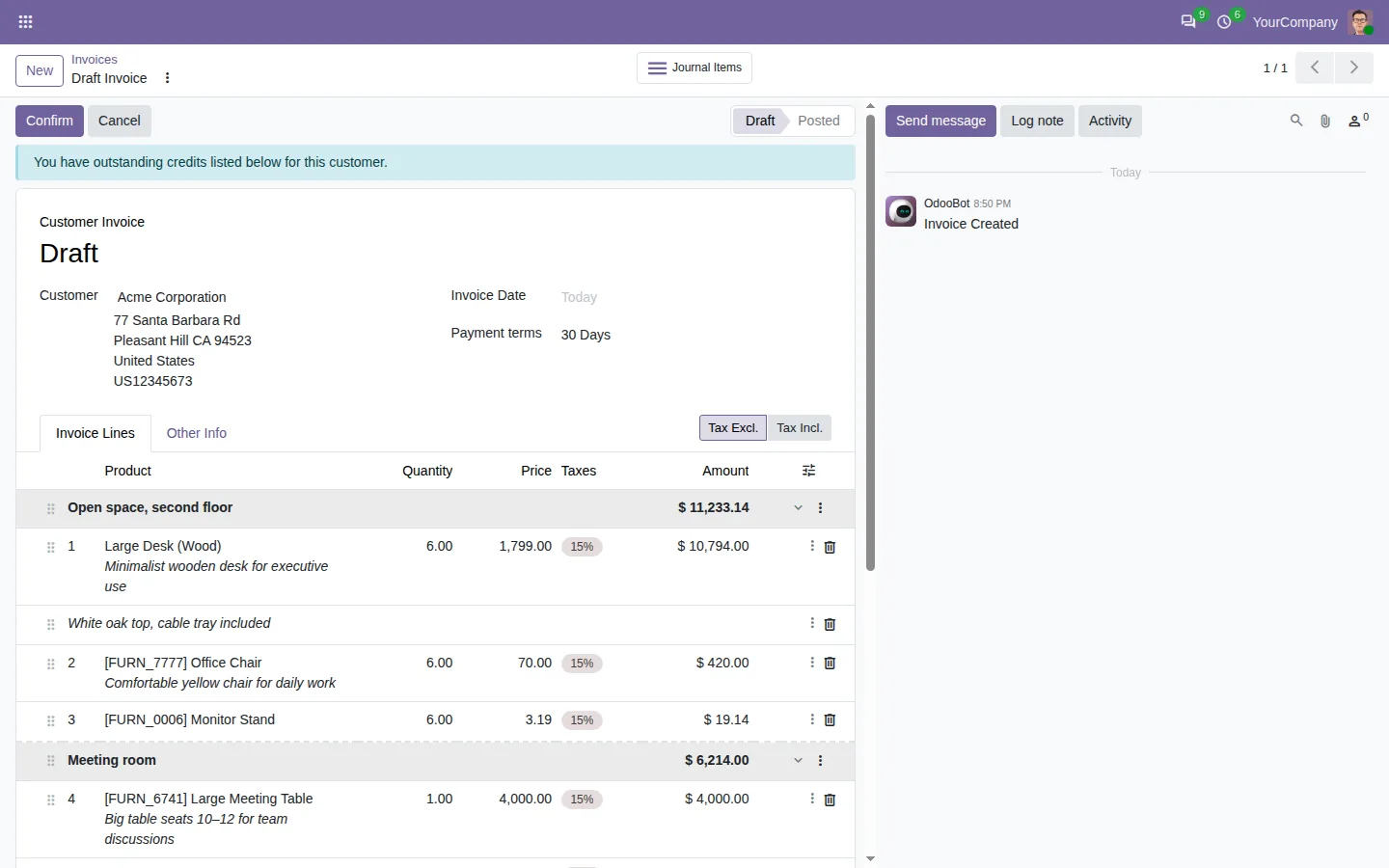
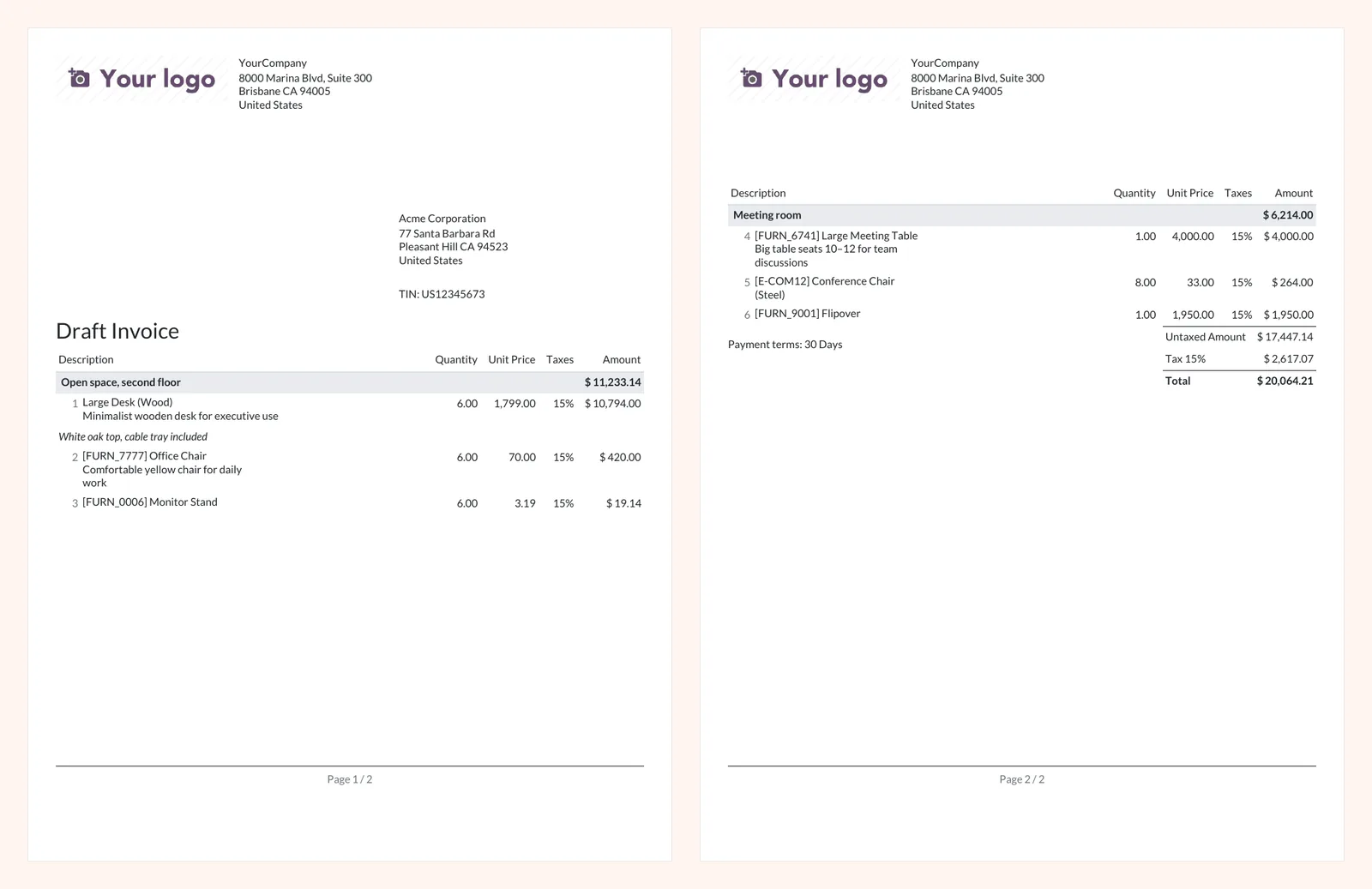
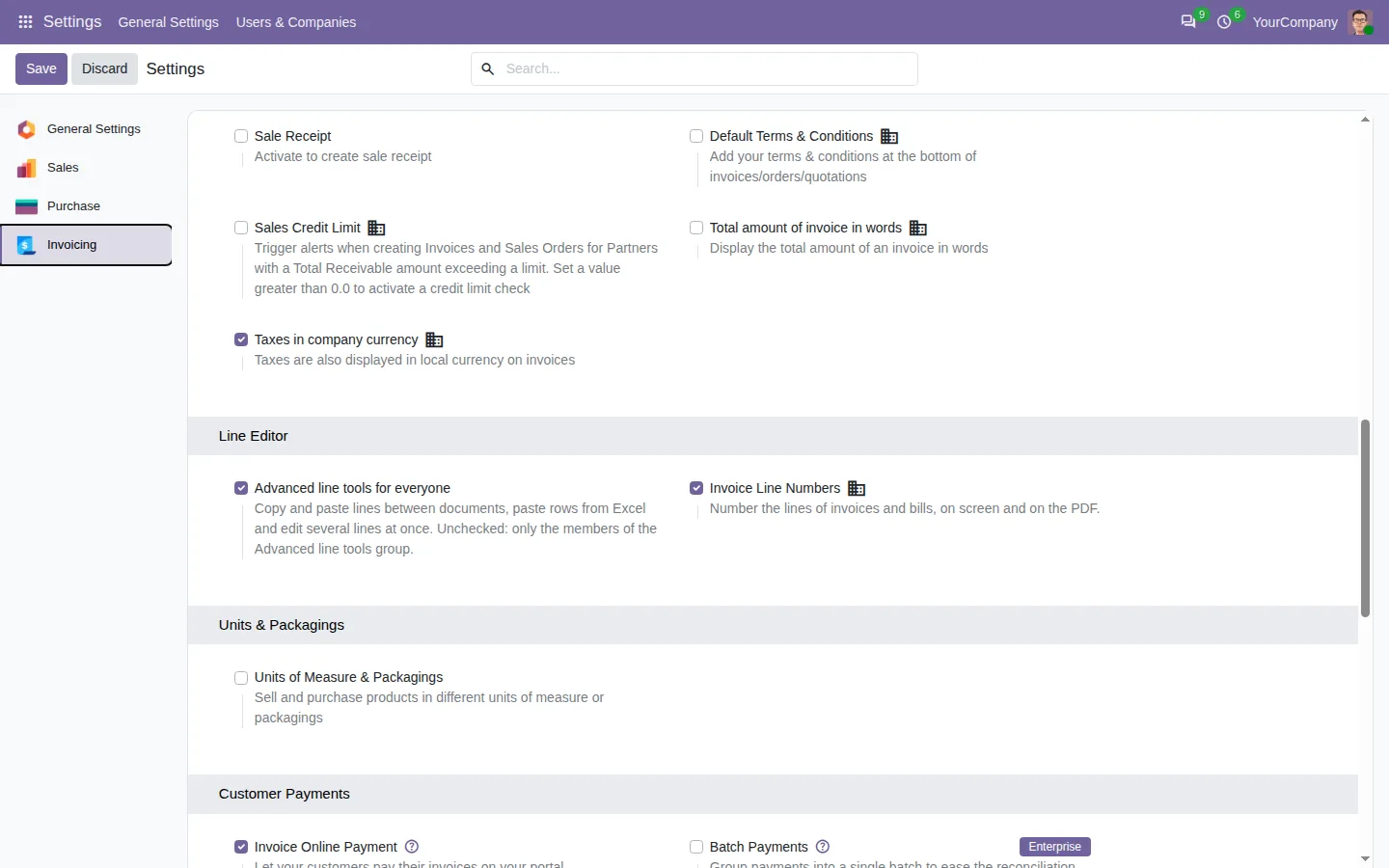
Fold the sections you are not working on, or all of them at once, and unfold them in one click. Mark a section with a page break and the printed quotation starts it on a new page, with the table header repeated. On invoices and purchase orders, product lines can be numbered 1, 2, 3 on screen and on the PDF, skipping sections and notes, so the numbers match what your customer talks about.

100% tested
The apps ship with automated tests. No risk.
Up and running in two minutes
Pick the documents you need: invoices and bills, quotations and sales orders, purchase orders, or all three. They share one engine, Insert Line Base, and each one installs by itself with its Odoo app. There is nothing to configure. Lines are created as if you had typed them, with the prices and taxes of Odoo, and posted invoices show no tools. Community and Enterprise, on Odoo.sh or on your own server, in six languages including Arabic.
Every line in its place, the first time
Stop dragging lines back up and typing the same products twice. Put each line where it belongs and reuse the ones you already have.
For sales orders: Insert Sales Line Anywhere. For purchase orders: Insert Purchase Line Anywhere.
A question before you buy? Write to support@sharqix.com, we answer within one business day.