
10.00 €
Office Preview for Attachments
Open Word, Excel, PowerPoint and Outlook attachments in the chatter, without downloading them and without any external service.
Get it on Odoo Apps
Point of Sale
Point of Sale receipts, kitchen tickets and cash drawer on USB or network ESC/POS printers through the print agent, without IoT box. Invoices from the till on a PDF printer.
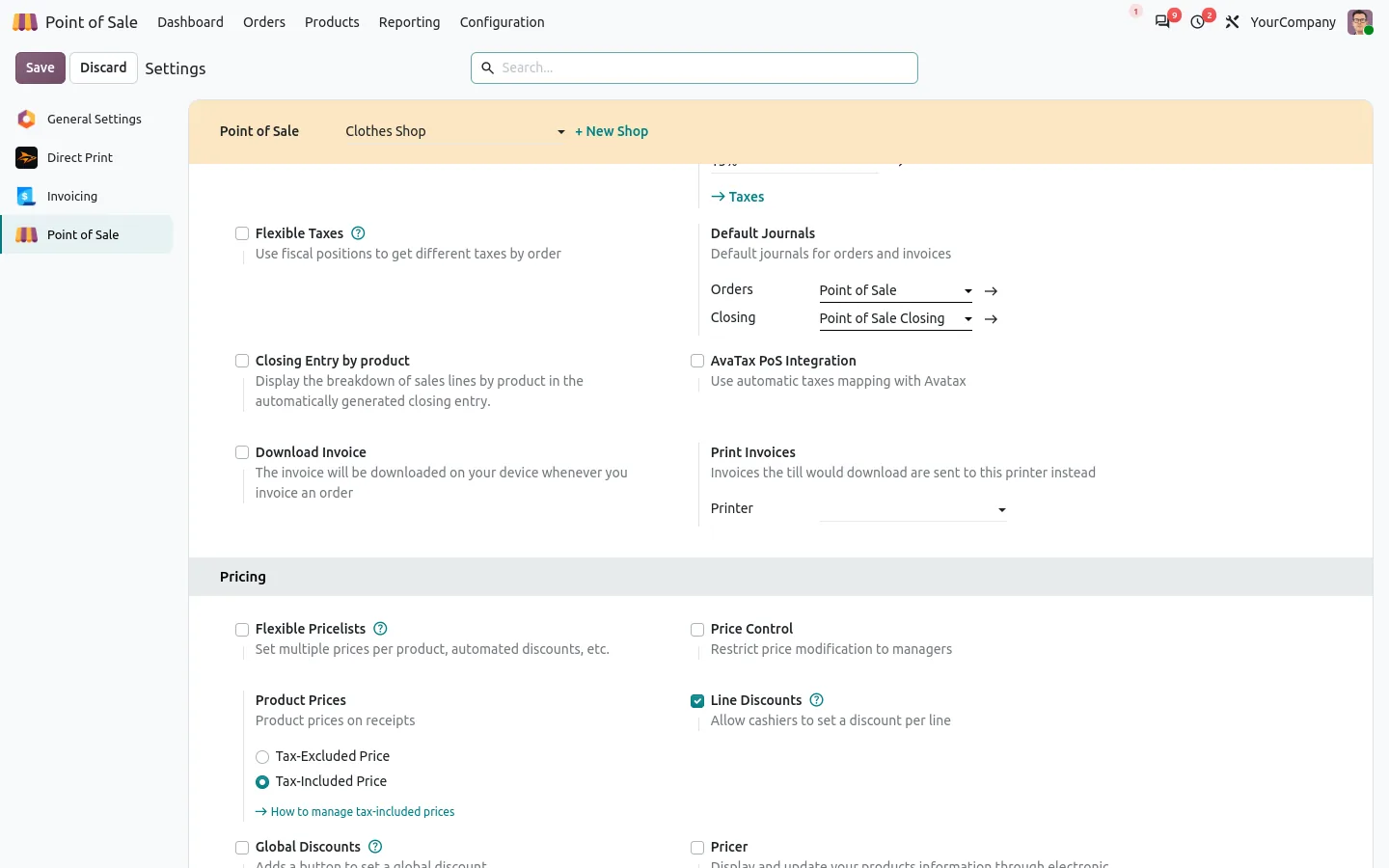
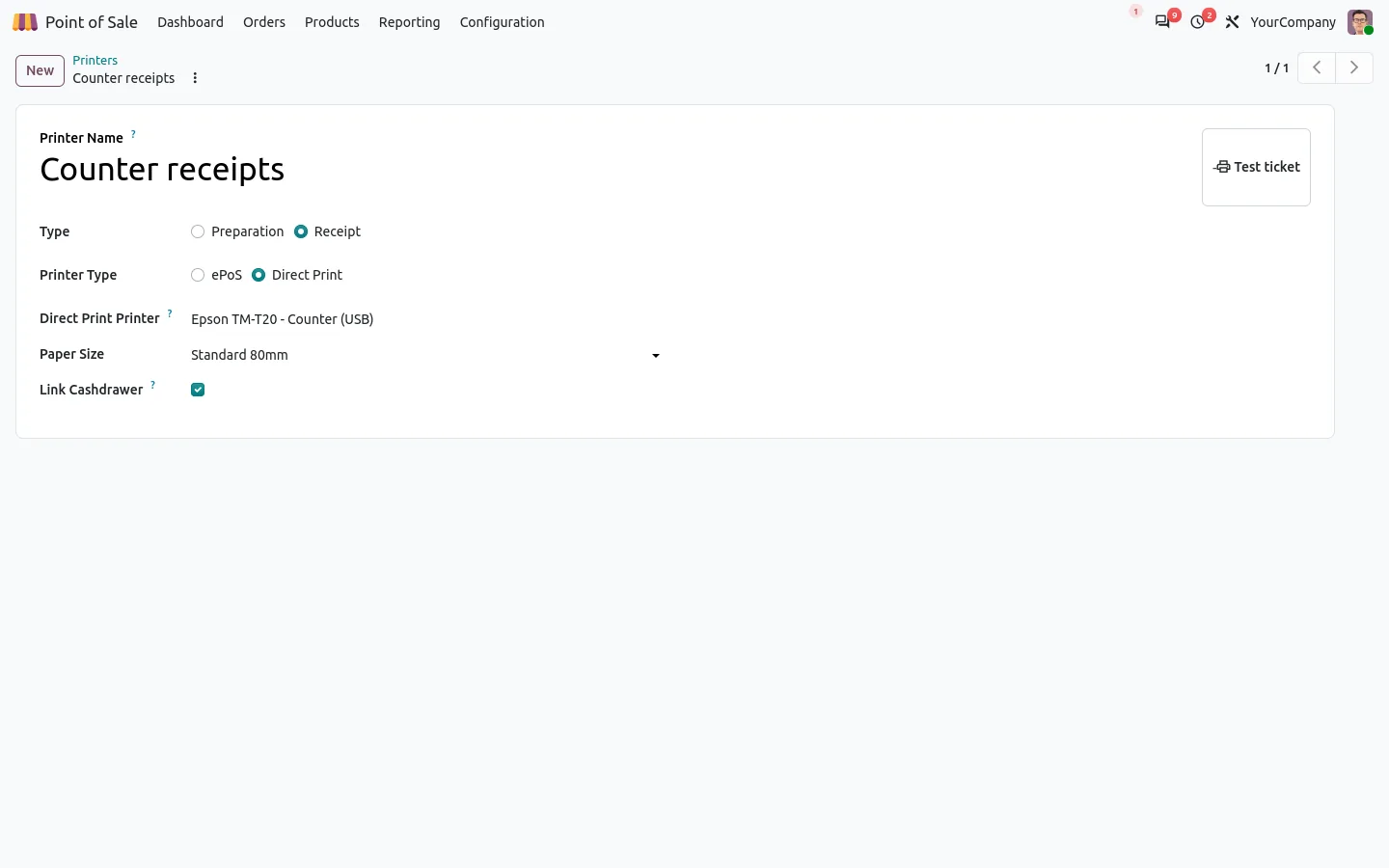
In standard Odoo, a POS receipt printer must be an Epson ePOS model or sit behind an IoT box, and a USB thermal printer only prints through the browser print dialog. This app lets the Point of Sale print on any ESC/POS printer the Direct Print agent can see, in USB or on the network: the receipt prints and cuts itself after payment, with no dialog.
Any ESC/POS thermal printer: Epson, Star, Bixolon, Xprinter, Rongta and others, on 58 mm or 80 mm paper, connected in USB, through the system print queue or in raw TCP on port 9100. The ticket is sent as an image, so every character set prints, Arabic and Chinese included, with the logo and QR code of the standard receipt.
Documentation and installation are on the page of your Odoo version.
Your USB thermal printer works everywhere except in Odoo POS. Here is how to print receipts, kitchen tickets and open the cash drawer without buying an IoT box.
Read the articleYes. This companion connects the Point of Sale; the print queue, the agent and the printers come from Direct Print. It installs itself when both apps are present.
The ticket goes through Odoo, so the till shows the usual printing error with the Retry and Print in browser choices. A receipt is never printed minutes late: old tickets expire.
No. It covers the Point of Sale till: receipts, kitchen tickets, the cash drawer and invoices.
Open Word, Excel, PowerPoint and Outlook attachments in the chatter, without downloading them and without any external service.
Get it on Odoo Apps
Search the chatter as you type, filter notes, emails and logs, reply in threads, get reminded and hide the chatter in one click.
Get it on Odoo Apps
The same office preview in the kanban, list and activity views of Documents, with readable thumbnails.
Get it on Odoo Apps