
10.00 €
Office Preview for Attachments
Open Word, Excel, PowerPoint and Outlook attachments in the chatter, without downloading them and without any external service.
Get it on Odoo Apps
Extra Tools
A trash icon on every row of the list views: delete in one click, undo for a few seconds, archive instead, and keep a log of who deleted what.
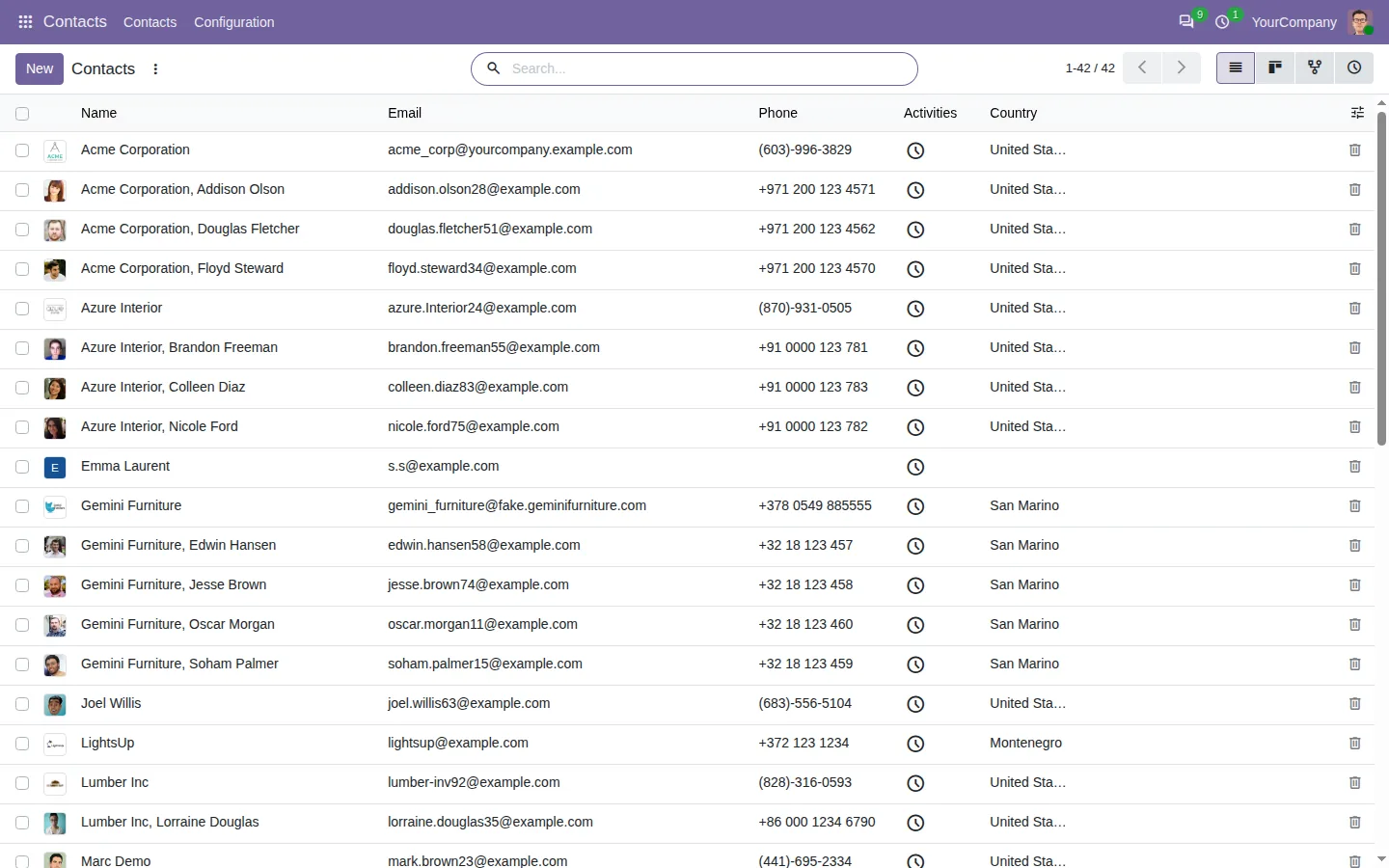
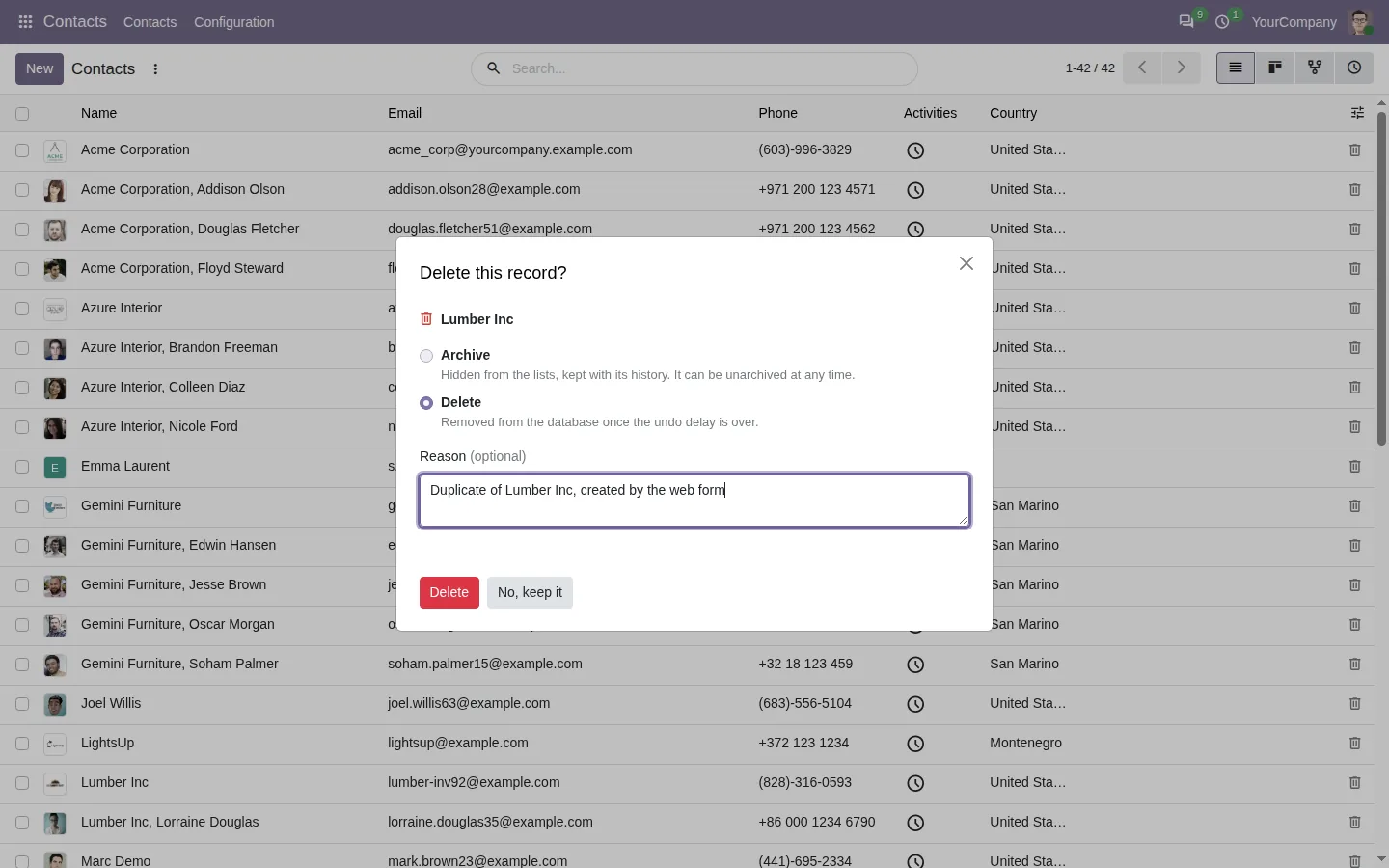
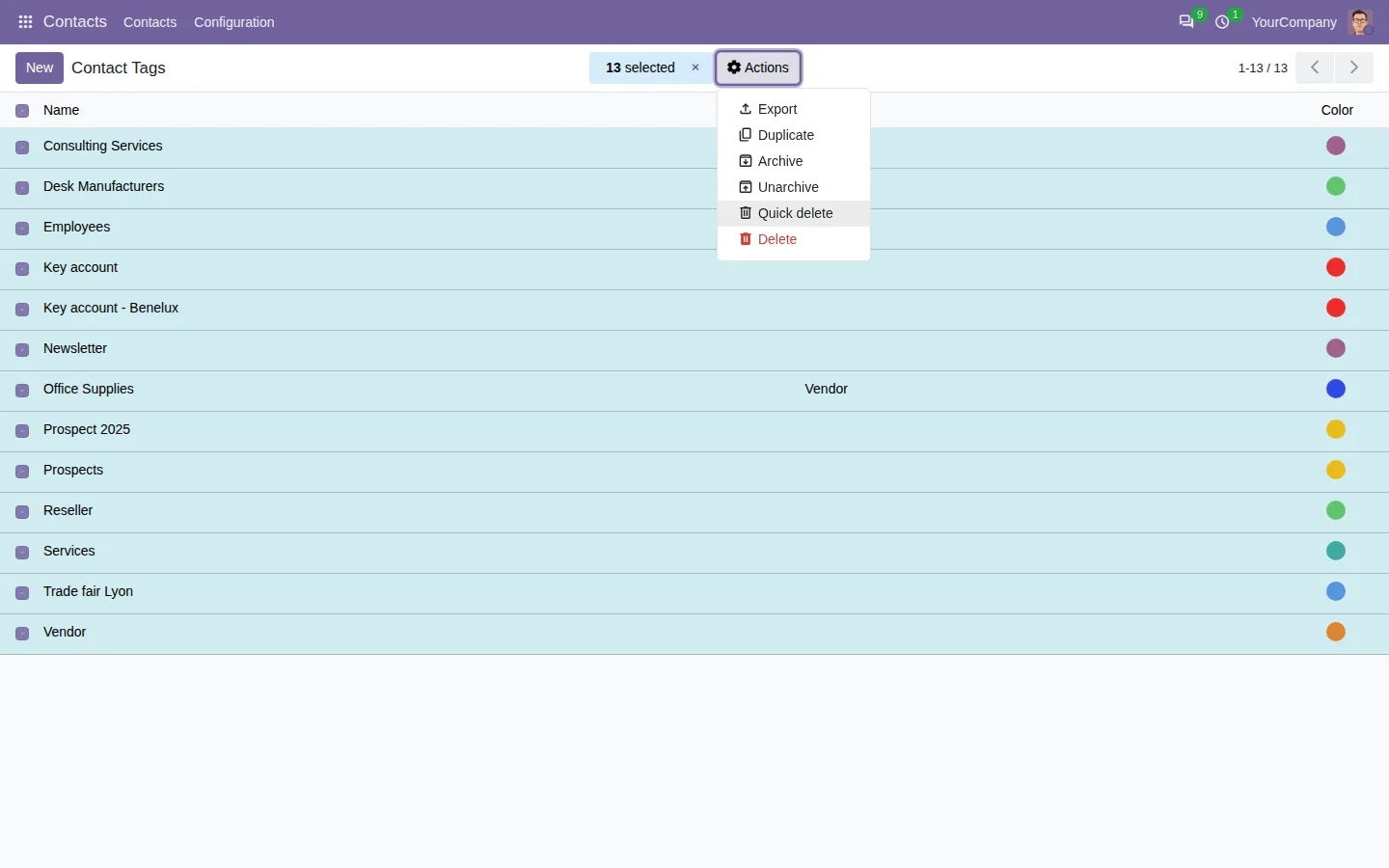
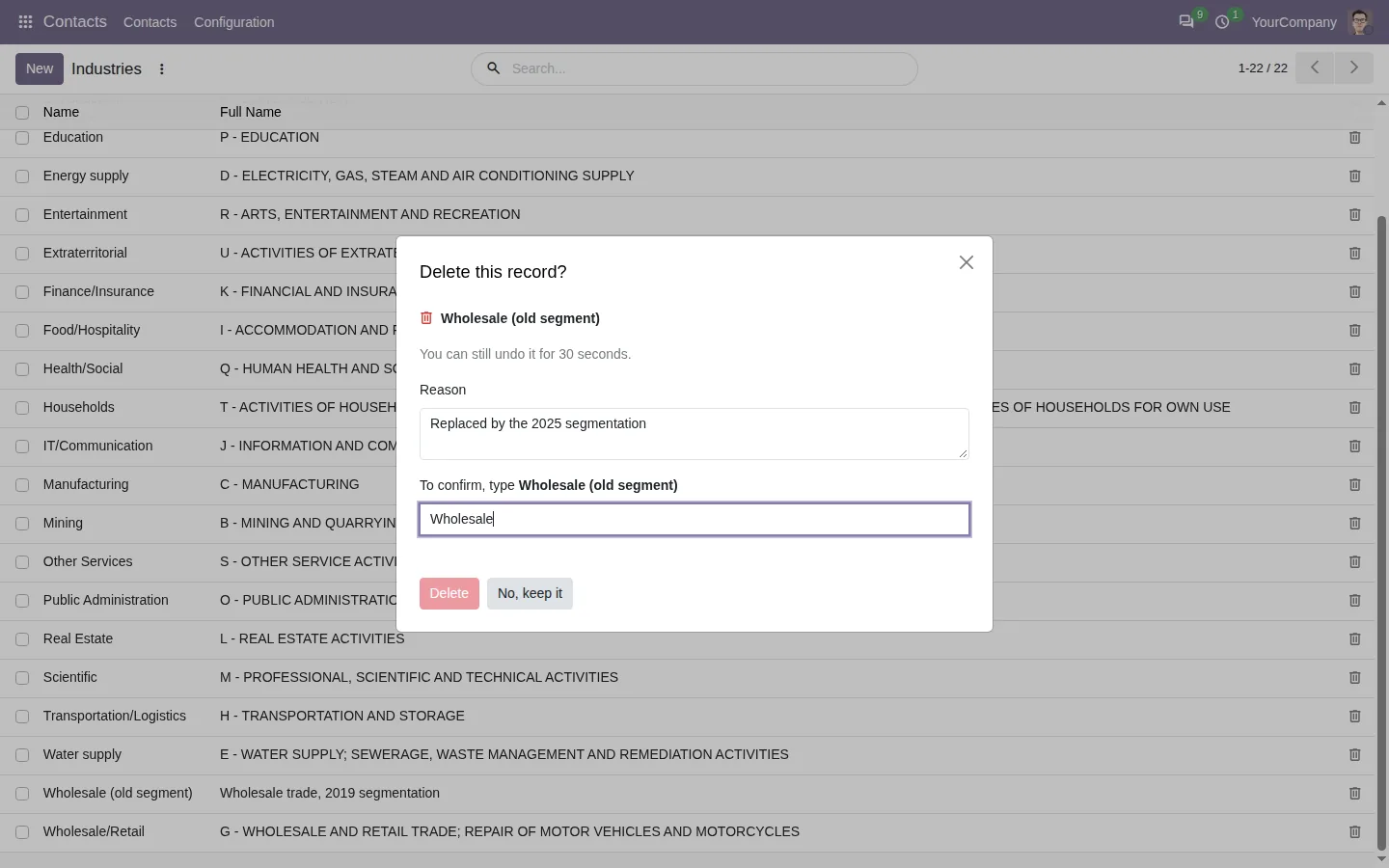

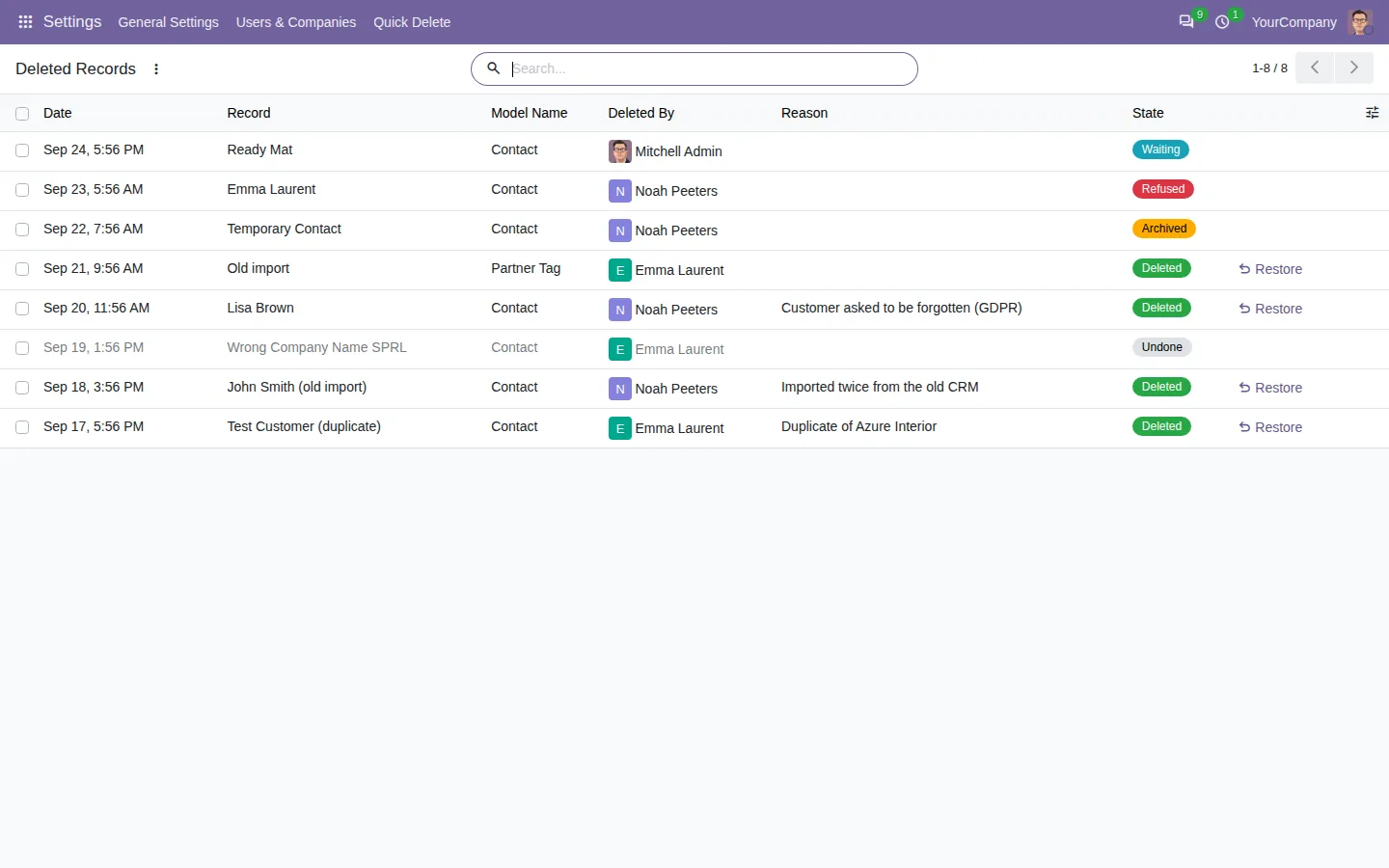
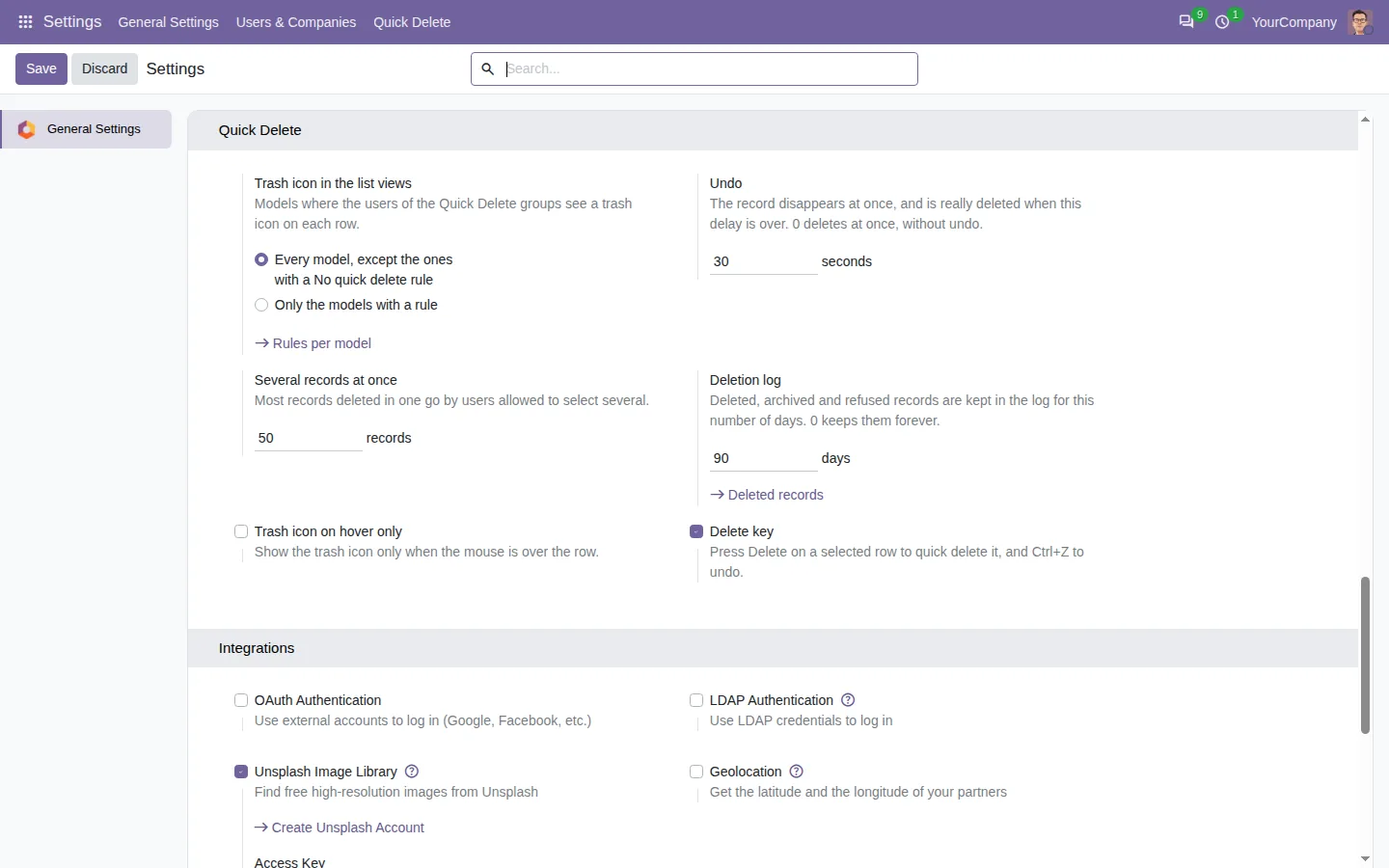
In standard Odoo, deleting a record takes four steps: tick the row, open Actions, choose Delete and confirm. This app puts a trash icon on each row of every list view, plain or grouped: one click and the record leaves the list. The Delete key works too, and the icon can show only when the mouse is over the row.
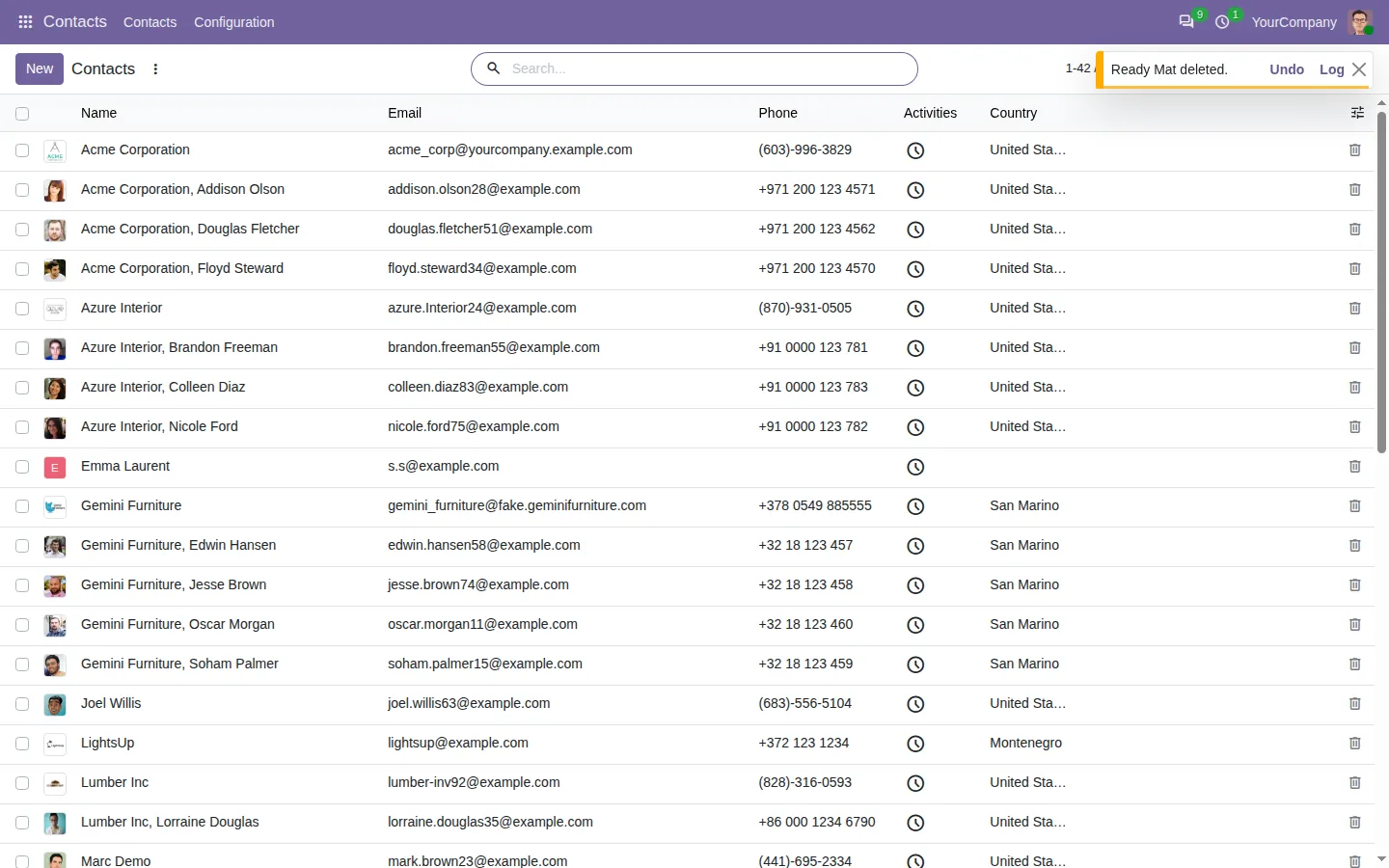
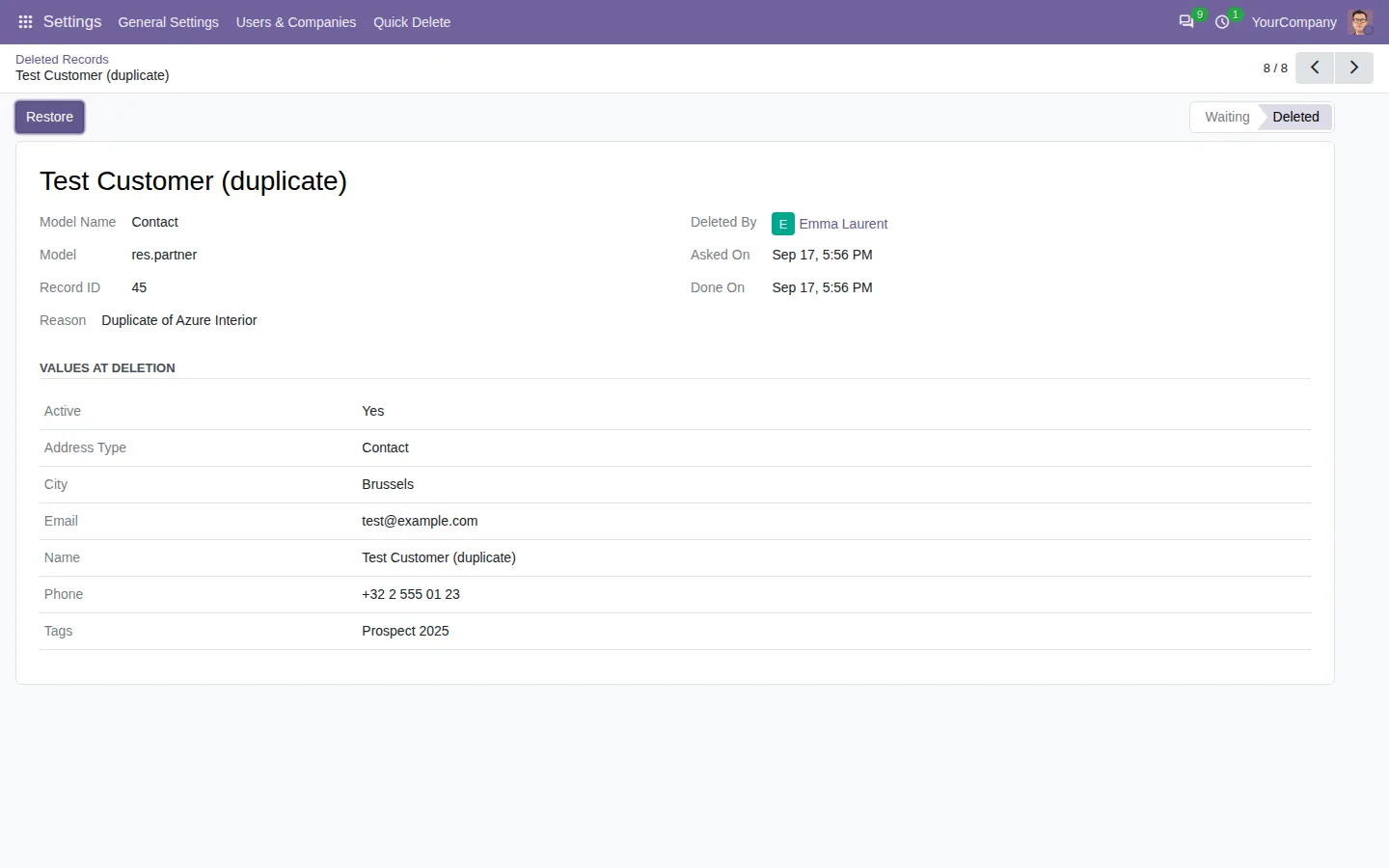
A record deleted in standard Odoo is gone for good. Here, the row leaves the list at once but the record is only deleted when the undo delay is over, 10 seconds by default: click Undo or press Ctrl+Z to bring it back. After that, the deletion log keeps the values of the record, and a manager can create it again in one click, with its linked records when they still exist.
Documentation and installation are on the page of your Odoo version.
Cleaning up duplicates and test records in Odoo means four clicks per record, and no way back. Here is how to delete from the list in one click, safely.
Read the articleNot in standard Odoo. With this app, Undo or Ctrl+Z brings the record back during the delay, and afterwards a manager can restore it from the deletion log, which keeps its values.
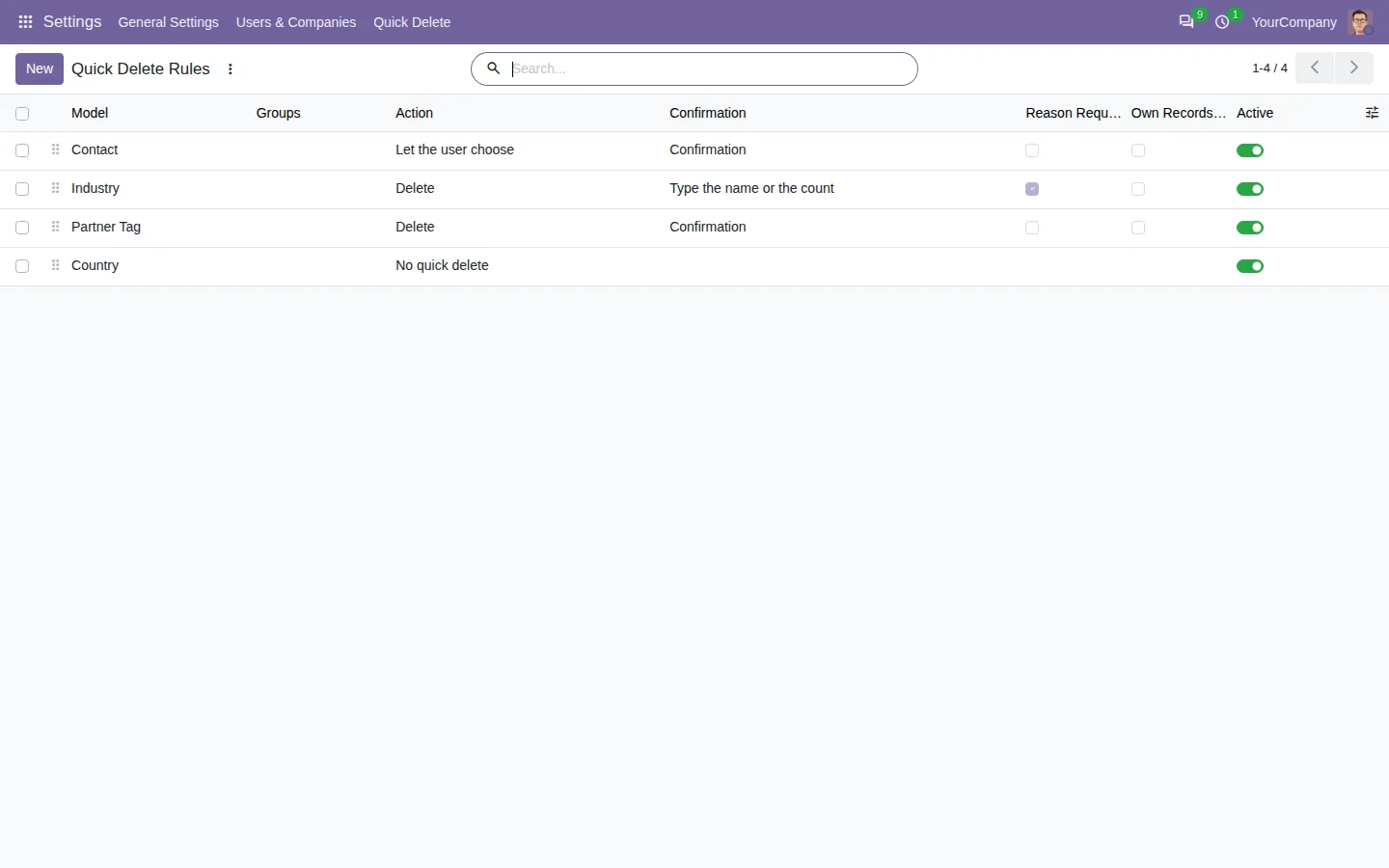
Archiving hides a record but keeps it and its history, which is safer for contacts or products used in past documents. Deleting removes it. A rule can force archiving on a model, or let the user choose in the dialog.
No. The button calls the normal Odoo deletion as that user, so access rights and record rules apply. When Odoo refuses a deletion, the row comes back with the reason, and the refusal is logged.
Yes. Add a "No quick delete" rule on those models, or allow quick delete only on the models you list. Technical models, users and companies are always left out.
Open Word, Excel, PowerPoint and Outlook attachments in the chatter, without downloading them and without any external service.
Get it on Odoo Apps
Search the chatter as you type, filter notes, emails and logs, reply in threads, get reminded and hide the chatter in one click.
Get it on Odoo Apps
The same office preview in the kanban, list and activity views of Documents, with readable thumbnails.
Get it on Odoo Apps