"Do I need an IoT box for my printer in the POS?" has been read more than 12,000 times on the Odoo forum, and many other threads ask the same about one Epson model or another. The answer depends on the printer model and on how it is connected. This guide gives the list from Odoo's documentation, the browser setting that changed in Odoo 19, and the options for the printer you already have.
The printers Odoo prints on directly
Without an IoT box, Odoo POS prints from the browser to two kinds of devices:
- Epson ePOS printers on the network, in Wi-Fi or Ethernet. Odoo recommends the Epson TM-m30 (i, ii or iii). Other Epson network models that speak the ePOS protocol should work too, as long as they can run in HTTP mode.
- iMin Swan 2 and Falcon 2: Android POS terminals with a built-in printer, connected with the POS iMin app. Odoo does not use them for preparation orders.
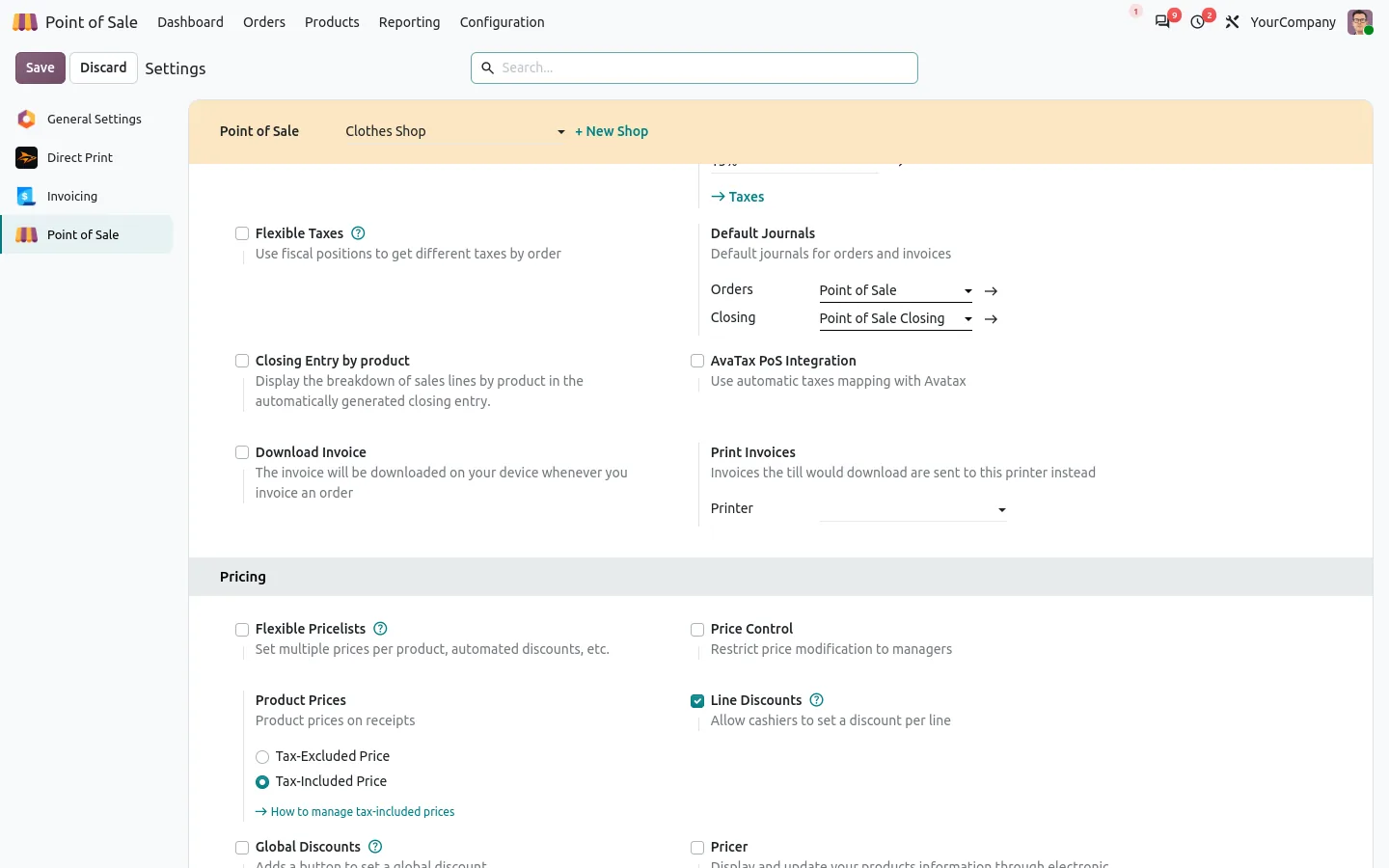
To set it up, go to Point of Sale > Configuration > Settings, turn on ePos Printer in the Connected Devices section, and type the printer's IP address.
The printers that need an IoT box
- Epson ePOS printers connected in USB.
- The Epson TM-T20 and TM-T88 families: their software does not speak ePOS the way Odoo expects.
- Every other ESC/POS receipt printer, in USB or on the network: Star, Bixolon, Xprinter, Rongta and the others.
The IoT connection is an Odoo IoT Box, or the Windows virtual IoT on a PC. Both belong to the IoT app, which is part of Odoo Enterprise: on Community, only the Epson network printers remain.
And Bluetooth printers? Odoo's documentation is clear: they are not compatible.
What changed in Odoo 19: Local Network Access
The page of your Odoo database is on the internet, and the printer is on your local network. Browsers protect that boundary. Odoo used to work around it with a self-signed certificate installed on each till. Since Chrome 142, browsers based on Chromium ask instead for a permission called Local Network Access, and Odoo 19 supports it:
- In developer mode, add the system parameter point_of_sale.use_lna with the value True.
- On each till, accept the browser request to reach the devices of the local network: Chrome, Edge, Brave, Opera or Vivaldi.
- Give the printer a fixed IP address in your router, and, on Epson printers, turn off Secure Printing and SSL/TLS in the printer's own settings page, as Odoo's documentation explains.
The self-signed certificate is no longer required. Each till still talks to the printer directly, so each one must be on the same network as the printer.
Your printer, your options
| Your printer | Odoo, without IoT | Odoo with an IoT box | Direct Print for POS |
|---|---|---|---|
| Epson TM-m30, Wi-Fi or Ethernet | Yes | Yes | Yes |
| Epson TM-T20, TM-T88 | No | Yes | Yes |
| Any USB thermal printer | No | Yes | Yes |
| Network ESC/POS printer of another brand | No | Yes | Yes |
| iMin Swan 2, Falcon 2 | Yes, with POS iMin | Not needed | No |
| Bluetooth printer | No | No | Not tested |
If you are buying a printer for Odoo 19 and want nothing else to install, a network Epson TM-m30 is the safe choice. If you already have another printer, read on.
Before
A USB printer, a TM-T20 or a Star: buy an IoT box, or print every receipt through the browser dialog.
After
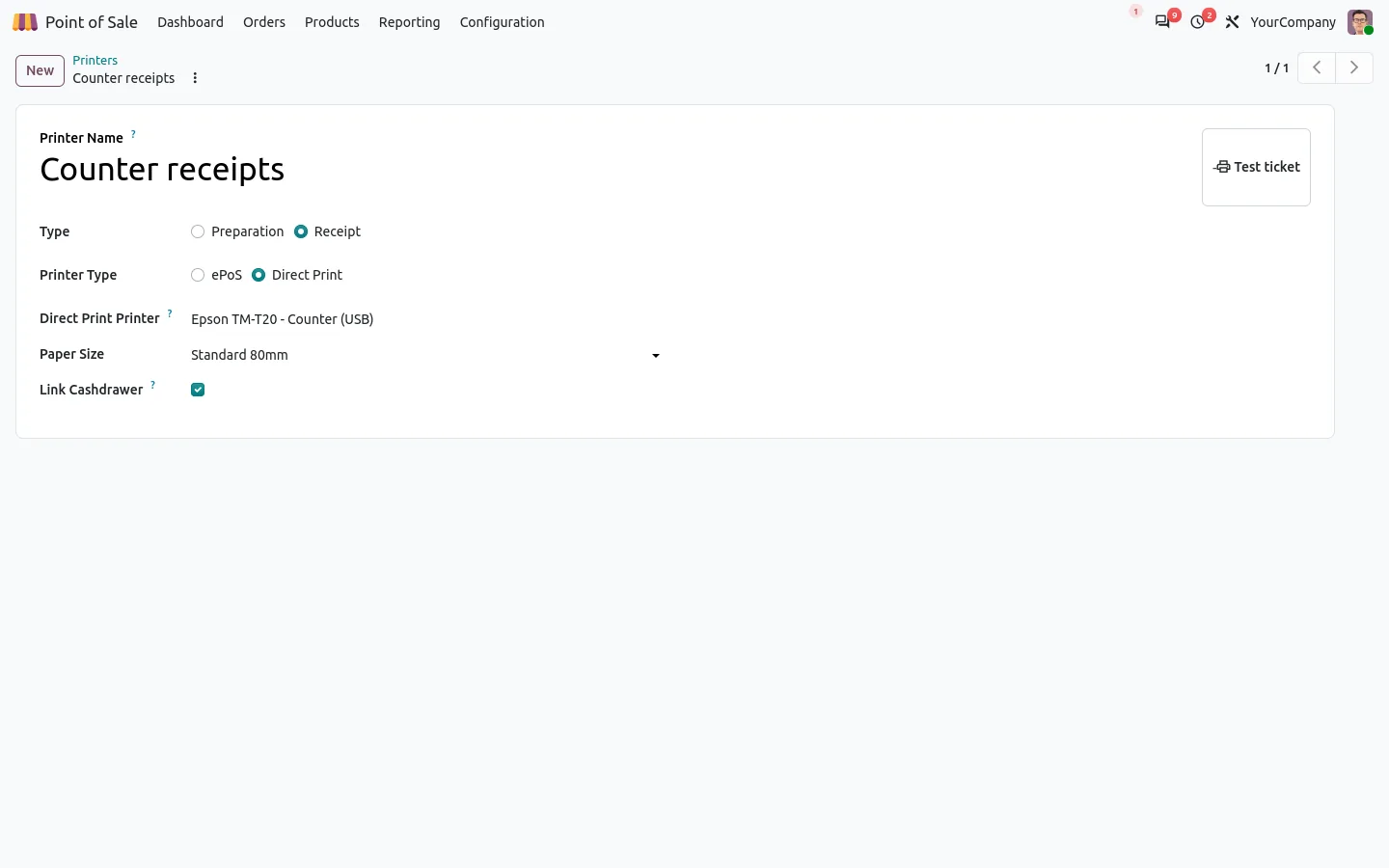
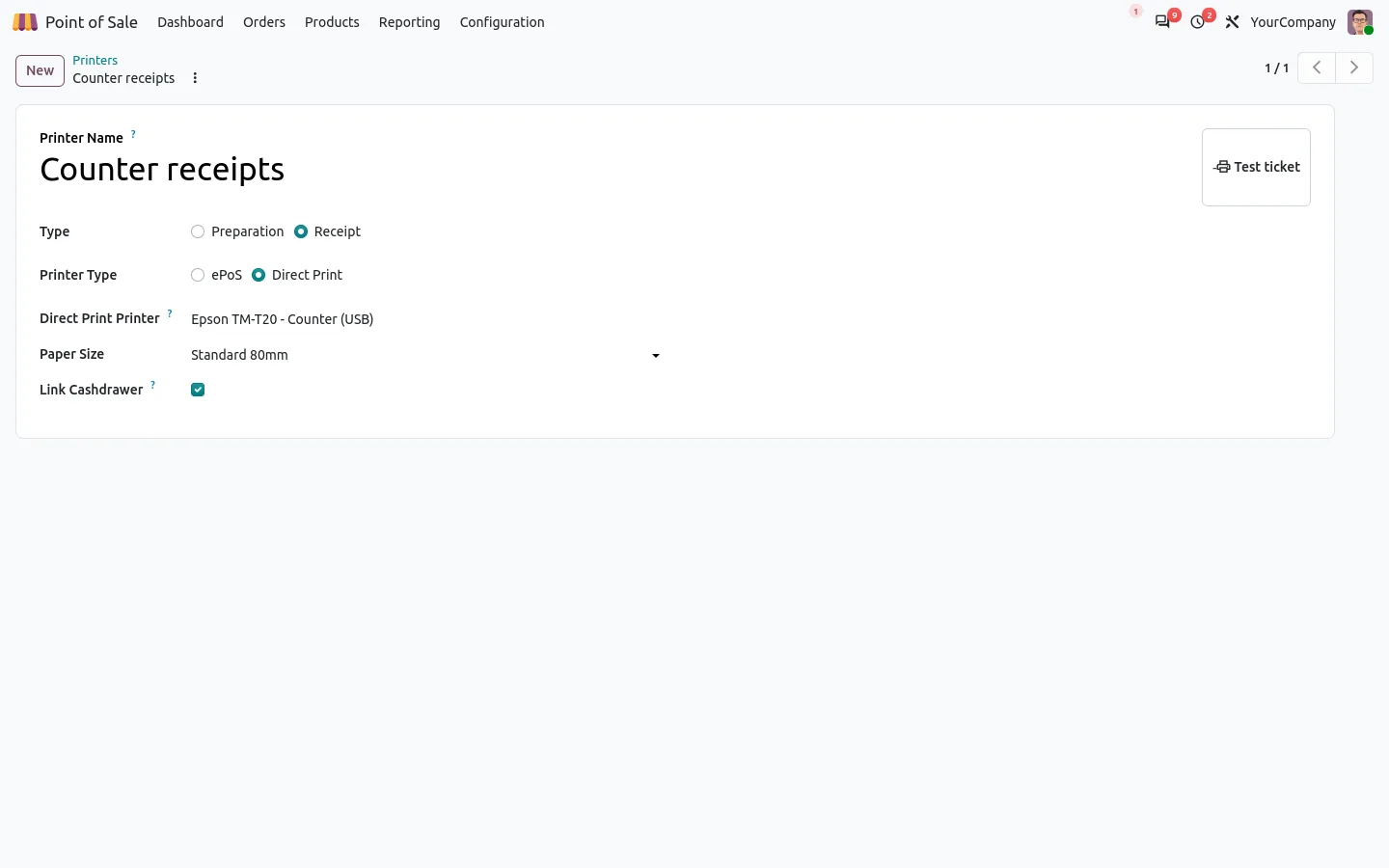
Keep the printer you have: the receipt prints after payment, and the drawer opens.
The printer you already have, without a box
Direct Print for POS takes another road: the till sends the receipt to Odoo, and a small print agent on a PC or a Raspberry Pi of the shop prints it.
- Any ESC/POS printer the agent sees: in USB through Windows or Linux, or on the network on port 9100. Epson TM-T20 and TM-T88 included.
- The standard Odoo receipt, logo and QR code included, on 58 mm or 80 mm paper, cut after each ticket. The ticket is an image, so Arabic and Chinese print too.
- Kitchen and bar tickets on the preparation printers, and the cash drawer when Odoo asks to open it.
- No network path from the till: a tablet on Wi-Fi prints on the USB printer of the back office PC.
- If the agent is off, Odoo shows its usual choice: retry, or print in the browser. A receipt waiting more than ten minutes is never printed.
- It works on Community and Enterprise, for Odoo 18, 19 and 20.
The full setup, step by step, is in how to use a USB receipt printer in Odoo POS without an IoT box.
100% tested
The apps ship with automated tests. No risk.
Questions people ask
Do I need an IoT box for an Epson TM-m30?
No, if it is connected in Wi-Fi or Ethernet: Odoo prints on it directly with the ePos Printer setting. In USB, it needs an IoT connection.
Does the Epson TM-T20 or TM-T88 work without an IoT box?
Not with Odoo alone: Odoo's documentation lists them among the printers that need an IoT connection. Direct Print for POS prints on them through its agent.
Can I use a Bluetooth receipt printer with Odoo?
Odoo's documentation says Bluetooth printers are not compatible. We have not tested them with Direct Print: choose a USB or network printer.
Does it work on Odoo Online?
The Epson network printers and the IoT box work on Odoo Online. Direct Print does not, like every third-party app: it needs Odoo.sh or your own server.
What about Odoo 18?
Odoo 18 also prints on Epson network printers with its POS Epson Printer app, using a self-signed certificate on each till. Local Network Access and the iMin devices arrive with Odoo 19.
Printing kitchen tickets or labels too? See how to print directly from Odoo without PrintNode or an IoT box.
Keep your printer, skip the box
Choose an Epson network printer if you are buying one. For every other receipt printer, the agent of Direct Print does the job of the box.
It needs Direct Print, the print agent.
A question before you buy? Write to support@sharqix.com, we answer within one business day.