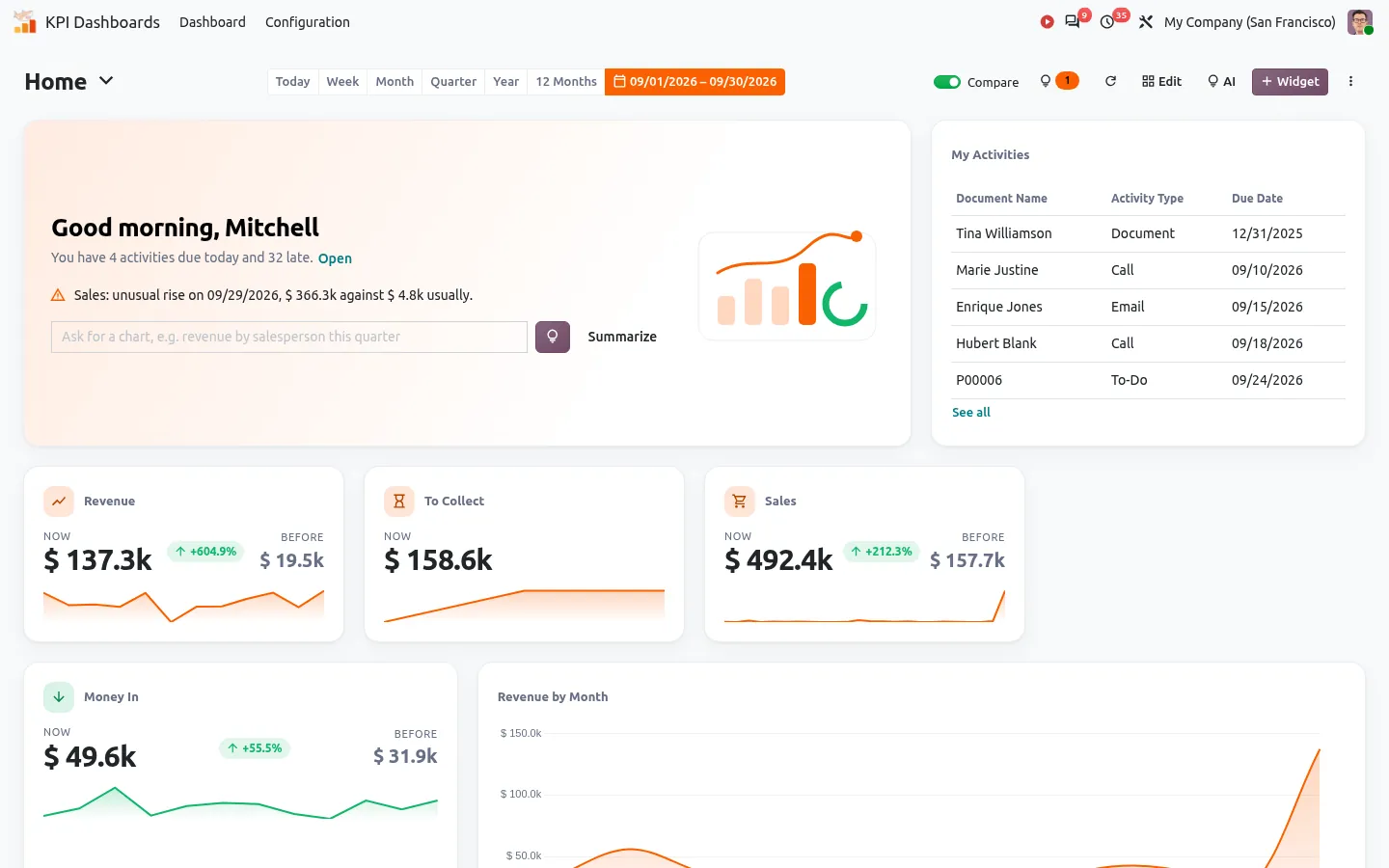

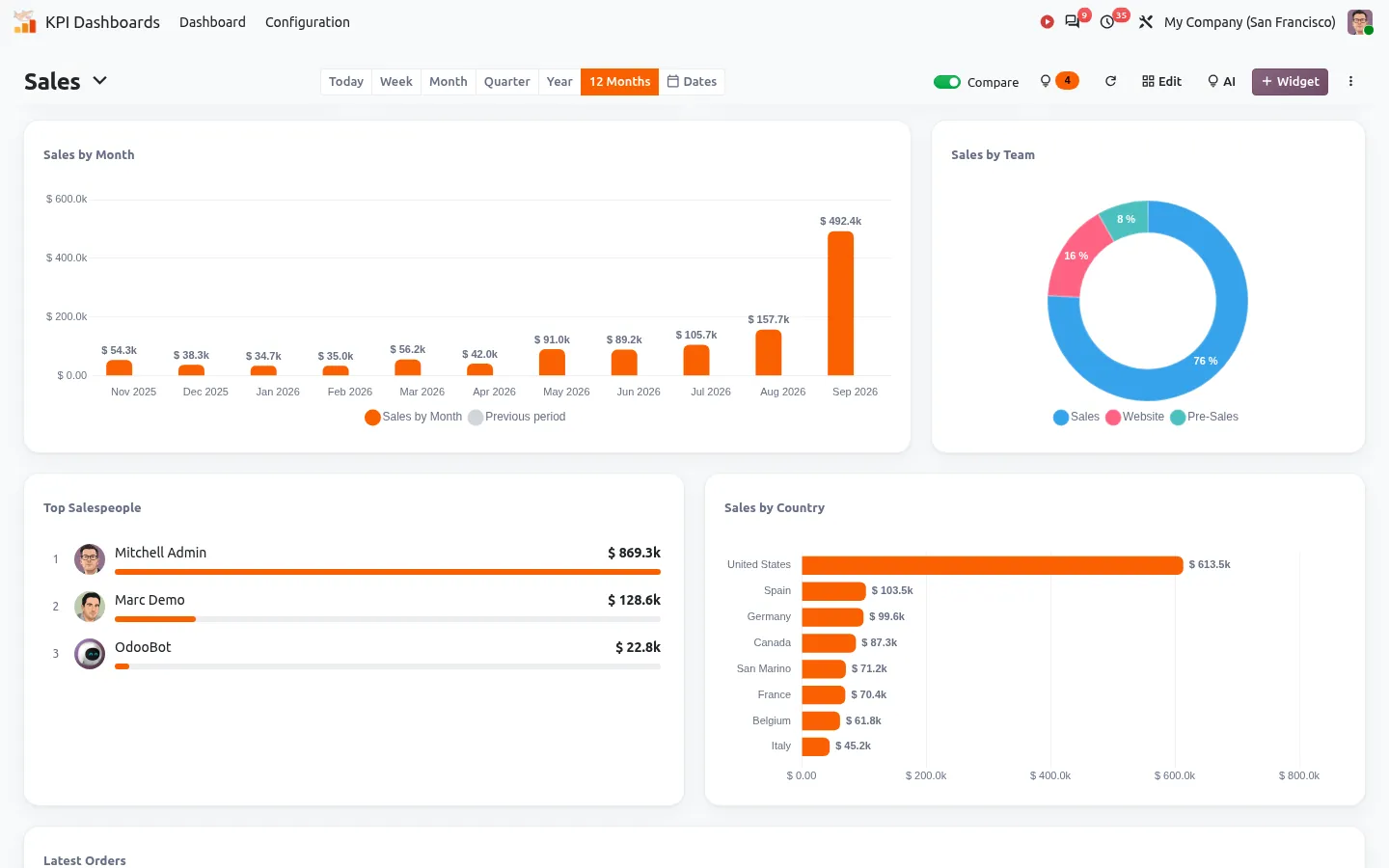


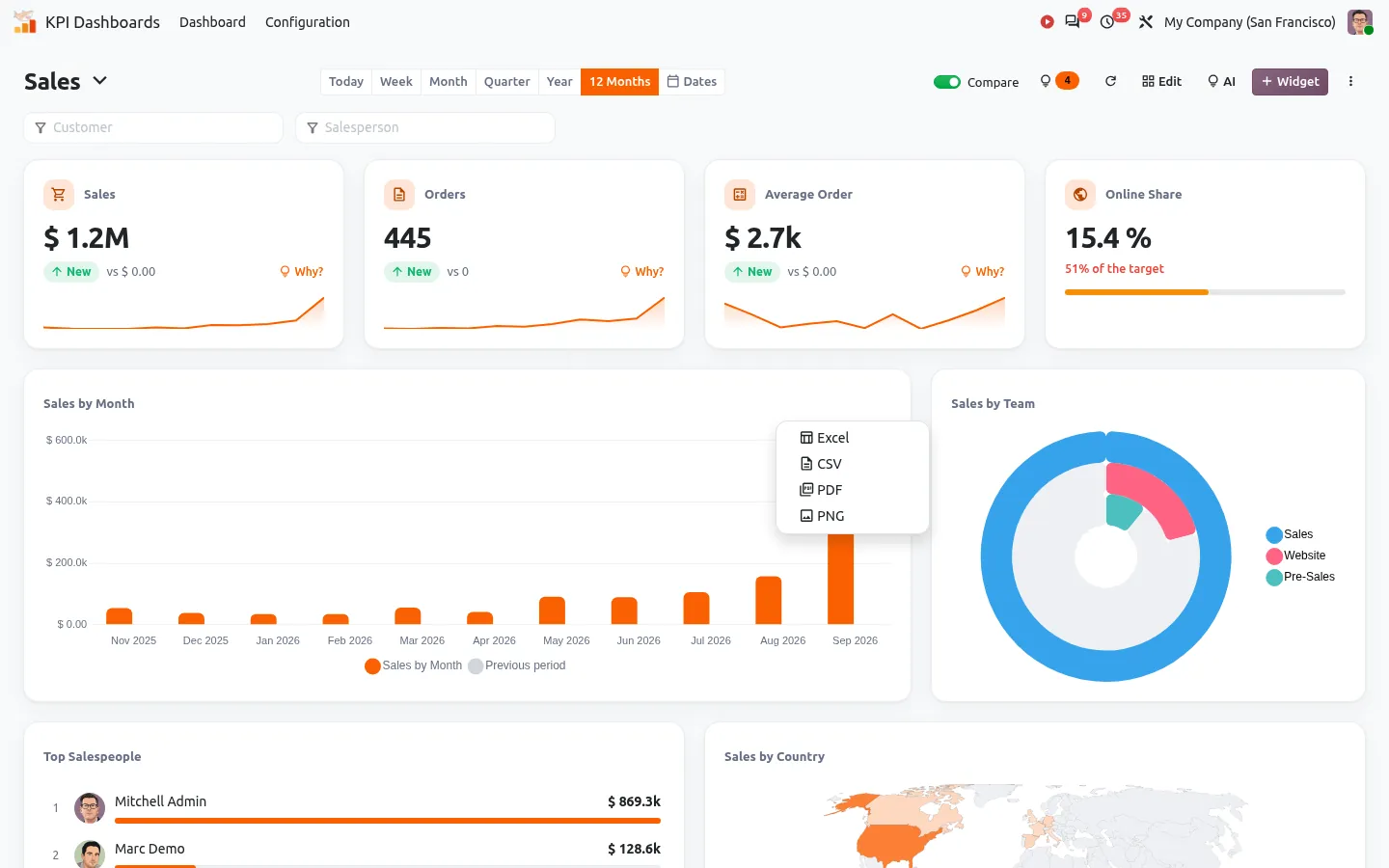
You want one screen with the sales of the month, the invoices to collect and the open opportunities. Odoo has all the data. But where do you build that dashboard, and what can you do without Odoo Enterprise or a developer?
Odoo offers several tools to create a dashboard, and they are easy to confuse:
- My Dashboard, filled from your own views.
- The Dashboards app, with dashboards prepared by Odoo.
- Dashboard modules from the Odoo Apps Store.
Here is what each one does in Odoo 18, 19 and 20, in Community and in Enterprise, so you can pick the right one in five minutes.
Method 1: "Add to my dashboard", the free shortcut
Open a list, pivot or graph view, for example your sales orders grouped by salesperson. Apply your filters, open the gear menu next to the view title and choose Add to my dashboard. Give it a name: the view now sits in Dashboards > My Dashboard.
If the option is missing, install the Dashboards module from the Apps menu (remove the Apps filter of the search to find it). It works in Community and in Enterprise.
- Good for: a personal page with the three or four views you check every day.
- Limits: one dashboard per user, no comparison with last month, no targets, nothing to share with the team.
Method 2: the Dashboards app, ready-made but fixed in Community
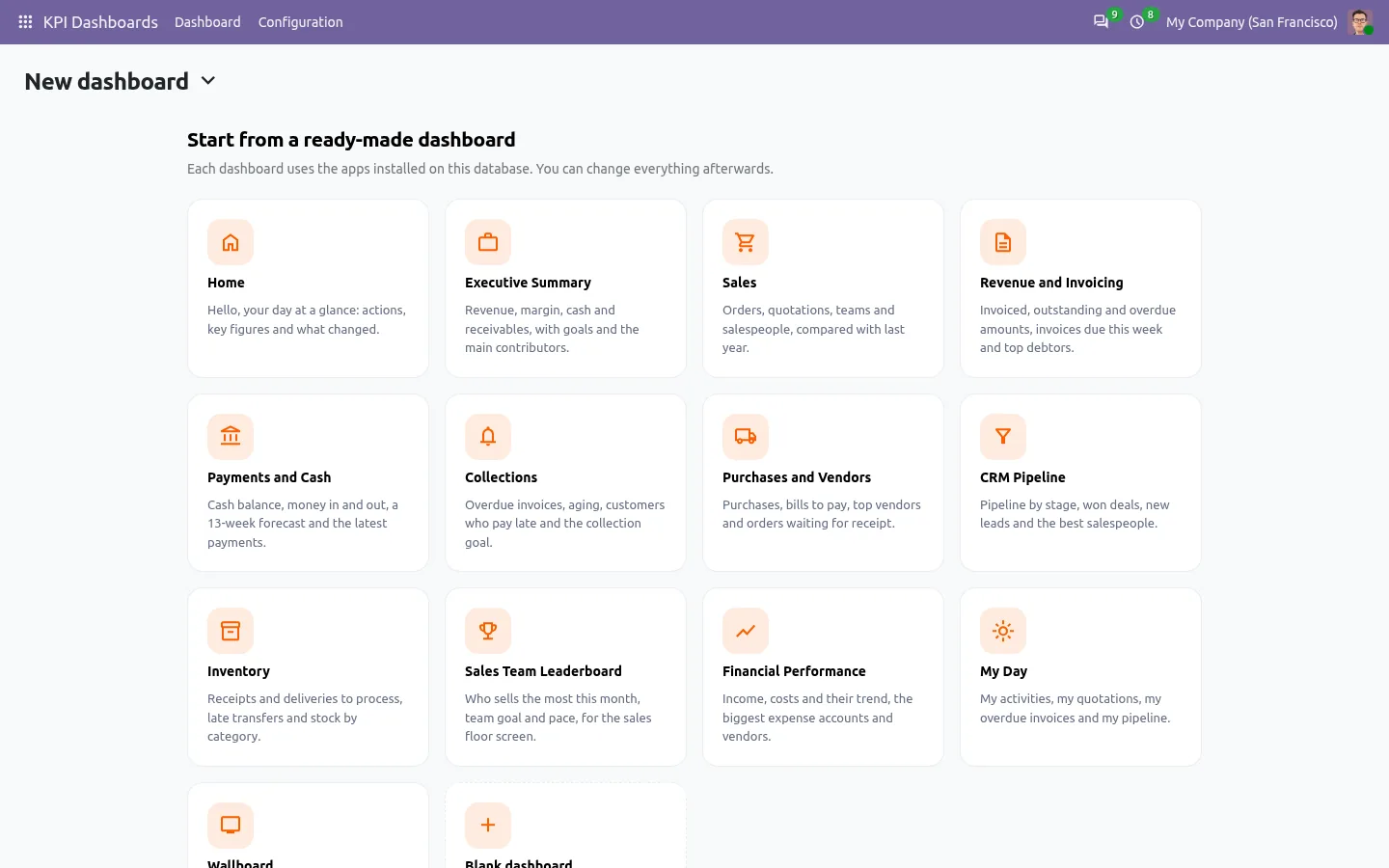
The Dashboards app shows dashboards prepared by Odoo for the apps you use: sales, invoicing, point of sale, eCommerce and more. They work at once with your data.
In Community, you read them but cannot change them: no new KPI, no new dashboard. In Enterprise, they are Odoo spreadsheets, so you can edit them and create your own with formulas and pivot tables.
- Good for: Enterprise users at ease with spreadsheets.
- Limits: fixed content in Community; in Enterprise, every change is spreadsheet work, and there are no alerts or forecasts.
Method 3: a dashboard module built around your KPIs
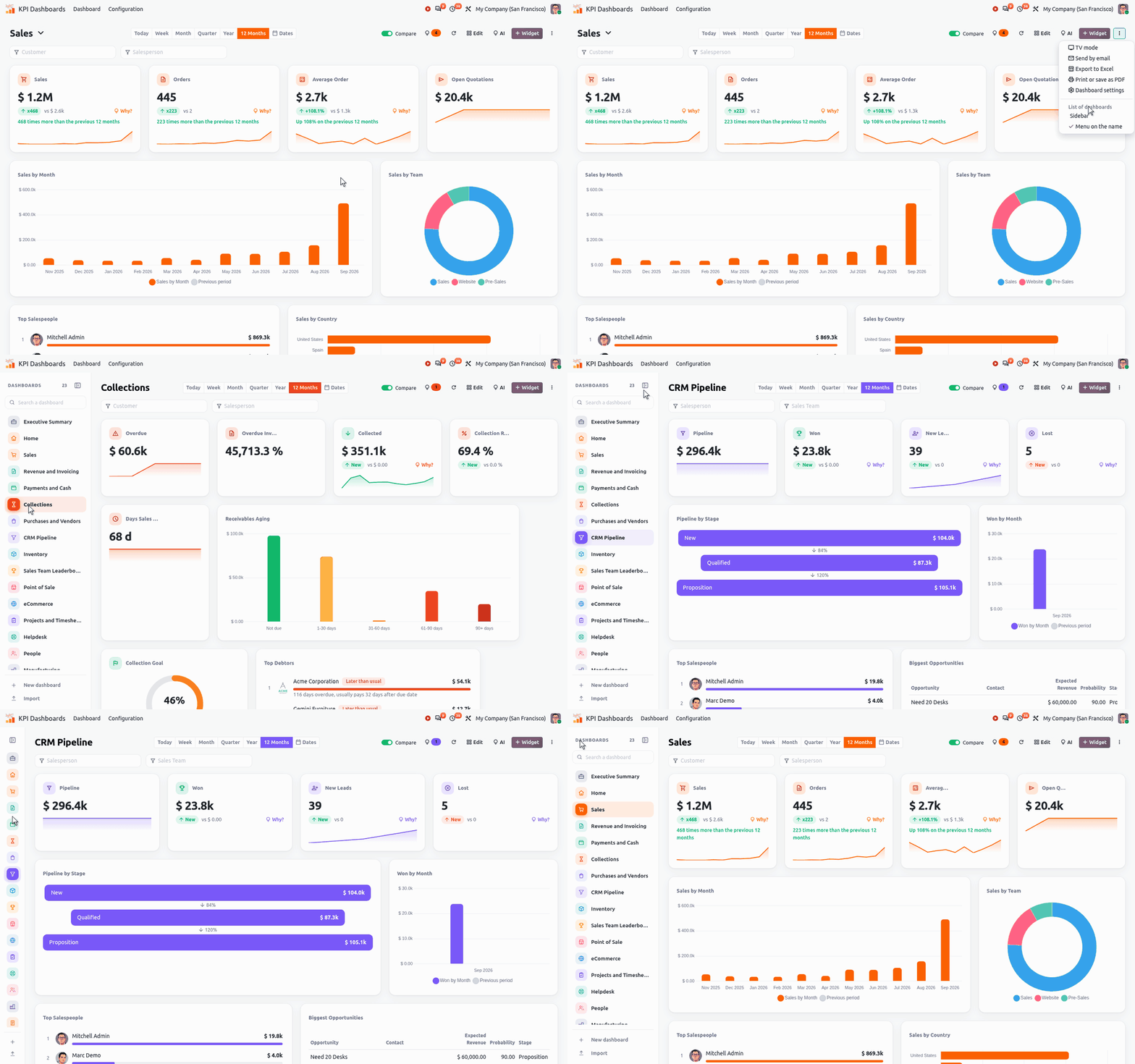
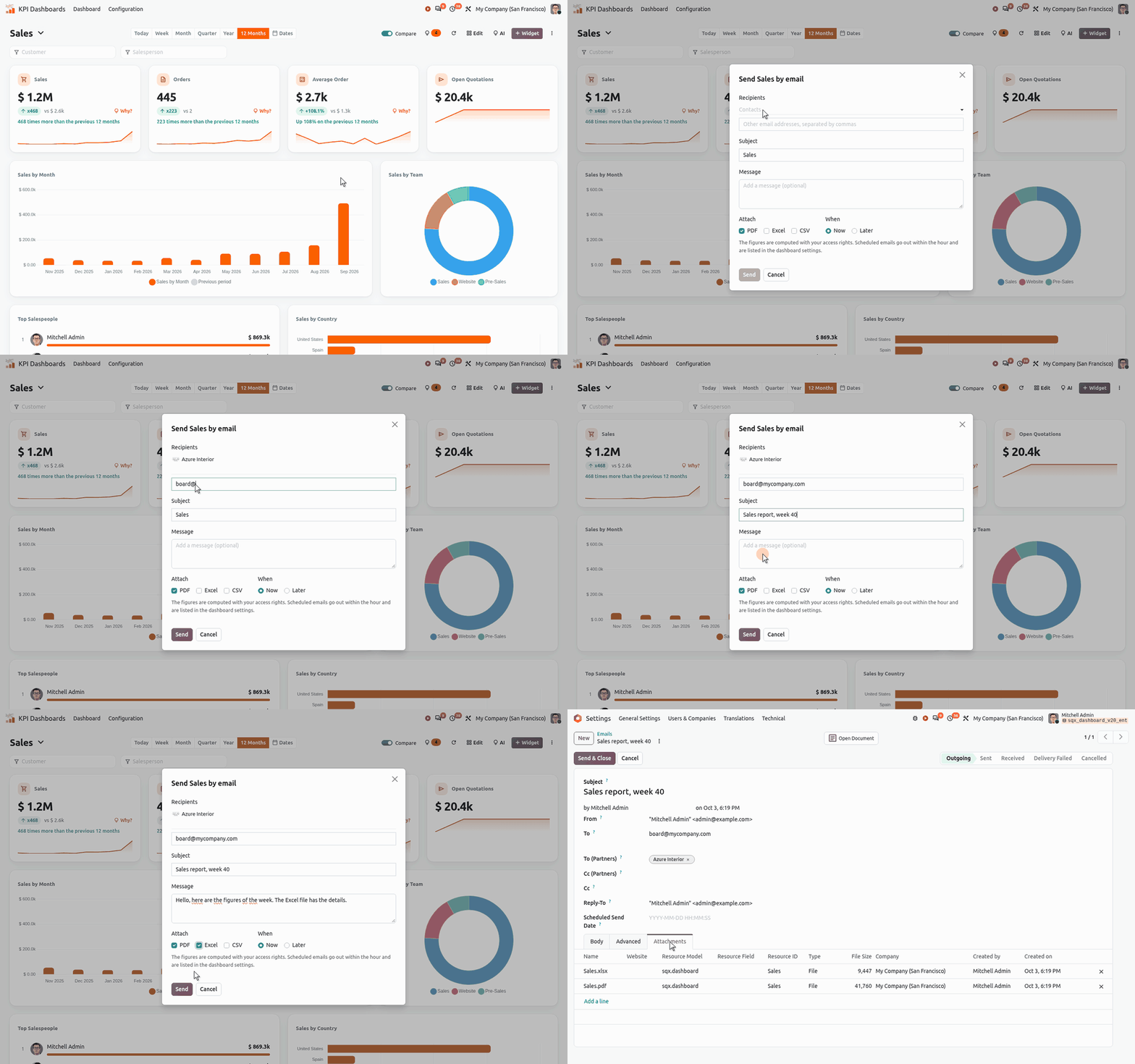
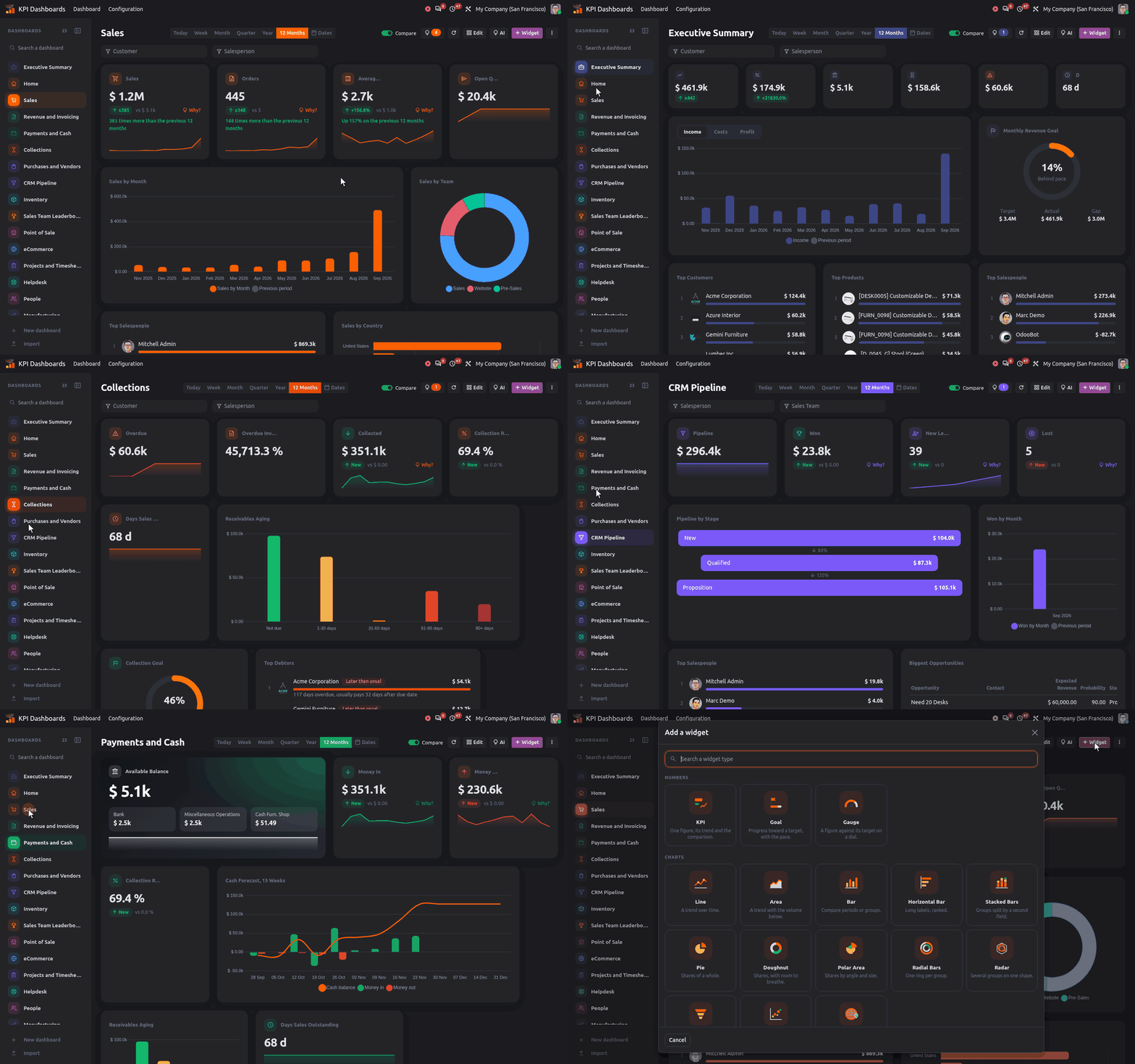
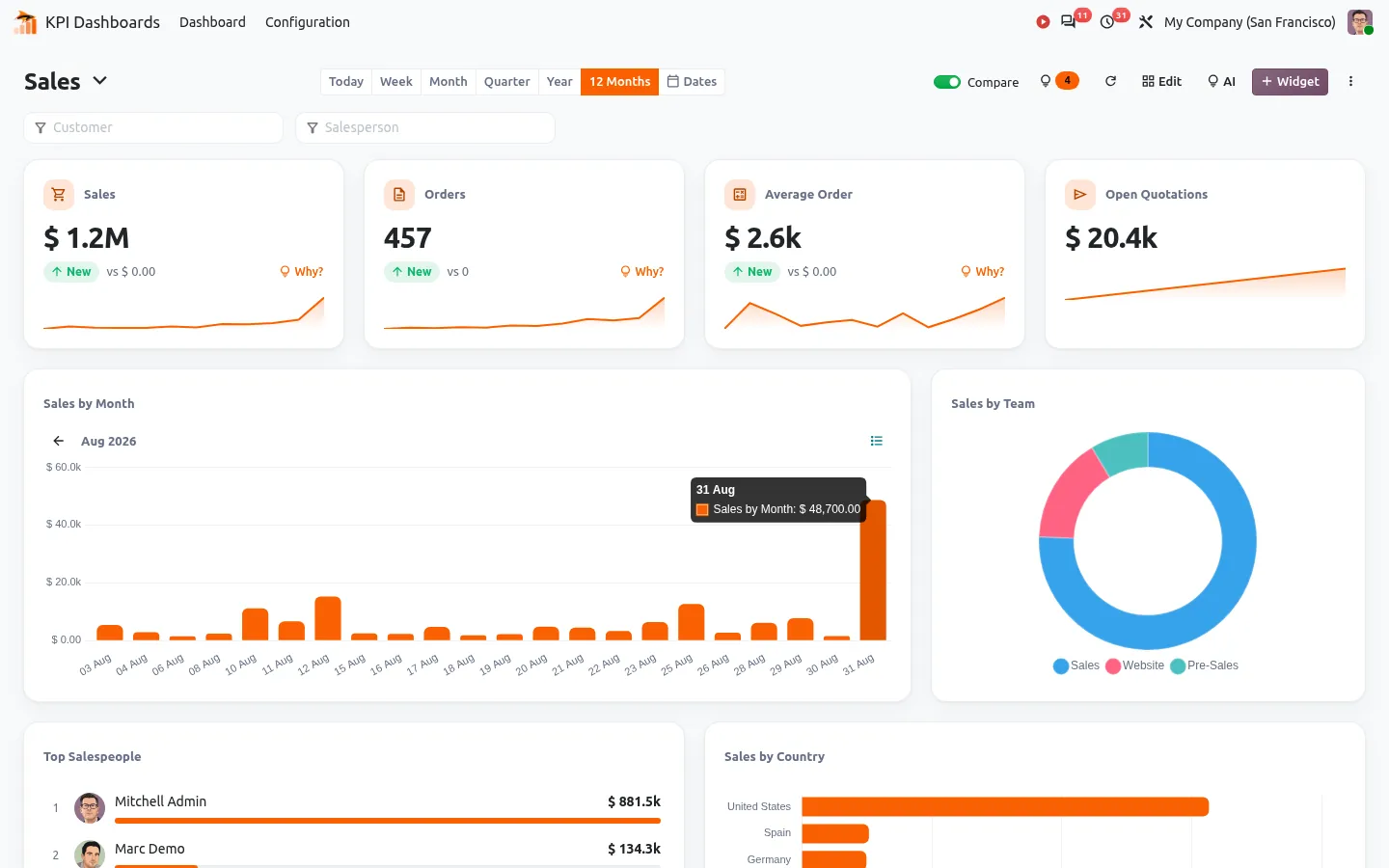
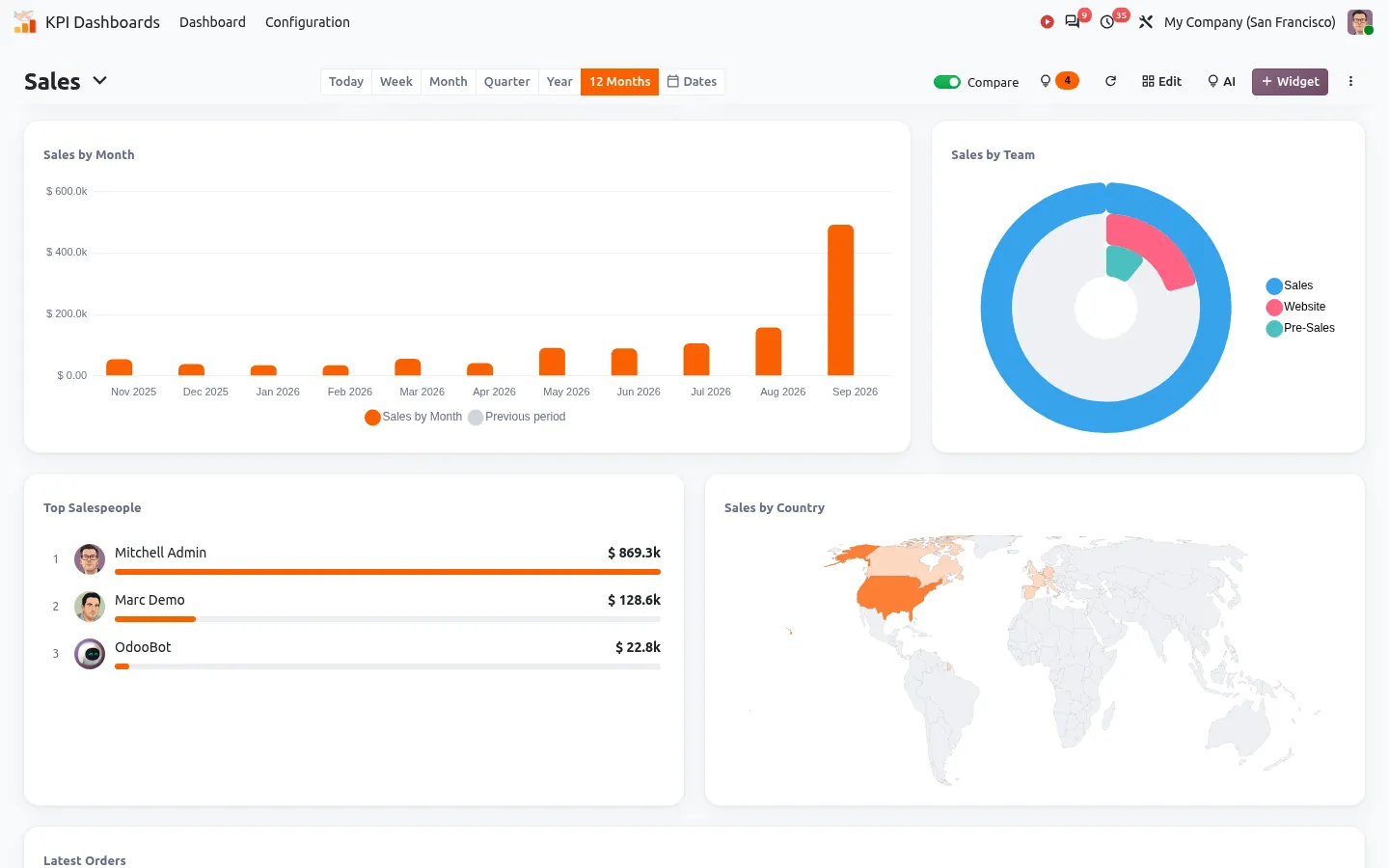
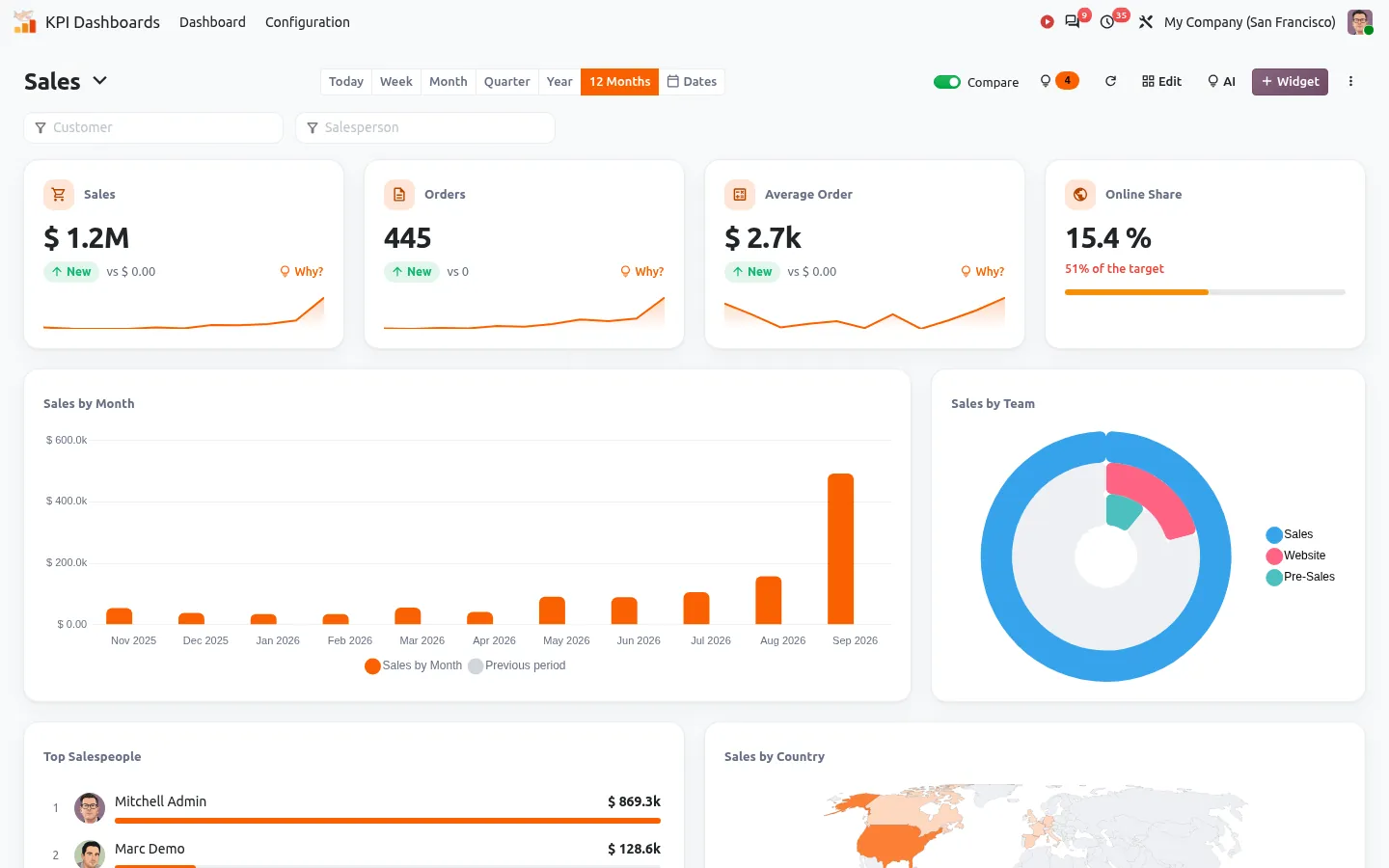
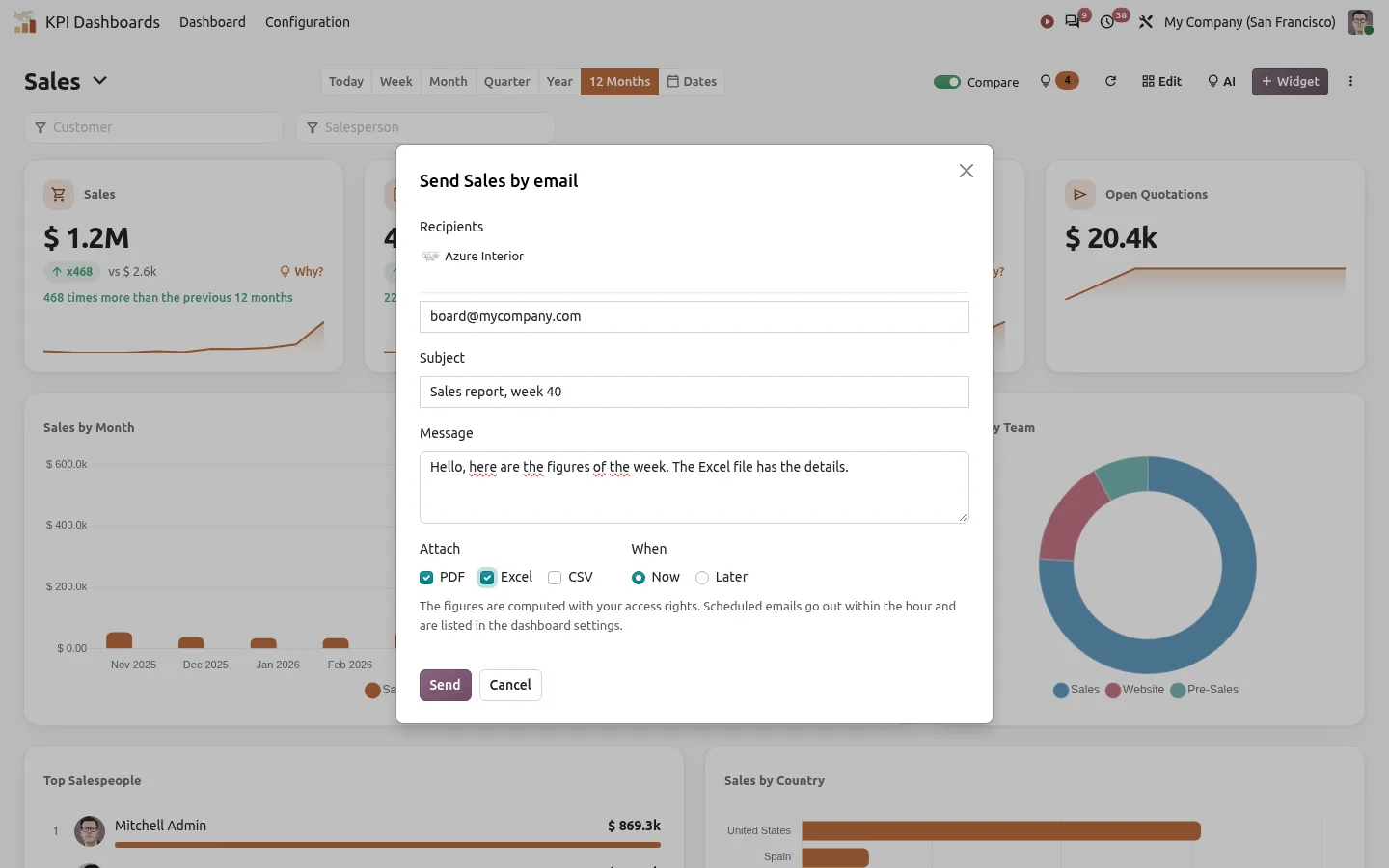
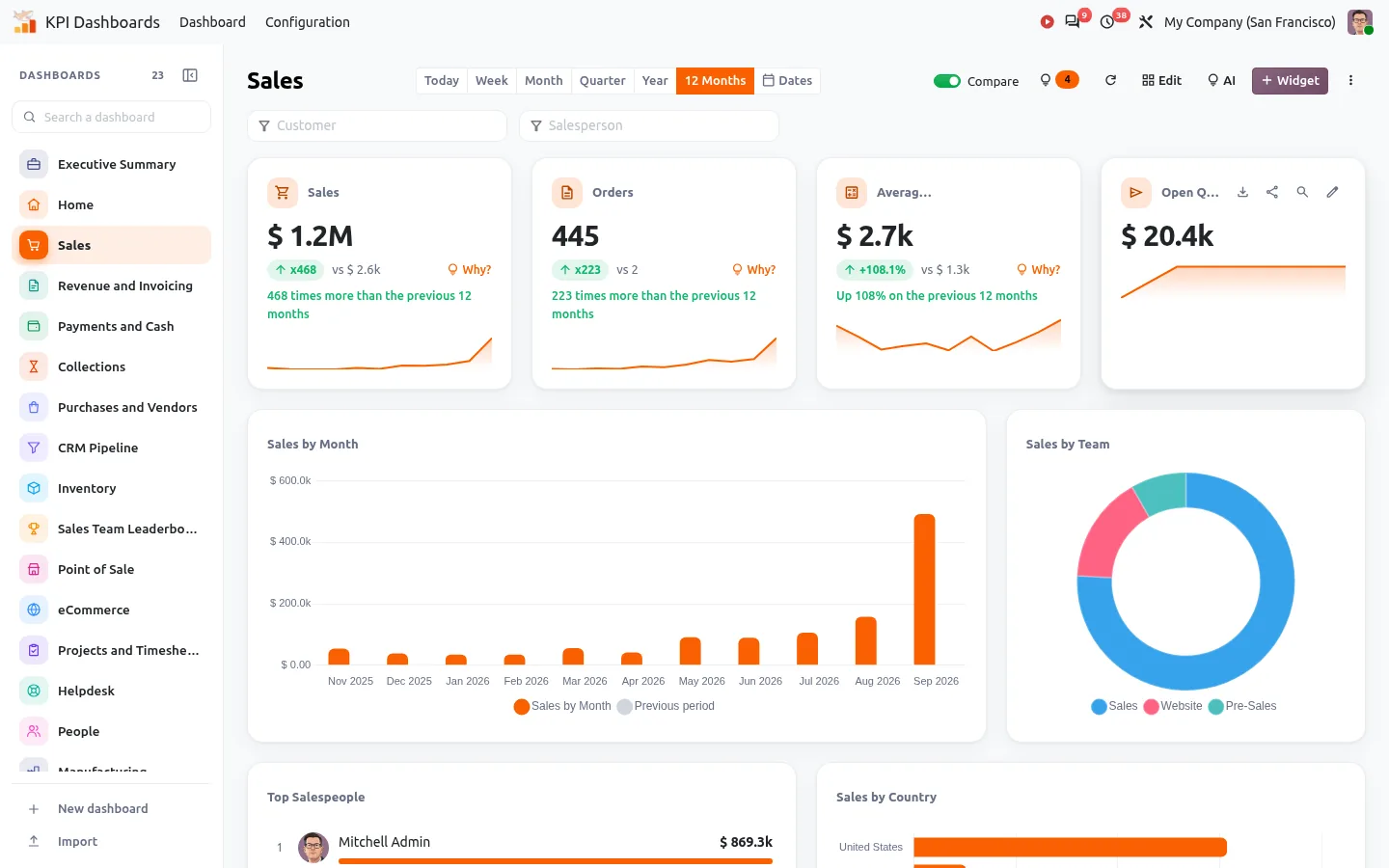
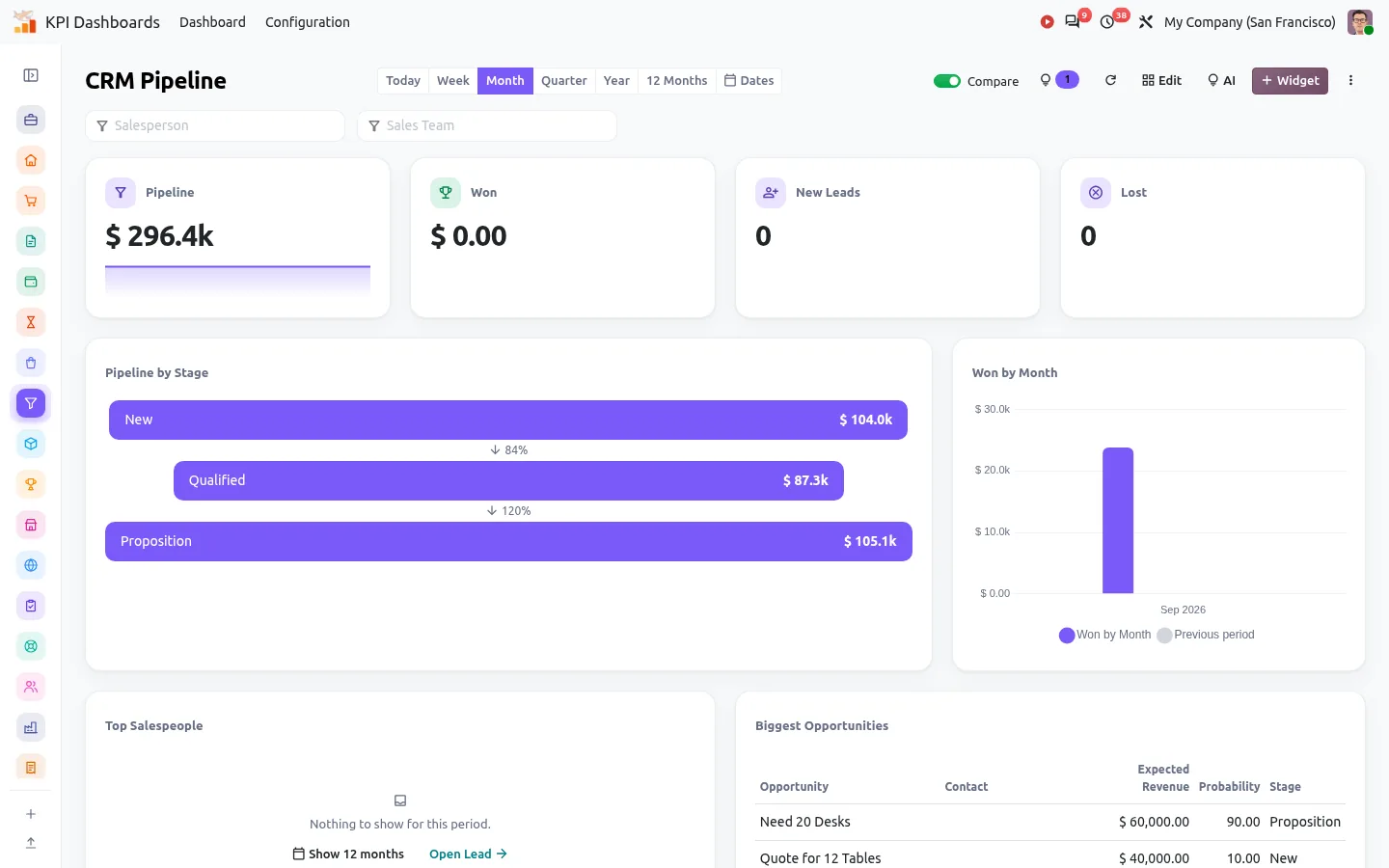
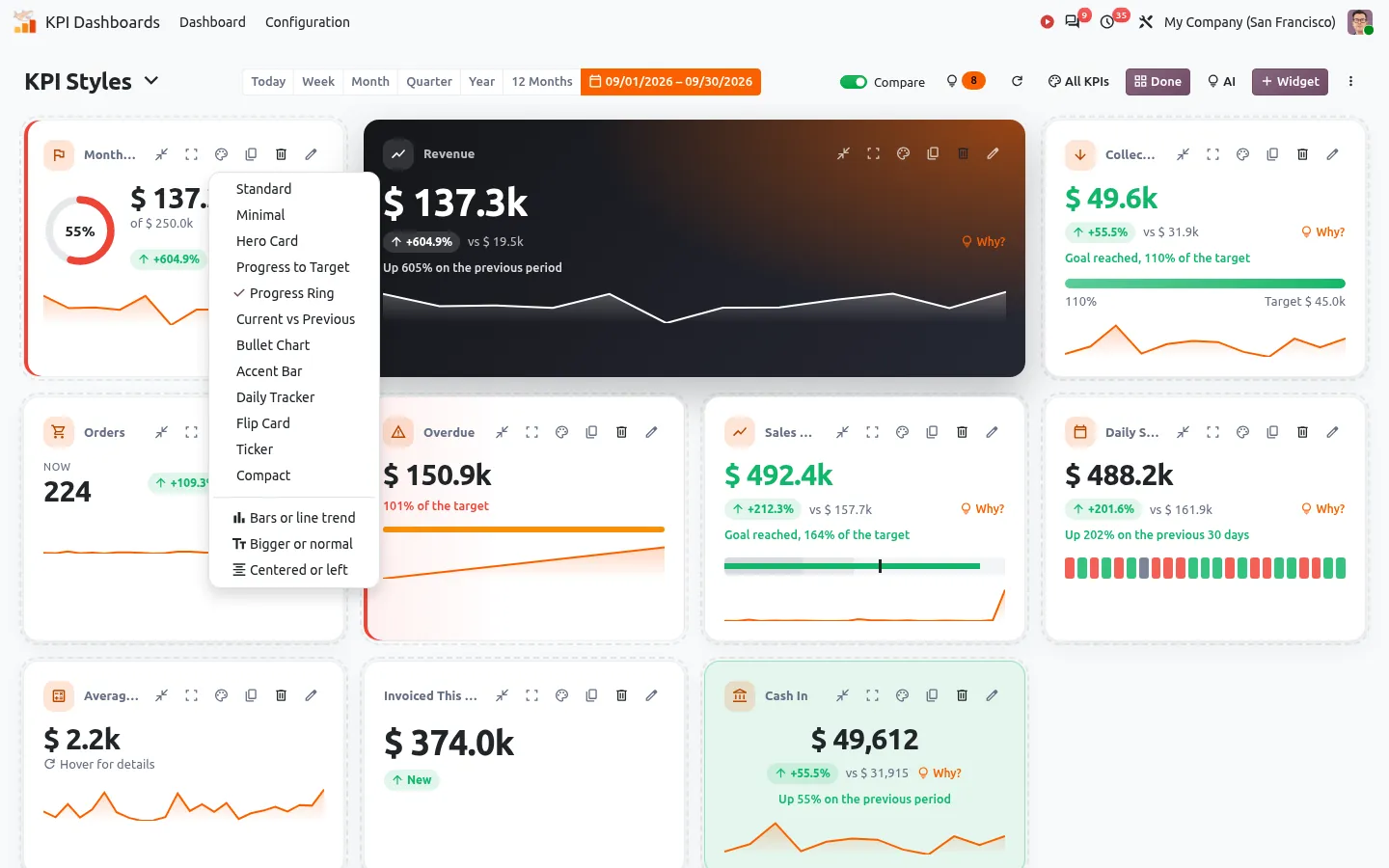
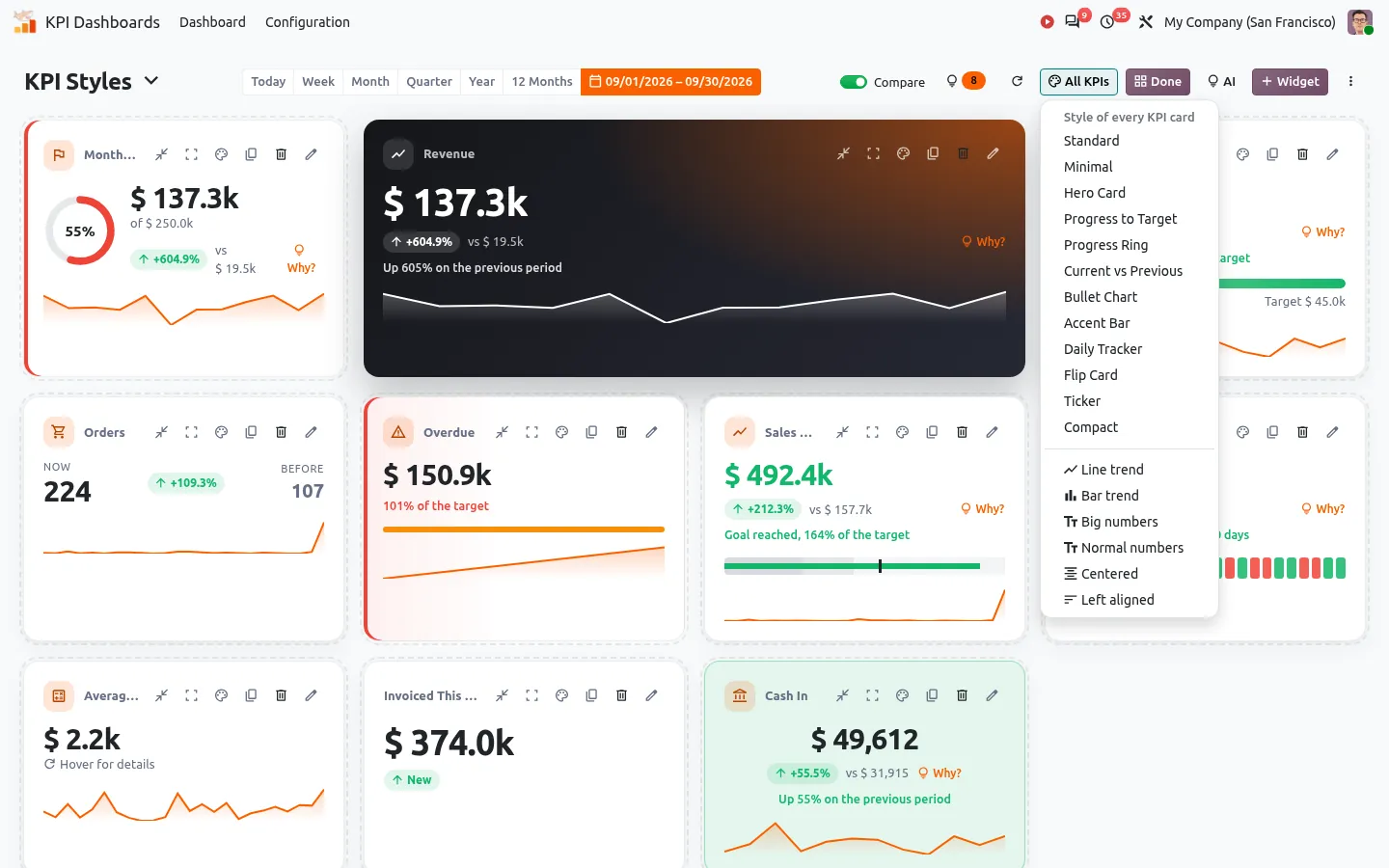
When the native tools are not enough, a dashboard module adds what is missing. We built our KPI Dashboards app for that, and it works the same way in Community and Enterprise:
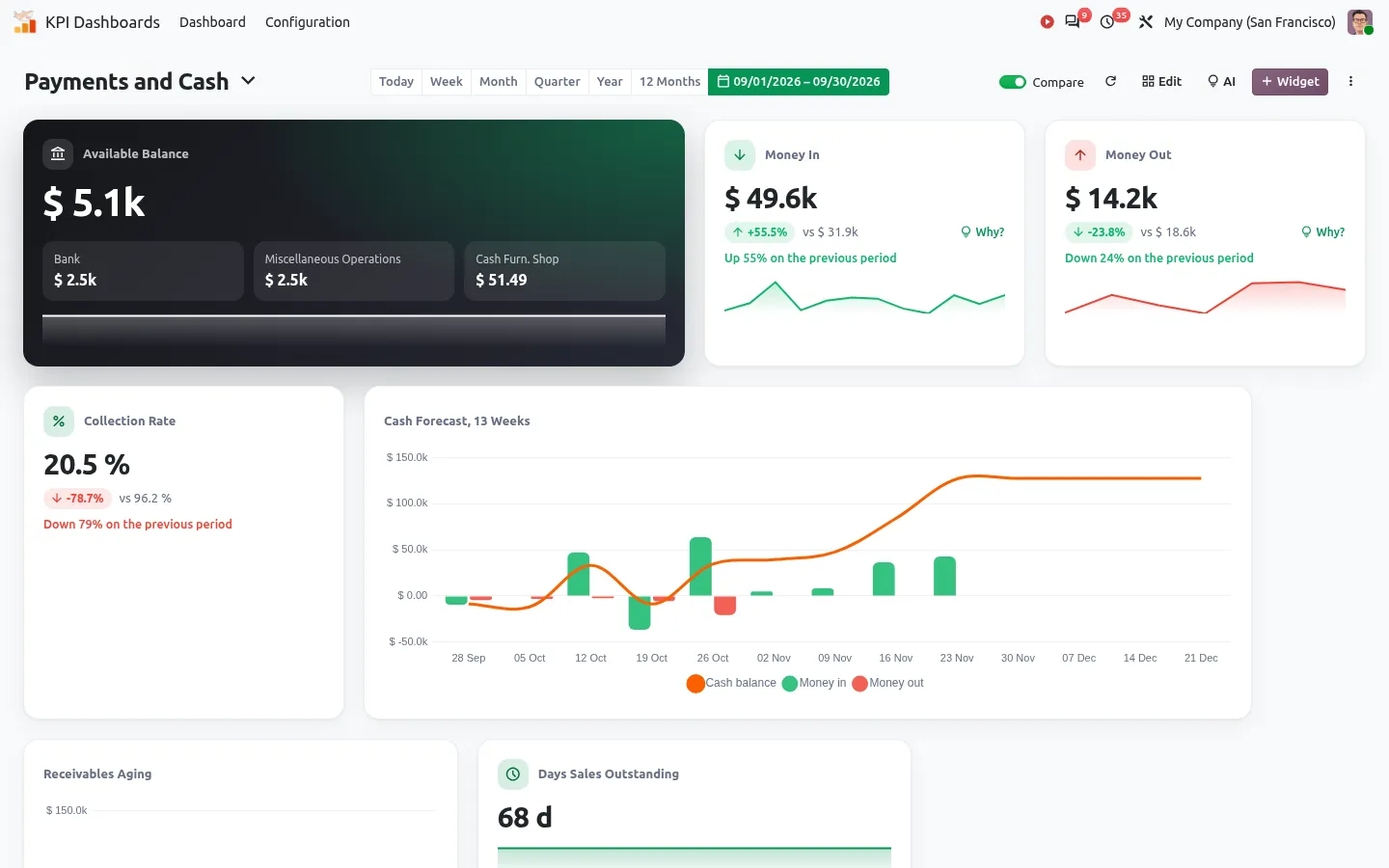
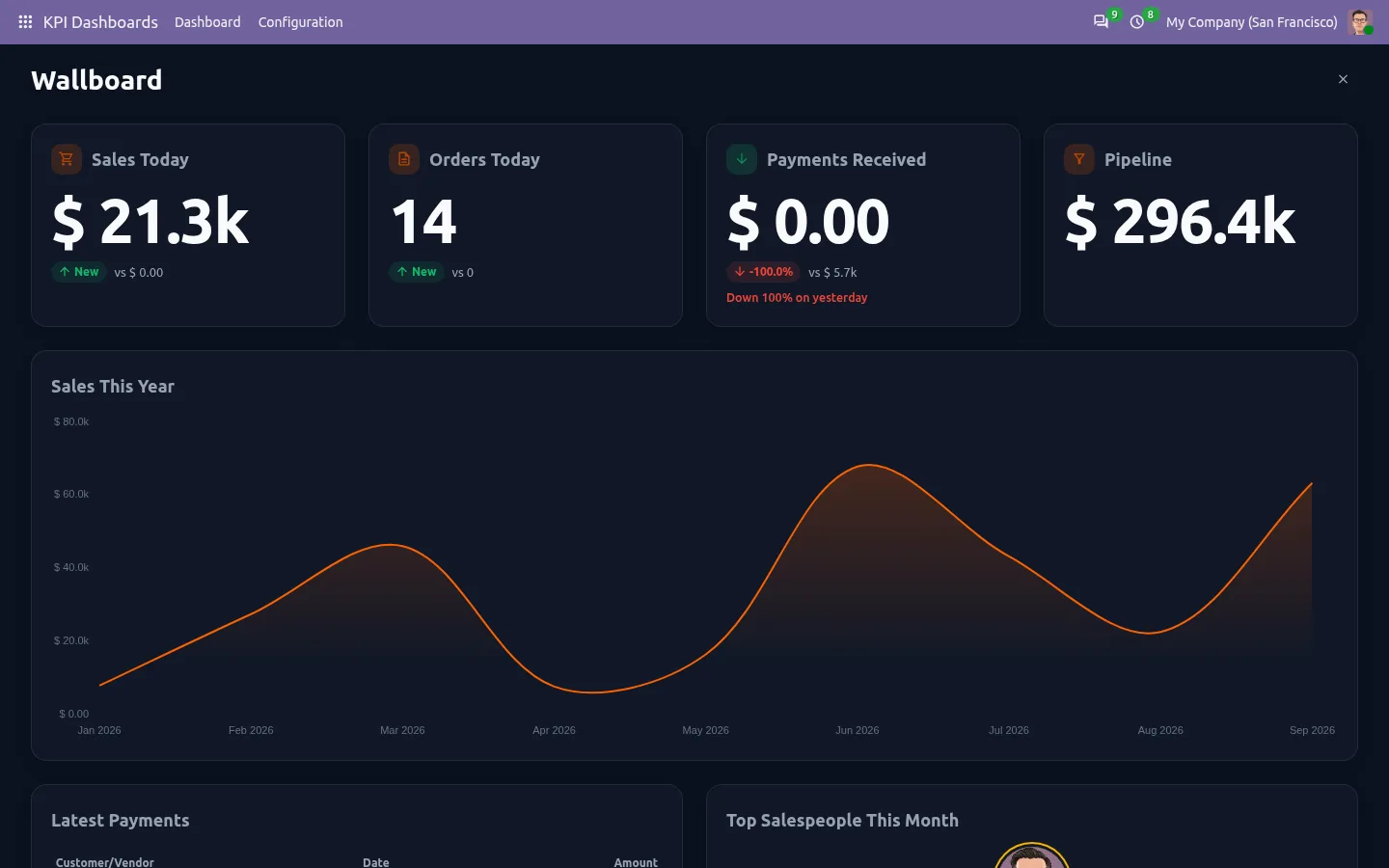
- 22 ready-made dashboards: sales, CRM, invoicing, cash, point of sale, projects, helpdesk, HR, manufacturing and more.
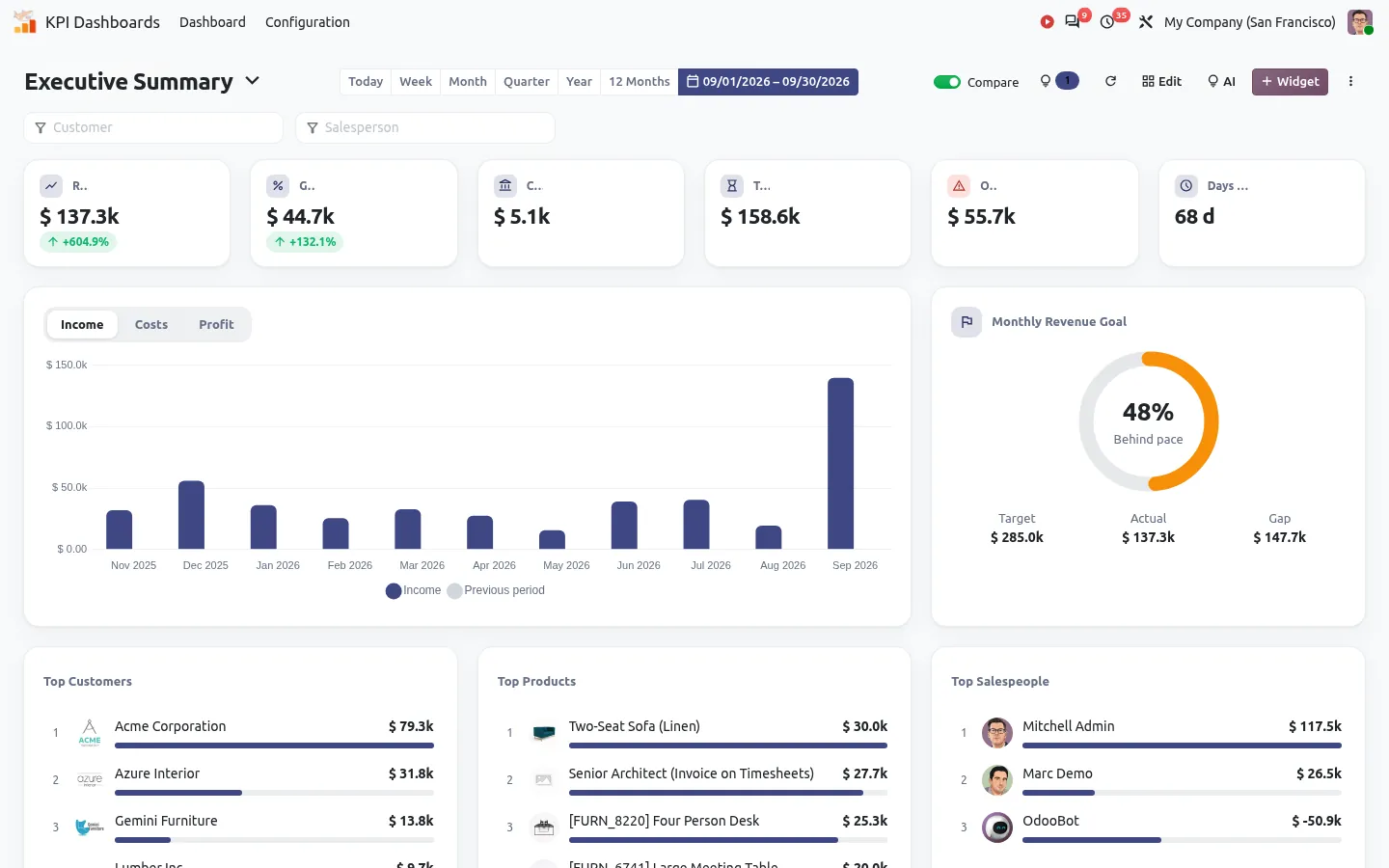
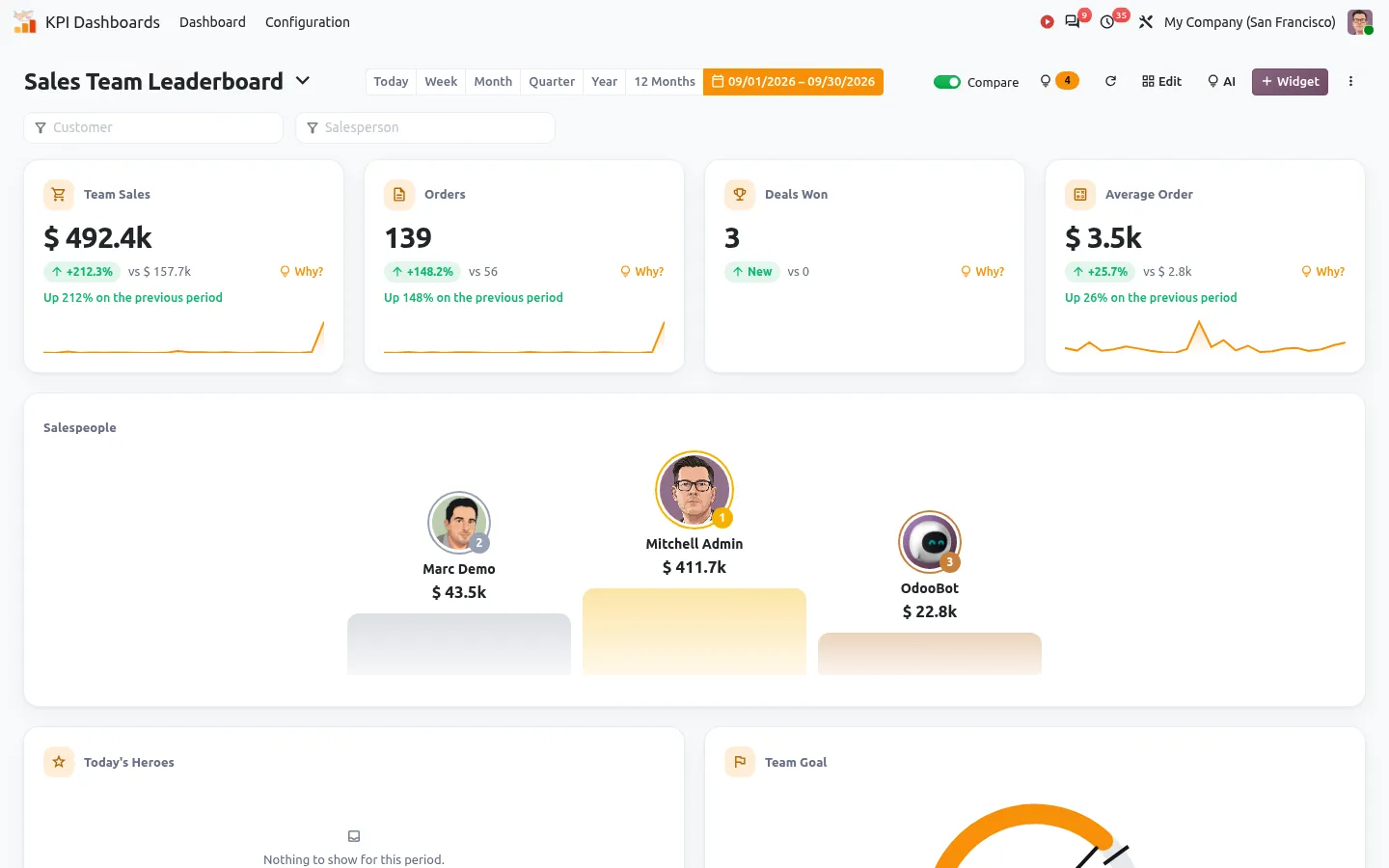
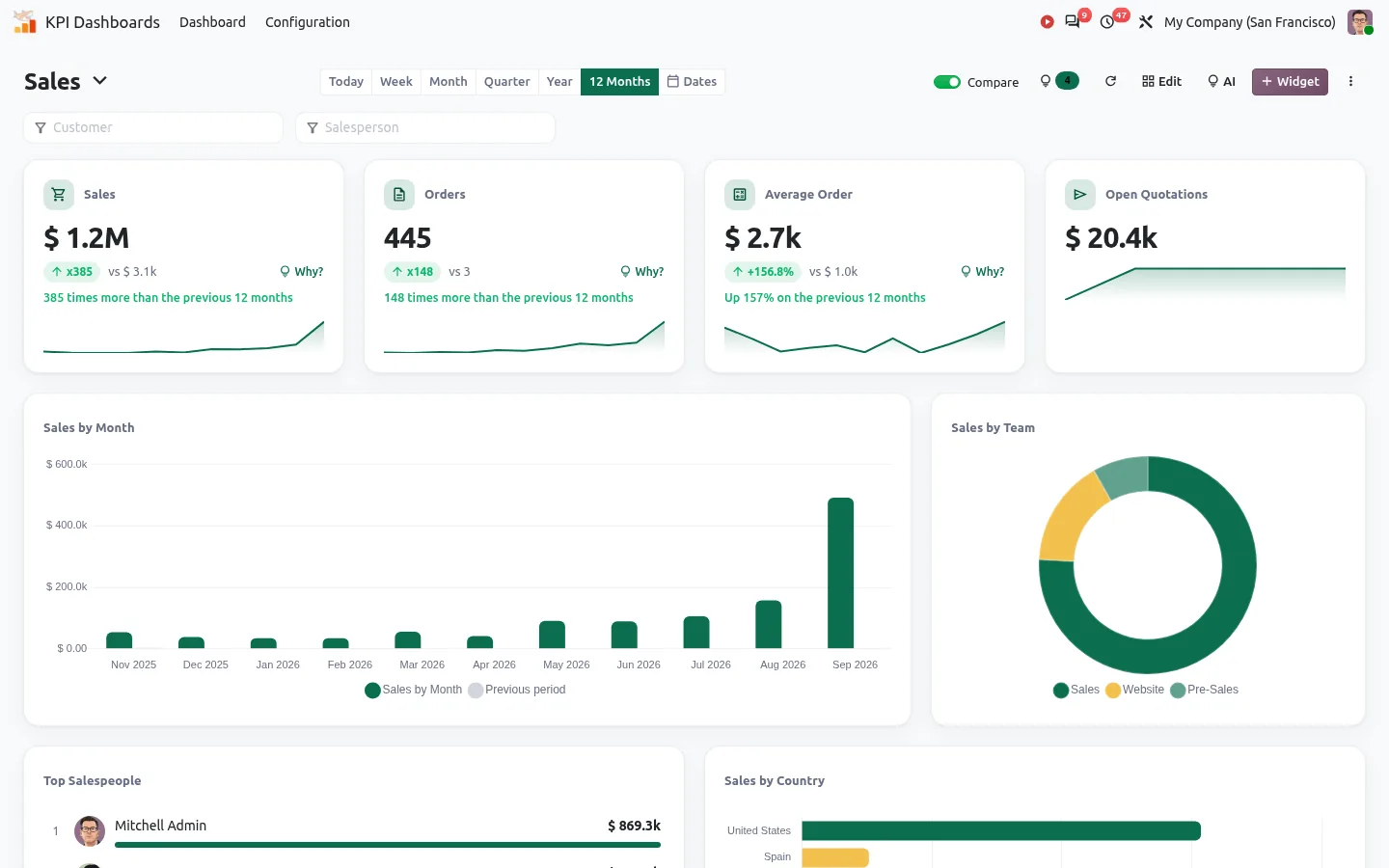
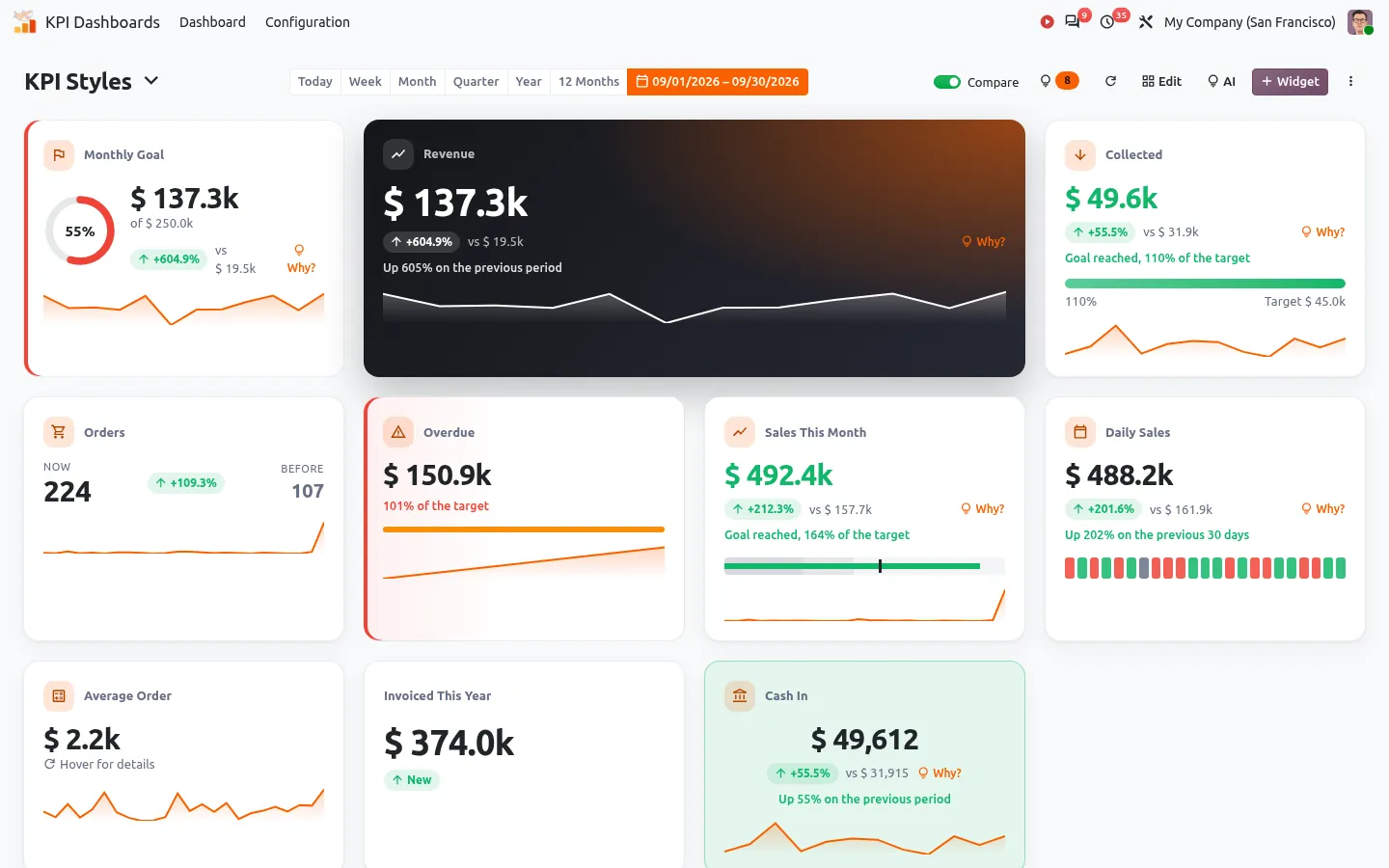
- Every KPI compared with the previous period, and a Why? button that shows which customer, product or salesperson moved it.
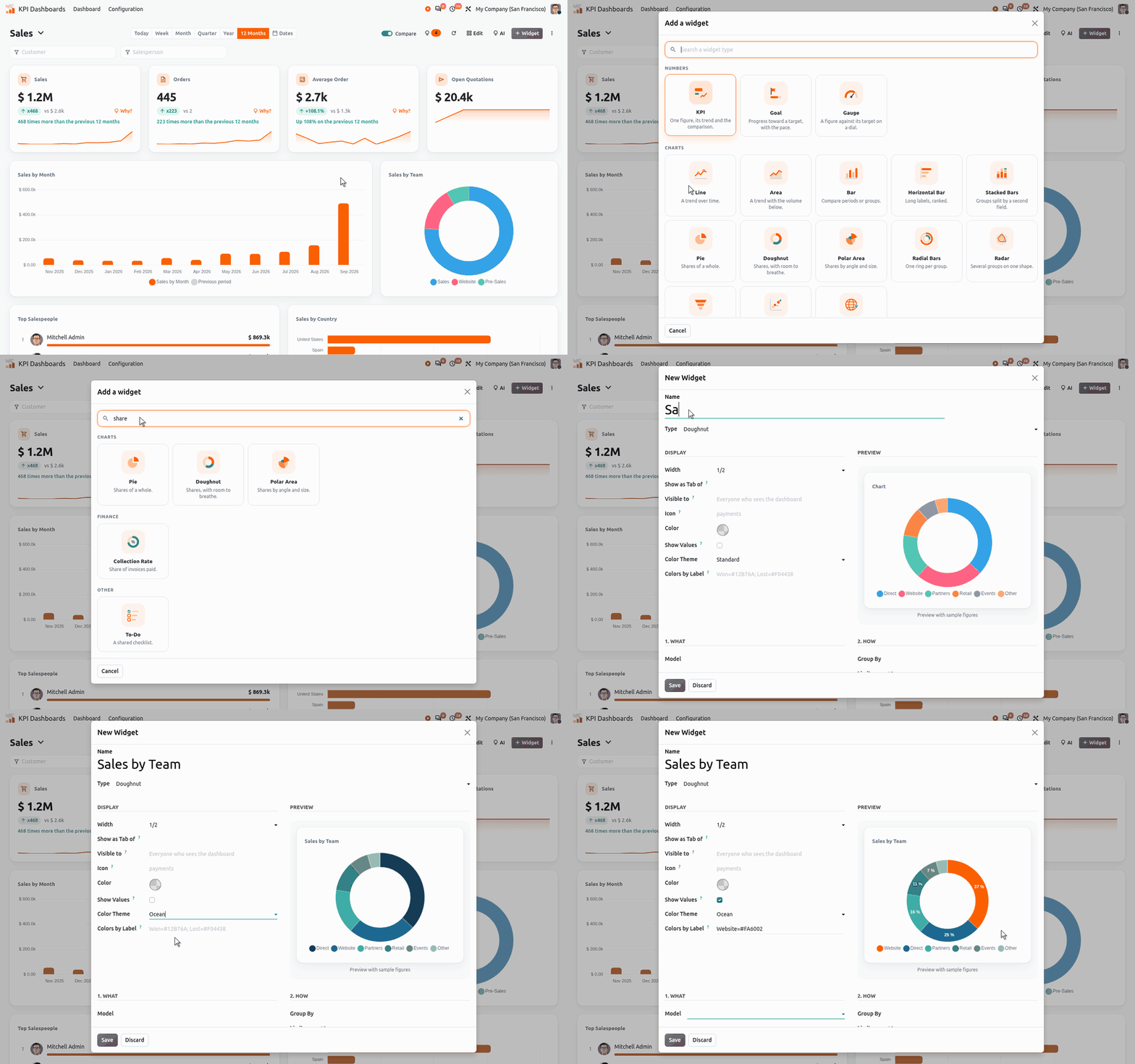
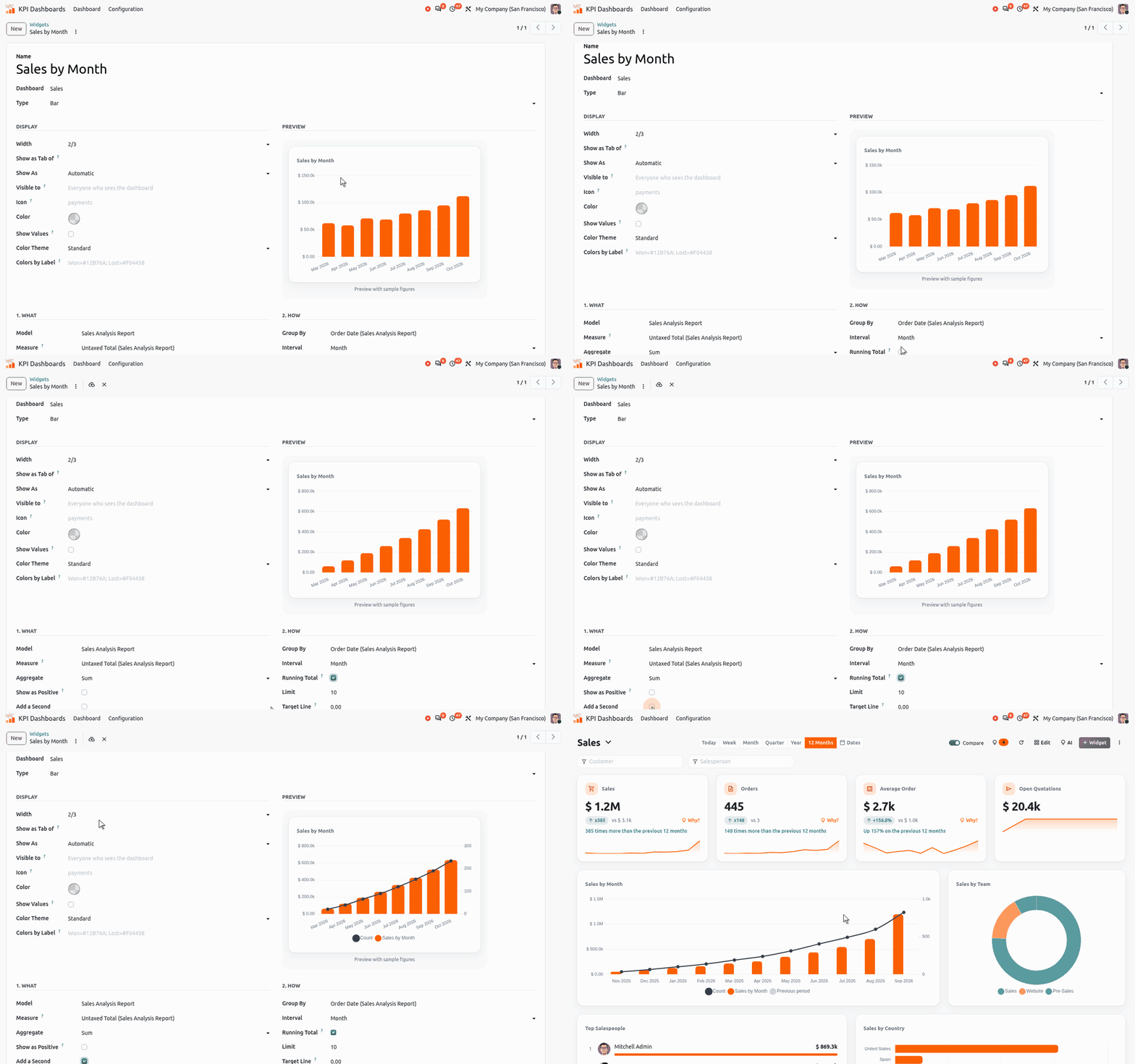
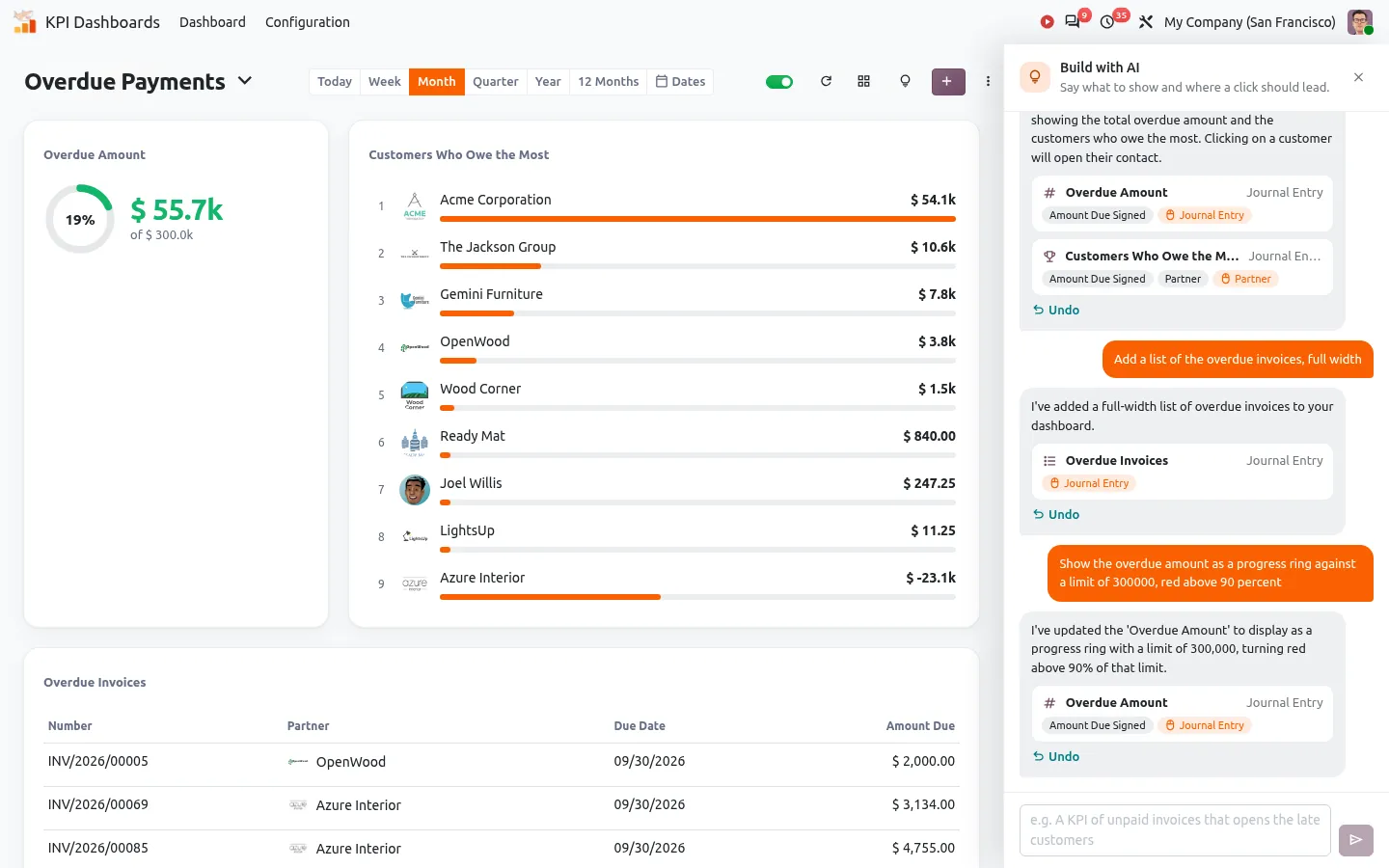
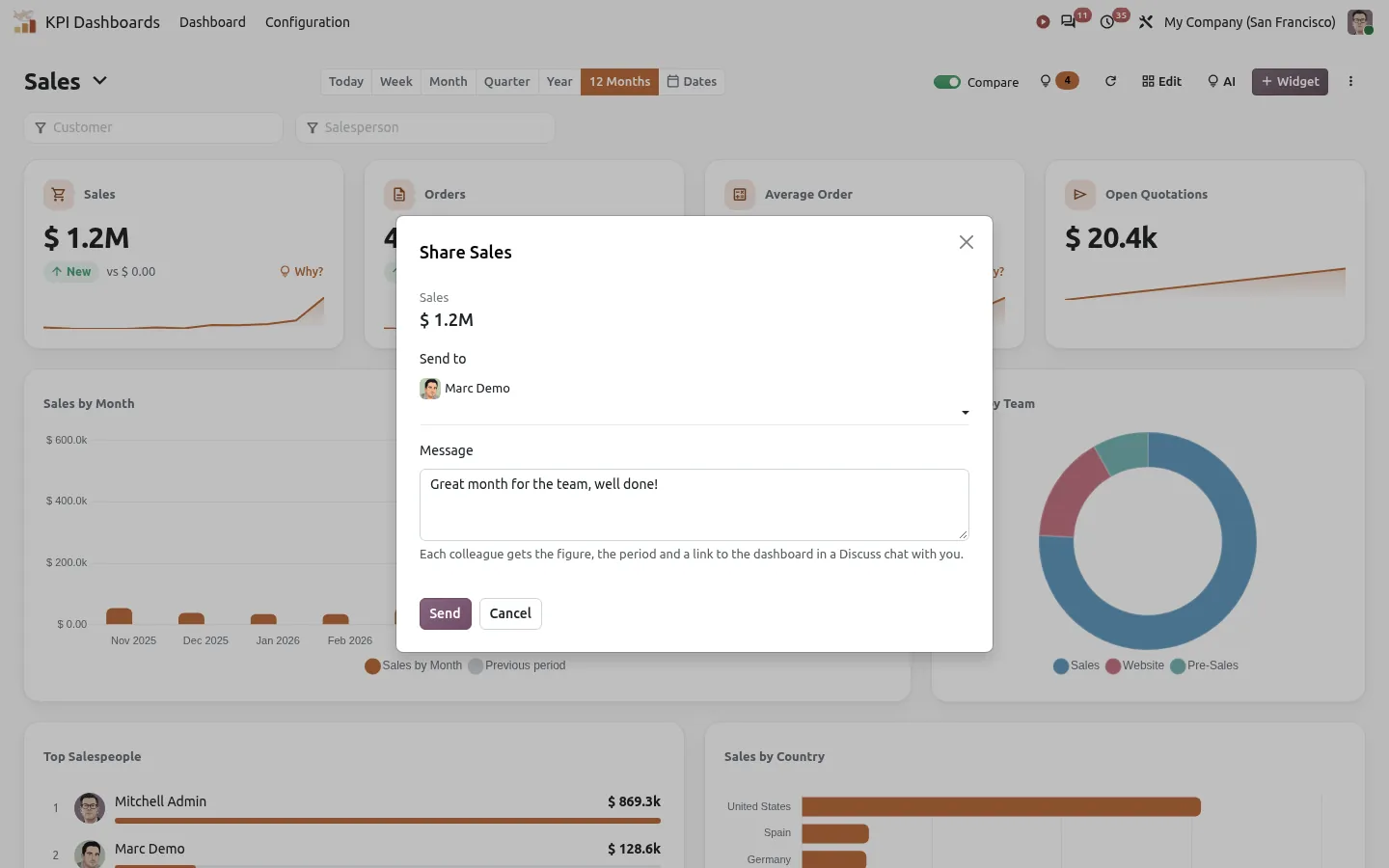
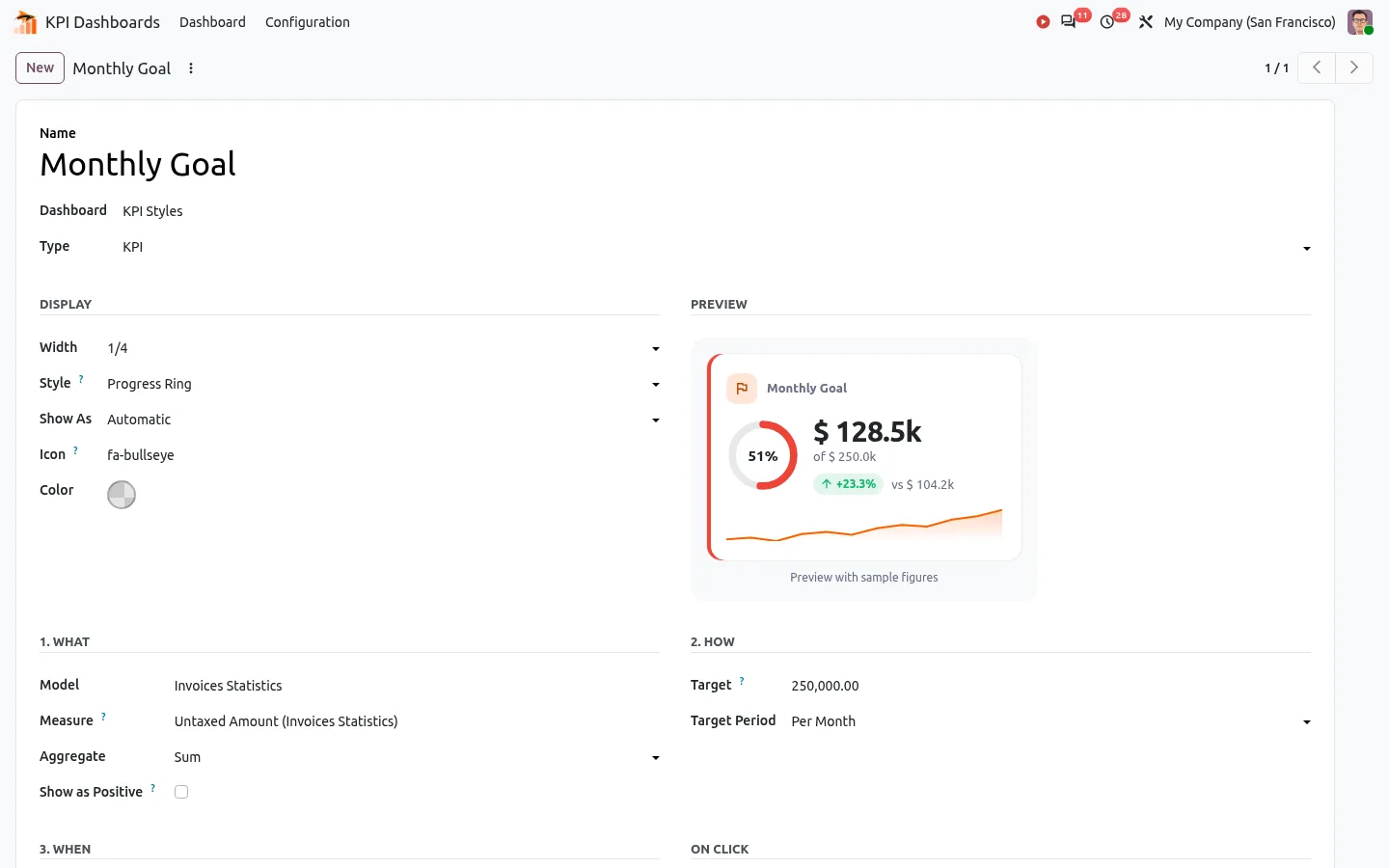
- Your own widgets in three questions, or by asking an optional AI assistant in plain words.
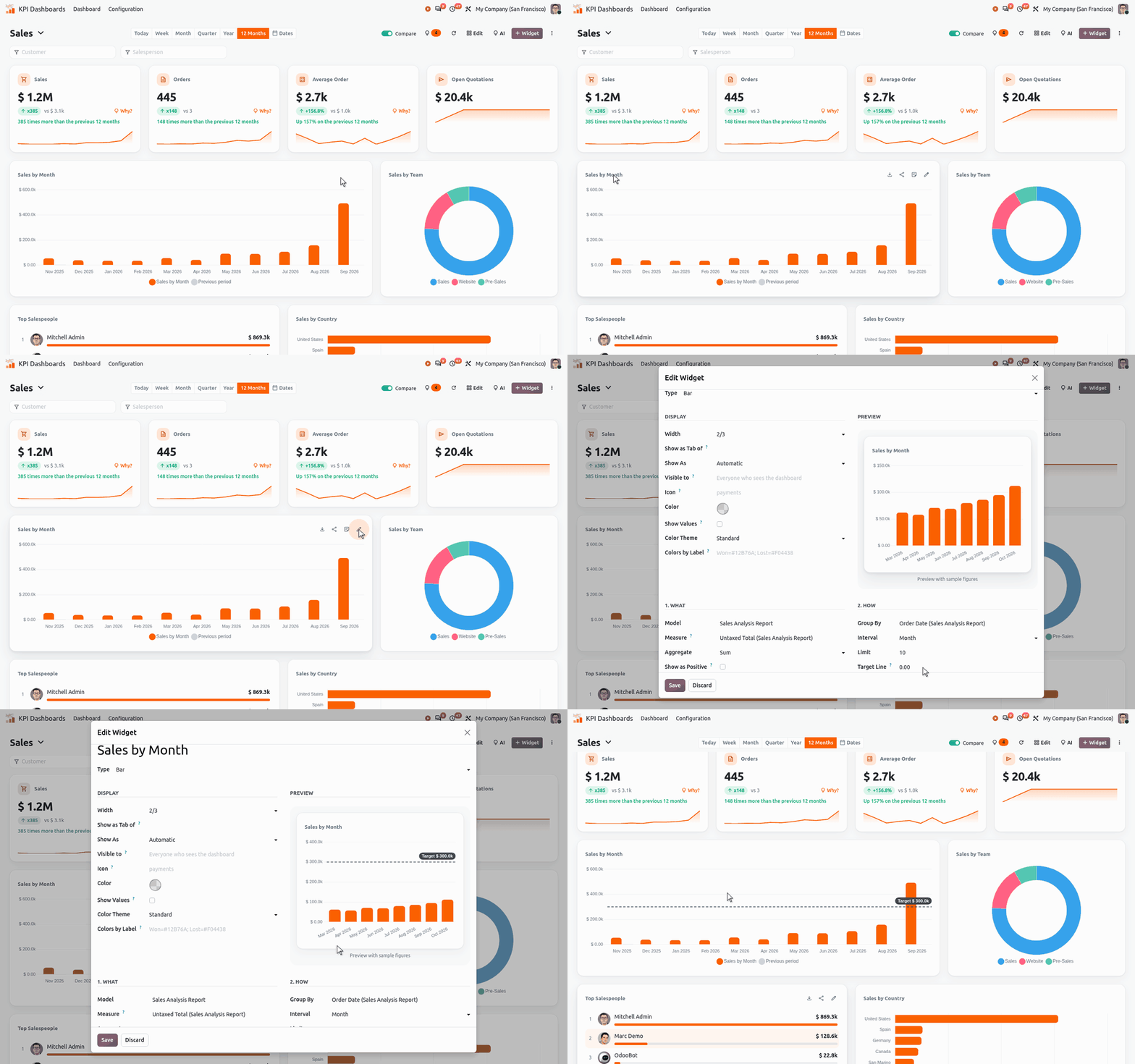
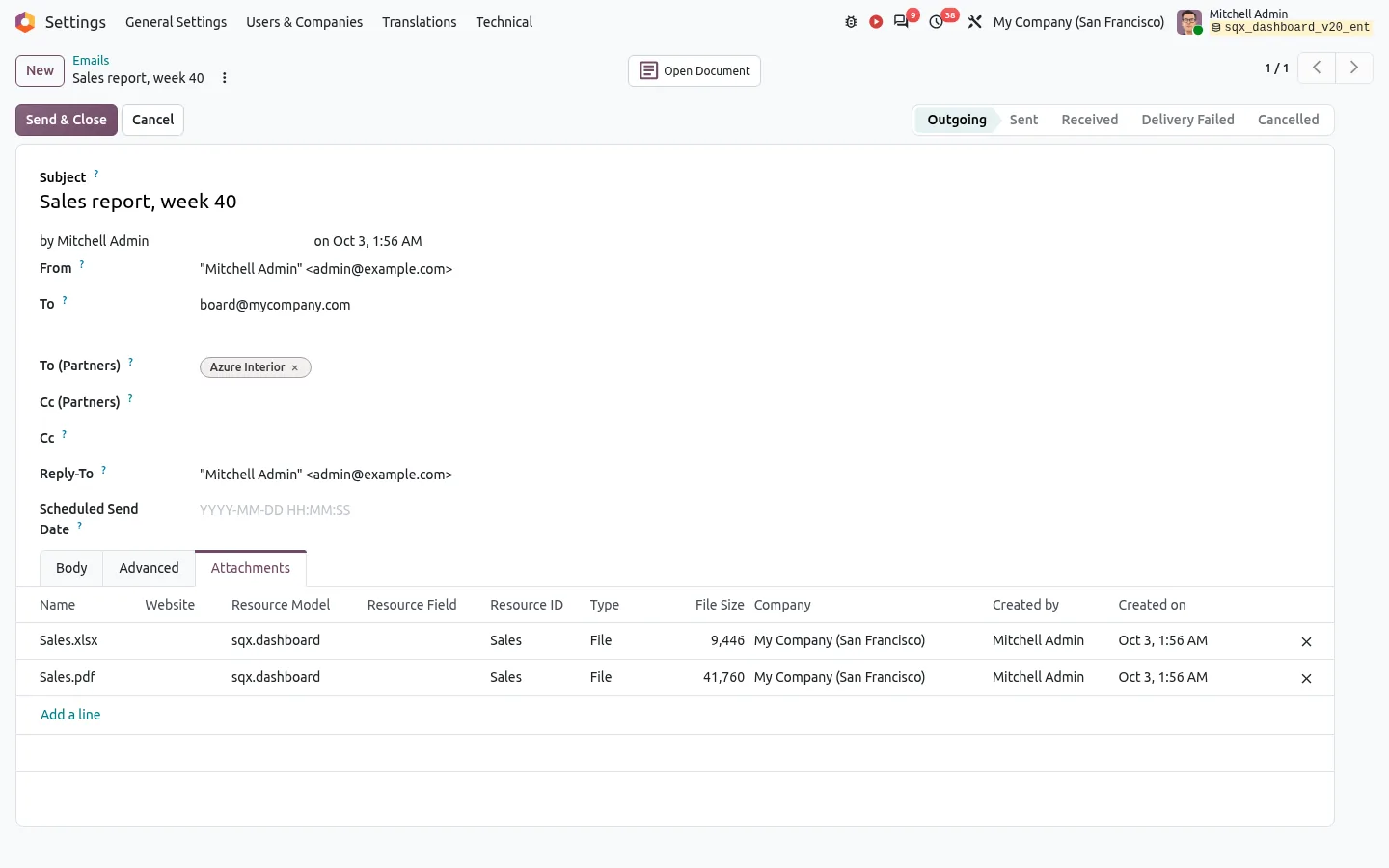
- A 13-week cash forecast, targets with their pace, and alerts sent to the right people.
- Each person sees their own figures, with their Odoo access rights.

Which Odoo dashboard should you choose?
| My Dashboard | Dashboards app | Dashboard module | |
|---|---|---|---|
| In Community | Yes | Read only | Yes |
| Your own KPIs | Saved views | Enterprise only | Yes |
| Comparison with last period | No | With formulas | Yes |
| Targets and alerts | No | No | Yes |
| Shared with the team | No | Yes | Yes, with access rights |
For a personal page, method 1 is enough. In Enterprise, if you like spreadsheets, method 2 goes far. For a company dashboard in Community, or KPIs that explain why they moved, a module saves you the most time.

100% tested
The apps ship with automated tests. No risk.
Up and running in two minutes
Install the app from the Odoo Apps Store, open KPI Dashboards and pick a dashboard in the gallery: no setup, no AI key needed. Community and Enterprise, paid once. No subscription.
Every feature in detail in our dashboard article and on the app page.
Questions before buying? Write to support@sharqix.com, we answer within one business day.