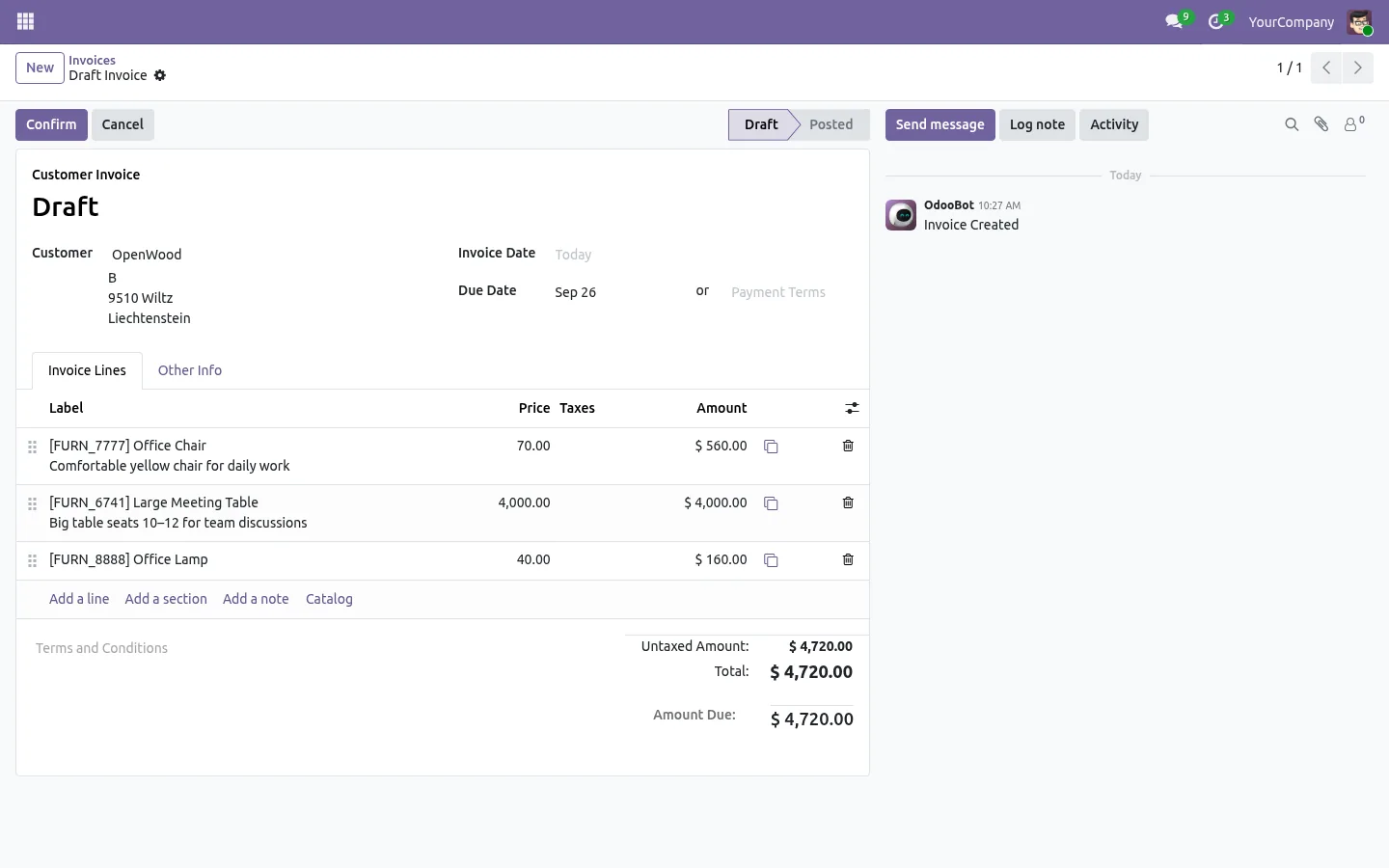
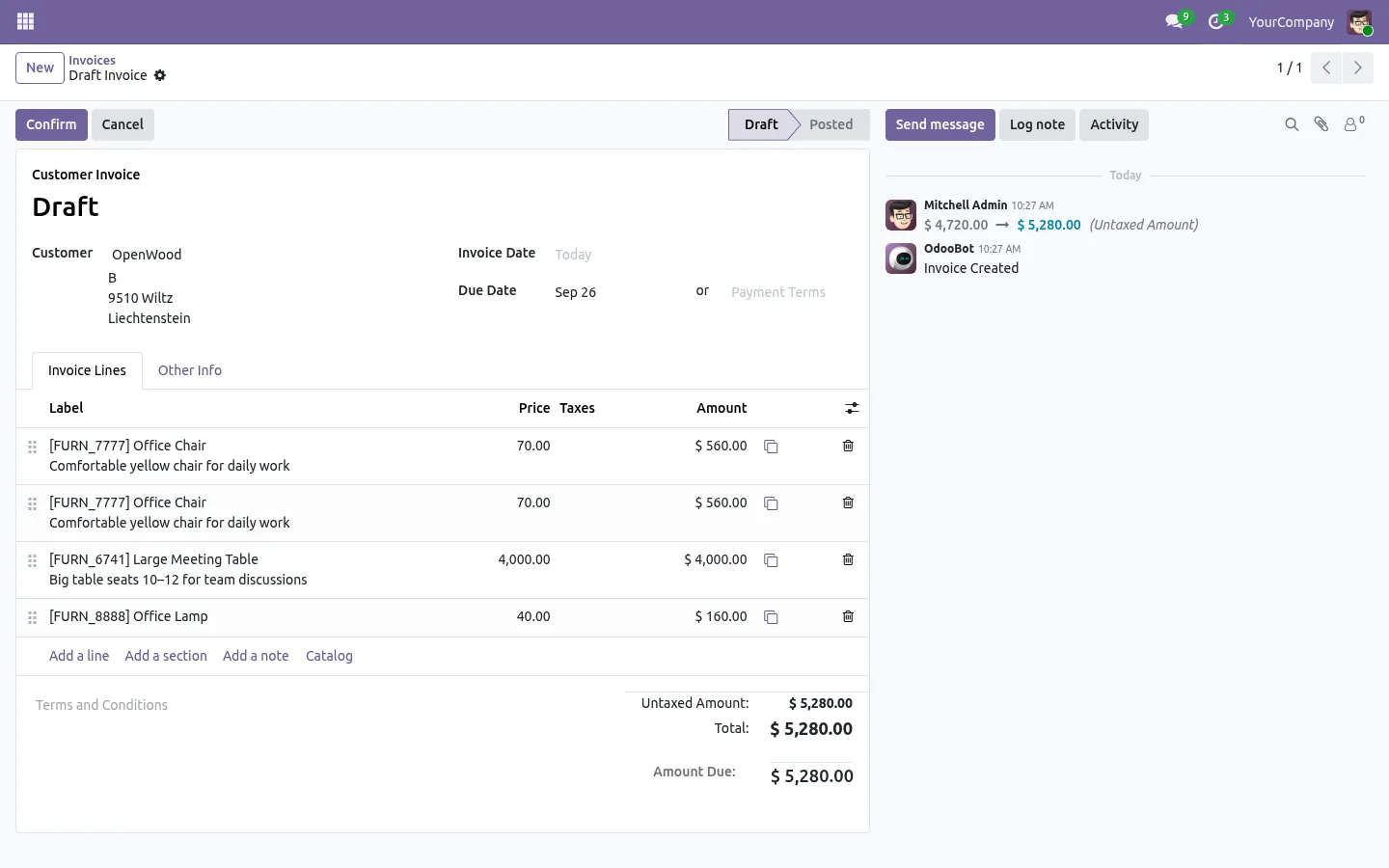
The customer wants a second batch of chairs, in another color. The line is already on the quotation: same product, same price, same discount, same taxes. There is no copy button on the line, so you add a new one and type it all again. Here is how to duplicate a line in Odoo in one click, on invoices, quotations and purchase orders.
Without it, a similar line means:
- The product, the quantity, the price, the discount and the taxes set again by hand.
- The new line lands at the bottom, far from the one it belongs with.
- Every retyped field is a chance for a mistake on a document the customer will read.
Duplicate a line in Odoo: before and after
The Copy Line apps put a small copy button at the end of every line. Click it, and the copy appears right below the original, complete.
Before
Add a line. Pick the product. Type the quantity, the price, the discount. Check the taxes. Drag it next to the first one.
After
One click on the copy button. Change only what differs.
Copy an invoice or bill line in one click
On customer invoices, vendor bills and credit notes, each line of the Invoice Lines tab gets its own copy button. Everything on the line is copied: product, description, quantity, unit price, discount, taxes, account and analytic distribution. Odoo recomputes the totals and the taxes as usual.
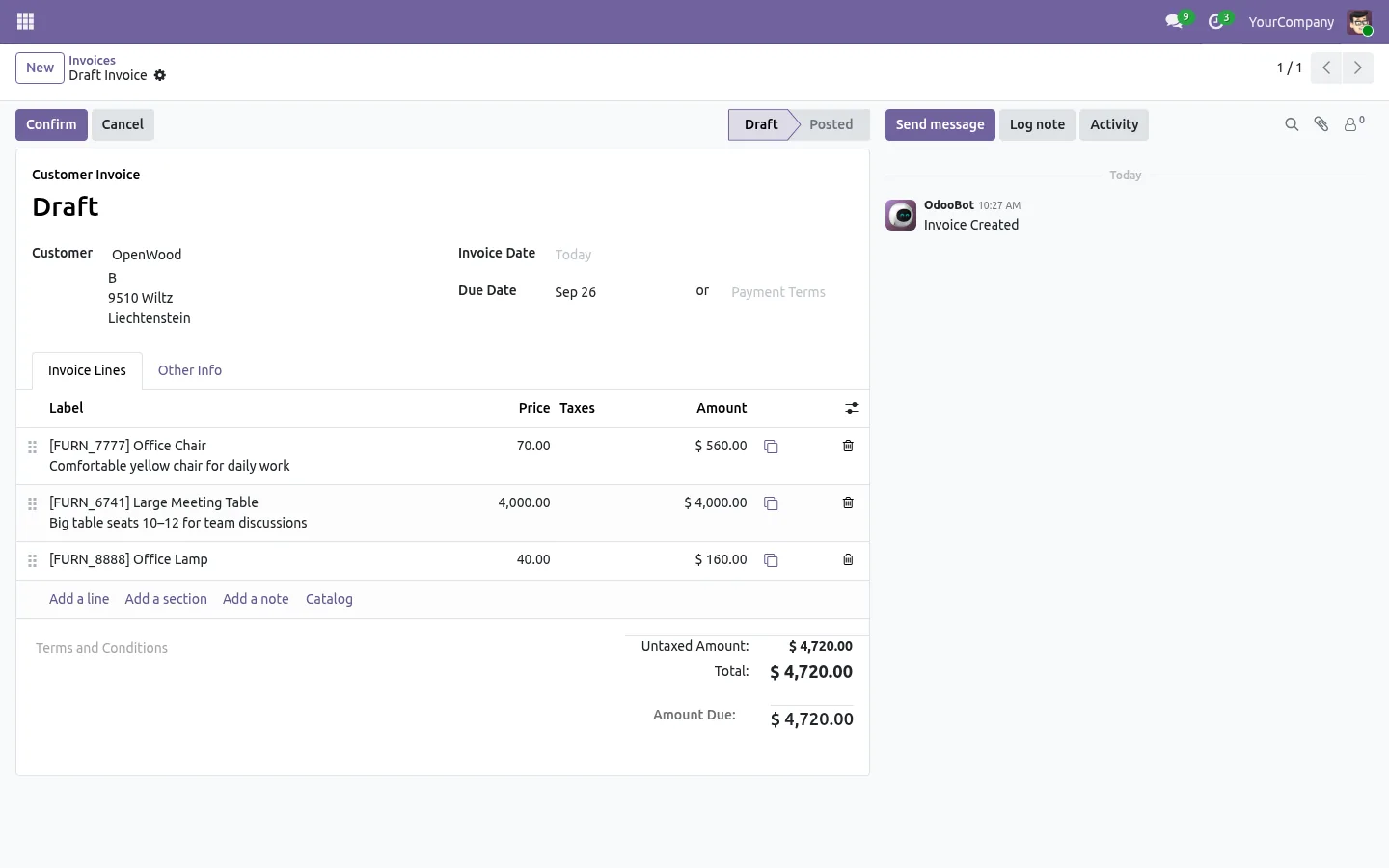
The copy lands right below the original
The new line is inserted under the line you copied, not at the end of the list, so related lines stay together, even under sections. On quotations and sales orders, it works as long as Odoo lets you edit the lines. Change the quantity or the description of the copy, and you are done.
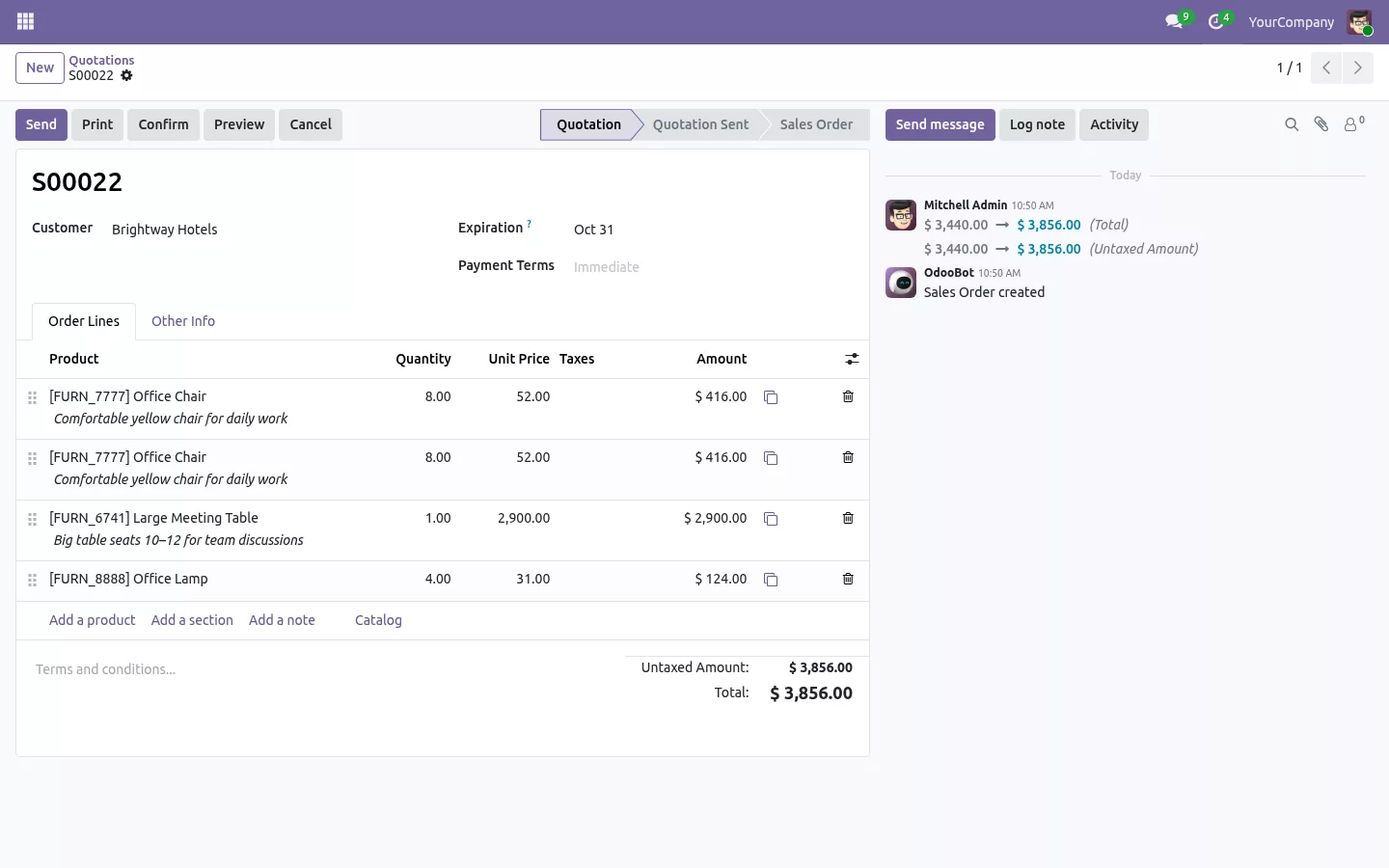
The same button on purchase orders
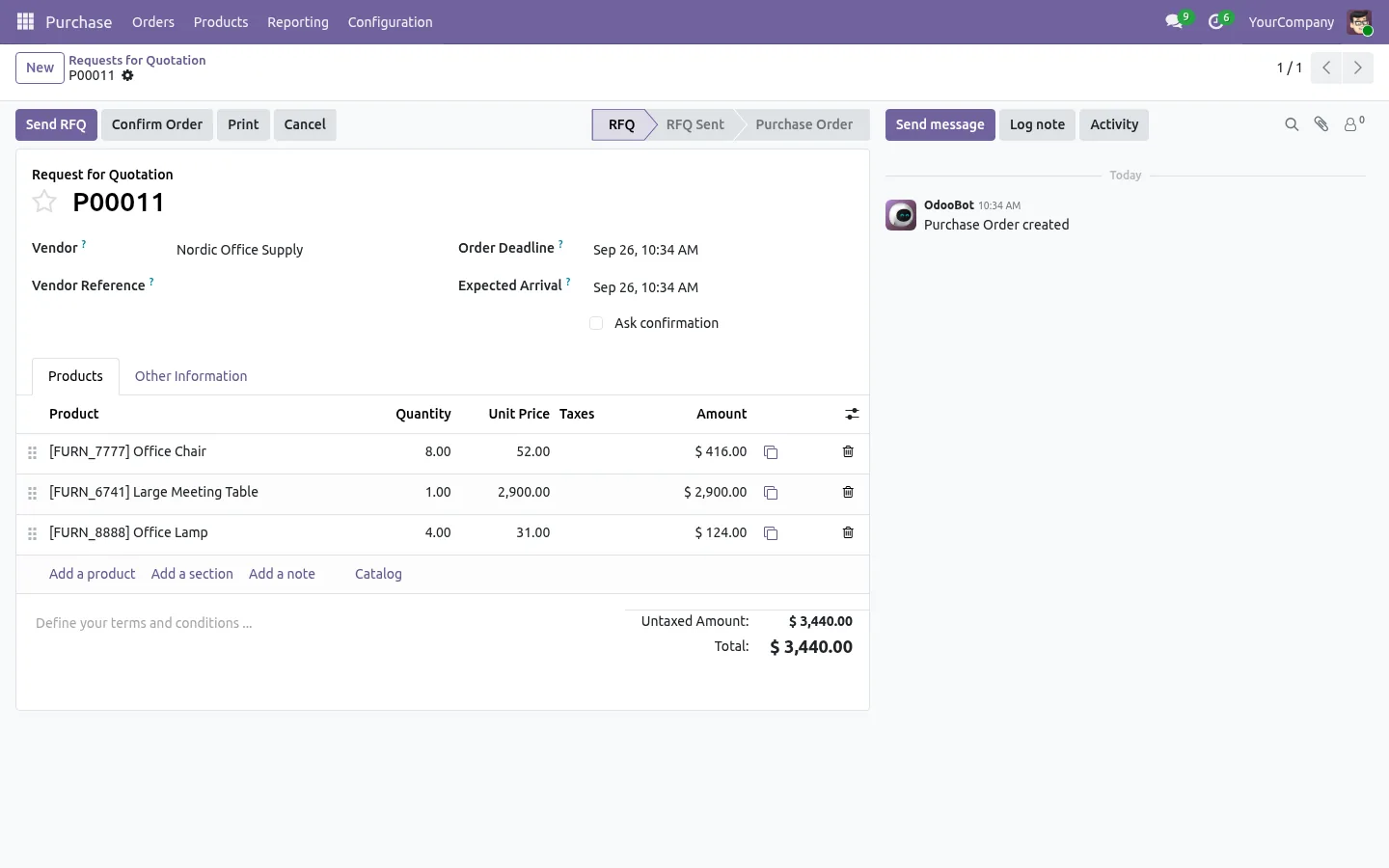
Requests for quotation and purchase orders get the same button in their Products tab. Order a second batch from the same vendor without typing the line again, at the same price and with the same taxes.
Safe by design
The button only shows on documents whose lines can still be edited: a posted invoice or a locked order is never changed. Each app adds one button and nothing else: no setting, no new screen, nothing to learn.

100% tested
The apps ship with automated tests. No risk.
Up and running in one minute
Install the app for the documents you use: Copy Invoice Line, Copy Sales Order Line or Copy Purchase Line. The button is there as soon as the app is installed. The three apps are open source (LGPL), Community and Enterprise, on Odoo.sh or on your own server, in six languages. Need to insert, move, fold or paste lines between documents too? See how to insert a line between lines in Odoo.
Type a line once, use it twice
The second line is already right. Copy it, change what differs, and send the document.
For sales orders: Copy Sales Order Line. For purchase orders: Copy Purchase Line.
A question or an idea? Write to support@sharqix.com, we answer within one business day.