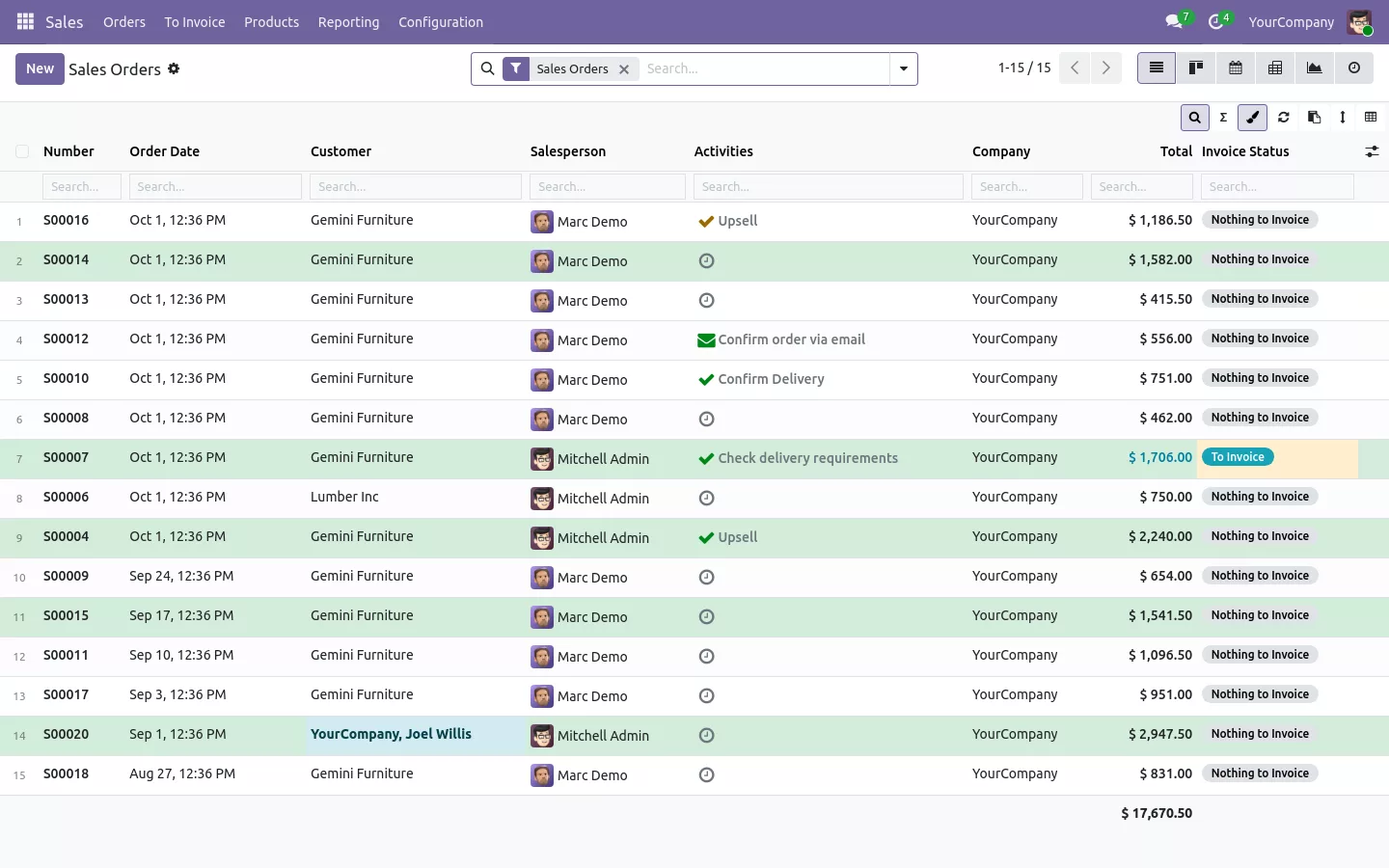

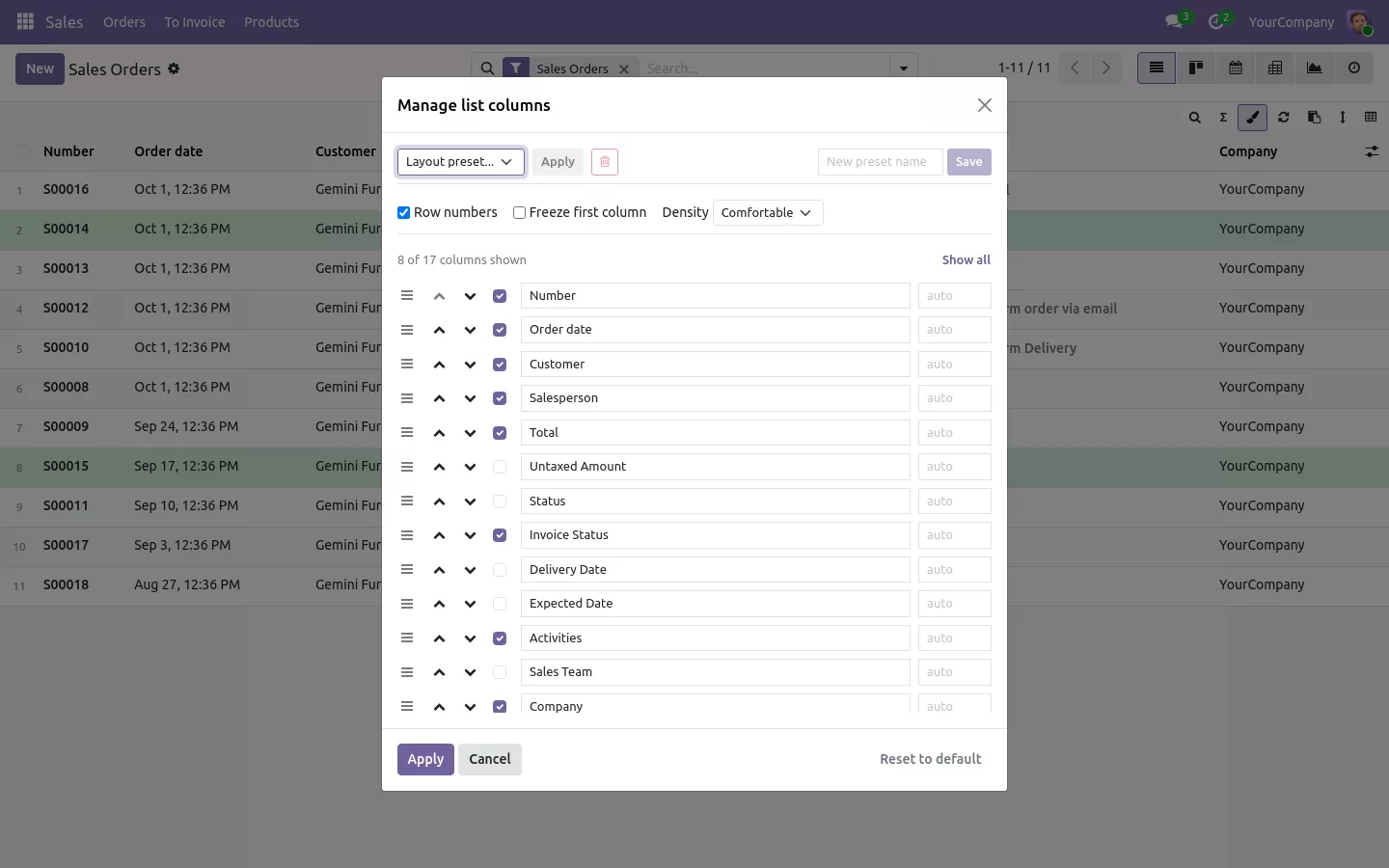
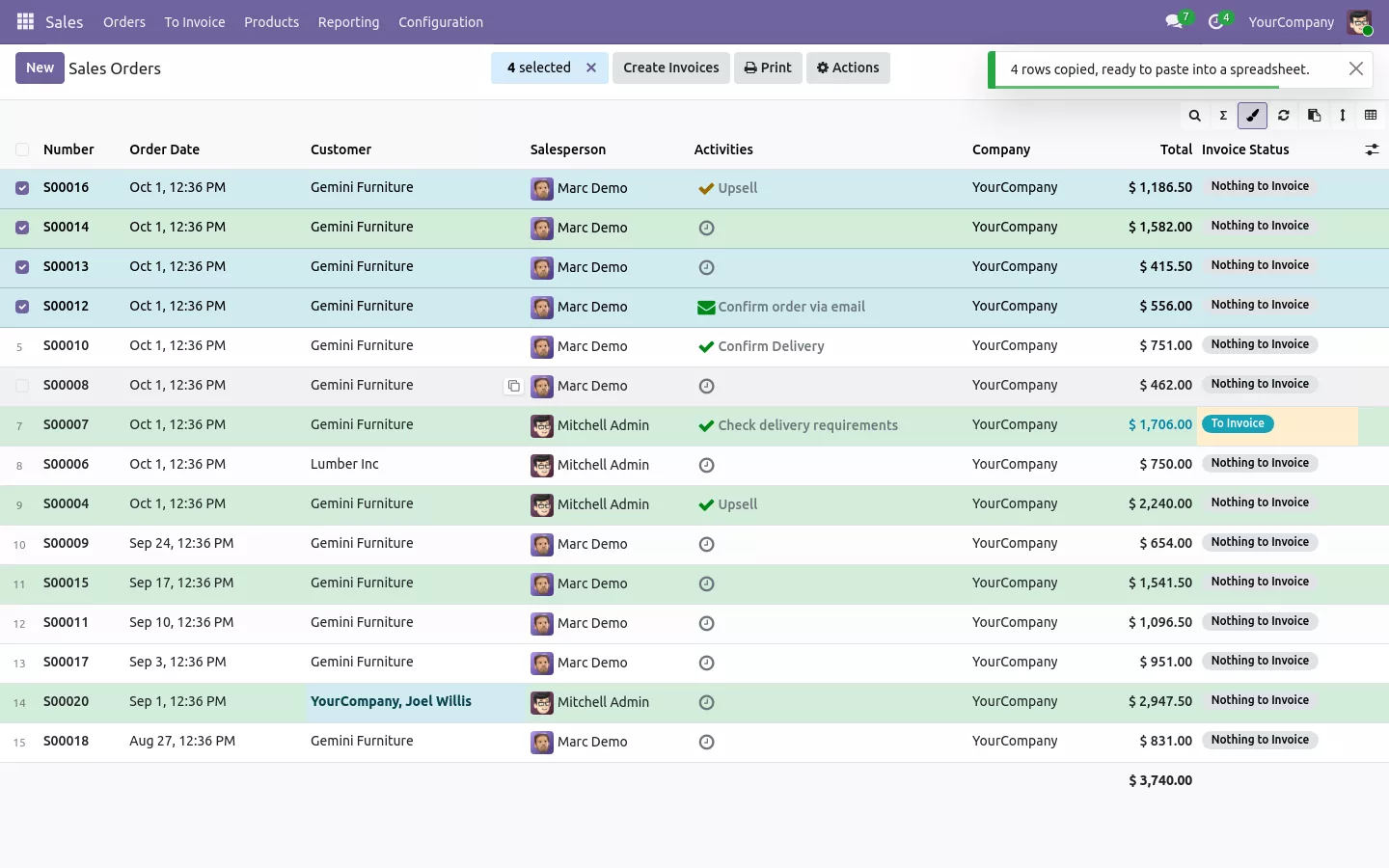
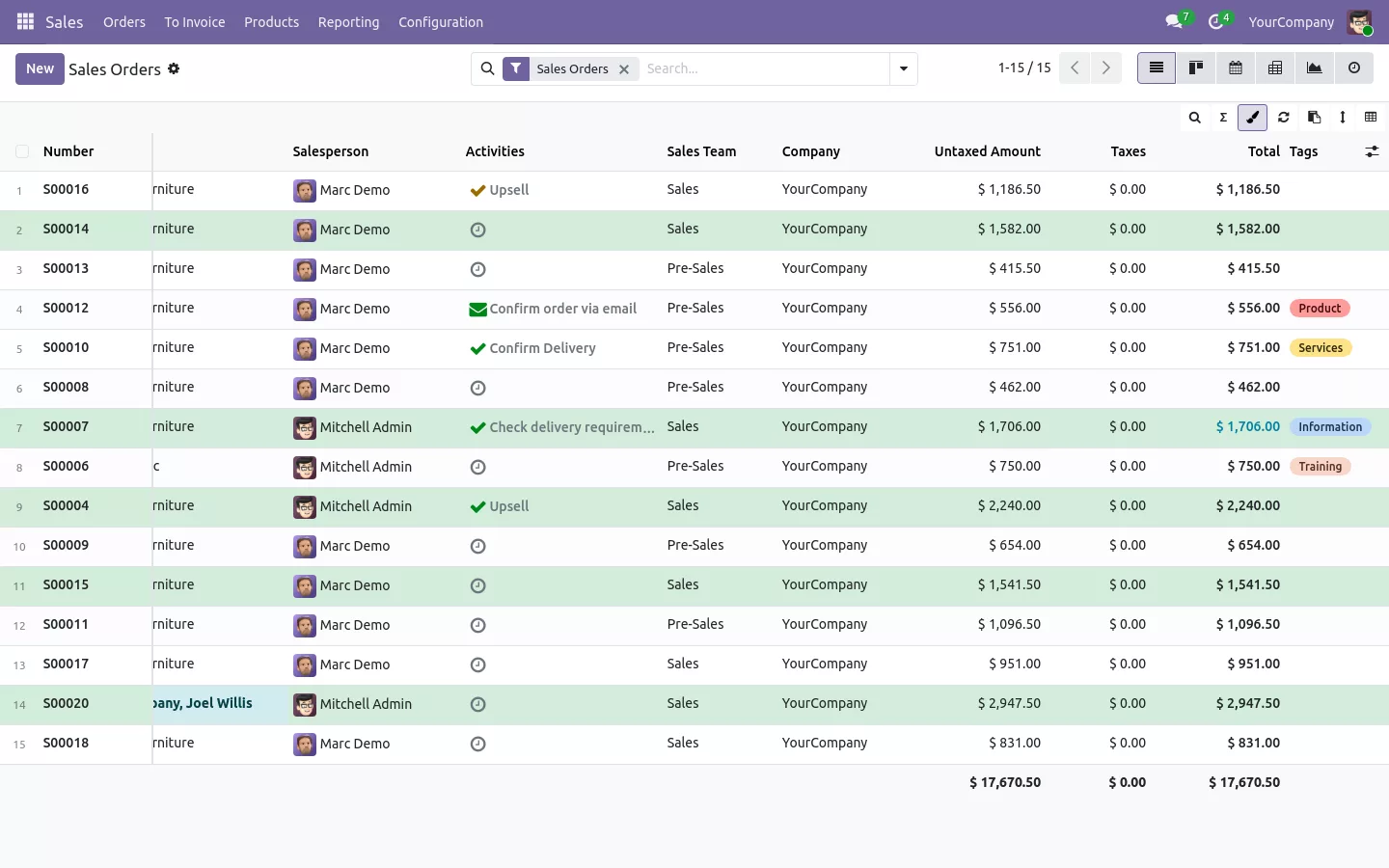
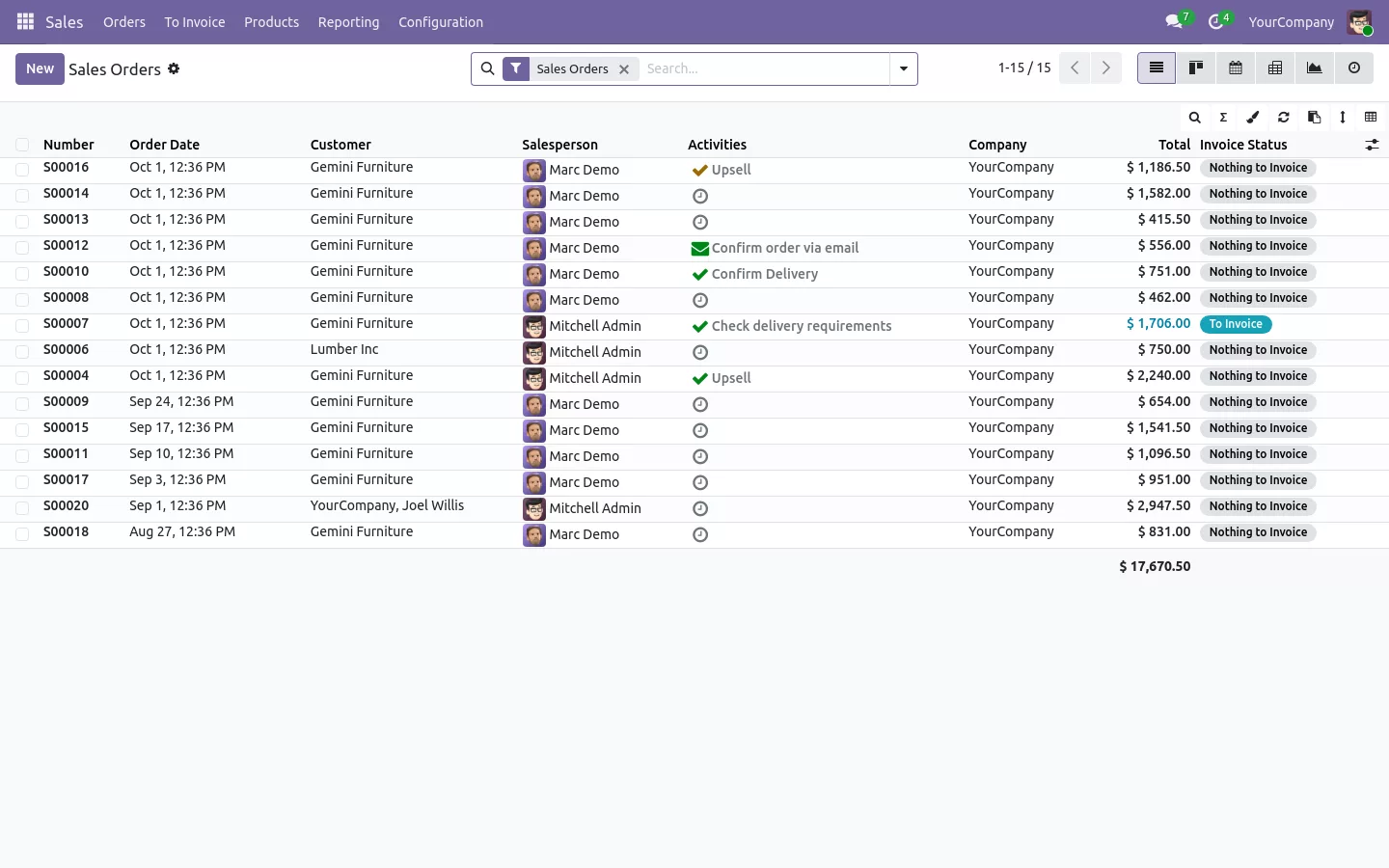
"How to set the background color of each record in a list view based on a condition?" has been read more than 12,000 times on the Odoo forum. A late order in red, a quotation waiting for an answer in orange, a large amount in green: colors make a long list readable at a glance. Odoo can do part of it with decoration attributes. This guide shows how they work, where they stop, and how to color rows and cells by rule, without code.
What Odoo does: decoration attributes
Odoo colors list rows with decoration attributes written in the view. Odoo's own views use them, for example to show late deliveries in red:
<list decoration-danger="date_deadline and date_deadline < current_date"
decoration-muted="state == 'cancel'">
<field name="name"/>
<field name="amount_total" decoration-bf="amount_total > 1000"/>
</list>- On the list tag, a decoration colors the whole row. On a field tag, it colors that cell only.
- The names give the color: danger red, warning orange, success green, info blue, primary the main color, muted gray. bf puts the text in bold, it in italics.
- The condition is an expression on the fields of the record, with current_date for today.
To add one, you edit the view: with a small module, with an inherited view in developer mode, or with the XML button of Studio, also in developer mode. Studio has no setting for row colors.
Where it stops
- Only the text changes color: Odoo turns a decoration into a text color. No background, which is what most people ask for.
- Every color is code in the view: a condition written by hand, and tested again at each upgrade.
- The colors are the same for everyone: the sales manager and the accountant do not look for the same rows.
- A user who wants a new color asks a developer or an administrator.
Before
Write the condition in the XML of the view. Get red or orange text. Ask again for each new color.
After
Pick a column, a condition and a color: the rows and cells light up, for you or for the team.
Color rules, without code
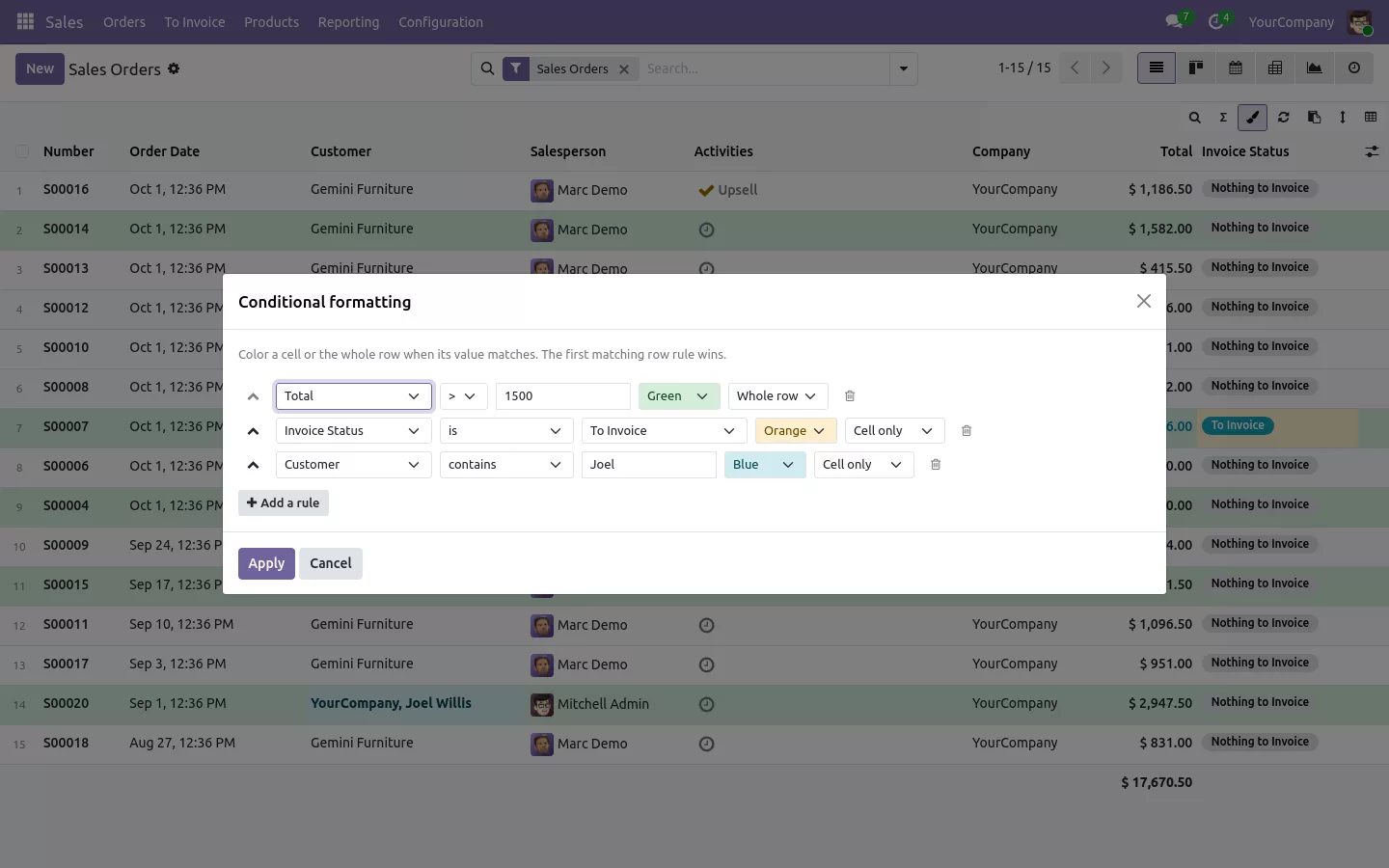
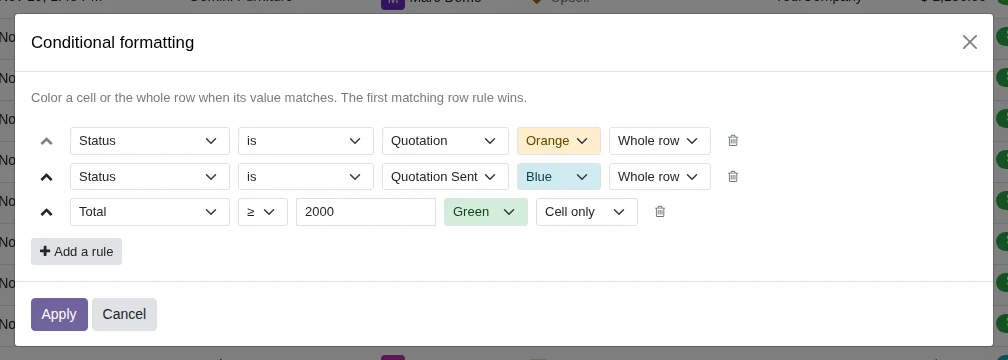
List View Manager adds a Conditional formatting button, the brush above the list. Each rule reads like a sentence:
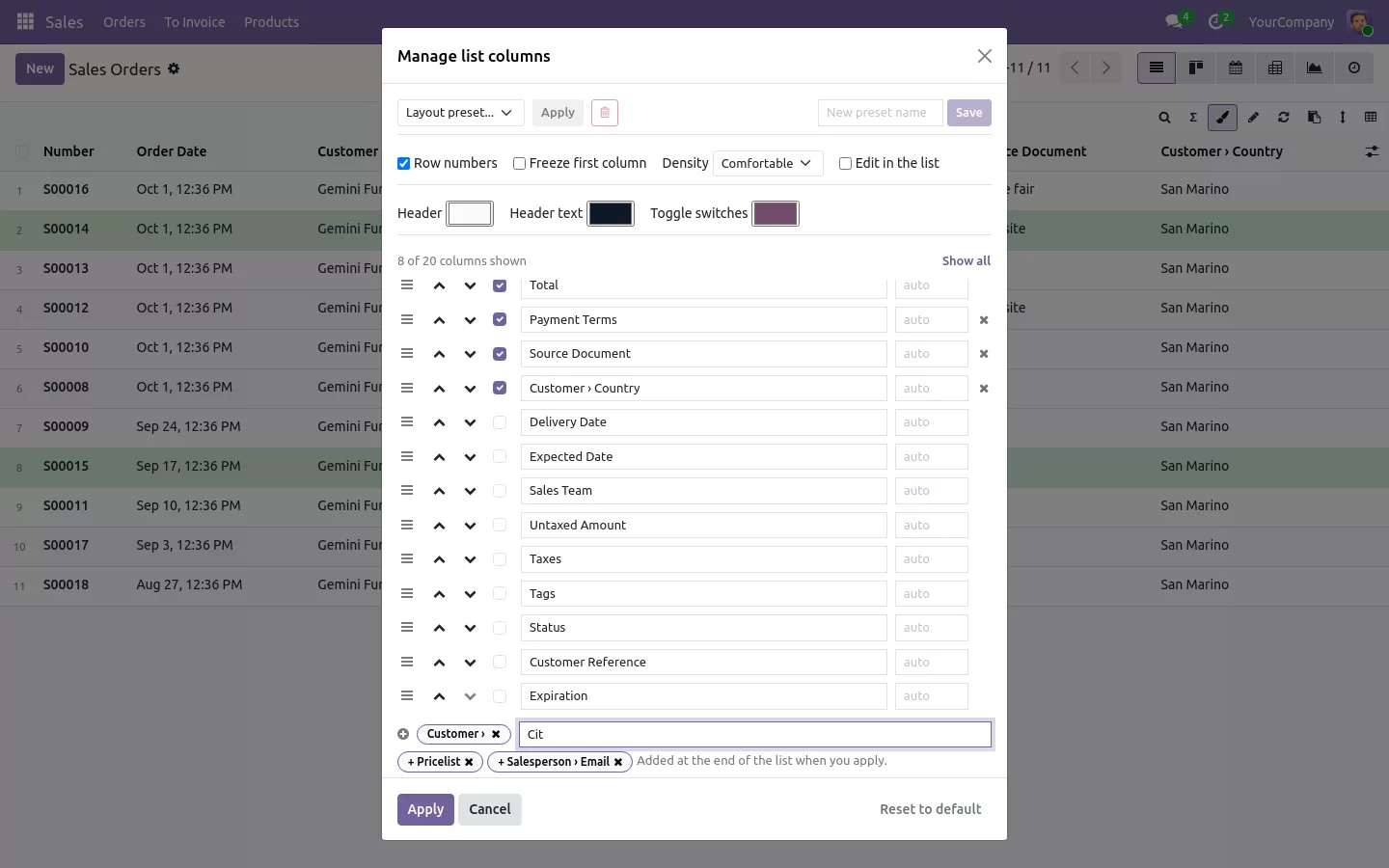
- A column of the list: any column, even hidden, and the fields of linked records you added, such as the customer's country.
- A condition that fits the field: greater or less than a number, contains a word, is a status, a date before today, today or after today, a box checked or not, a value set or empty.
- A color among six (red, orange, green, blue, purple, gray), as a background, and readable in dark mode.
- The whole row or the cell only: a cell rule still shows inside a colored row. The order of the rules decides: the first row rule that matches wins.
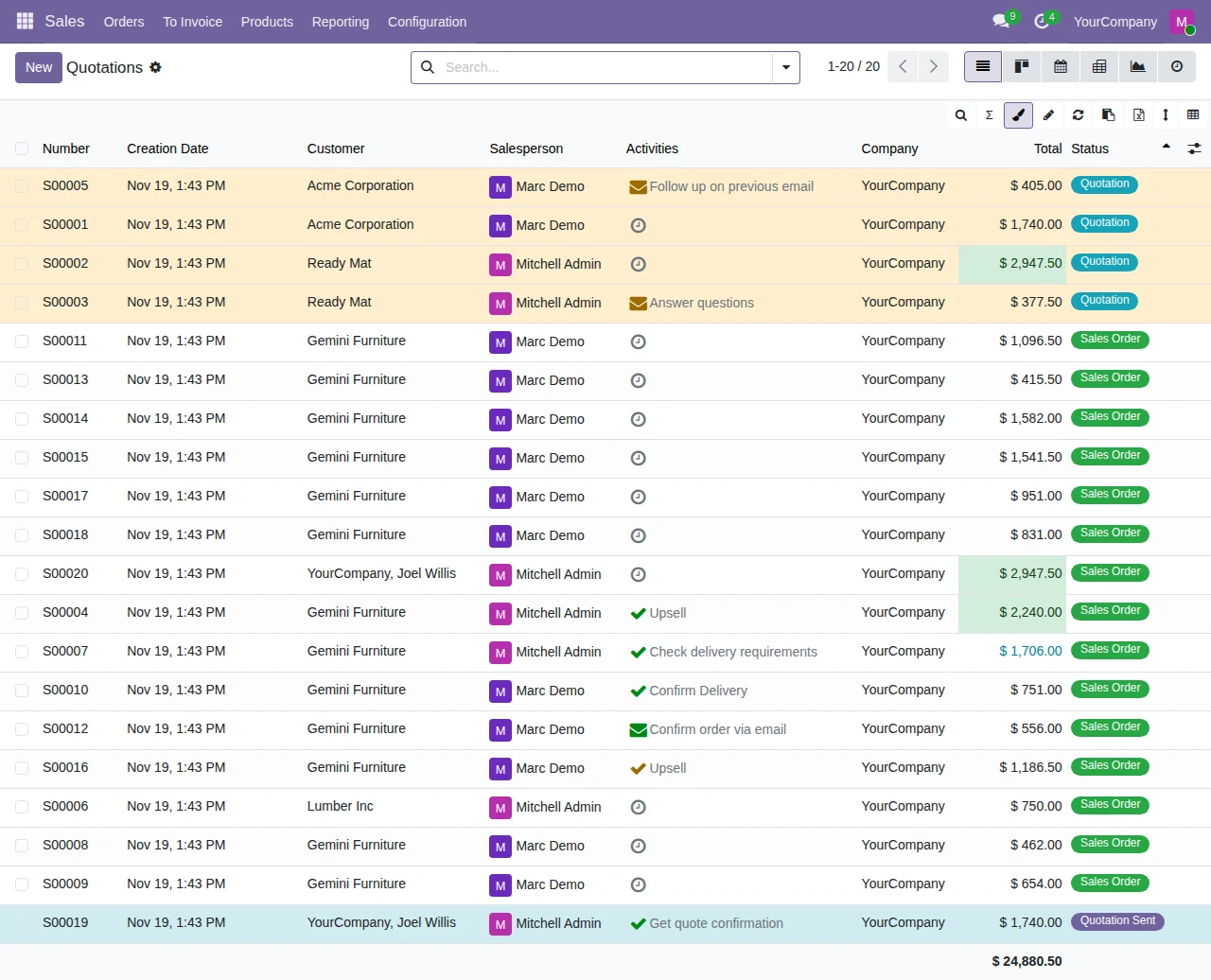
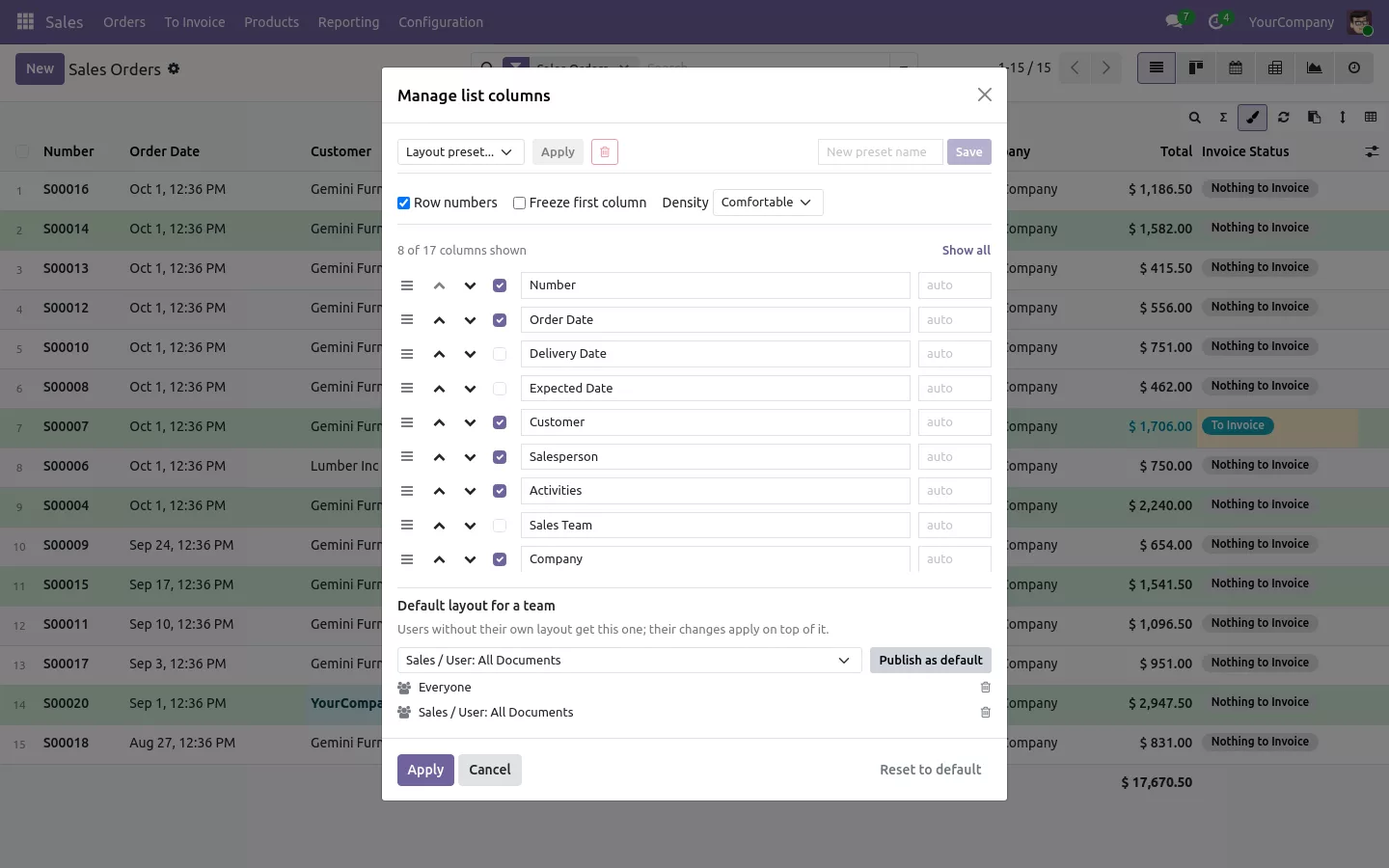
The rules belong to the user's layout of that list, saved on the server: they follow you from one computer to another. An administrator can arrange a list once, rules included, and publish it for everyone or for a group, such as the sales team.
Set it up in three steps
- Install List View Manager.
- Open a list, click the brush, then Add a rule: a column, a condition, a value, a color, the row or the cell.
- Click Apply. To give the same colors to your team, an administrator clicks Publish as default in the Manage columns window.

100% tested
The apps ship with automated tests. No risk.
Which way for which need
| Option | Good for | Limits |
|---|---|---|
| Decoration attributes | A rule everyone needs, set once by a developer | Text color only, code in the view |
| Studio XML editor | Enterprise users comfortable with XML | Same limits, developer mode |
| List View Manager | Background colors set by each user or for a team | An app to install, not on Odoo Online |
Questions people ask
Can Odoo color the background of a row natively?
Not with decoration attributes: they change the text color, or make it bold or italic. A background needs custom CSS in a module, or an app such as List View Manager.
How do I show overdue records in red?
In the view, add decoration-danger with a condition on the date compared to current_date. With List View Manager, create a rule on the date column with "is before today" and the red color.
Do my colors change the list for other users?
No. With List View Manager, the rules are part of your own layout. The administrator can publish a layout with its rules for everyone or for a group.
Can a rule use a column that is not displayed?
Yes. Any column of the list can carry a rule, even when you hide it, as well as the fields of linked records you added as columns.
Does it work with Odoo Community?
Yes. List View Manager works in Community and Enterprise, for Odoo 18, 19 and 20, on Odoo.sh or on your own server. Not on Odoo Online, which does not accept third-party modules.
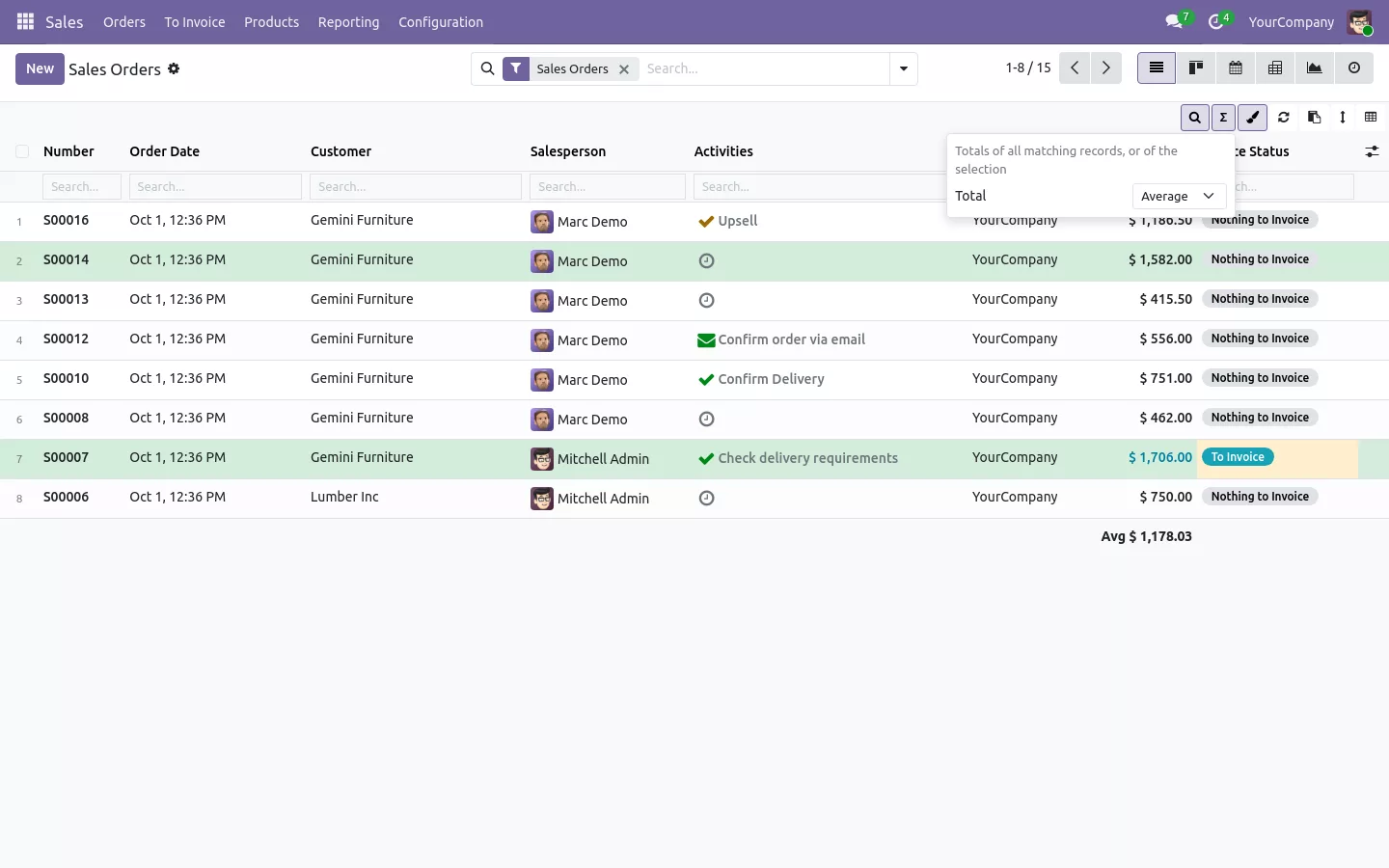
Want totals under the columns too? See how to show the total of a column in a list view. Sending the list to a spreadsheet? See how to export a list view to Excel with totals.
The rows that matter, at a glance
Late orders, large amounts, quotations waiting for an answer: give them a color once, and every list shows them first.
A question before you buy? Write to support@sharqix.com, we answer within one business day.