
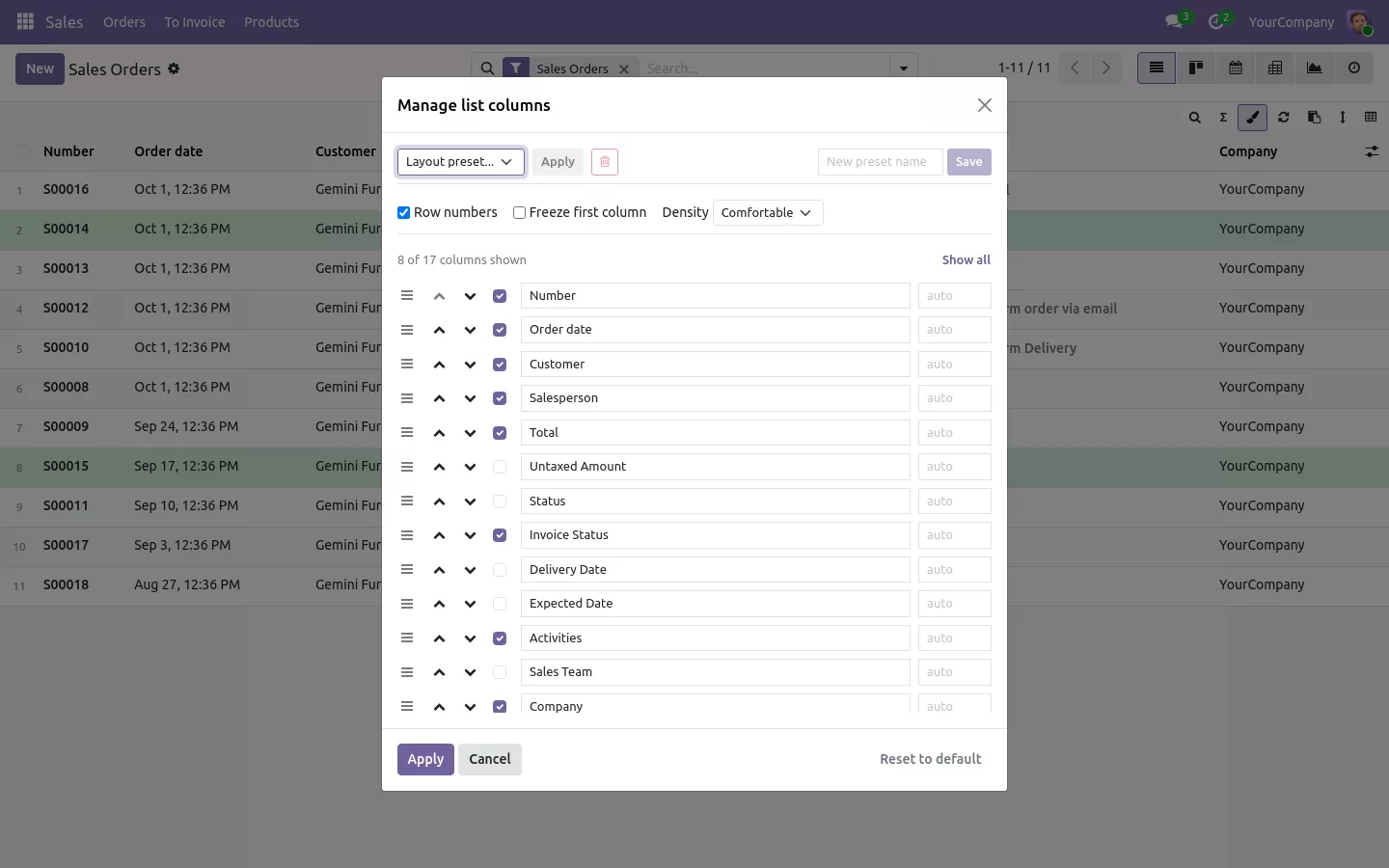
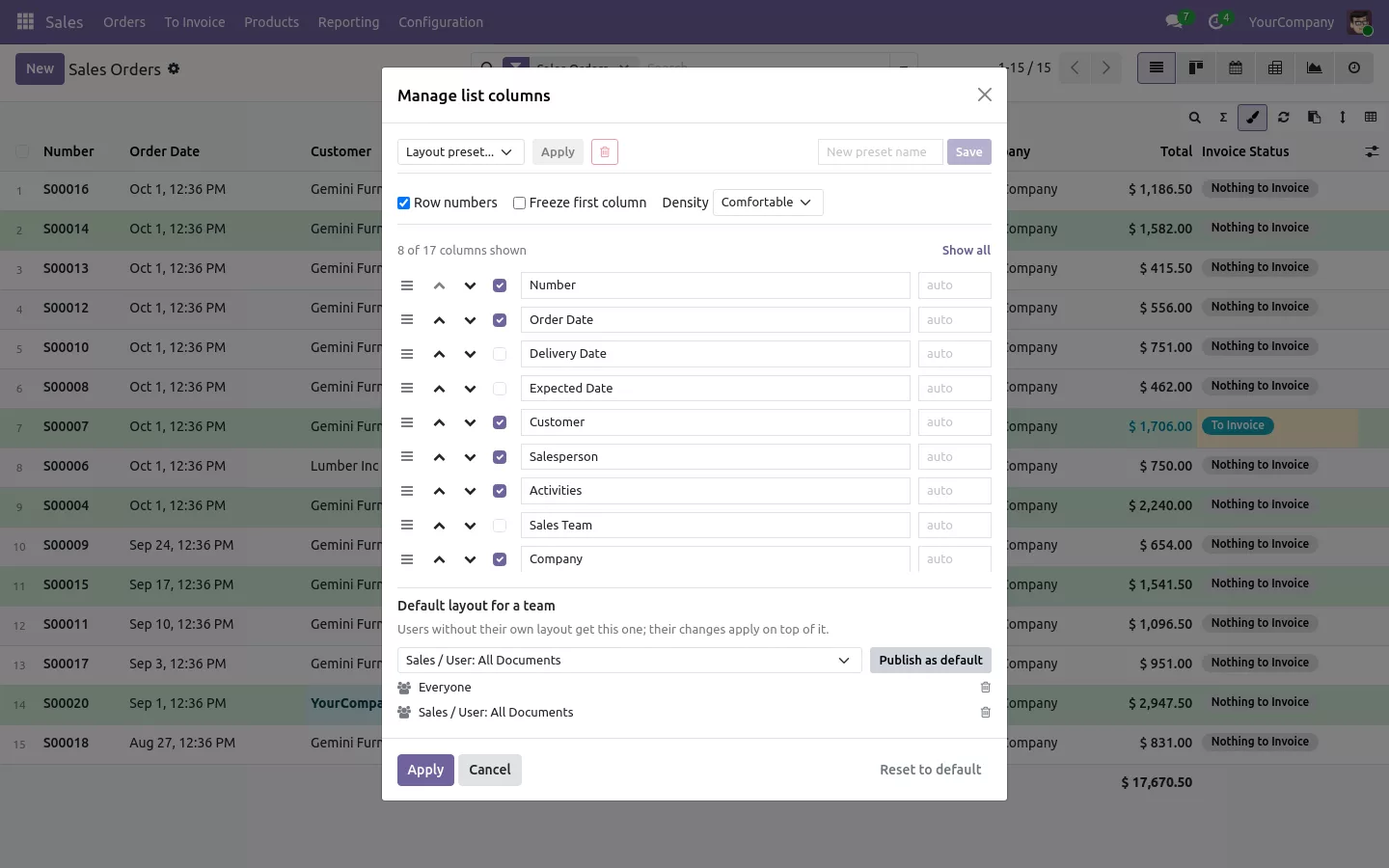
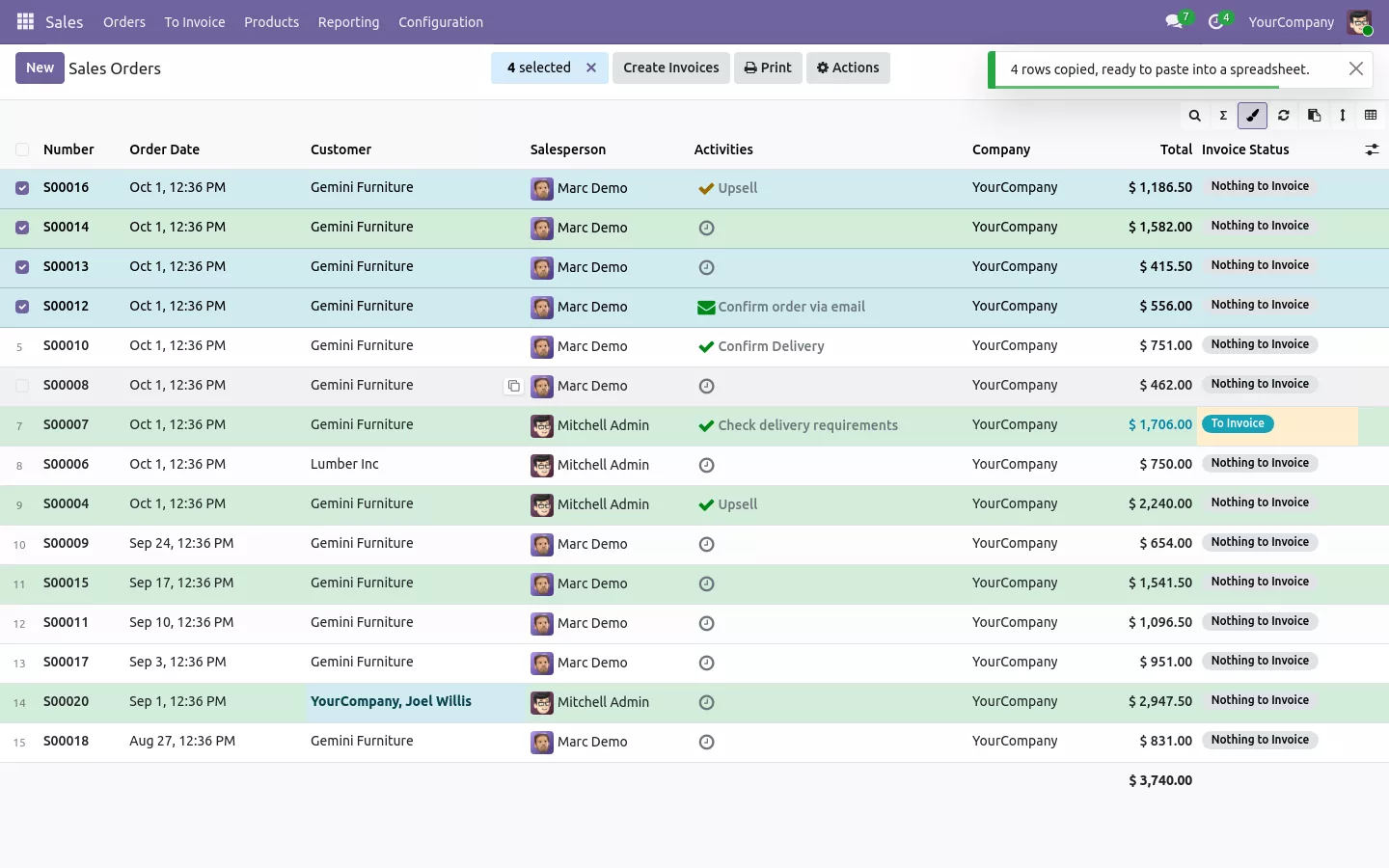
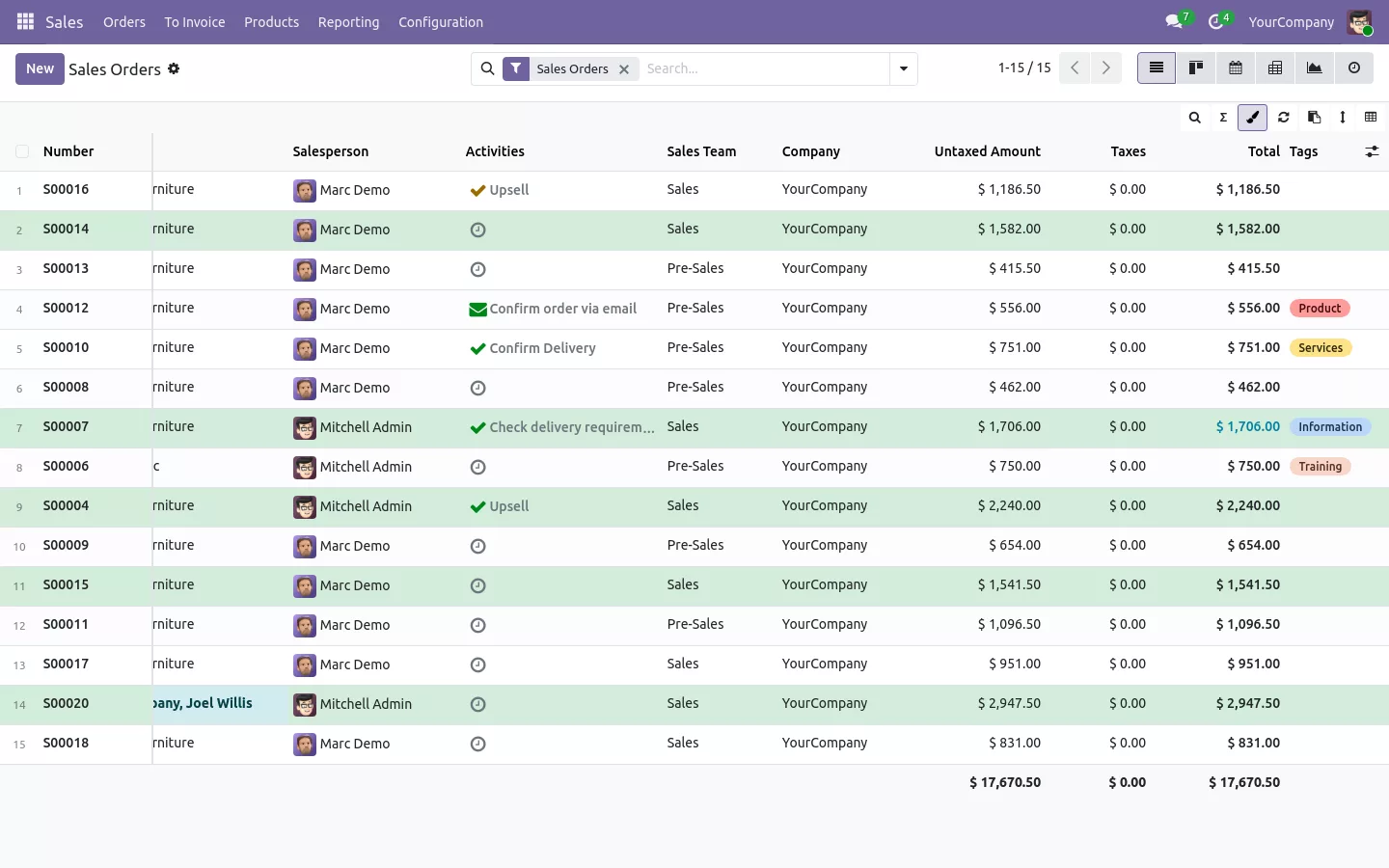
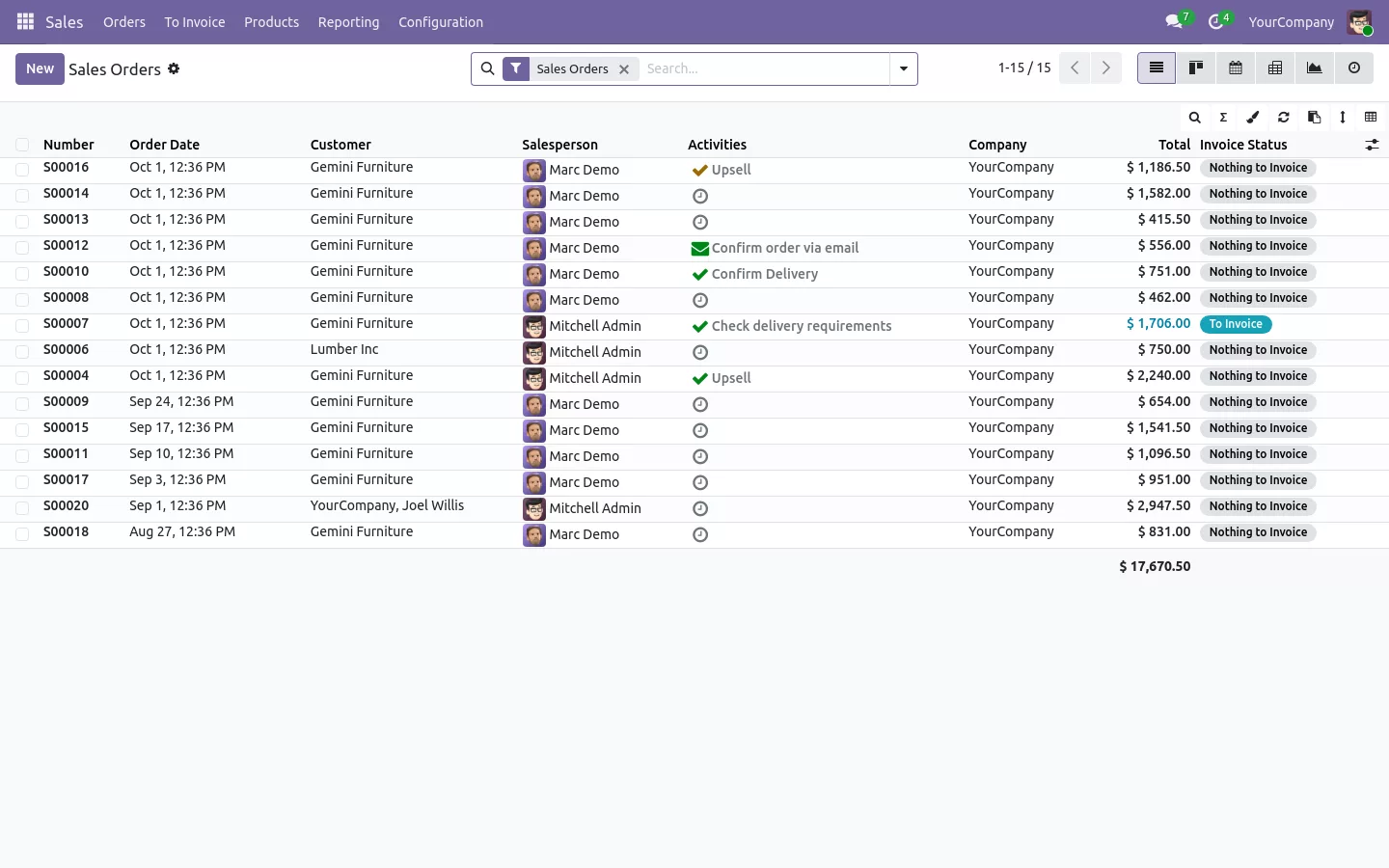
"How to export in Excel?" is one of the most read questions on the Odoo forum, and the next one comes right after: "how do I get the totals too?". Odoo exports any list to an .xlsx file in two clicks. This guide shows what that file contains, what it leaves out, and how to get the list in Excel with its groups, subtotals and a total row.
Export a list from Odoo
Odoo has two ways to send a list to Excel:
- Export All: in the gear menu next to the list title, when no row is selected. Odoo downloads an .xlsx file with the columns shown in the list, for every record of the search, not only the page on screen.
- Export: select rows, then Actions > Export. A window lets you pick the fields, in Excel or CSV, and save the list of fields as a template for the next time.
Both need the Export right on the user form (Settings > Users). A view can also turn Export All off.
What the file keeps, and what it leaves out
Export a grouped list, for example the sales orders grouped by customer, and Odoo keeps the groups: one bold line per group, with the number of records and the subtotal of each number column. That is already more than many people know. But:
- There is no total row at the bottom of the file: you add the SUM yourself.
- Export a list that is not grouped, and there is no total at all.
- Each number column gets the function of its field, a sum most of the time. If the list shows an average, a minimum or a maximum, the file still adds up.
- The first column holds the name of the group, so it never gets a subtotal.
- The groups are flat lines: they do not fold in Excel.
Before
Export the list. Open the file, scroll to the bottom, write the SUM of each column. Redo it for the average. Redo it all next month.
After
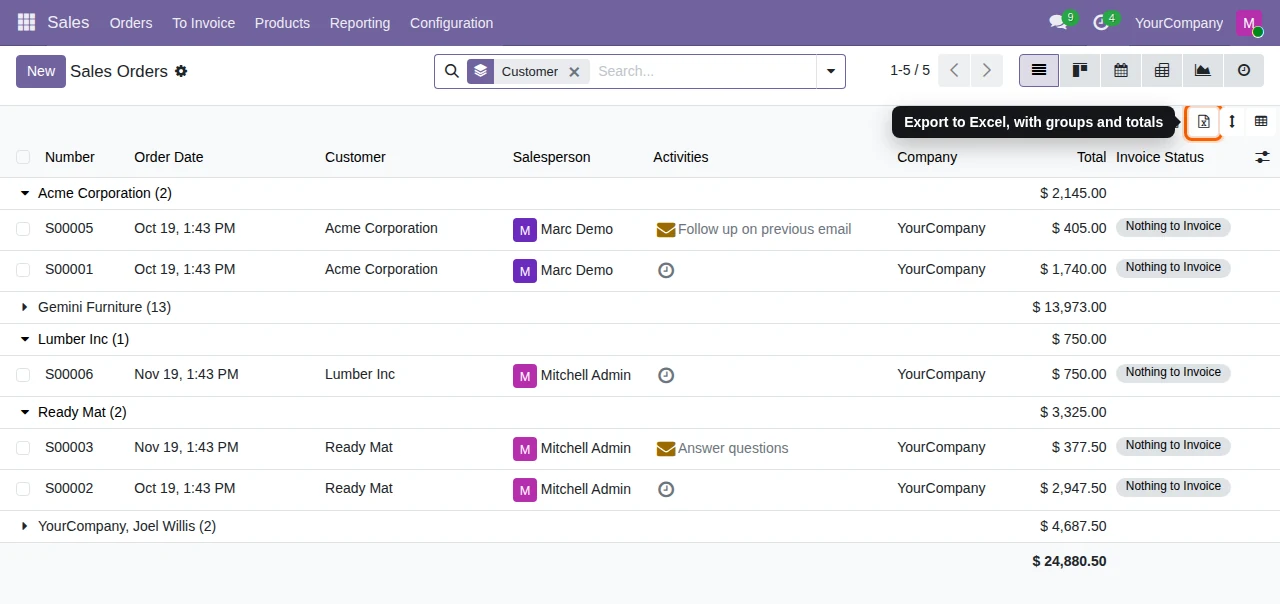
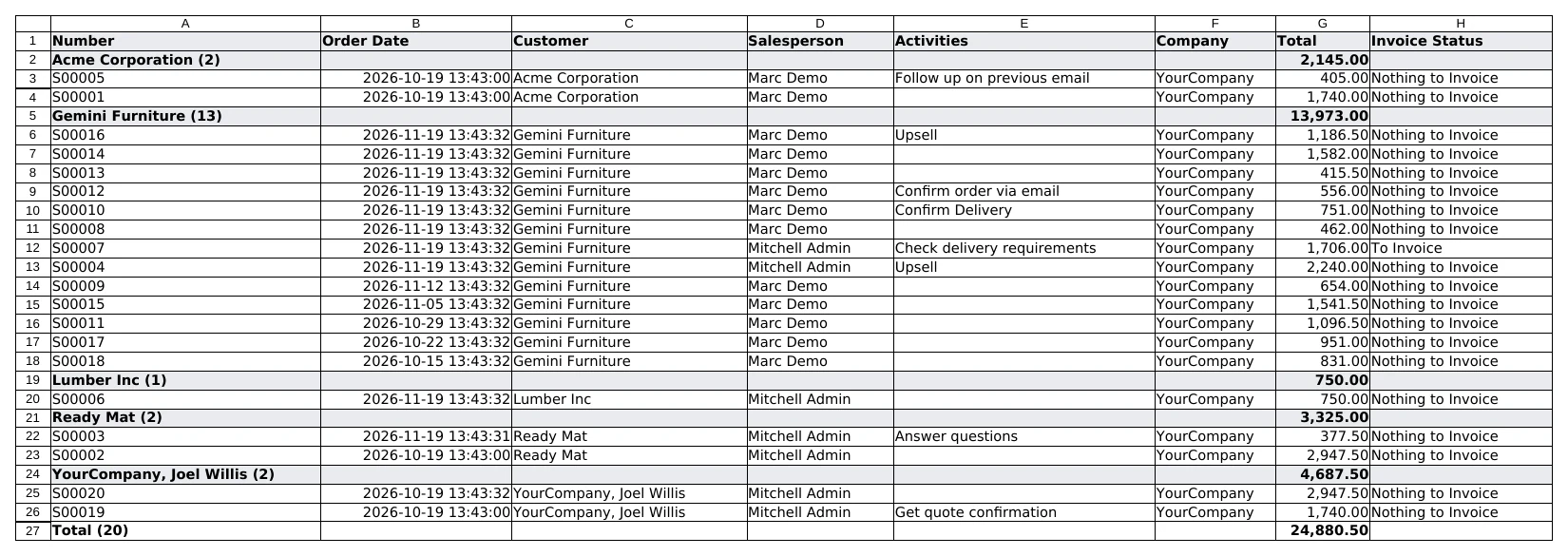
One click: the list in Excel as on screen, with its groups, subtotals and the total row.
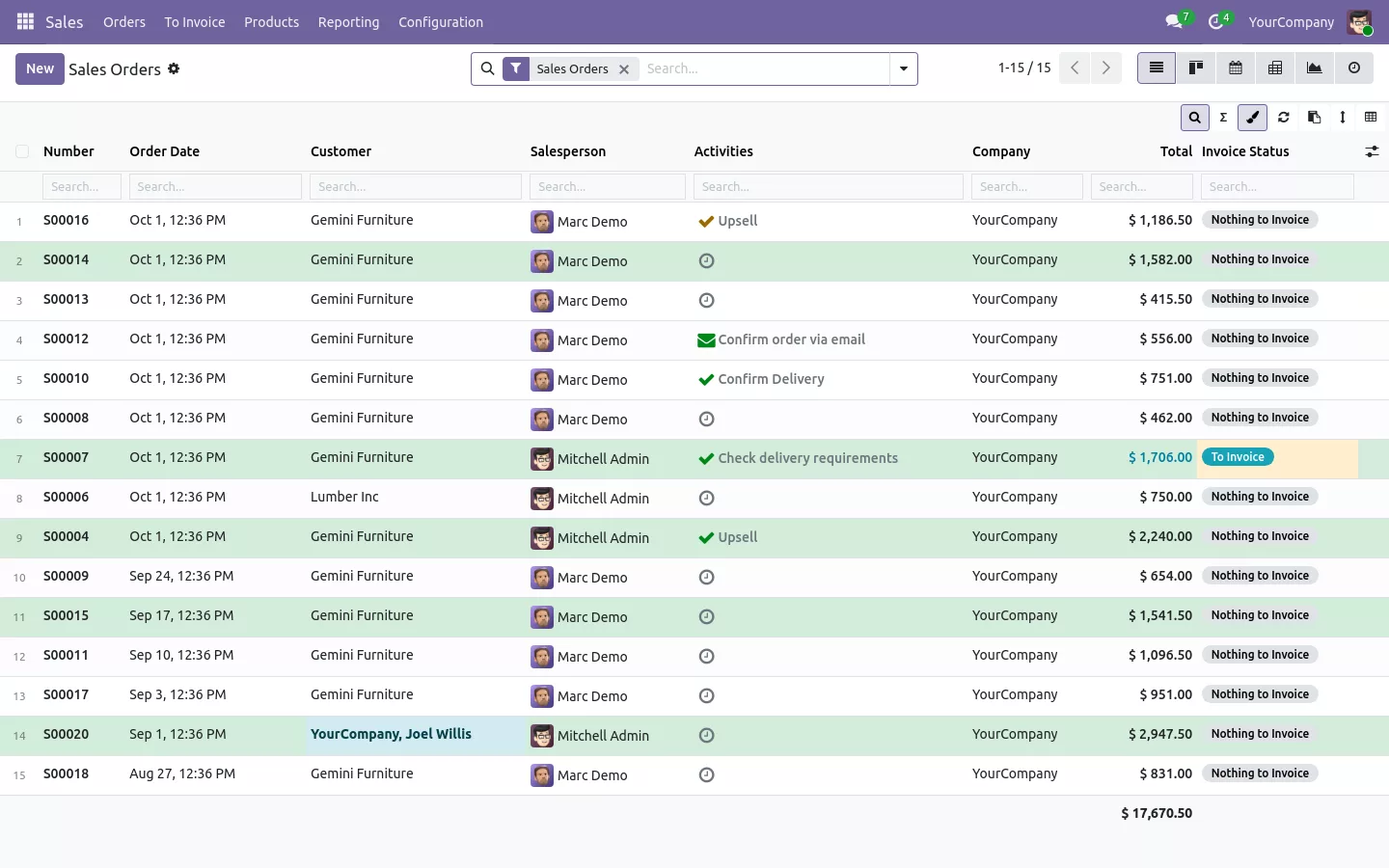
The list in Excel, as you see it
List View Manager adds an Export to Excel button to the toolbar above every list:
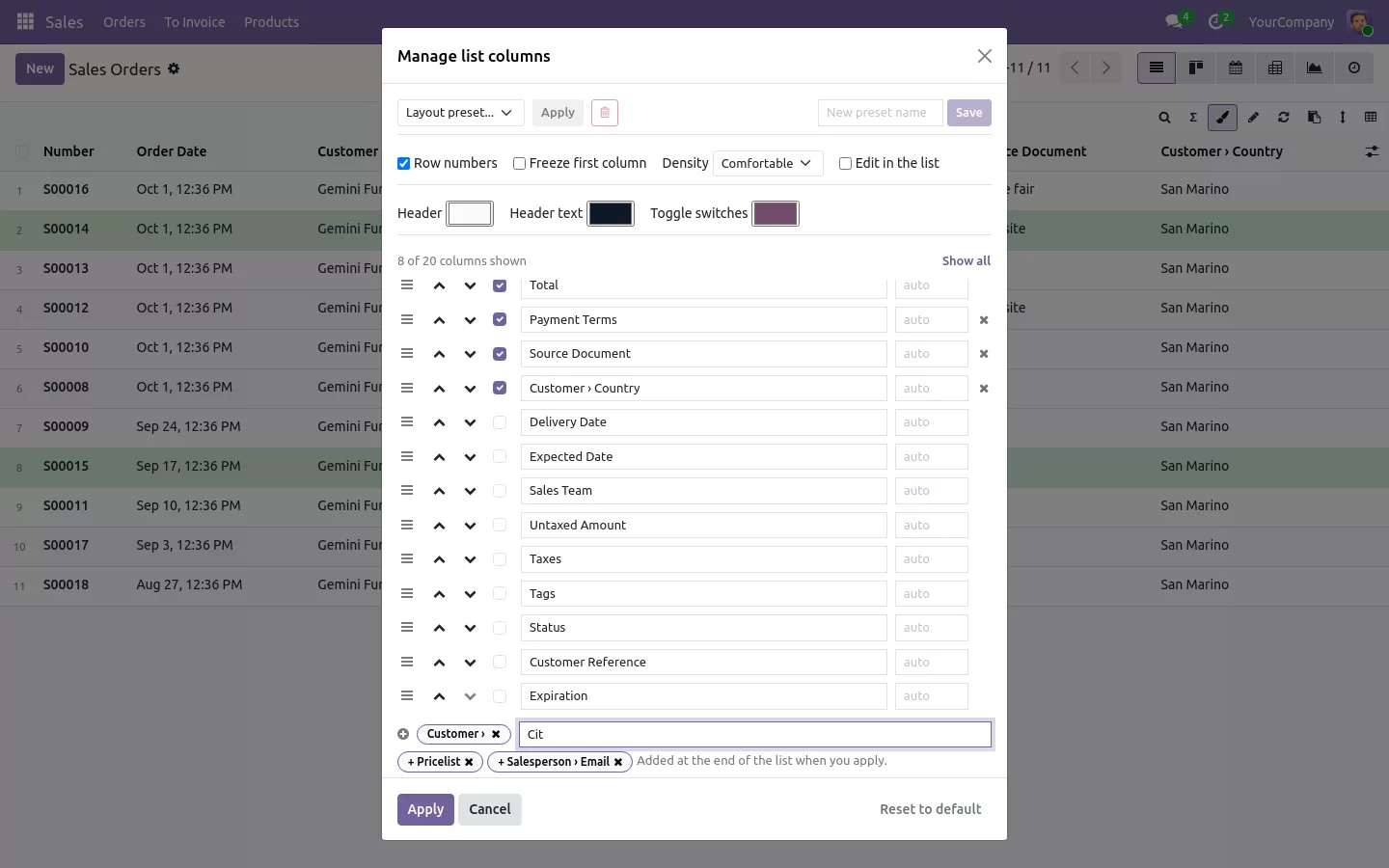
- The columns you see, in their order and with the names you gave them, fields of linked records included, such as the customer's country.
- Every matching record, not only the page, in the order of the list. Select rows first to export only them.
- The groups, at every level, with their number of records and their subtotals.
- A total row at the bottom, grouped list or not.
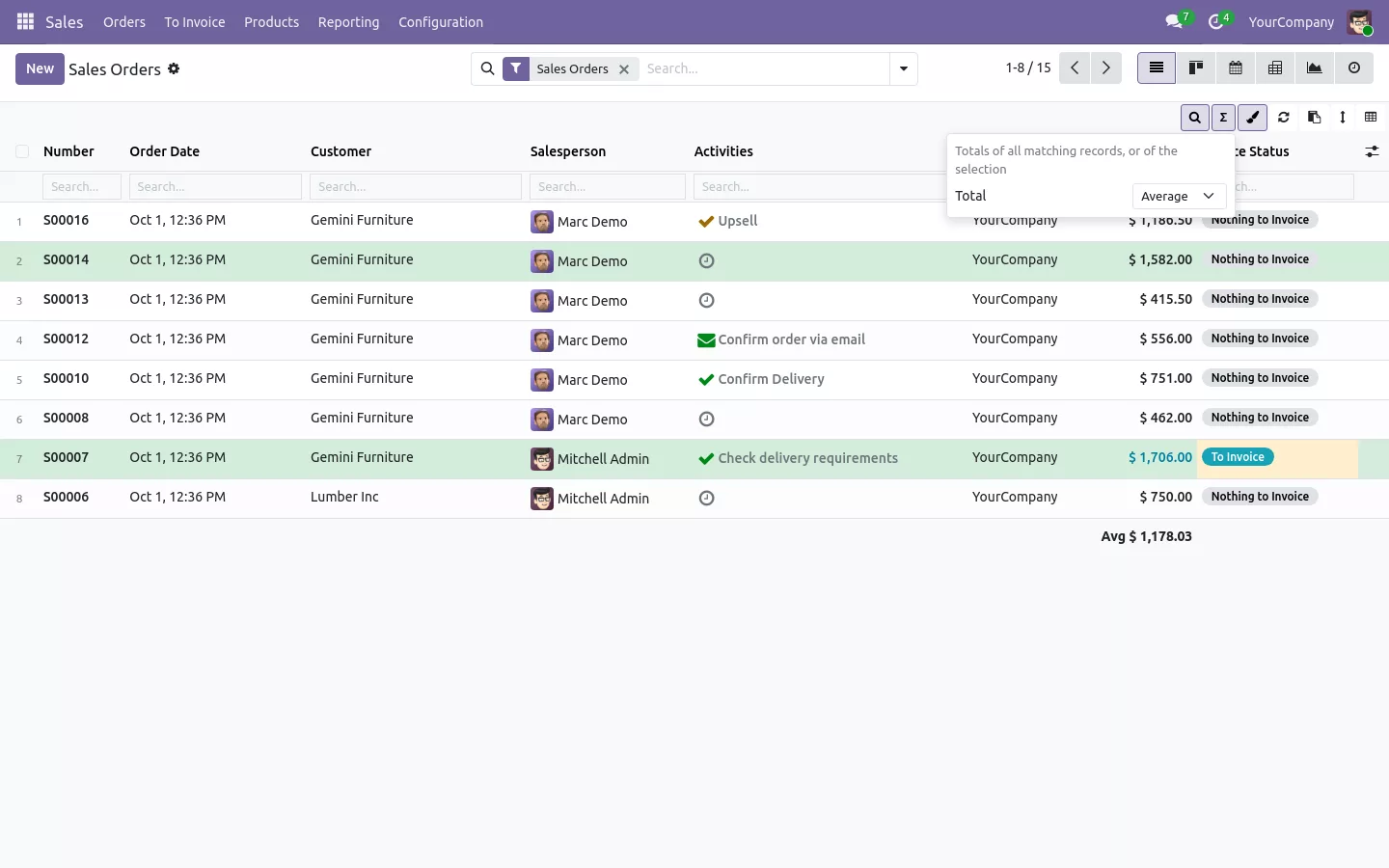
- The function you chose for each column with the Σ button: sum, average, minimum or maximum. The file shows the same figures as the list footer, and averages are exact at every level.
- The groups fold in Excel with the + and − buttons in the margin. A list that is not grouped gets the filter buttons on its header.
Set it up in three steps
- Install List View Manager.
- Open a list, group it if you want subtotals, and choose the function of each column with the Σ button.
- Click Export to Excel. The file is named after the list and the day.
The button follows the same rules as Export All: users without the Export right do not see it, and access rights and record rules apply to what goes into the file.

100% tested
The apps ship with automated tests. No risk.
Which export for which need
| Option | Good for | Limits |
|---|---|---|
| Export, selected rows | Picking any field, an import file, CSV | No total, the fields to pick again or from a template |
| Export All | The visible columns of every record, subtotals of a grouped list | No total row, sums only, flat groups |
| List View Manager | The list as on screen, with subtotals and a total row | An app to install, not on Odoo Online |
Questions people ask
How do I export all the records, not only the page?
Use Export All in the gear menu, with no row selected: it exports every record of the search. If you select rows, select all of them with the button that appears above the list, then use Actions > Export.
Why is the Export button missing?
The user does not have the Export right. An administrator sets it on the user form, in Settings > Users. Some views also turn the export off.
Can Odoo add a total row to the exported file?
Not natively: Export All writes the subtotals of each group, not a grand total, and nothing for a list that is not grouped. List View Manager adds the total row, with the function you chose for each column.
Are the totals Excel formulas?
No, they are the figures Odoo computes, the same as in the list. An average stays exact even when the groups have different sizes, which a formula over the subtotals would get wrong.
Does it work with Odoo Community?
Yes. List View Manager works in Community and Enterprise, for Odoo 18, 19 and 20, on Odoo.sh or on your own server. Not on Odoo Online, which does not accept third-party modules.
Want the total under the columns on screen first? See how to show the total of a column in a list view. Want to choose the columns of the list? See how to customize an Odoo list view without Studio.
From the list to the spreadsheet, totals included
Arrange the list once, group it, pick your totals, and every export comes out ready to send.
A question before you buy? Write to support@sharqix.com, we answer within one business day.