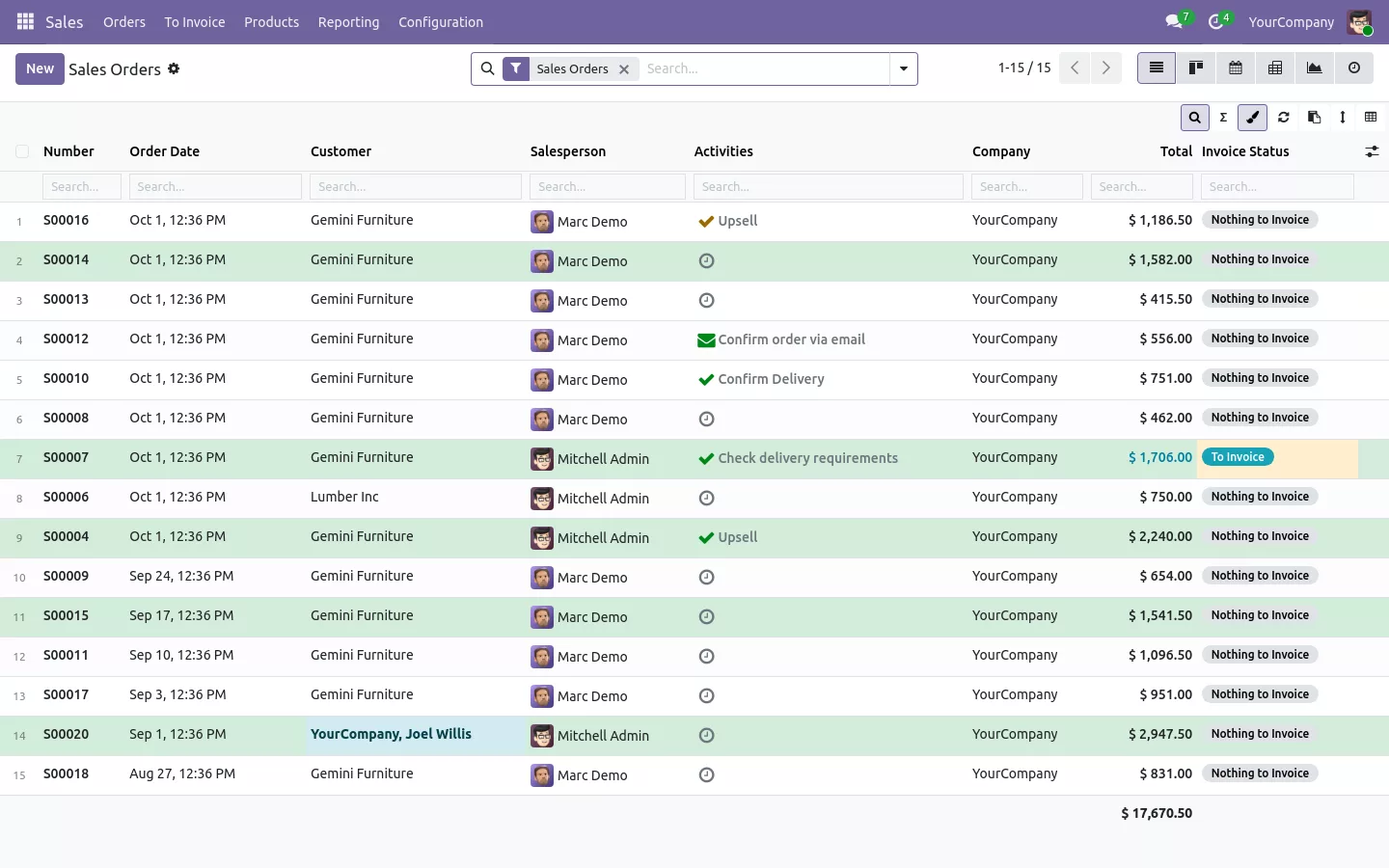

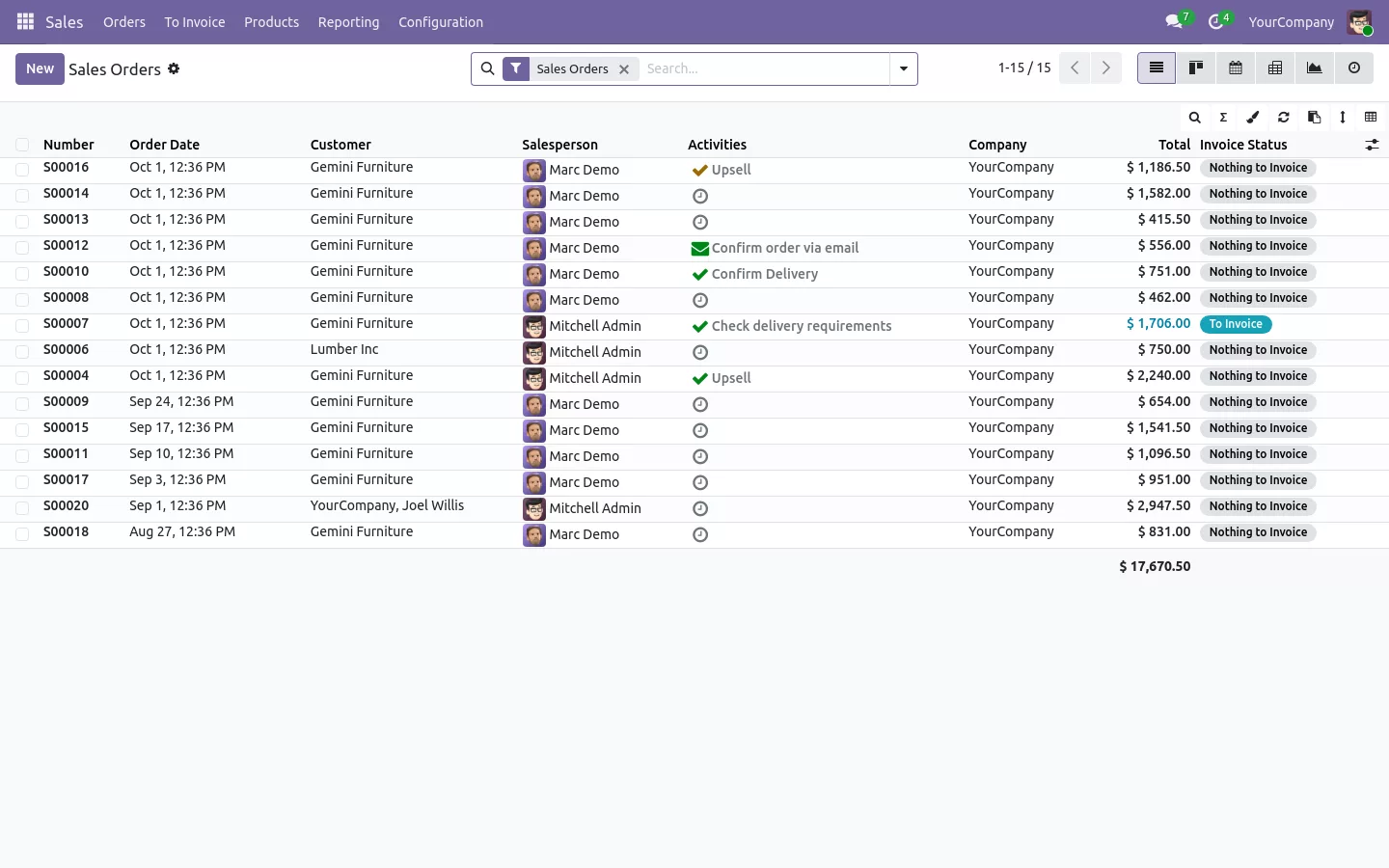
You open the sales orders, the invoices or the deliveries, and the list is almost right. The column you need is missing, three columns you never read take the space, and the total at the bottom only counts the page on screen. To customize a list view in Odoo, you usually need Studio or a developer.
If you work in Odoo lists all day, this probably sounds familiar:
- The payment terms or the customer country are not in the list, so you open records one by one.
- You can only hide the optional columns, in the order the view gives.
- The footer says 4,200 when the 80 orders of your search are worth 61,000, because it adds up the page only.
- Finding the orders of one customer above 1,000 means building a custom filter every time.
Customize Odoo list views without Studio: before and after
List View Manager adds a small toolbar above every Odoo list view. Each user arranges the columns their way, and Odoo keeps it on the server for the next time, on every computer.
Before
Ask for a Studio change. Open records to read a field. Build a filter. Export to a spreadsheet to get the real total.
After
Add the column, type under the header, read the total of every record.
The view itself is never changed: other users keep their own layout, and an Odoo update does not wipe yours.
Find any record by typing under the column
Click the search button and a row of fields appears under the column titles. Type a customer name and the list filters as you type. Numbers understand >1000, <=50 or a range like 500..2000, dates take a range too, and several values go in one field, like Gemini; Lumber. Customers, statuses and yes or no fields are suggested as you type. Press Enter to keep the search as a normal Odoo filter, ready to save in your favorites.
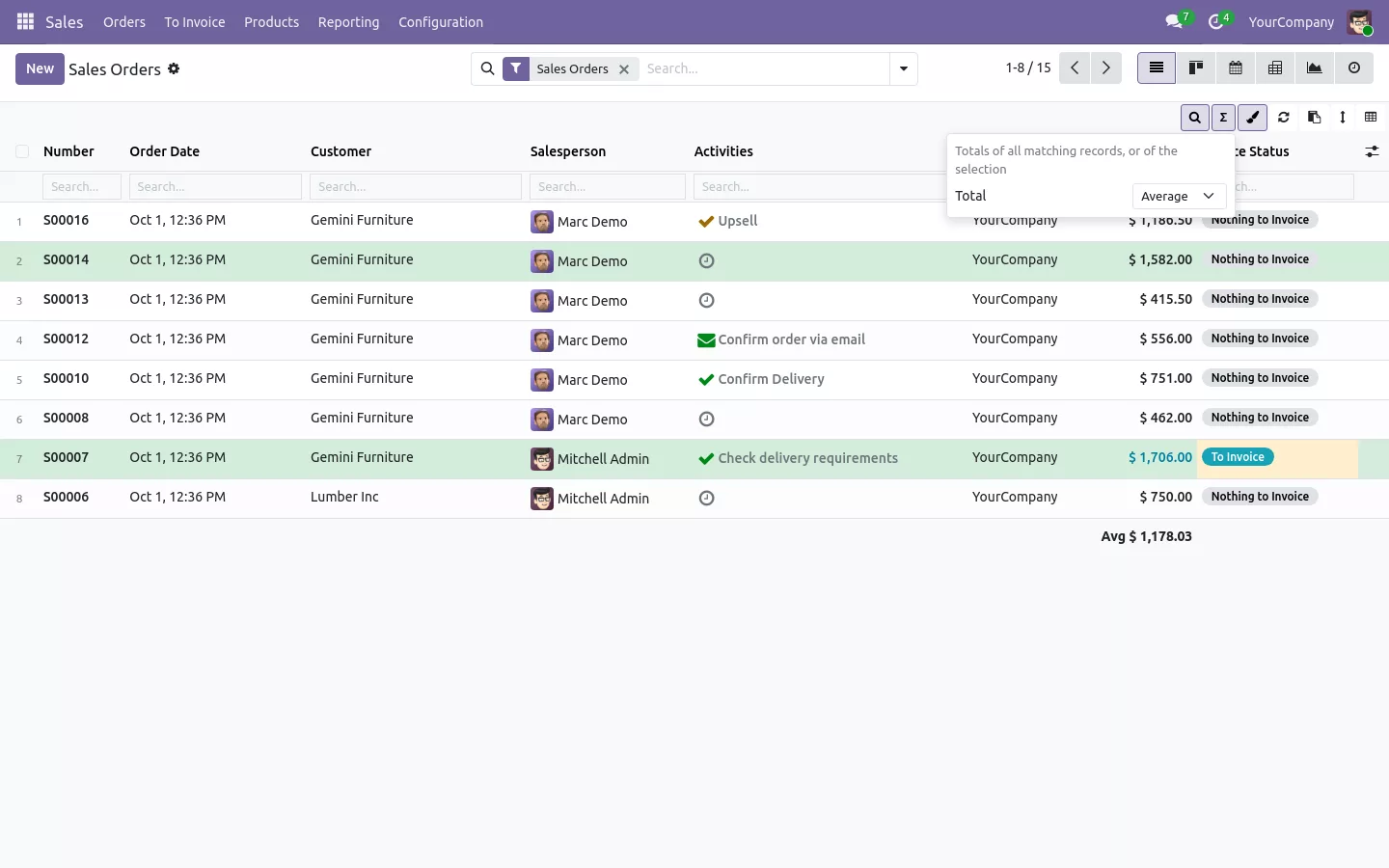
See the real total of the list, not of the page
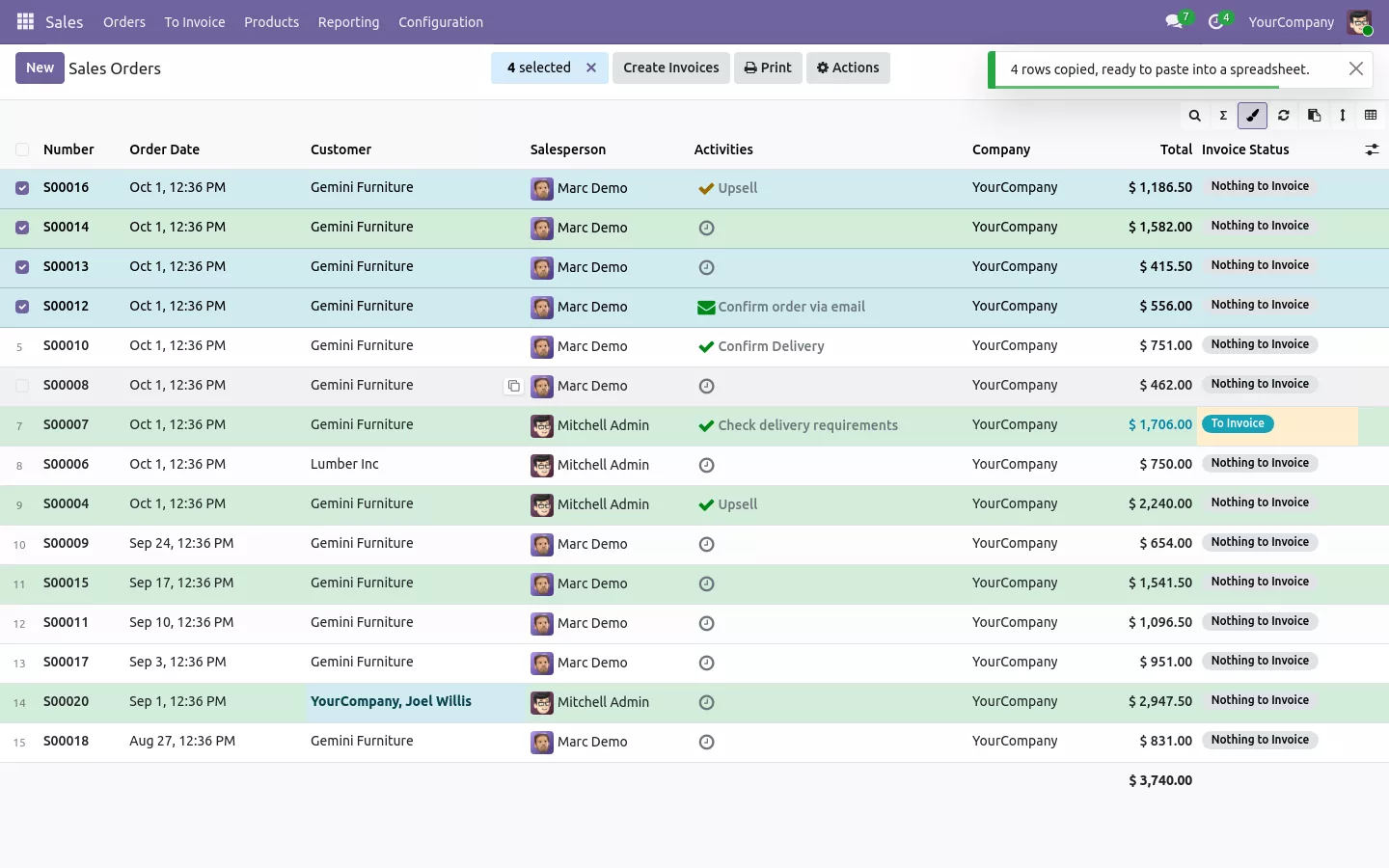
Standard Odoo adds up the rows displayed. Here, the footer counts every record that matches your search, even when the pager shows 5 of them, and a tooltip tells you how many. Pick Sum, Average, Minimum or Maximum for each column. Grouped lists follow the same choice, and selected rows get their own total.
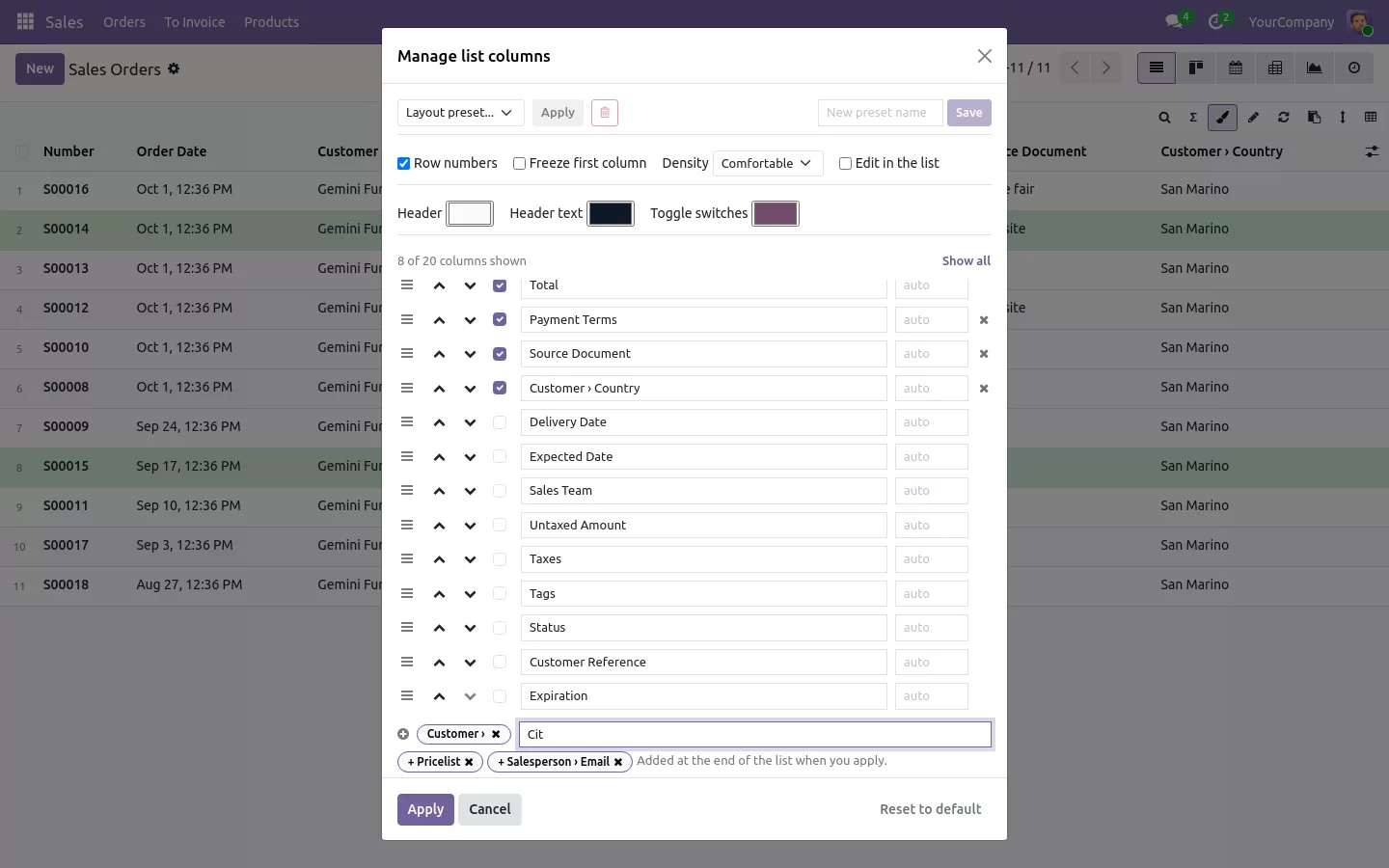
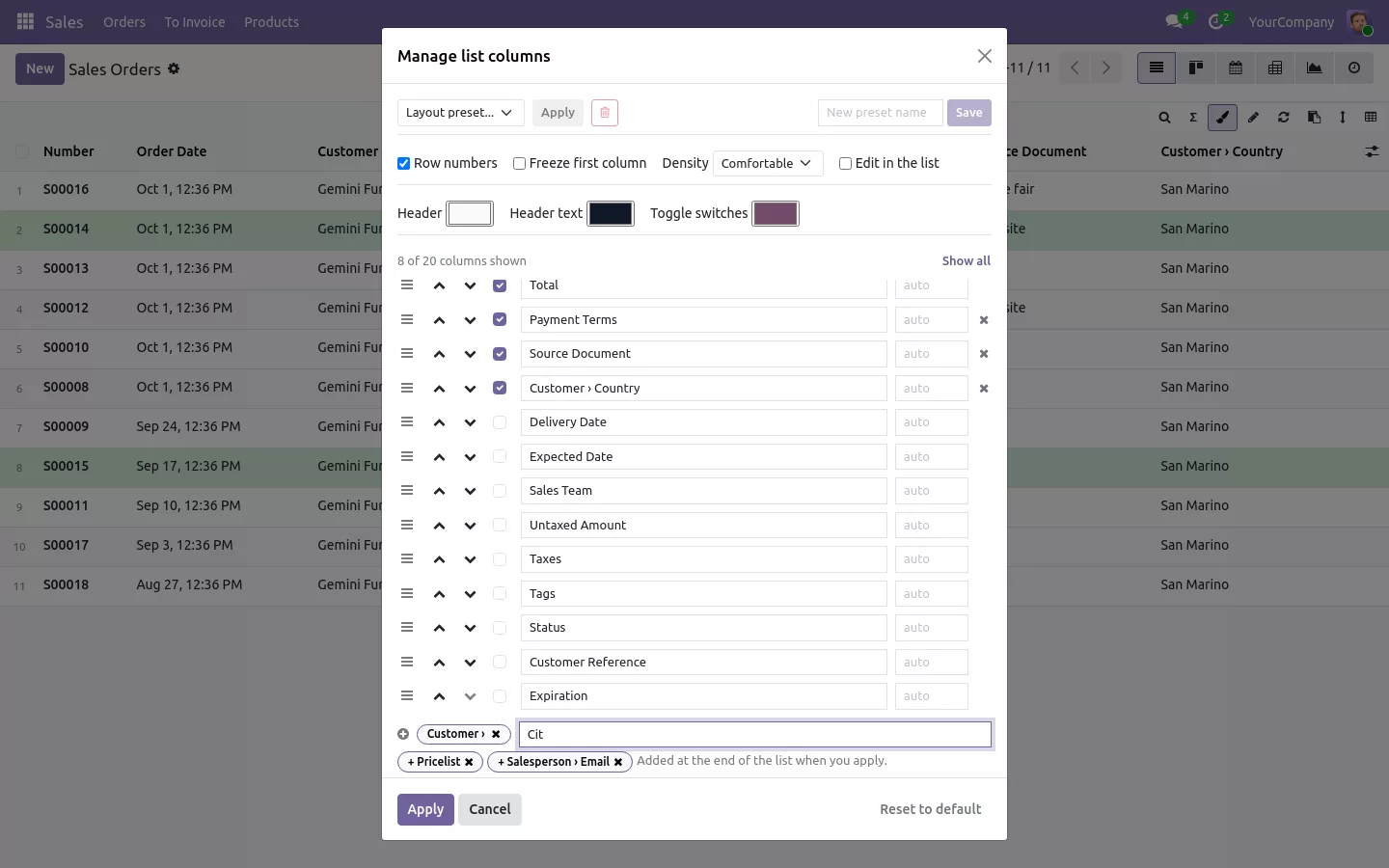
Add any field to an Odoo list view, even from a linked record
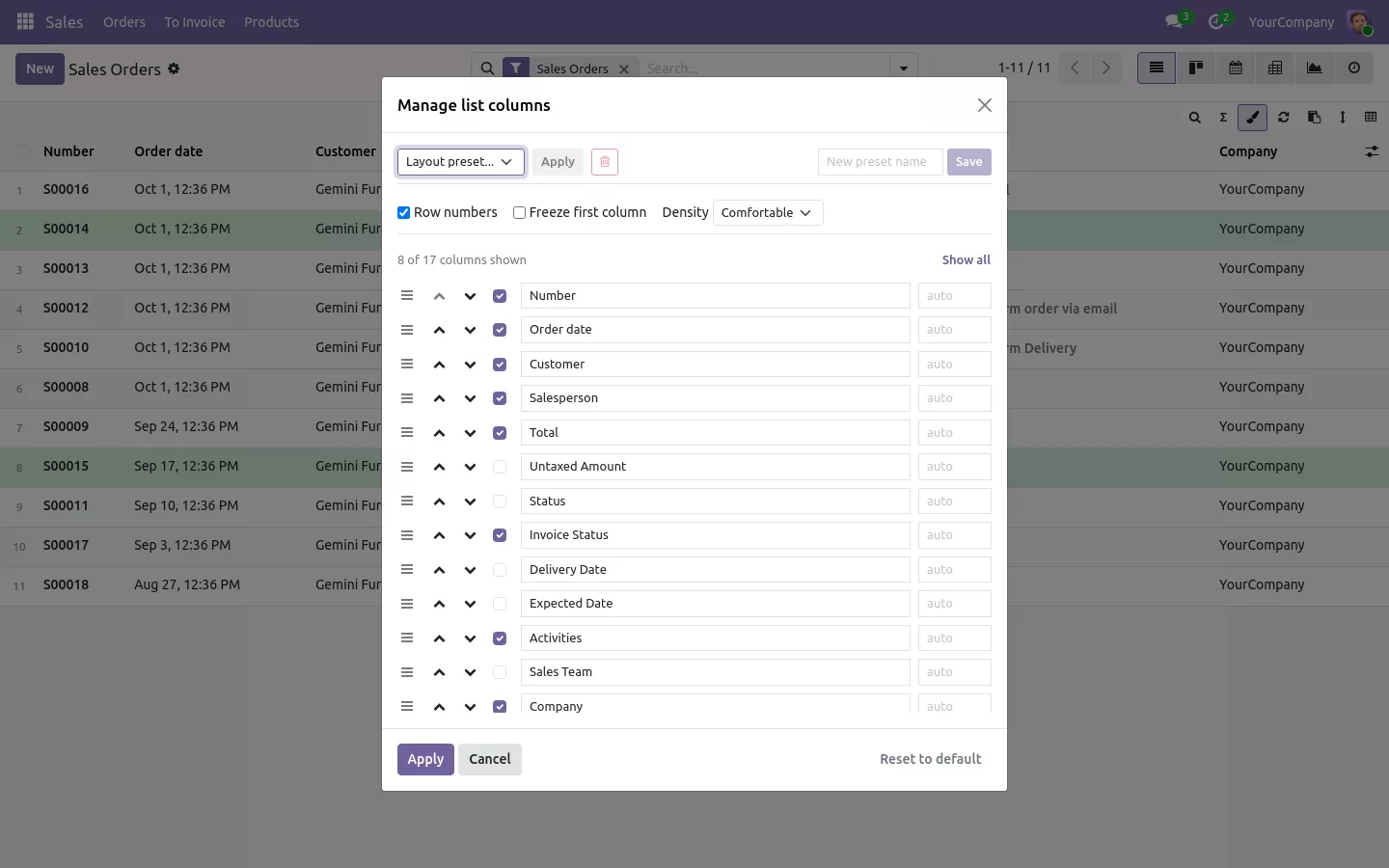
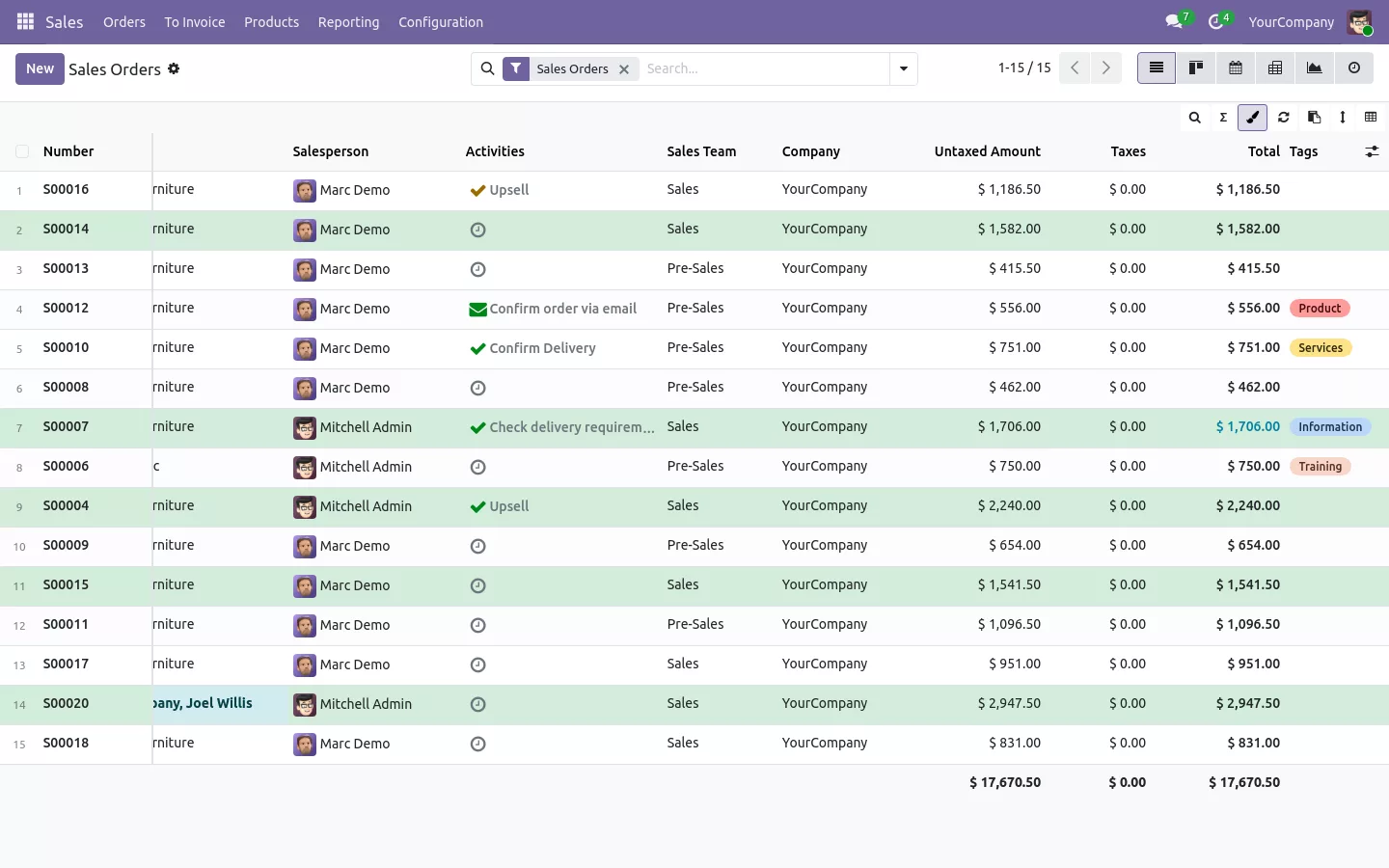
The columns window lists the fields that are not in the list yet: payment terms, source document, delivery date. You can also show a field of a linked record, like Customer > Country or Salesperson > Email. The new column can be searched and colored like the others, on Community as on Enterprise, and users only see the fields they are allowed to read.
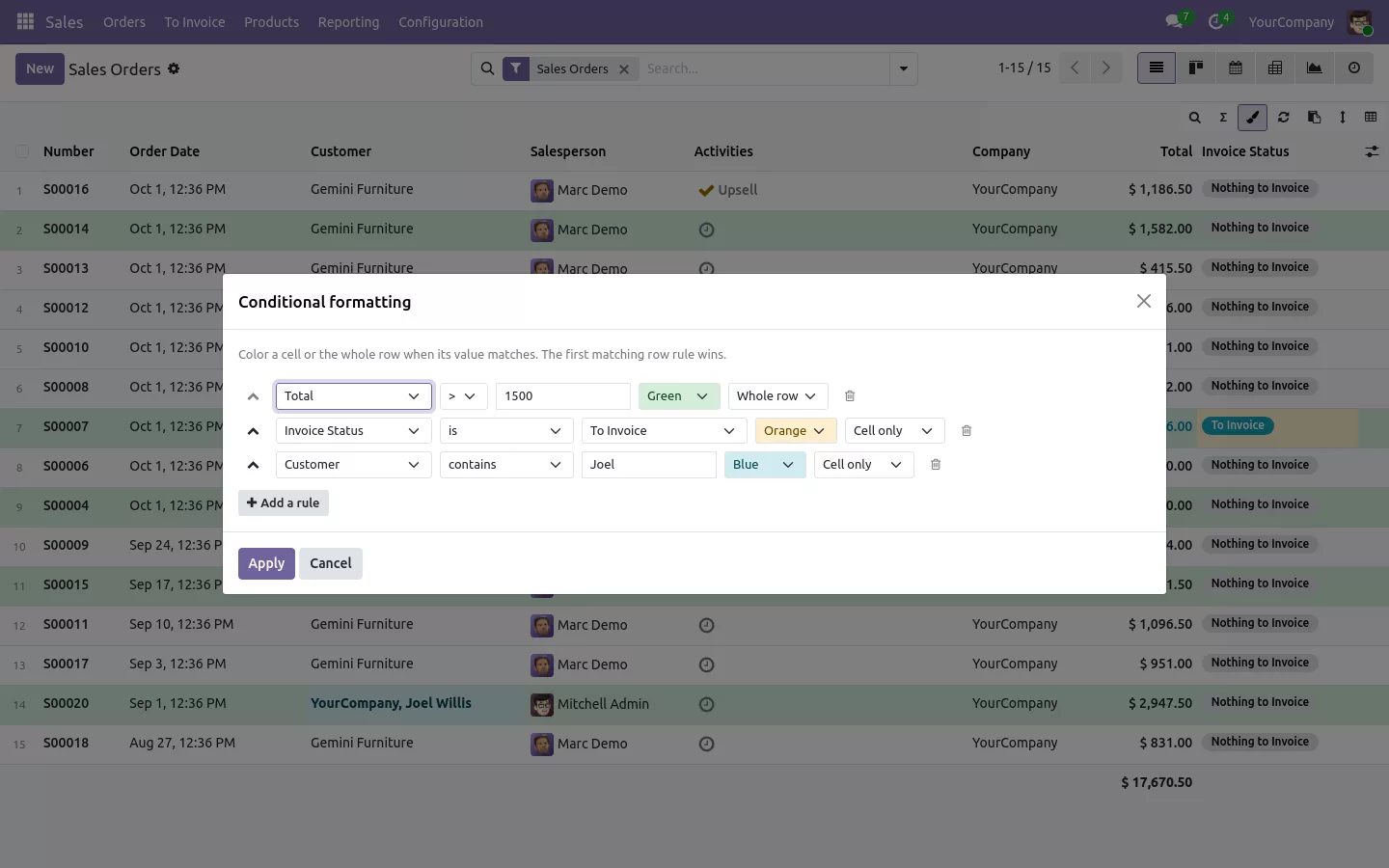
Spot late or large orders at a glance
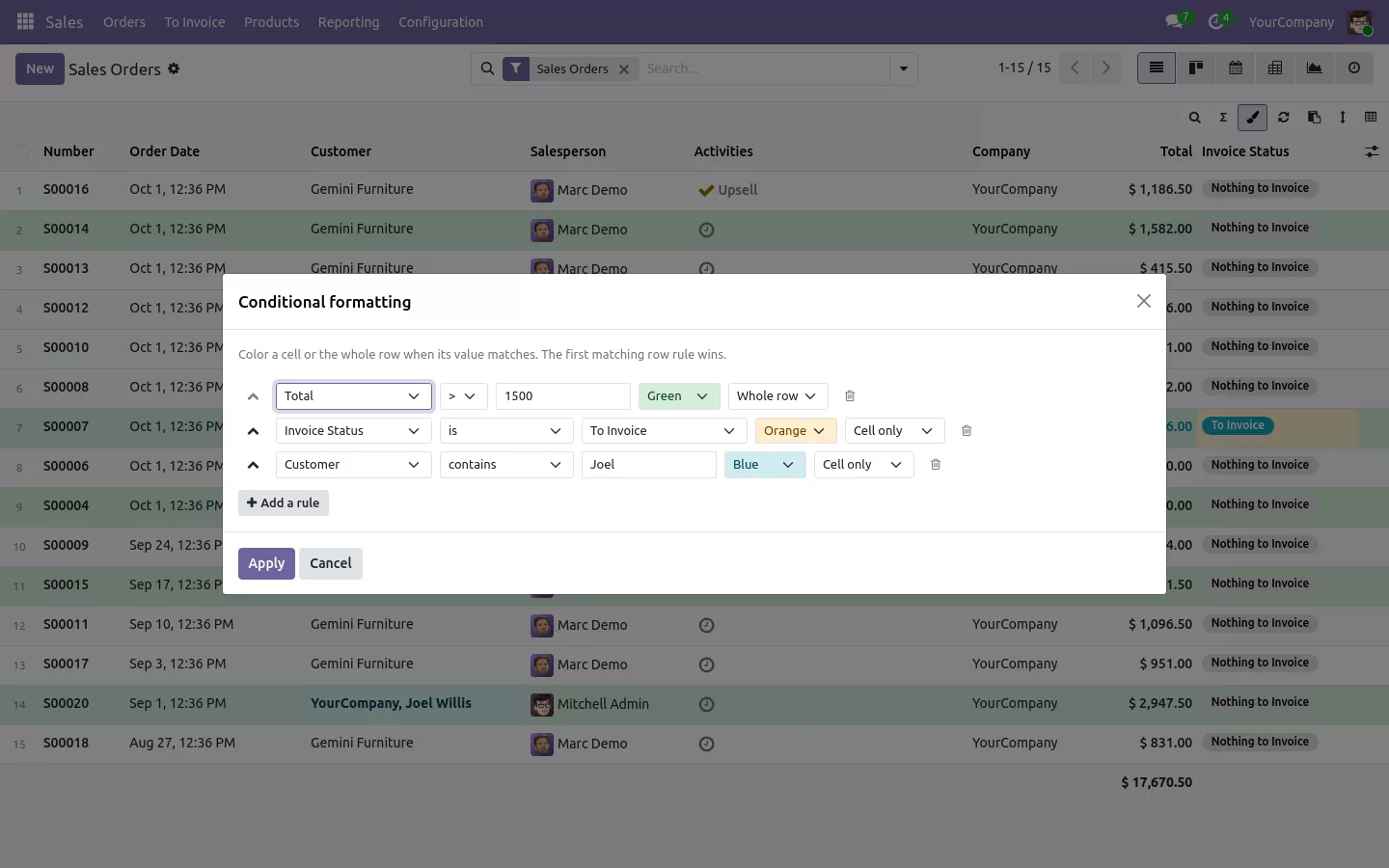
Color the rows or the cells that matter with simple rules: green when the total is above 5,000, orange when an order is still to invoice, red when a date is past. Rules work on amounts, text, statuses, customers and dates, with six colors that follow the Odoo theme, dark mode included.
Move, resize and hide columns, then share the layout with your team
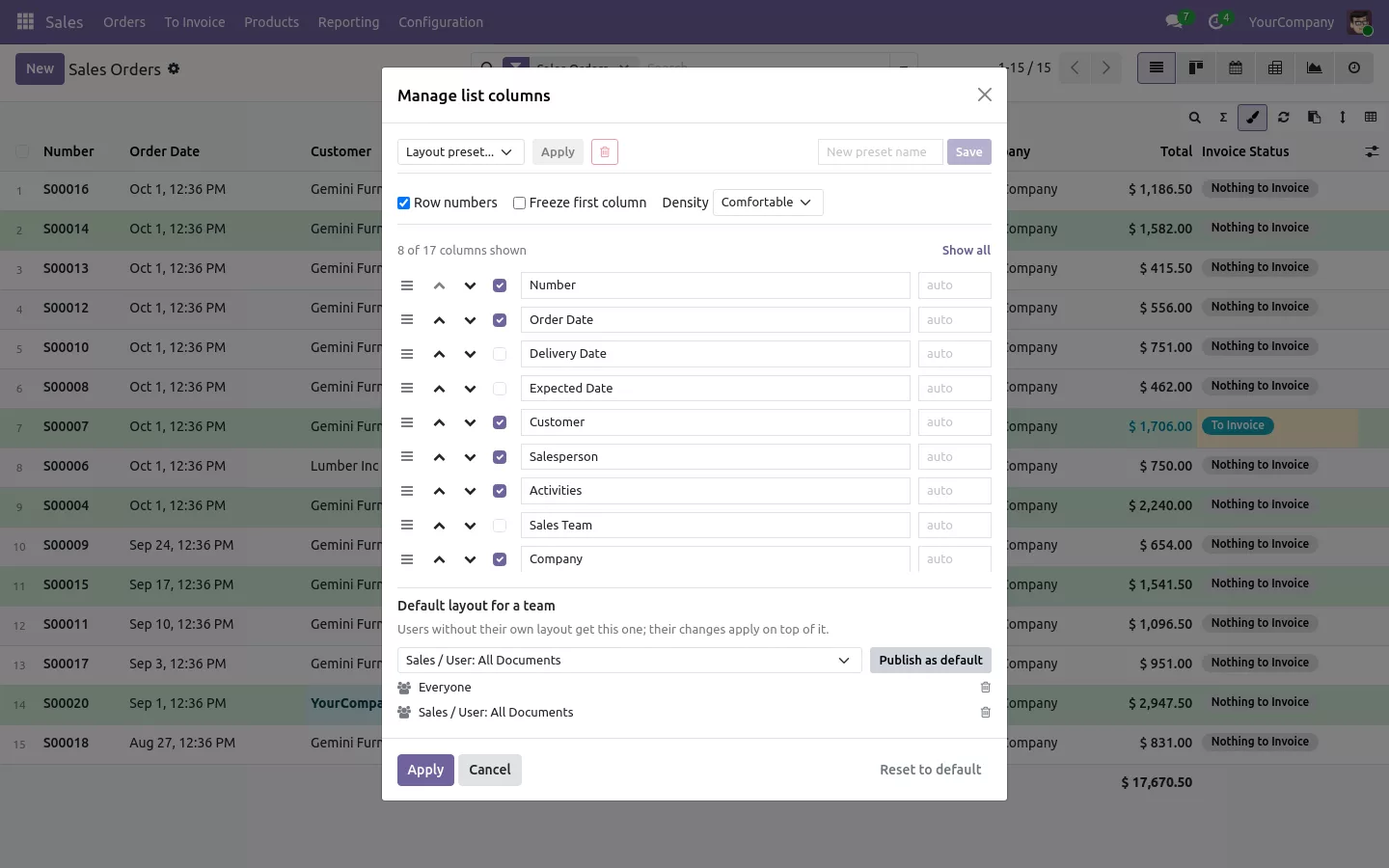
Drag a column header to its new place and drag its border to widen it: Odoo remembers both. Hide what you never read, rename a column, pin the columns you always read on wide lists, and save sets of columns as named layouts like Month end. An administrator can publish a layout for everyone or for one group, such as the sales team, and each user can still adjust it. On each user form, choose who can personalize their lists, who only uses them as published, and who can publish.
Rows also copy straight into Excel or Google Sheets as cells, with the visible columns in their order. More on that in our guide to an Odoo list view that works like Excel.

100% tested
The apps ship with automated tests. No risk.
Up and running in two minutes
Install List View Manager from the Odoo Apps Store: there is nothing to configure, the toolbar shows on every list view of every app. One option in the settings brings the same tools to the order and invoice lines inside a form; the Search More dialogs stay standard. Community and Enterprise, on Odoo.sh or on your own server, in six languages including Arabic.
Your lists, the way you work
Stop asking for a Studio change every time a column is missing. Shape the list in a few clicks and get back to work.
Every feature and screenshot on the app page.
A question before you buy? Write to support@sharqix.com, we answer within one business day.