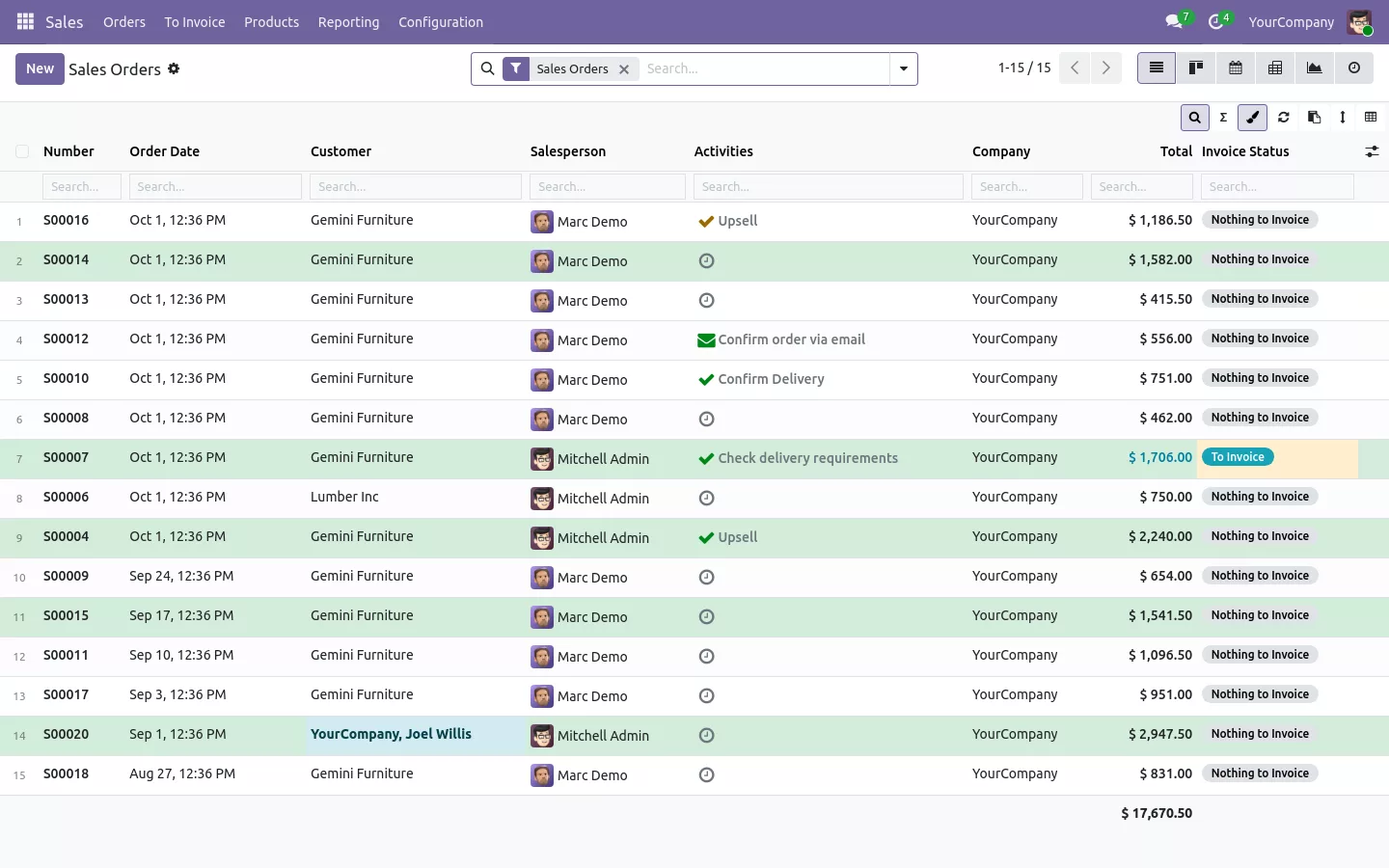

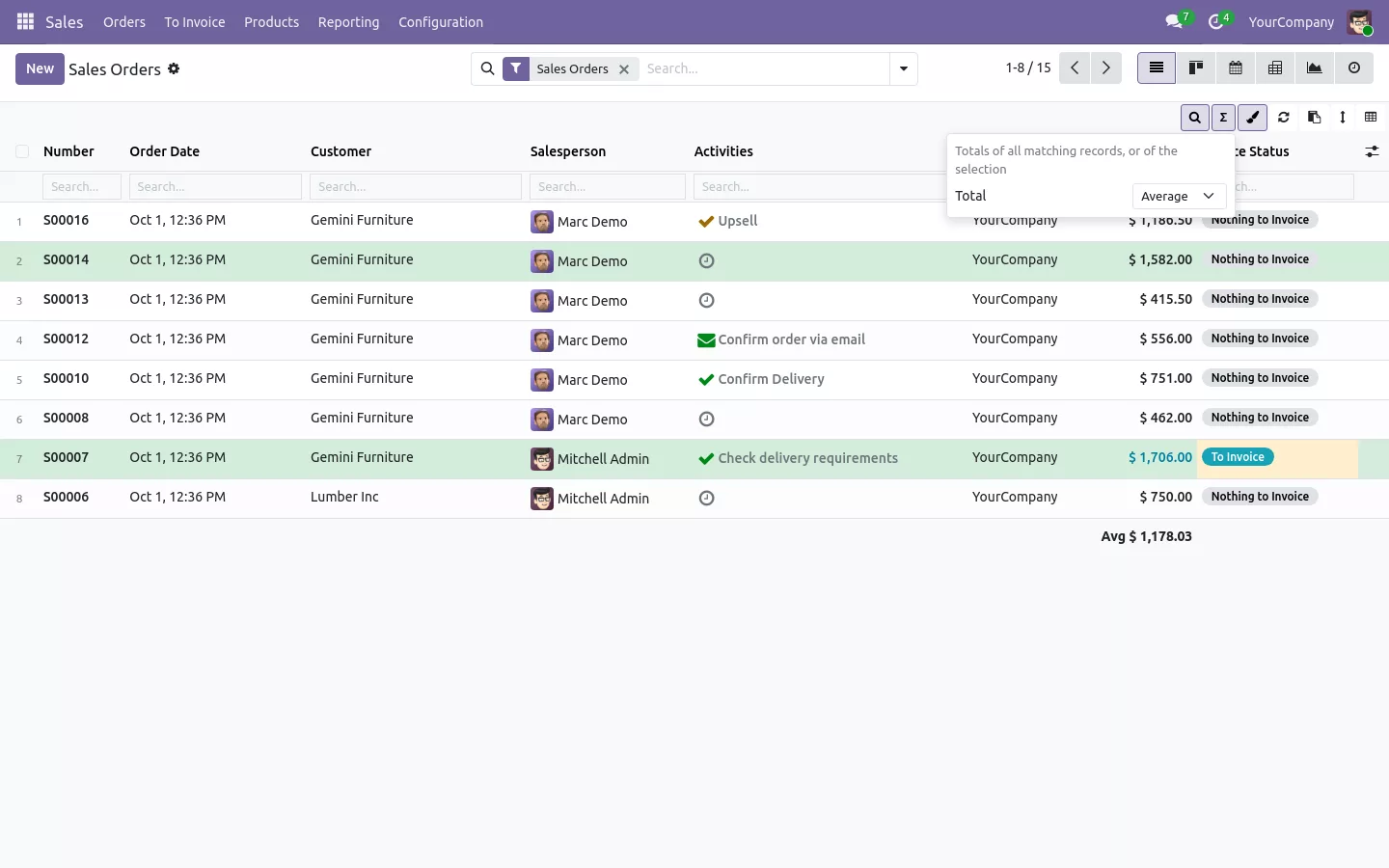
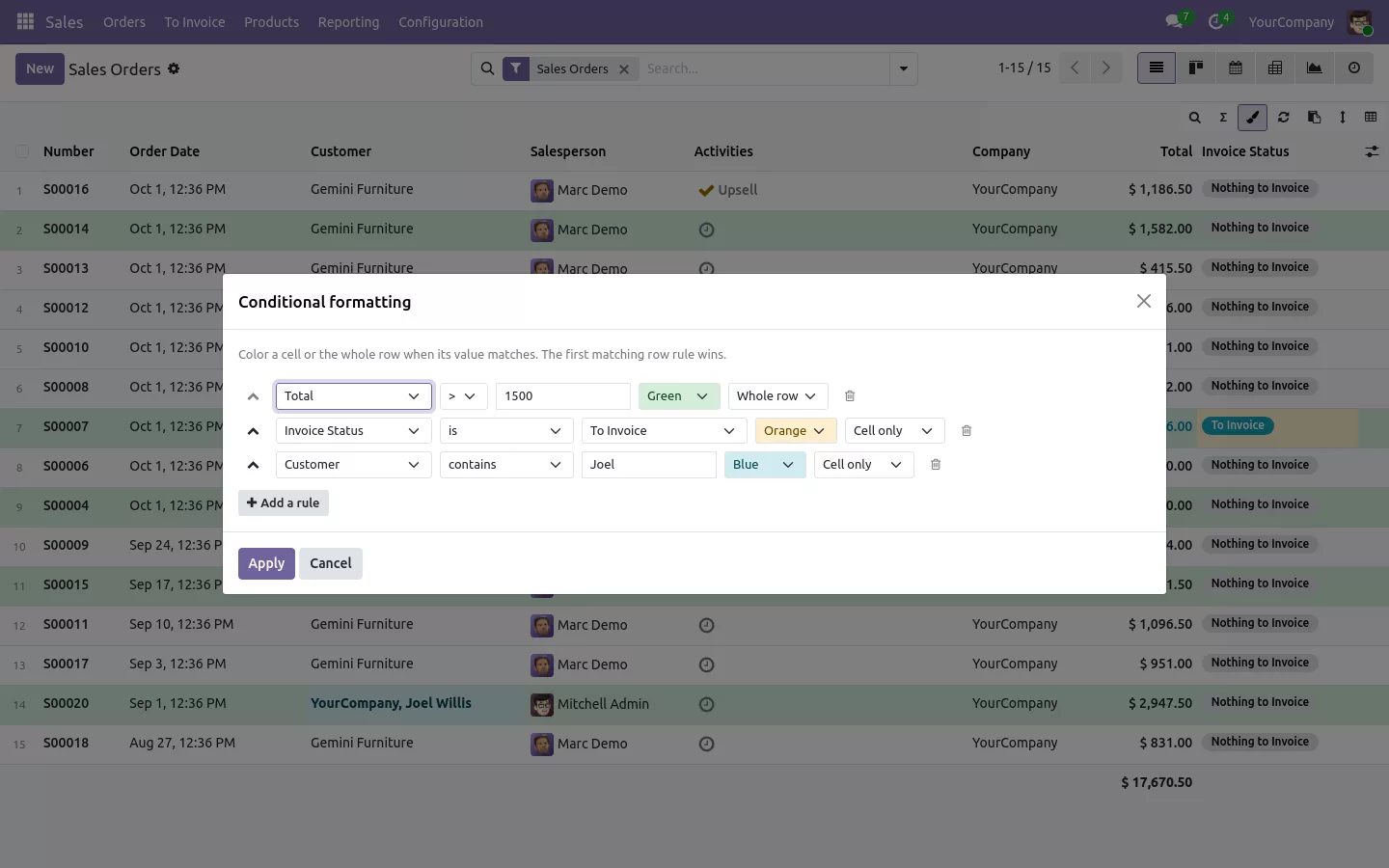
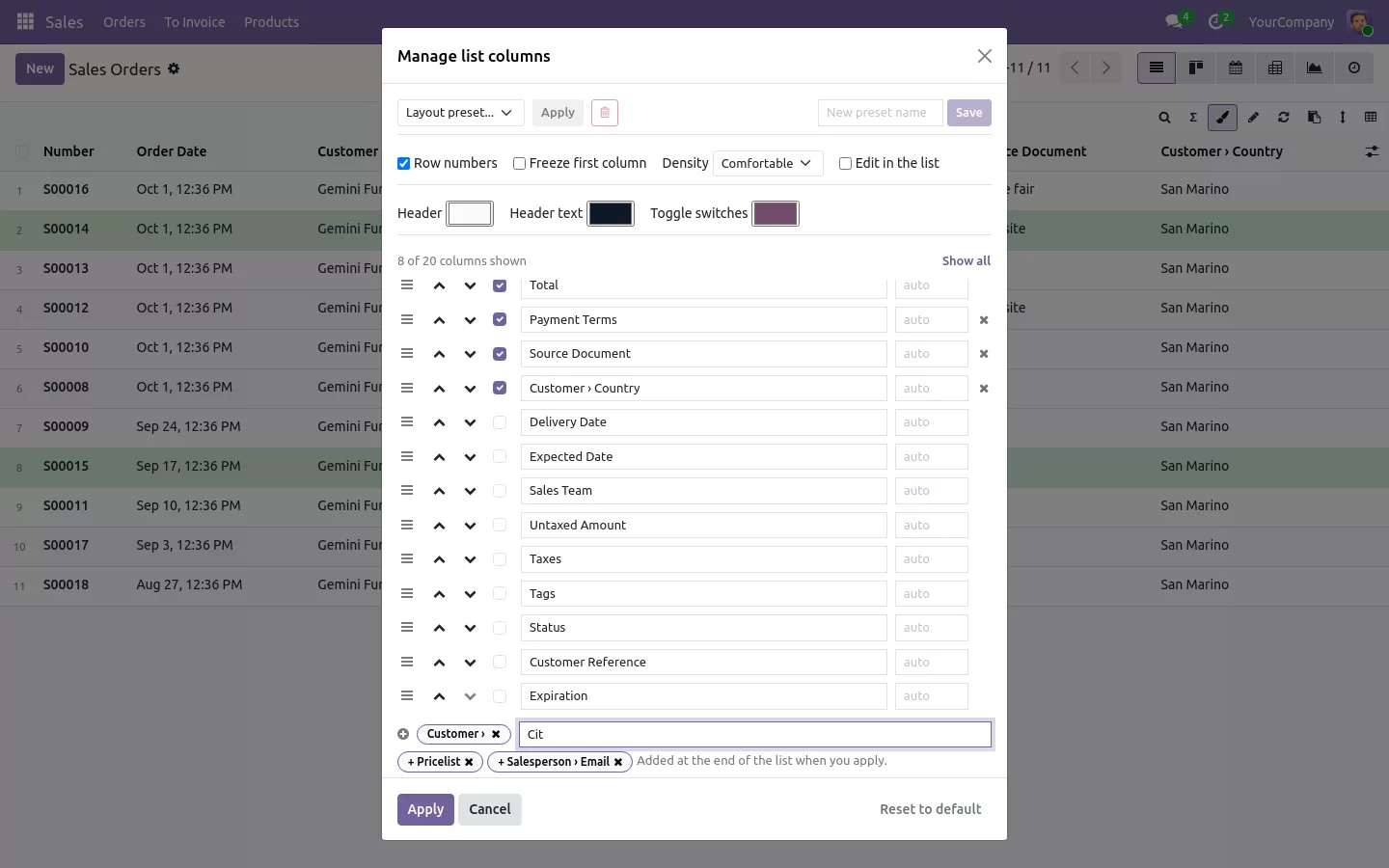
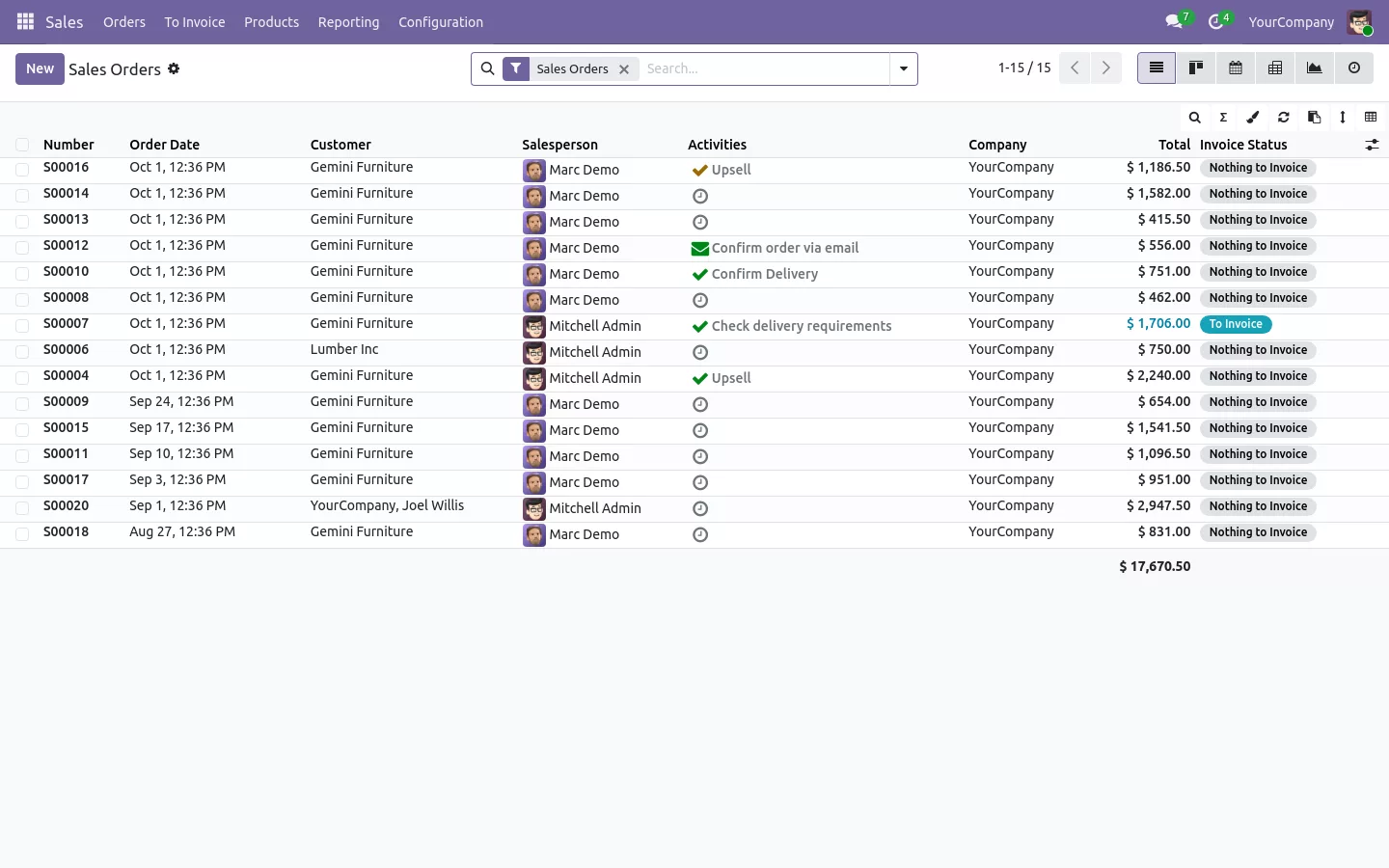
Ask anyone in sales or accounting how they check a list, and the answer is often the same: export it to Excel. Not because Odoo lacks the data, but because Excel has three reflexes they use every minute: a filter under each column, frozen columns, and copy and paste. This guide shows how to get an Odoo list view that works like Excel, without the export.
Without them, the day looks like this:
- To see the orders of two customers between two dates, you build a custom filter, or you export.
- On a wide list, you scroll right to read the amount and lose the order number on the way.
- Copying ten rows into a spreadsheet means an export file, opened, cleaned, then pasted.
- In a quotation of forty lines, finding the desks means reading every line.
An Odoo list view like Excel: before and after
List View Manager adds a small toolbar above every Odoo list. Nothing to learn: the gestures are the ones your team already makes in Excel, in the screen they already use.
Before
Export the list. Filter it in Excel. Freeze the first column. Copy the rows you need. Do it again tomorrow, because the data changed.
After
Type under the column, pin it, copy the rows. Live data, no file.
Filter by column in Odoo, like the Excel filter row
One click and a row of fields appears under the headers. Type in any of them and the list filters as you type. Several values go in one field, separated by a semicolon, like Gemini; Lumber for two customers. Amounts understand >1000 or 500..2000, dates take a range such as 10/01/2026..10/15/2026, and customers, statuses or yes and no fields are suggested as you type. Filters on several columns add up, and Enter keeps the result as a normal Odoo filter you can save in your favorites.
Freeze columns on wide Odoo lists
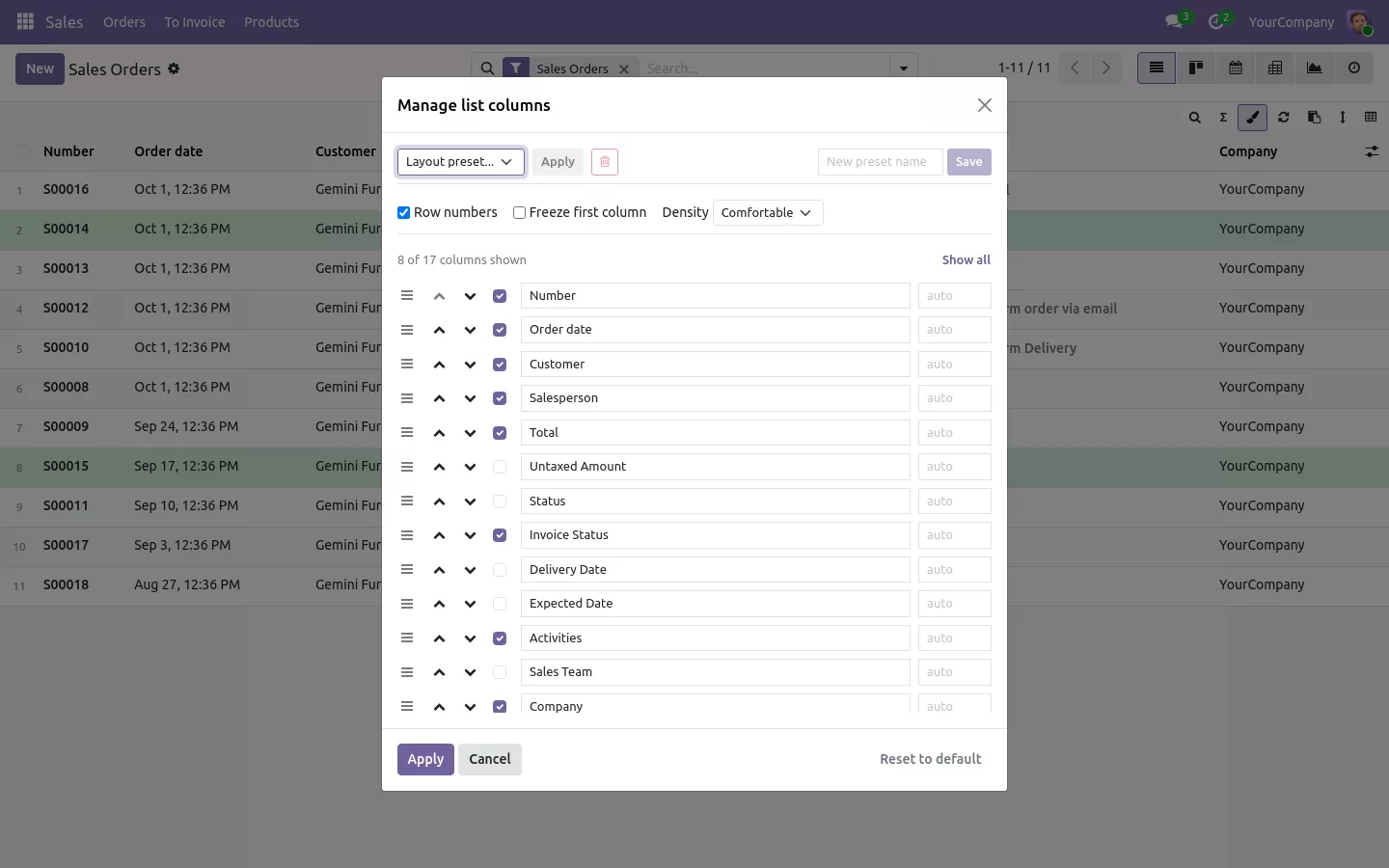
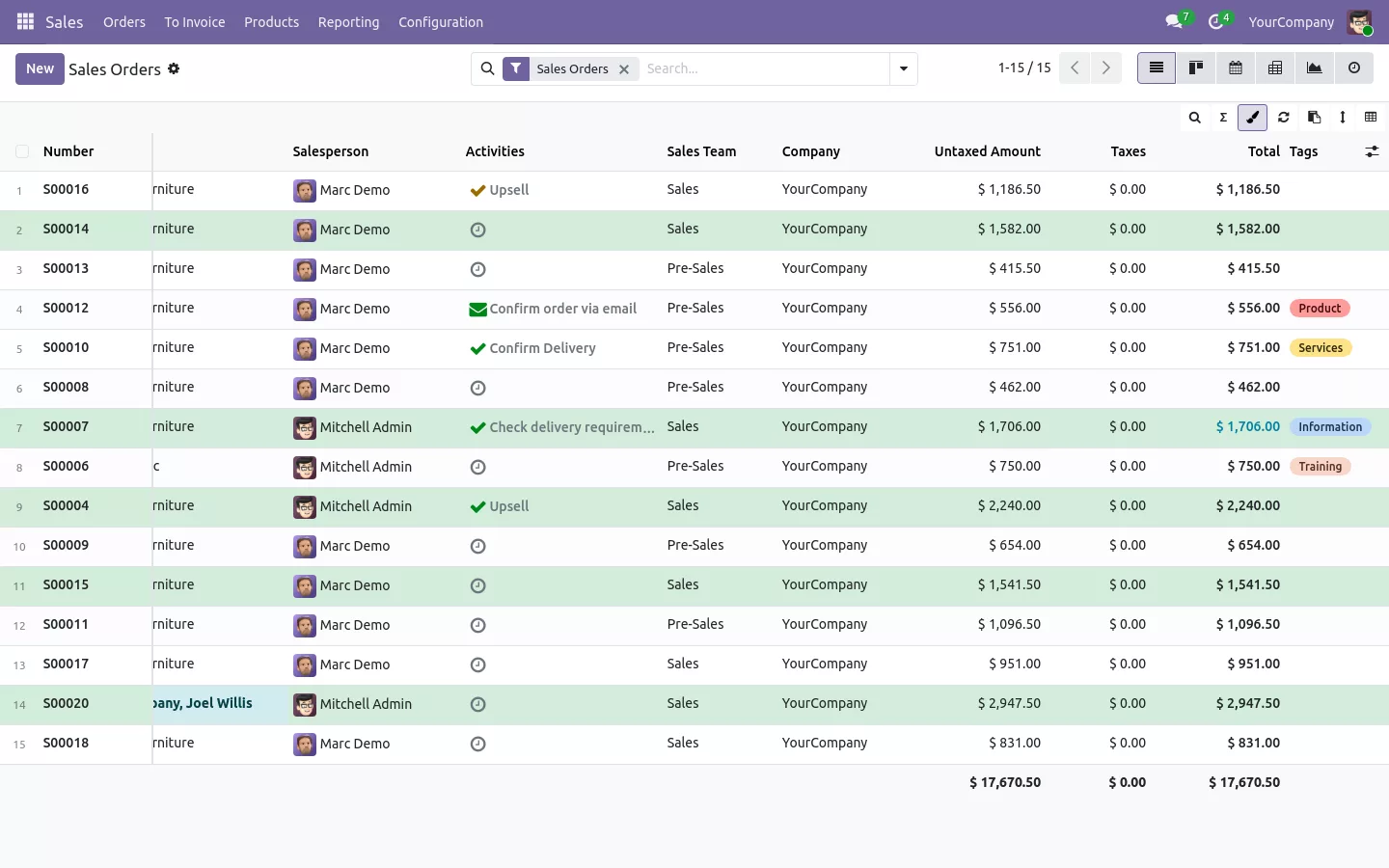
Right click a column header and choose to pin it. The order number, the customer or the total stays on the left while you scroll to the other columns, with a thin line showing where the scrolling starts. Pin up to ten columns, in the order you like. The same menu hides, renames or resets the width of a column, and row numbers 1, 2, 3 run down the side, across pages.
Copy Odoo rows into Excel or Google Sheets as cells
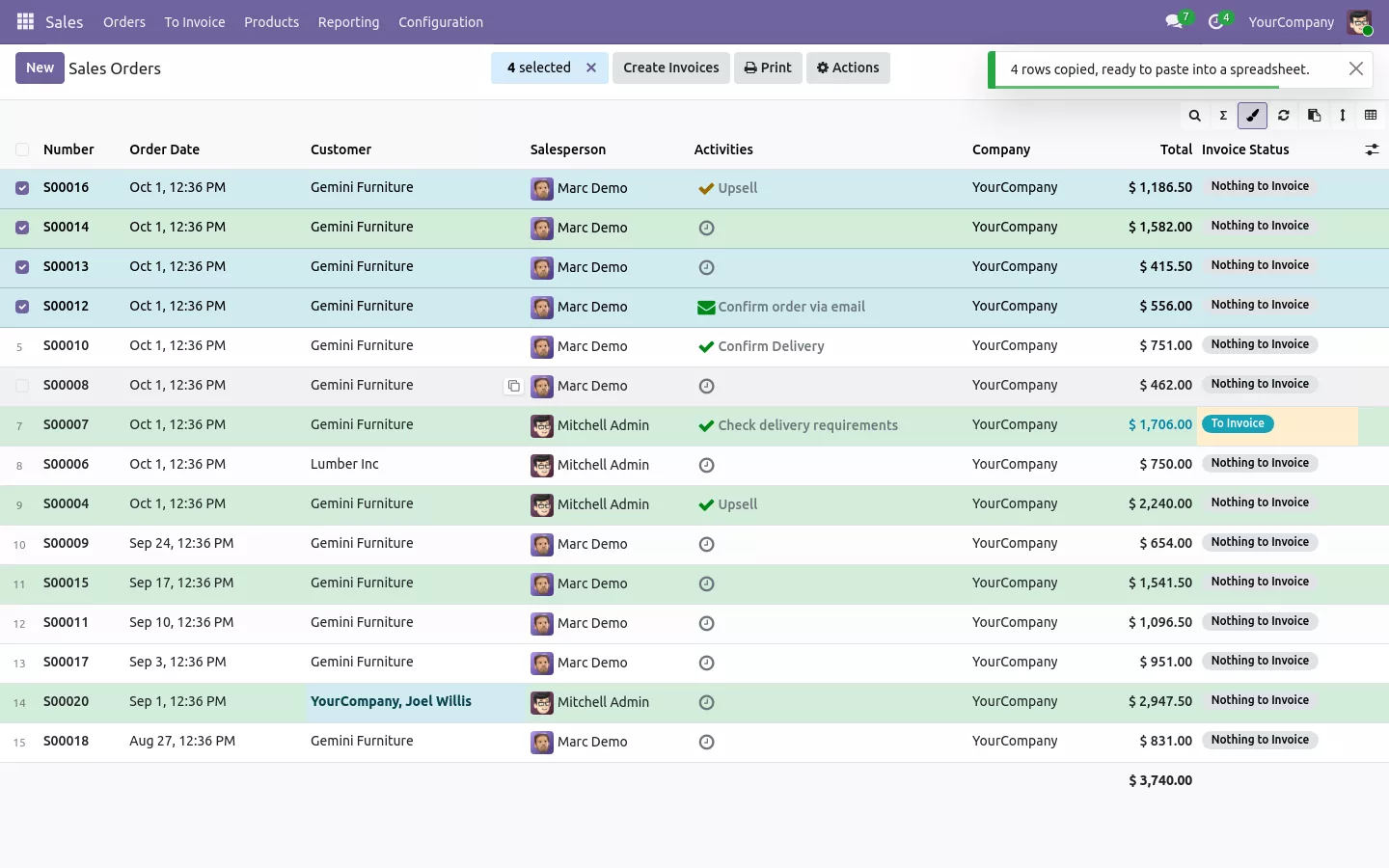
Select the rows, click the copy button, paste in Excel, LibreOffice or Google Sheets. Each value lands in its own cell, with a header line and the visible columns in their order on screen. Need a single value? A small button on each cell copies just that one. And like the Excel status bar, selected rows get their own total in the footer, while the footer of the list counts every record of the search, not only the page.
Filter the order lines of a quotation or an invoice
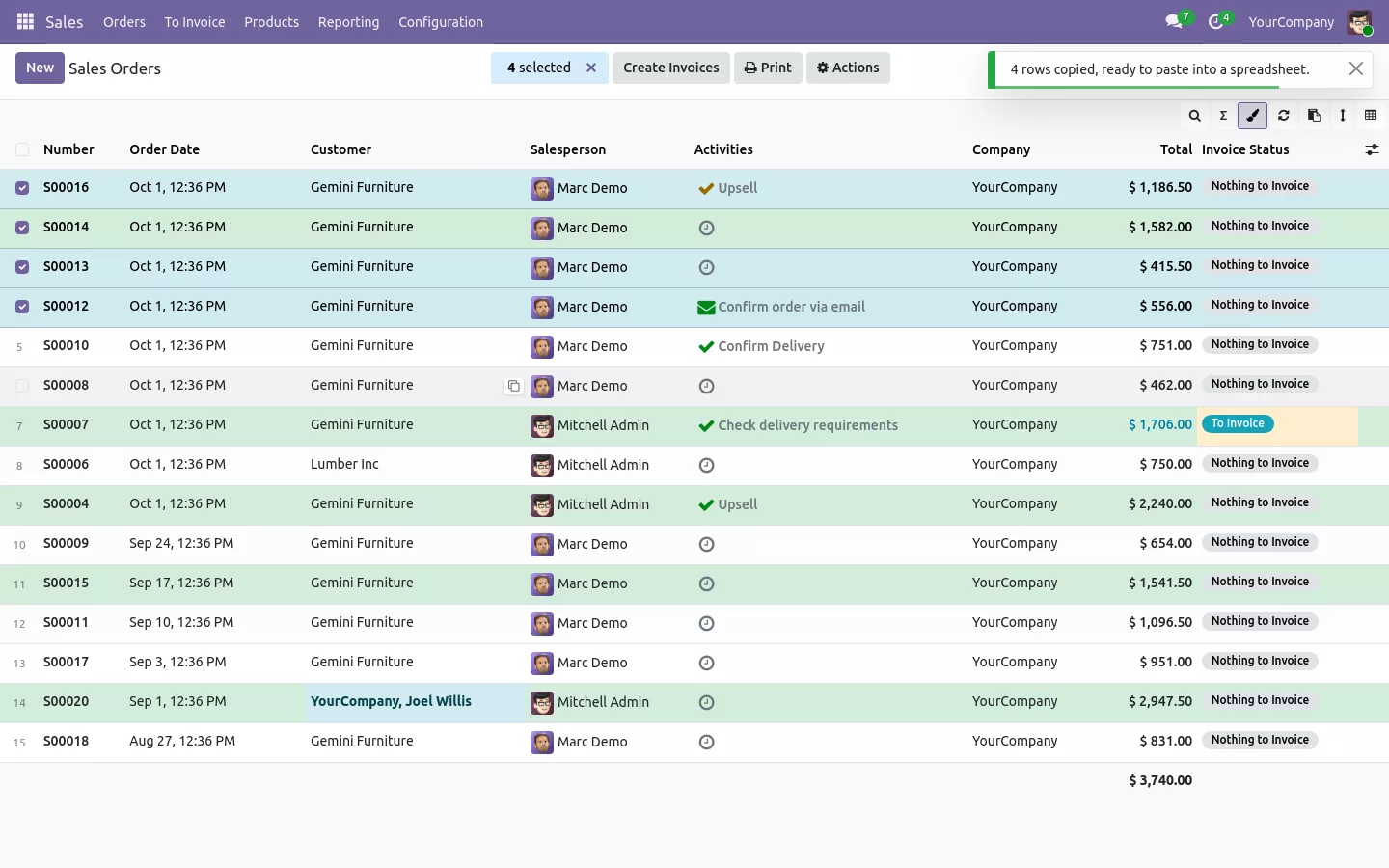
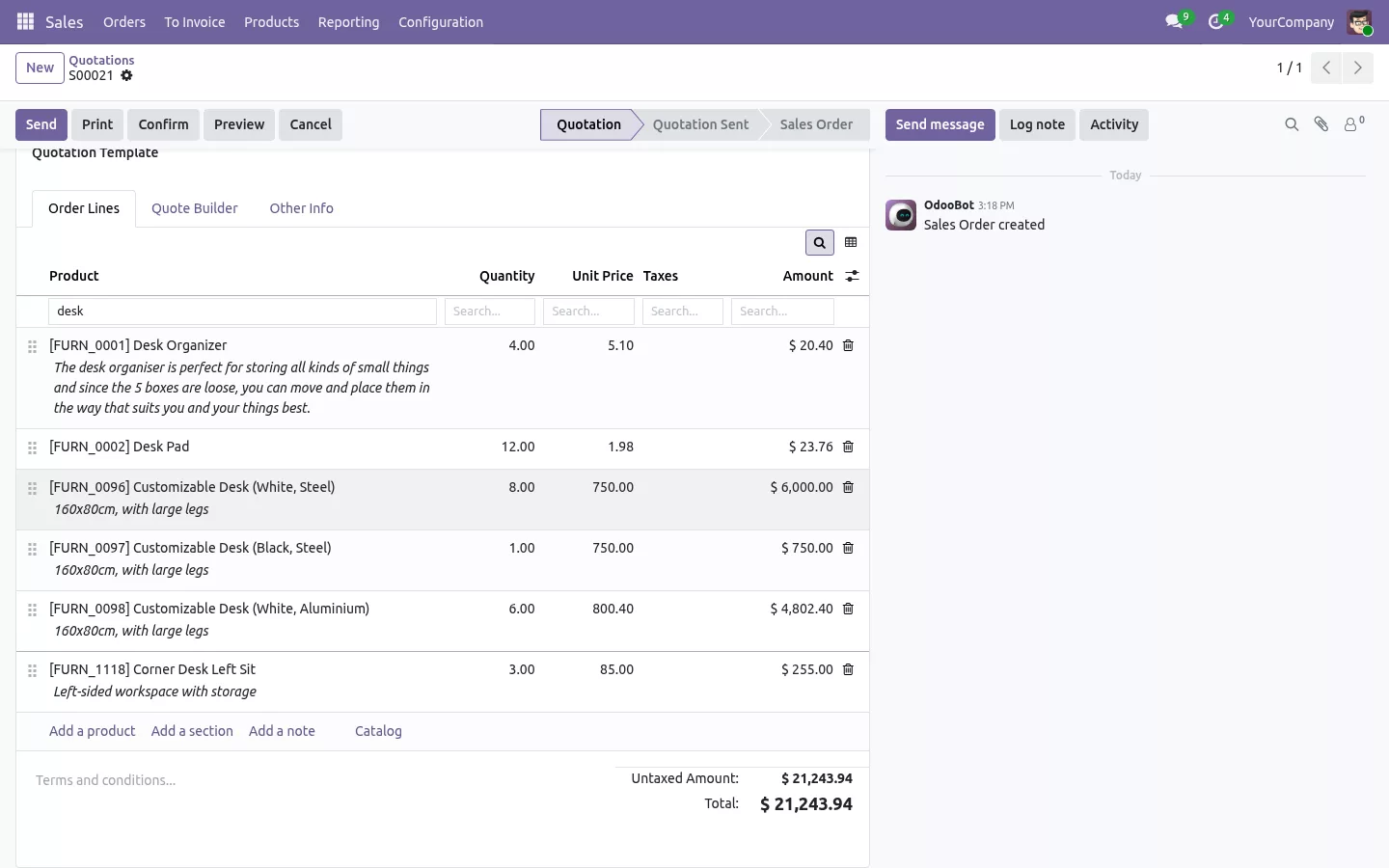
Long quotations and supplier bills have the same problem. Switch on one option in the settings and the lines inside a form get the same tools: type desk under the product to see only the desks of an 11 product quotation, pin the product, hide the taxes column, rename or widen the others. Sections, notes and adding lines work exactly as before.

100% tested
The apps ship with automated tests. No risk.
Up and running in two minutes
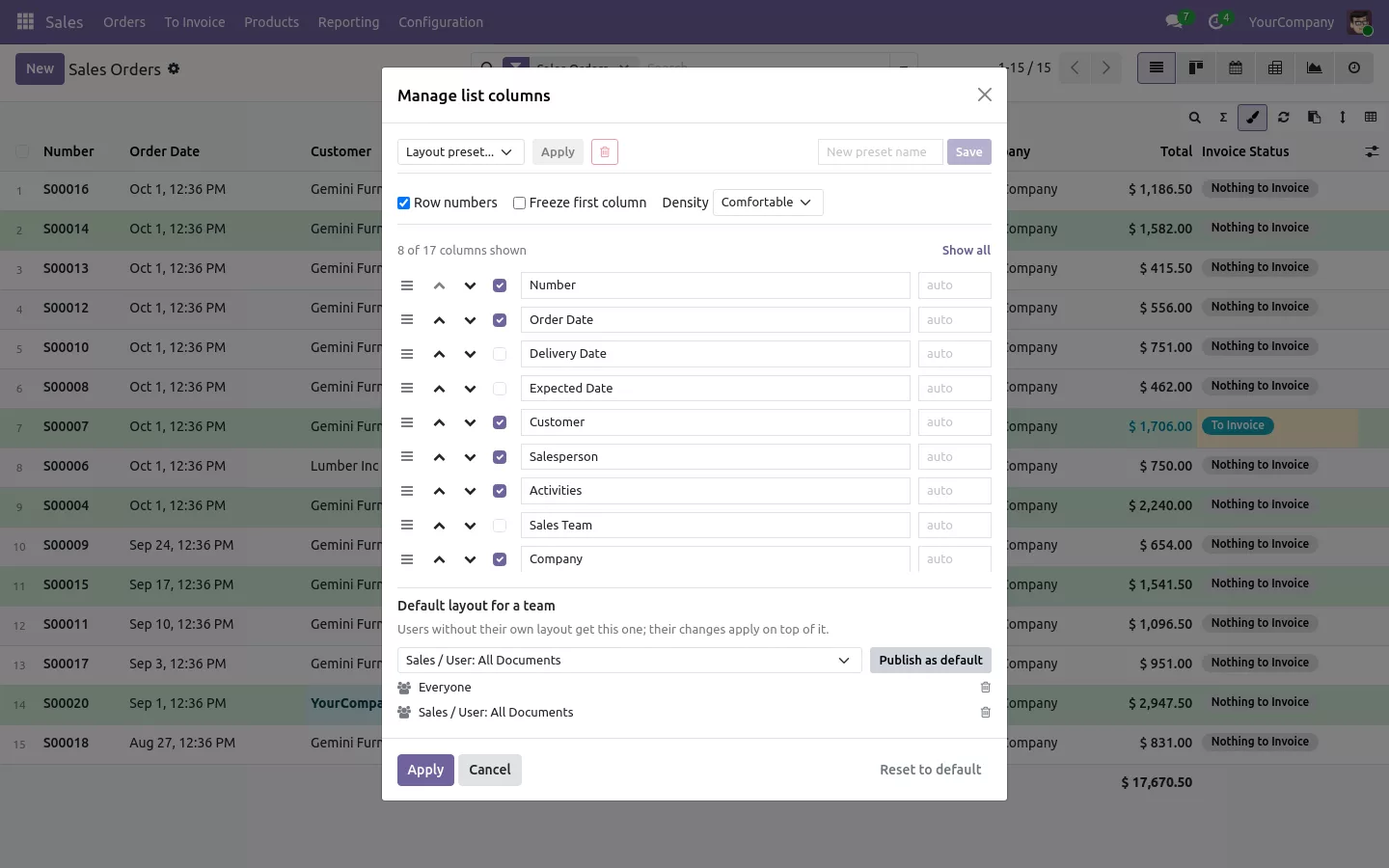
Install List View Manager from the Odoo Apps Store: the toolbar shows at once on every list view of every app, and each user's pinned, hidden and moved columns are saved on the server, so they follow them to any computer. The order lines option is in the General Settings. Community and Enterprise, on Odoo.sh or on your own server, in six languages including Arabic. The same app also adds any field as a column, colors rows by rule and shares layouts with a team: see how to customize Odoo list views without Studio.
Keep Excel for the reports, not for reading a list
Your team already knows how to filter, freeze and copy. Give them the same gestures where the data lives, always up to date.
Every feature and screenshot on the app page.
A question before you buy? Write to support@sharqix.com, we answer within one business day.