
"Is there a recycle bin in Odoo to restore records after a delete?" has close to 13,000 views on the Odoo forum. The short answer is no: Odoo removes the record from the database, with its history. This guide shows what you can still do after a deletion, how to avoid it, and how to get an undo, a log and a restore.
What happens when you delete in Odoo
After one confirmation, the record leaves the database: its fields, its chatter and its attachments. There is no recycle bin and no undo, and standard Odoo keeps no list of who deleted what.
Already deleted? What you can still do
Only a backup still holds the record. Restore the last backup taken before the deletion into a separate database, find the record there and create it again in your live database. Never restore that backup over the live database: everything done since would be lost.
Archive instead of delete
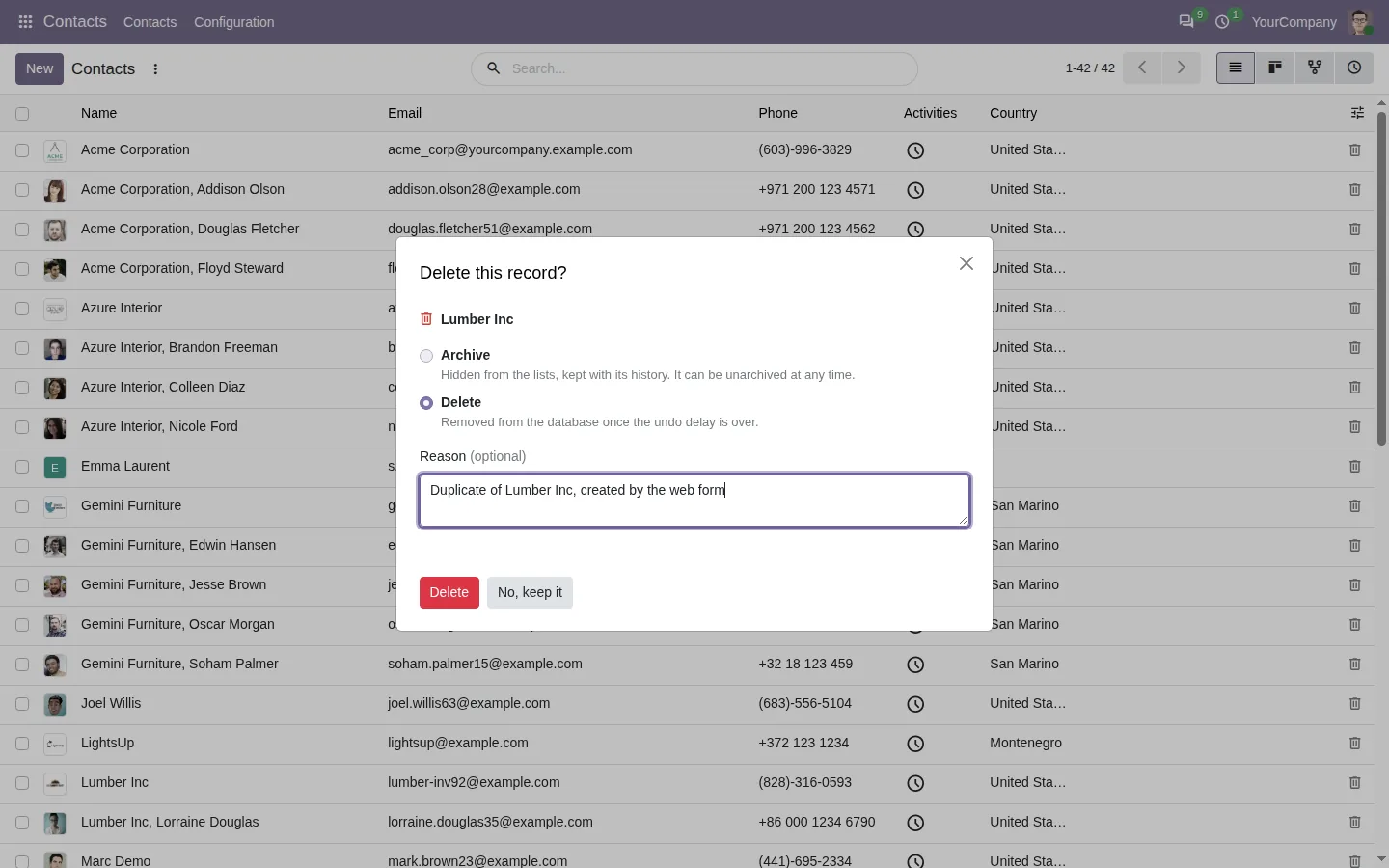
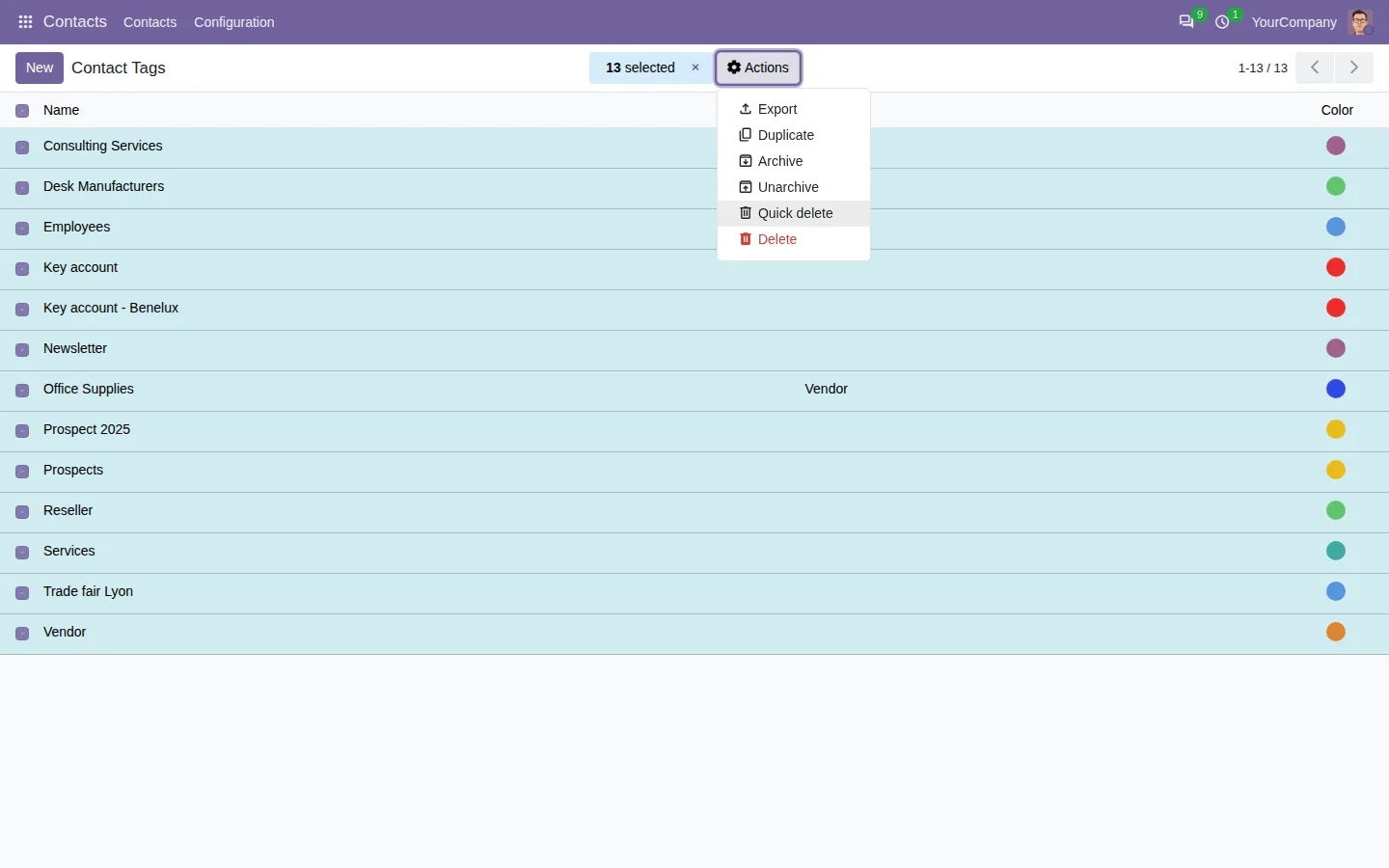
Most records that matter have an Active field: contacts, products, users, and many more. Archive them from the Actions menu: they leave the lists and the searches, but stay in the database with their history. To get one back, filter on Archived and Unarchive it.
Odoo also protects some documents on its own: a sent quotation or a confirmed sales order must be cancelled before it can be deleted, and accounting adds its own checks before an entry can go.
Before
A wrong click deletes the record. Nobody knows who did it. Restore a backup into a copy to find its values.
After
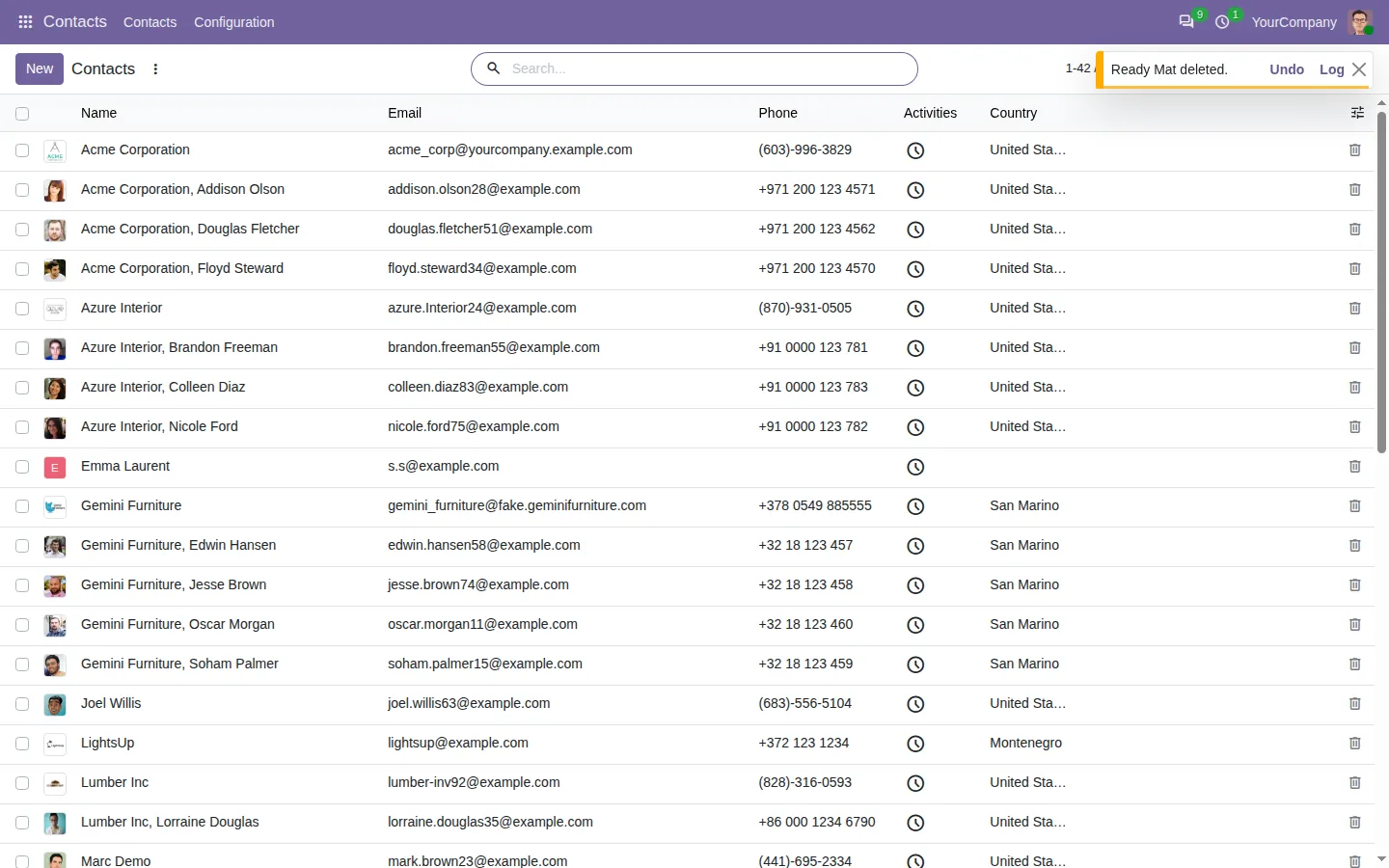
Click Undo, or restore the record from the log of deletions.
An undo, a log and a restore
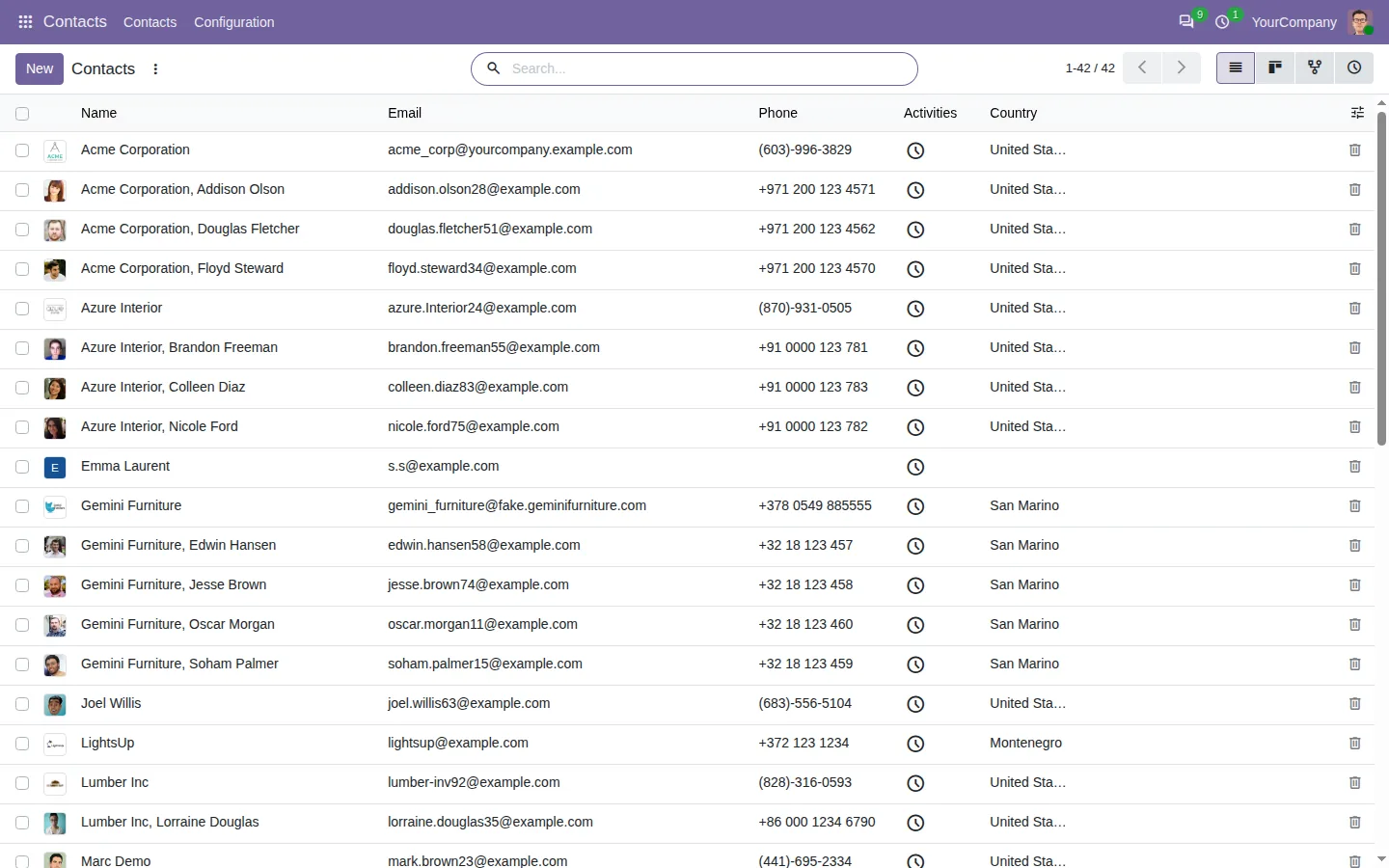
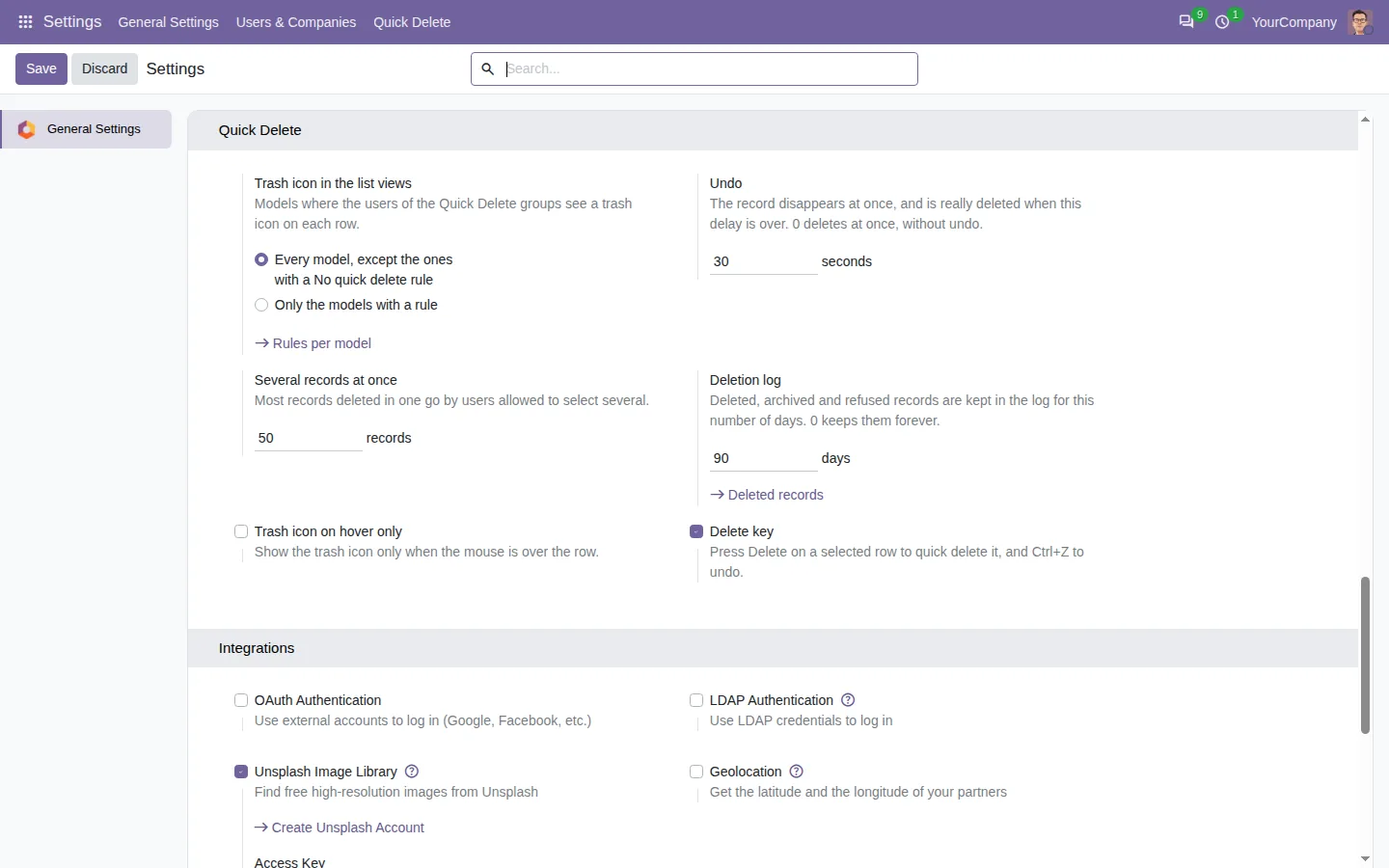
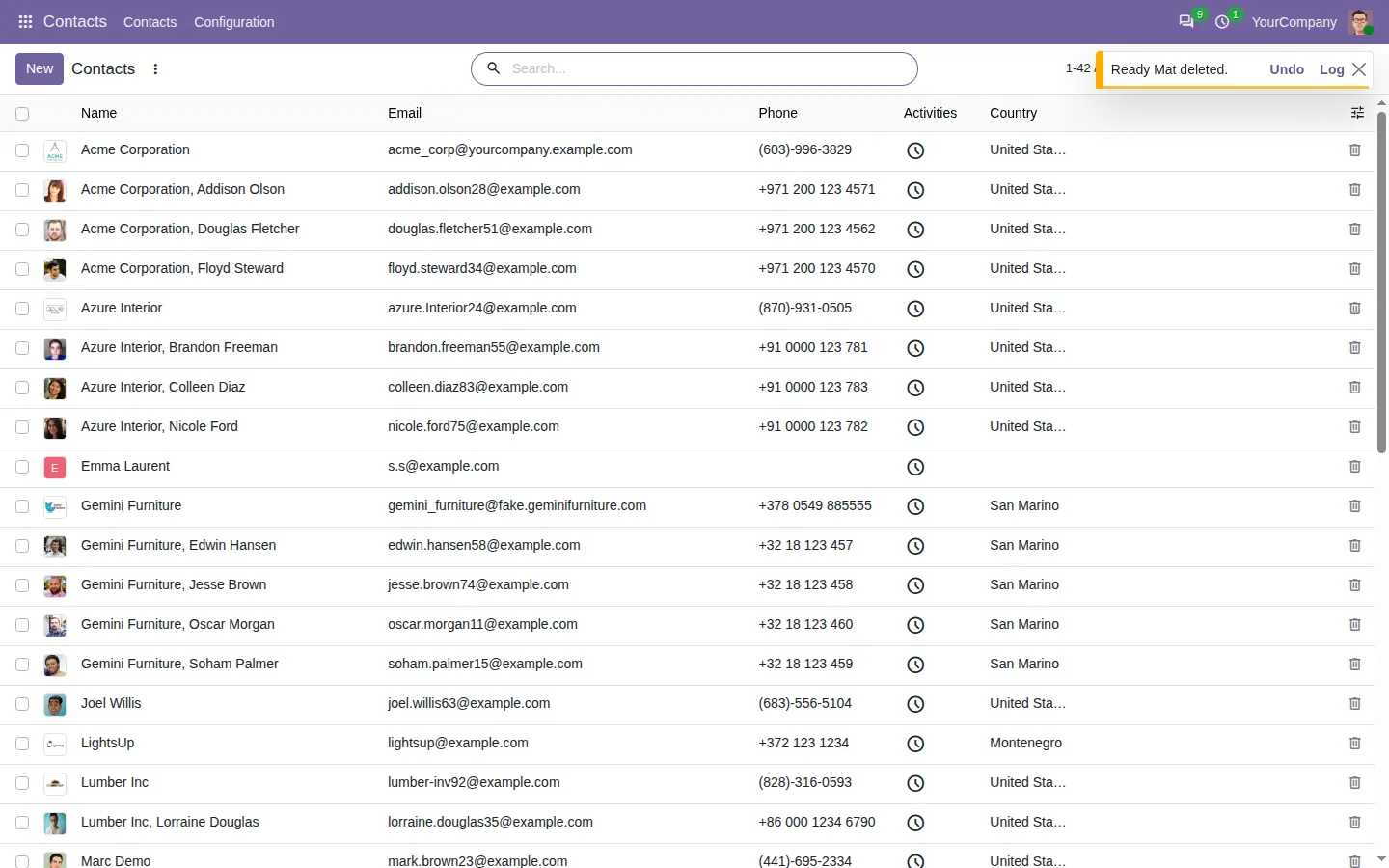
Quick Delete handles the deletions made from list views: the trash icon on each row, the Delete key and the Actions menu.
- The deletion waits 10 seconds, a delay you can change: the Undo button of the notification cancels it.
- Records with an Active field can be archived instead, from the same confirmation.
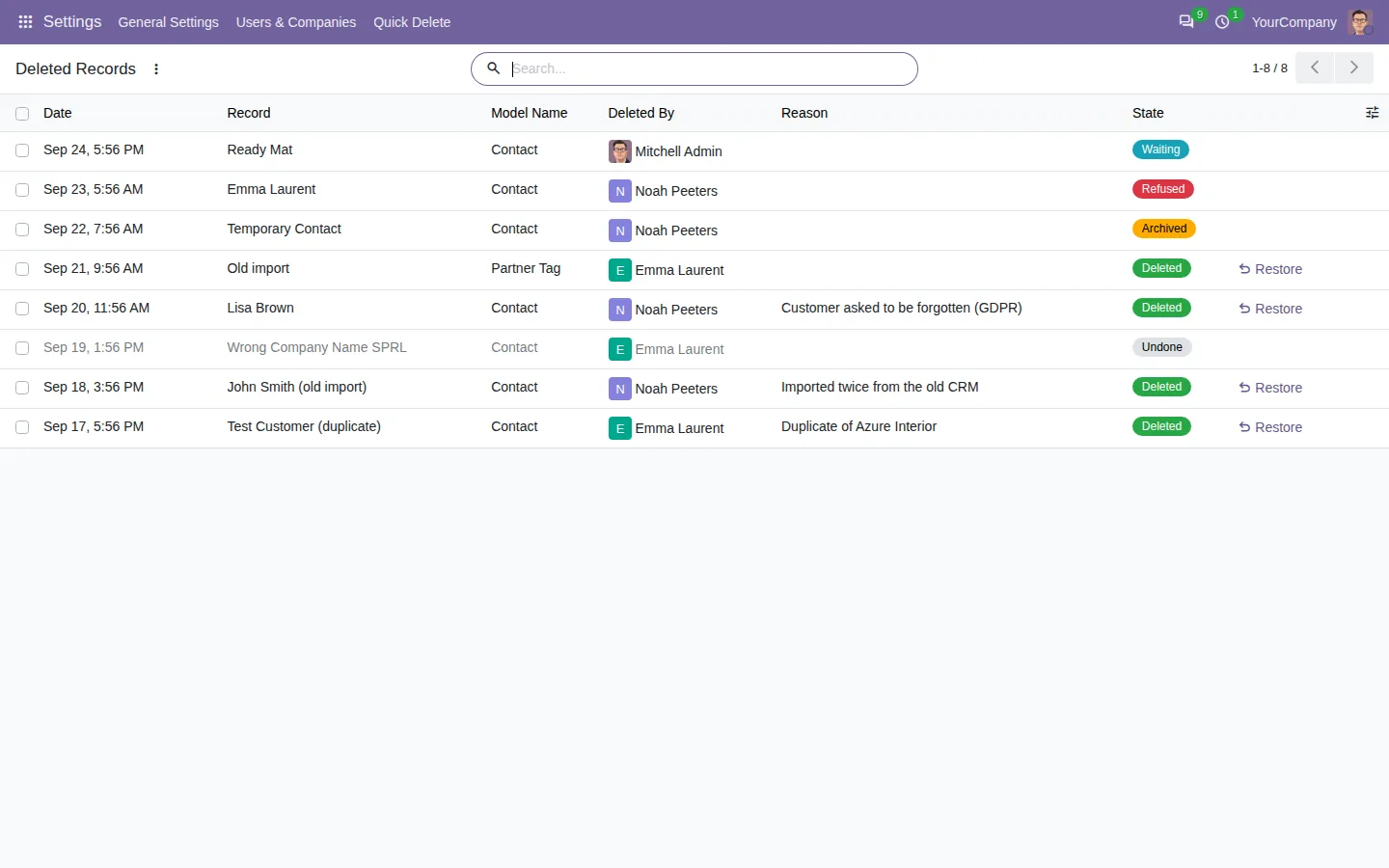
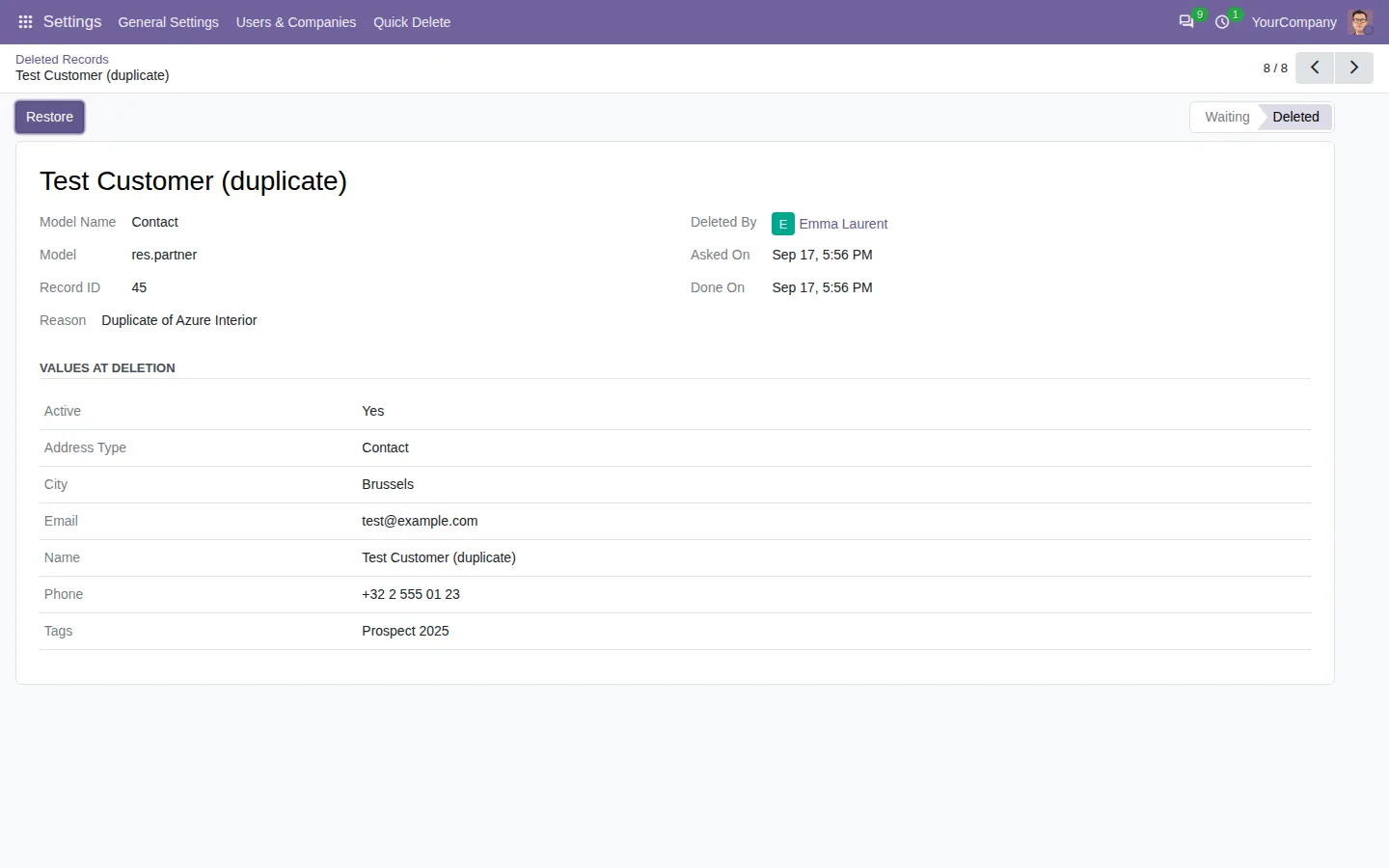
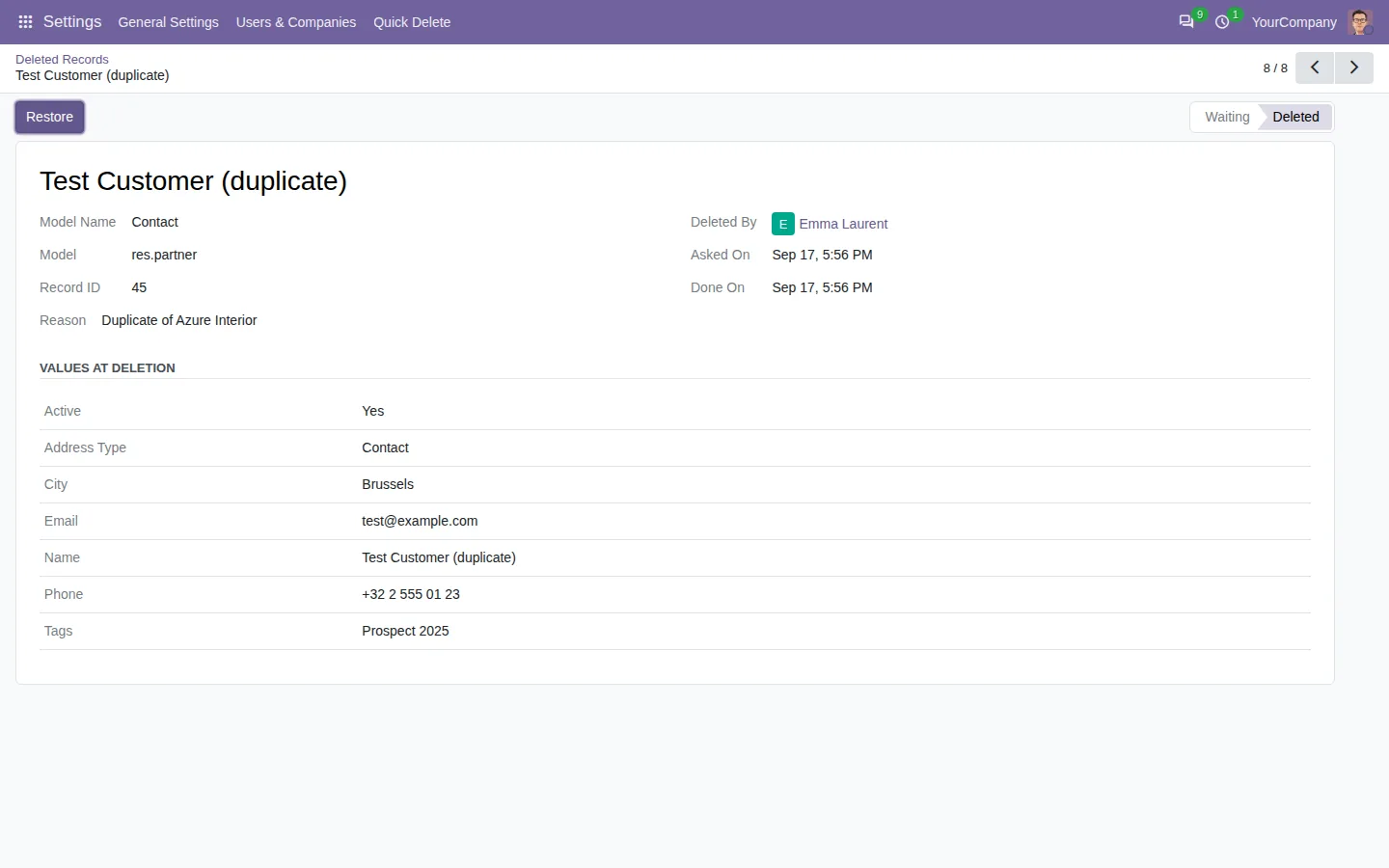
- Every deletion is logged in Settings > Quick Delete > Deleted Records: who, when, why, and the values of the record at the time.
- A manager can Restore a deleted record: it is created again from those values.
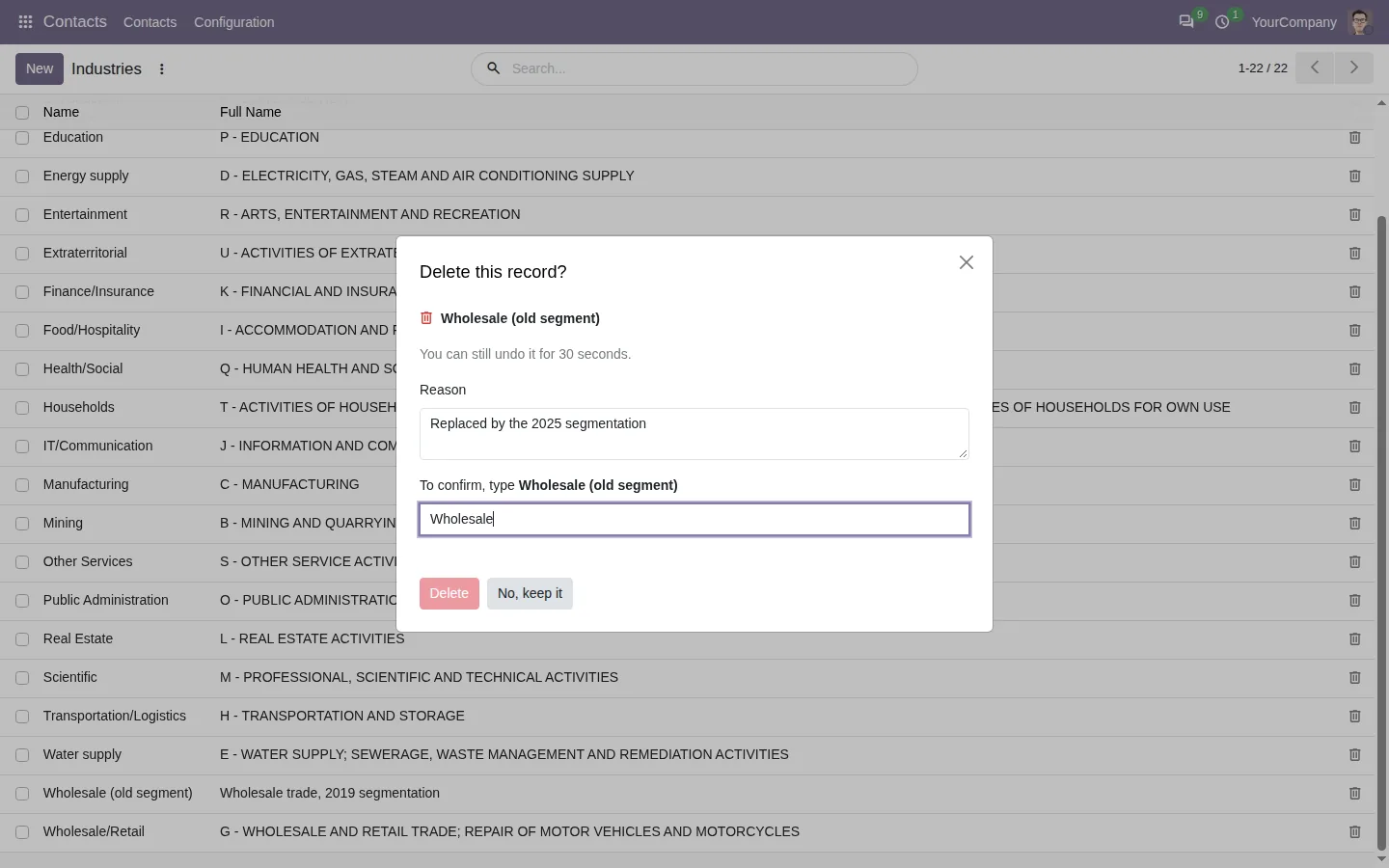
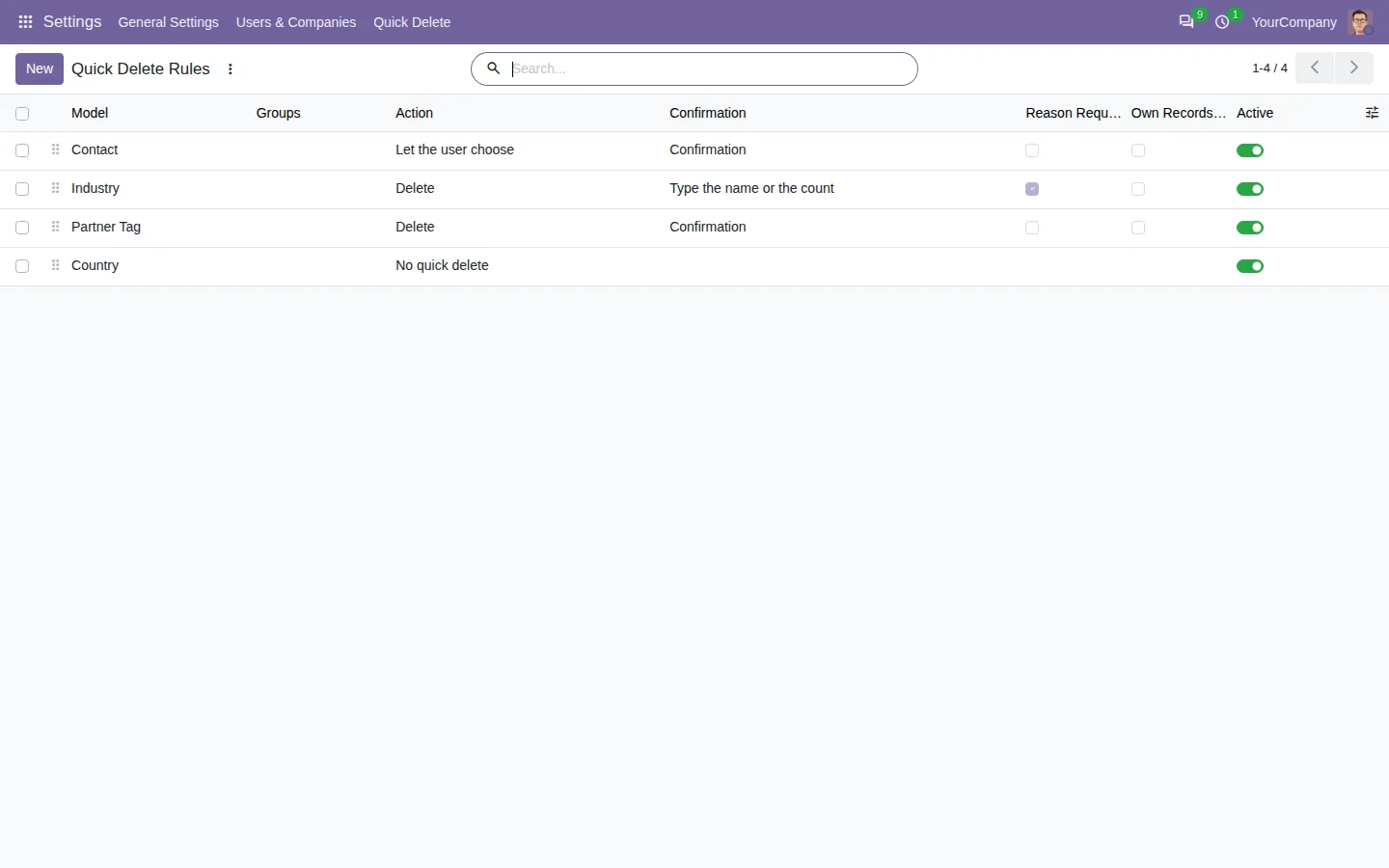
- Each model gets its rules: who may delete, a typed confirmation, a required reason, only one's own records.
What a restore brings back, and what it does not
A restore creates a new record, with a new ID, from the values kept at deletion: names, dates, amounts and links to other records. Lines such as the lines of an order, files and images, and the chatter history are not part of those values, and records that pointed to the deleted one are not linked again. The log is kept 90 days by default. Only deletions made through Quick Delete are logged: not the Delete button of a form, nor deletions made by other modules.
100% tested
The apps ship with automated tests. No risk.
Which way for which need
| Way | Getting it back | Limits |
|---|---|---|
| Delete in standard Odoo | Only from a backup | No undo, no trace of who did it |
| Archive | Unarchive, with its history | Only records with an Active field |
| Restore a backup | The values, recreated by hand | Technical, from a separate database |
| Quick Delete | Undo for a few seconds, then Restore from the log | List views; no lines, files or chatter on restore |
Questions people ask
Who deleted this record?
Standard Odoo does not keep this. Quick Delete logs who, when and why for every deletion made through it, and the log can be grouped by user or by model.
Can I stop users from deleting?
Odoo access rights decide who can delete on each model. Quick Delete rules add a typed confirmation, a required reason or a limit to one's own records, and archiving can replace deletion.
Does it work with Odoo Community?
Yes. Quick Delete works in Community and Enterprise, for Odoo 18, 19 and 20, on Odoo.sh or your own server. Not on Odoo Online, which does not accept third-party modules.
For the trash icon itself, see how to delete records from the list view in one click, with undo.
Deletions you can take back
Keep deleting what has to go, with a few seconds to change your mind and a log to find what went.
Every feature and screenshot on the app page.
A question before you buy? Write to support@sharqix.com, we answer within one business day.