
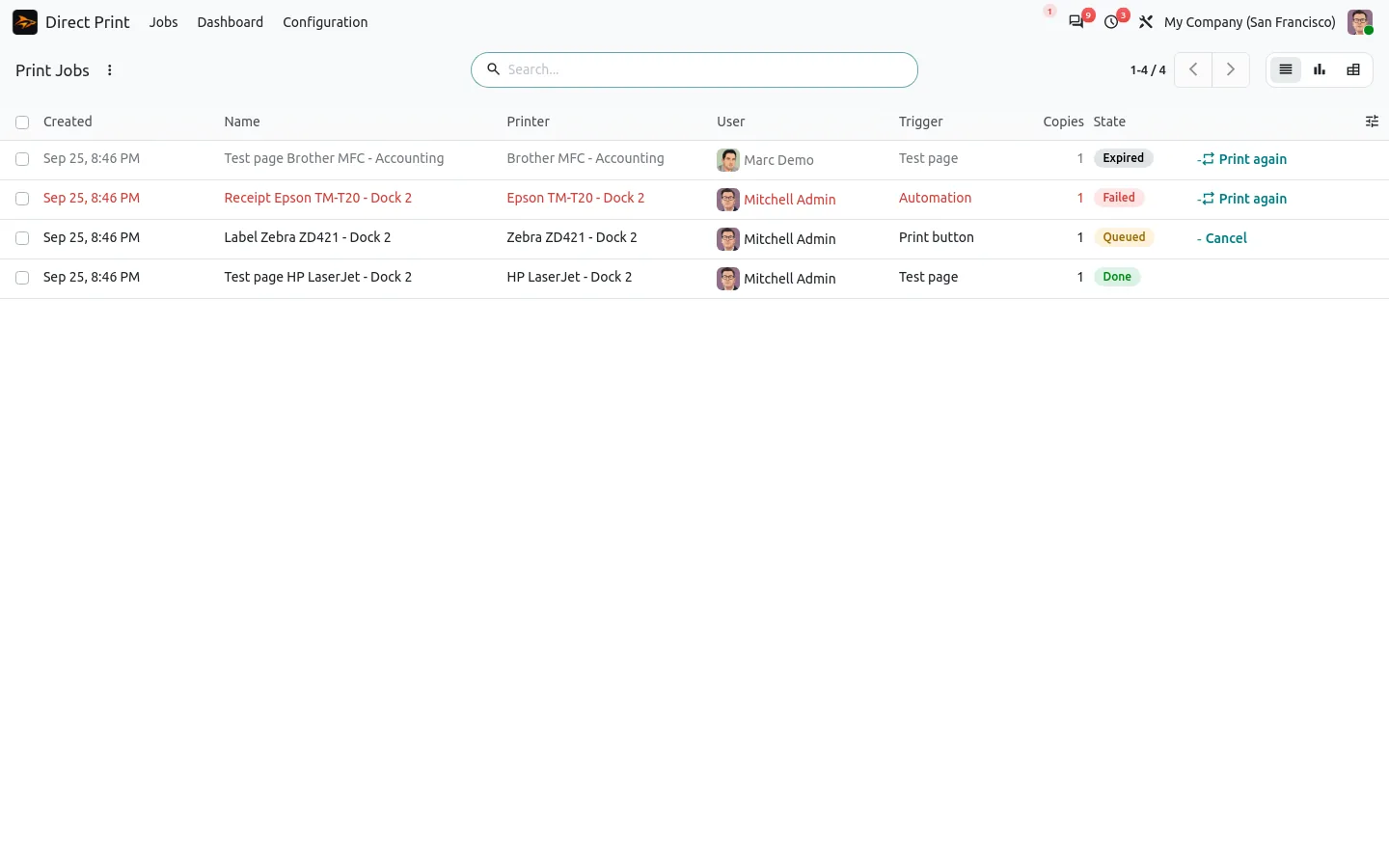
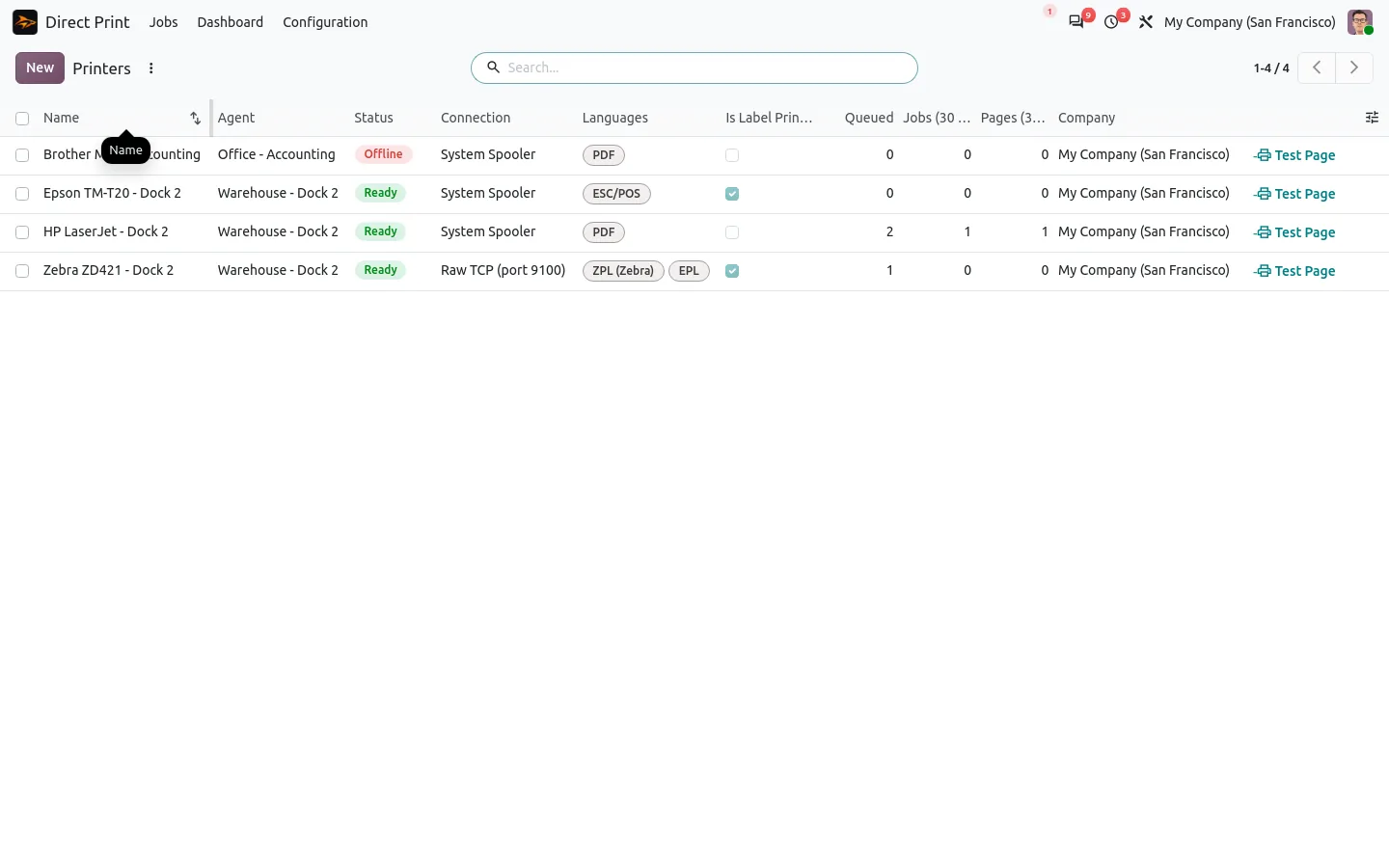
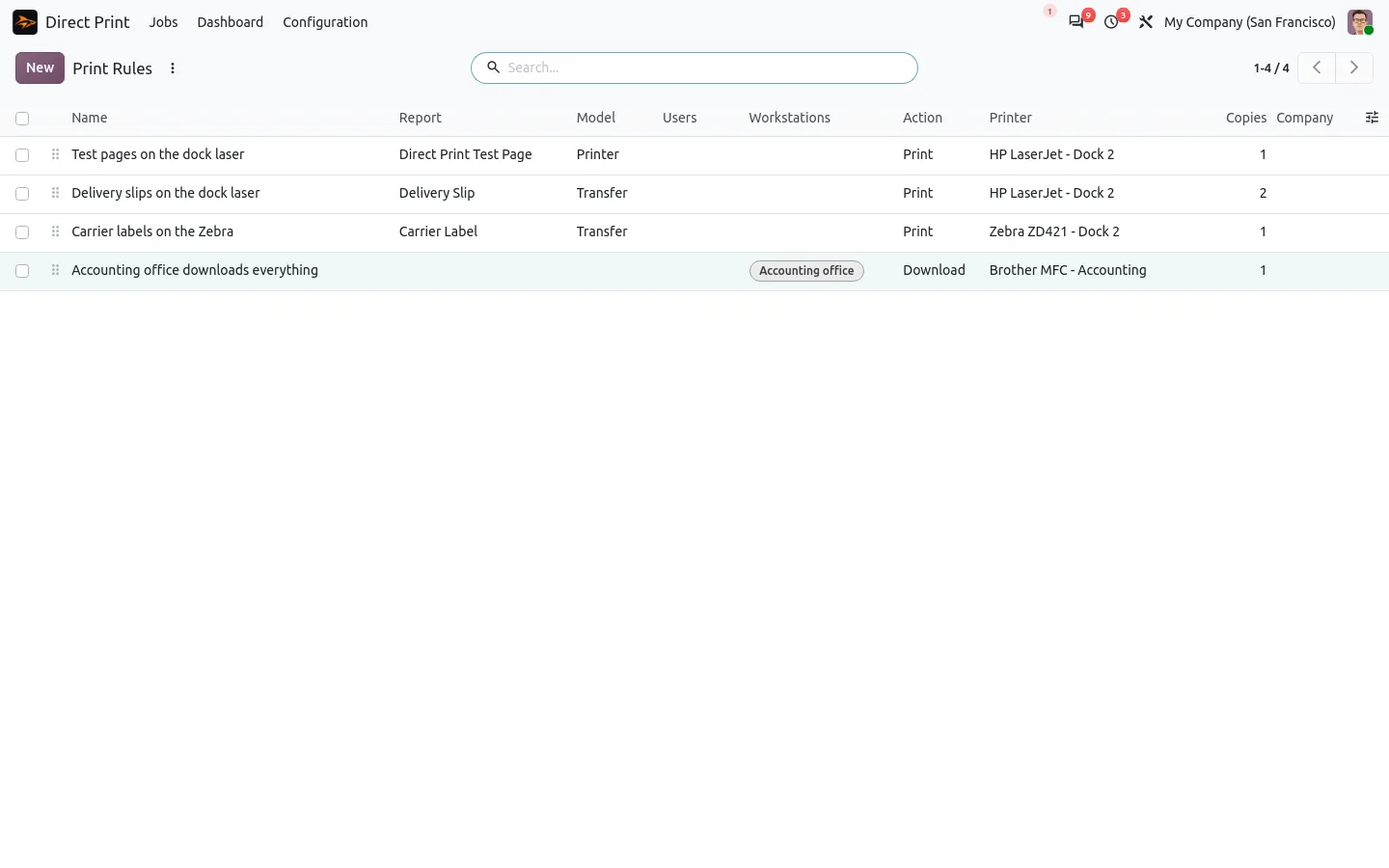
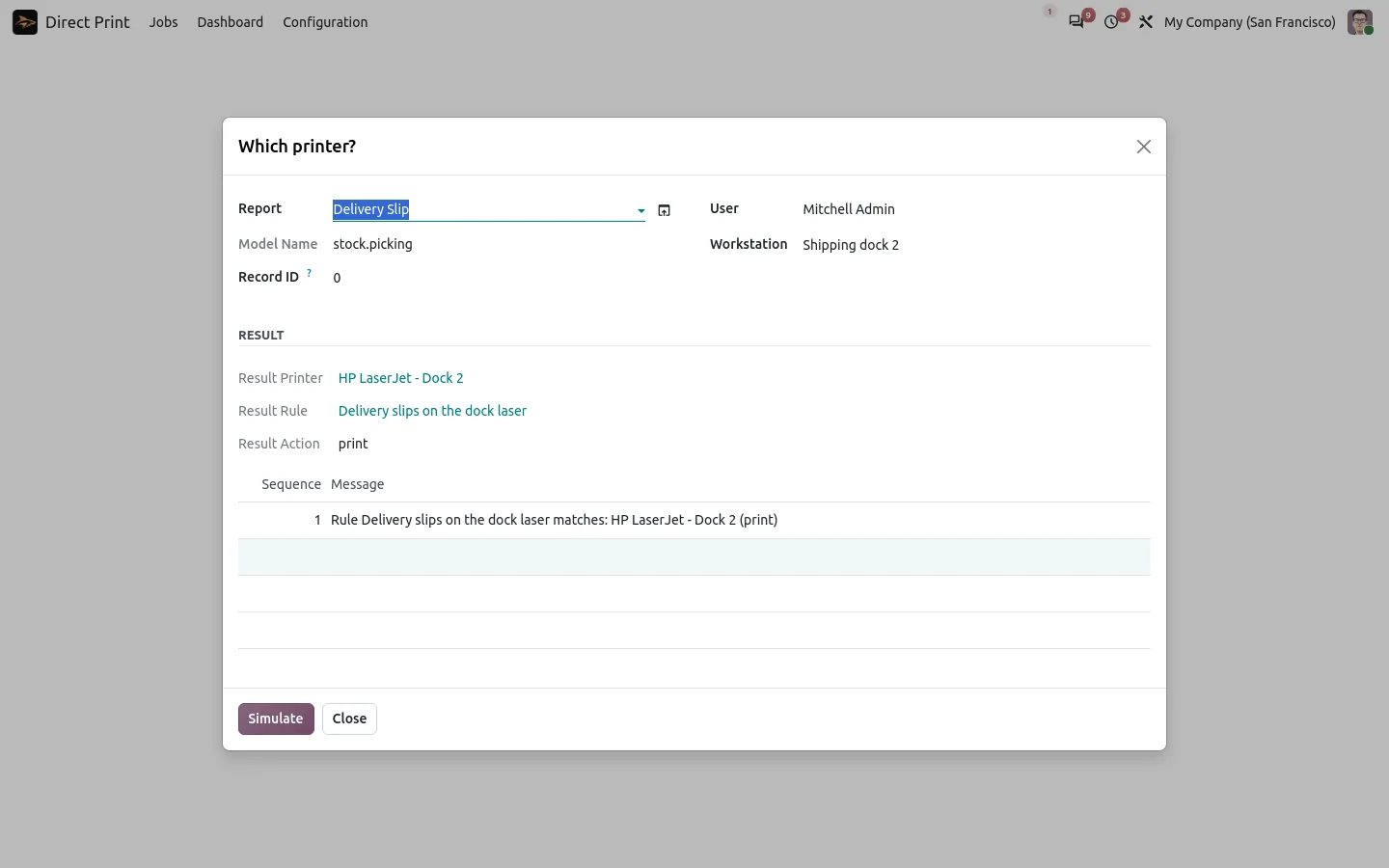
"Can I automatically print my product labels in Odoo?" is one of the most read questions on the Odoo forum. The short answer is yes: Odoo can print them when a receipt is validated. But without an IoT box, print means a PDF or a ZPL file in your downloads. This guide shows what Odoo does on its own, where it stops, and how to get the labels straight out of the label printer.
What Odoo does on its own
Since Odoo 17, each operation type can print documents when it is validated. Open Inventory > Configuration > Operation Types, open Receipts, and in the Hardware tab, under Print on Validation, tick Product Labels and pick a format:
- Dymo, or sheets of 2 x 7, 4 x 7 or 4 x 12 labels, with or without the price.
- ZPL labels for Zebra printers.
- Lot/SN Labels, when lots are enabled: one per lot or serial number, or one per unit.
You can also print them by hand: on a receipt, the Print Labels button opens a window where you choose the format and the quantity, either the quantities of the operation or a number of your choice.
Where it stops: the browser
Odoo builds the labels, but the browser is what receives them. Without an IoT box, which comes with Odoo Enterprise, here is what happens at each validation:
- A PDF opens in a new tab, to print by hand with the right paper and scale.
- A ZPL label is downloaded as a file: a Zebra cannot read it from the downloads folder.
- Validate from a phone or a barcode scanner and nothing is printed at all.
- Each receiving area needs its own IoT box next to its printer.
Before
Validate the receipt. Open the PDF or find the .zpl file. Send it to the printer by hand. Count the labels against the boxes.
After
Validate the receipt: one label per unit comes out of the label printer.
One label per unit, straight from the label printer
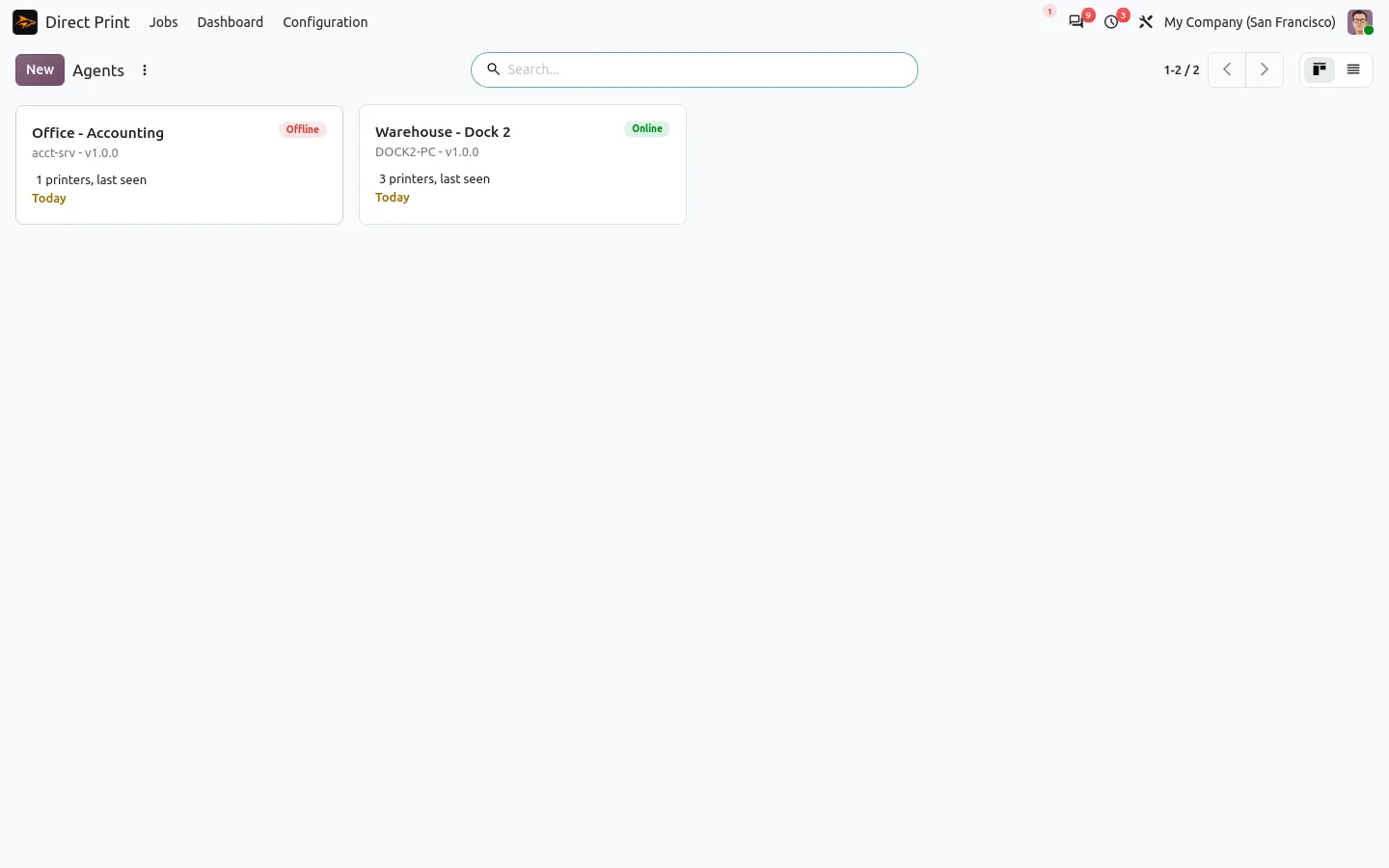
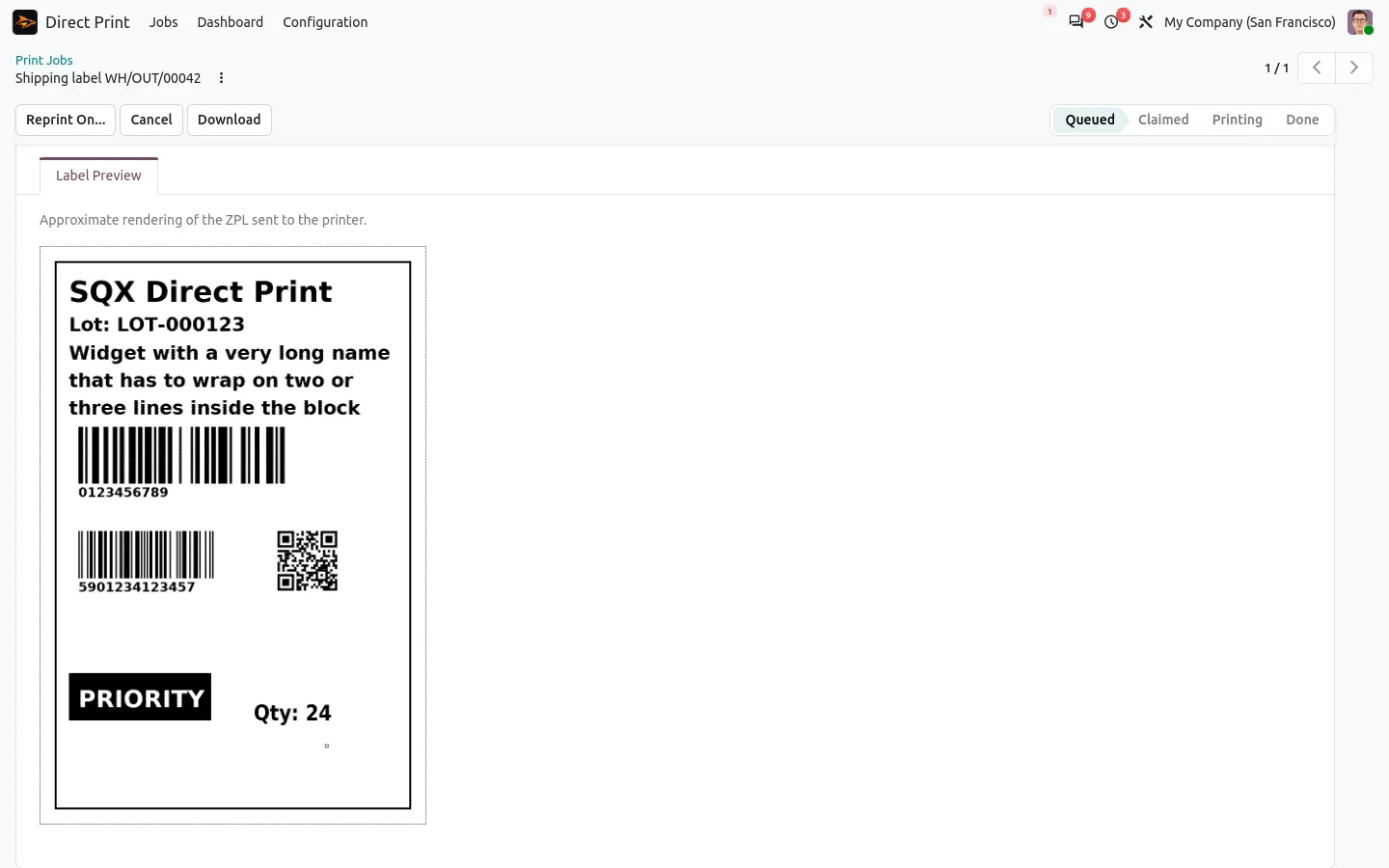
Direct Print adds a small print agent on a PC or a Raspberry Pi next to your printers. With Direct Print for Inventory, switch on the scenario Product barcode labels (one per unit) when the receipt is done: as soon as a receipt is validated, Odoo sends the labels to the label printer of the workstation.
- One label per unit received, or one per product with the scenario one per product.
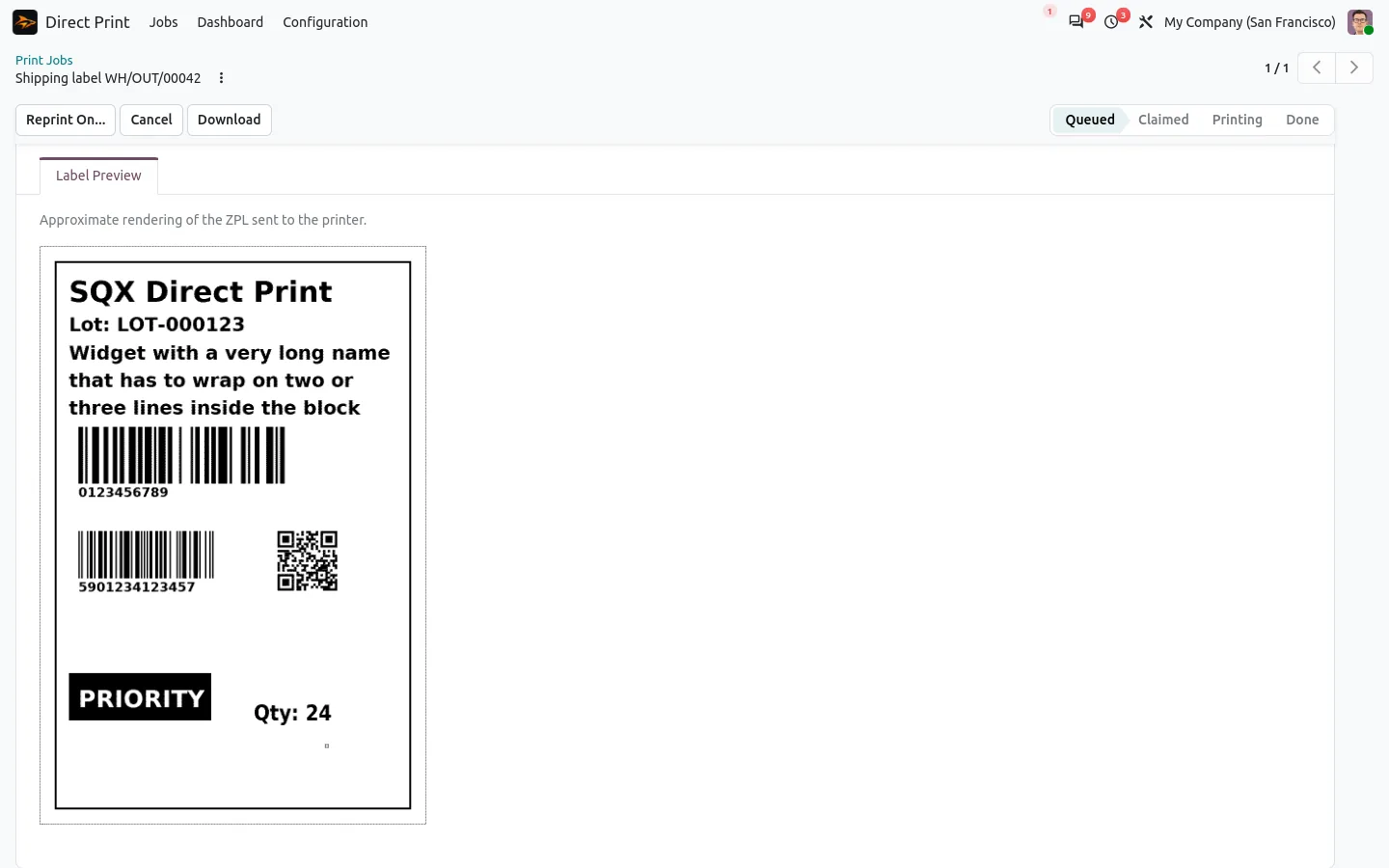
- Tracked products get their lot or serial number in the barcode: 2 units of lot A and 1 of lot B make 3 labels, each with the right lot.
- Raw ZPL to a Zebra when the label printer reads it, PDF labels on a sheet printer otherwise.
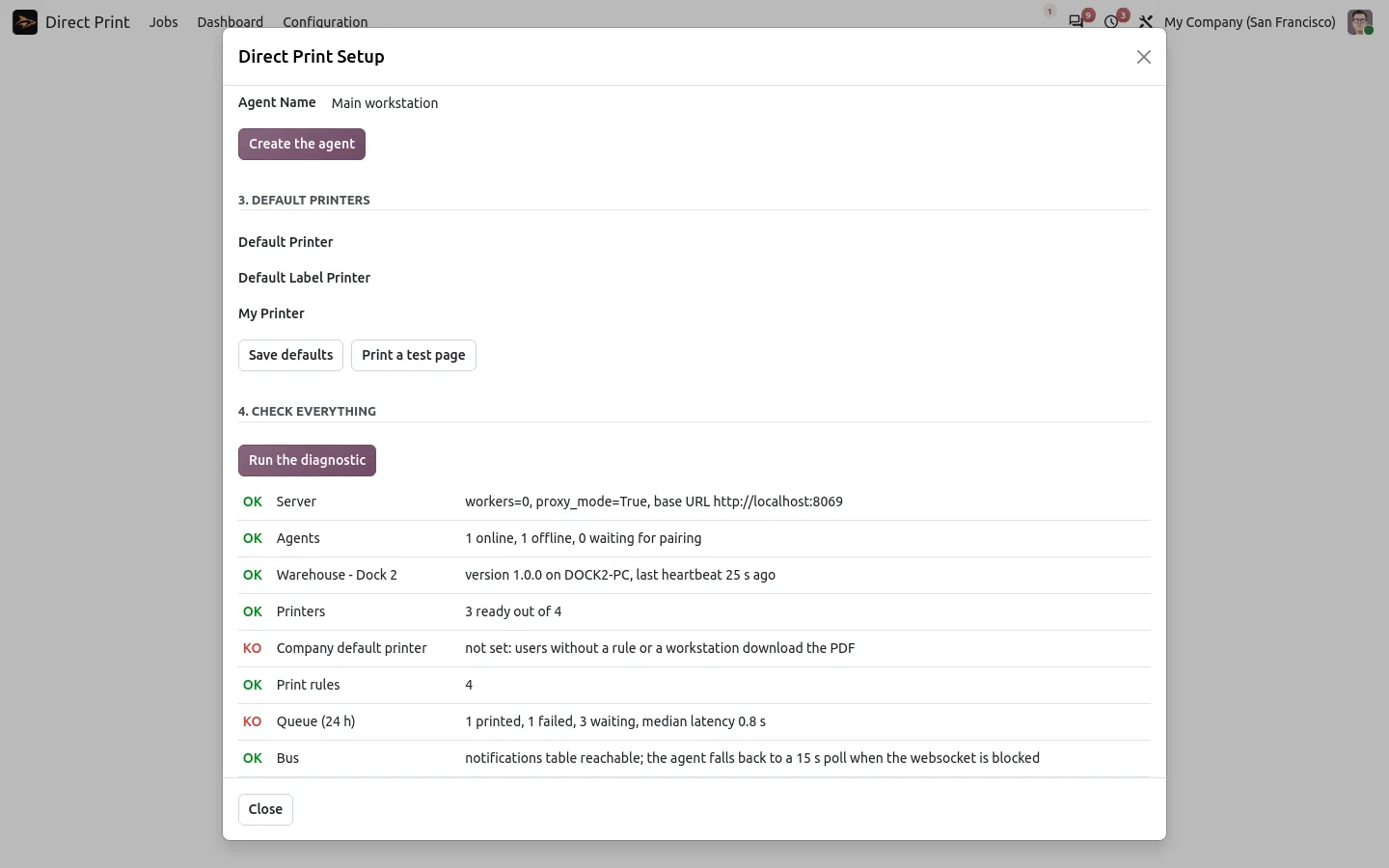
- The receipt is validated even if the printer is offline: the labels wait in the queue and print when it is back.
Set it up in four steps
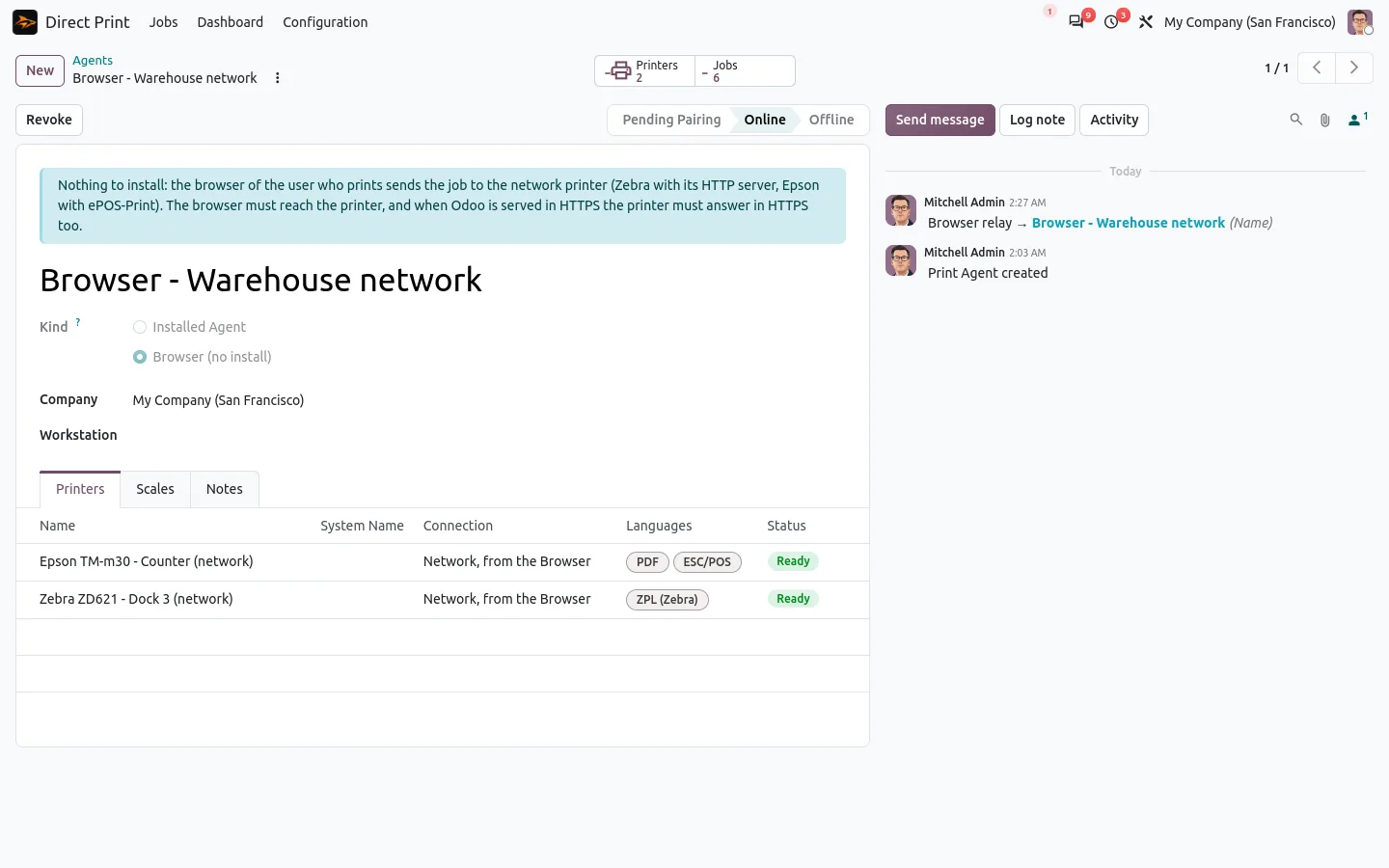
- Install Direct Print and Direct Print for Inventory, then install the agent next to your printers: get it on sharqix.com/direct-print with your order reference.
- In Direct Print > Configuration > Workstations, set the Zebra of the receiving area as the default label printer of its workstation, and link the users who receive the goods.
- In Direct Print > Configuration > Scenarios, switch on Product barcode labels (one per unit) when the receipt is done.
- Validate a receipt: the labels come out. Leave Product Labels unticked in the operation type, or the browser gets a second copy to download.
100% tested
The apps ship with automated tests. No risk.
Which option for which warehouse
| Option | Good for | Limits |
|---|---|---|
| Print Labels button | A few labels now and then, on an office printer | By hand, after each receipt |
| Print on Validation, without IoT box | Labels prepared at the right time | A PDF to open or a file to download |
| Odoo with an IoT box | Enterprise, one receiving area | One box per area, Enterprise only |
| Direct Print | Community or Enterprise, any number of printers | An agent to install on a PC or a Raspberry Pi |
Questions people ask
Can Odoo print product labels automatically without an IoT box?
Odoo prepares them when the receipt is validated, but the browser can only open or download them. To send them to the printer without a box, you need a print agent such as Direct Print.
Does it work with Odoo Community?
Yes. Direct Print and Direct Print for Inventory work in Community and Enterprise, for Odoo 18, 19 and 20, on Odoo.sh or on your own server. Not on Odoo Online, which does not accept third-party modules.
Which label printers can I use?
Zebra printers, and other printers that read ZPL, receive the labels in raw ZPL. Any other printer the agent sees, laser printers with label sheets included, receives PDF labels.
What if the printer is offline when the receipt is validated?
The receipt is validated anyway. The labels wait in the queue and print as soon as the printer is back; a job that waited too long is never printed by surprise.
Printing the labels of what you make rather than what you buy? See how to print manufacturing orders and lot labels automatically. For carrier and package labels, see ZPL labels on a Zebra without an IoT box.
Labels on the boxes, not in the downloads
Keep the printer you have, skip the box, and let each unit get its label the moment it is received.
It needs Direct Print, the print agent.
A question before you buy? Write to support@sharqix.com, we answer within one business day.