"How do I reorder the lines of a quotation?" has more than 10,000 views on the Odoo forum. The answer looks simple: drag the handle on the left of the line. It holds for a short quotation. With sections and 50 or 100 lines, the order slips. This guide shows how Odoo orders the lines, where drag and drop stops, and how to move lines and whole sections reliably.
How Odoo orders the lines
Each line of a quotation has a hidden sequence number, and Odoo sorts the lines by that number, on screen and on the printed quotation. Drag a line by the dotted handle on its left, and Odoo gives it a new number between its new neighbours.
Where drag and drop stops
- A quotation shows 40 lines at a time. Past 40, a pager appears, and a line cannot be dragged to another page.
- A move renumbers only the lines of the page on screen. On a long quotation, their new numbers can overlap those of the next page, and lines of two pages end up mixed.
- Dragging a section moves the section title alone: its lines stay where they were.
- One line at a time, with the mouse: no keyboard, and awkward on a touch screen.
Before
Drag the section title, then each of its lines. Switch pages. Check after saving that nothing has moved on its own.
After
Send a line or a whole section where it belongs, in one click.
Move a line, or a whole section, in one click
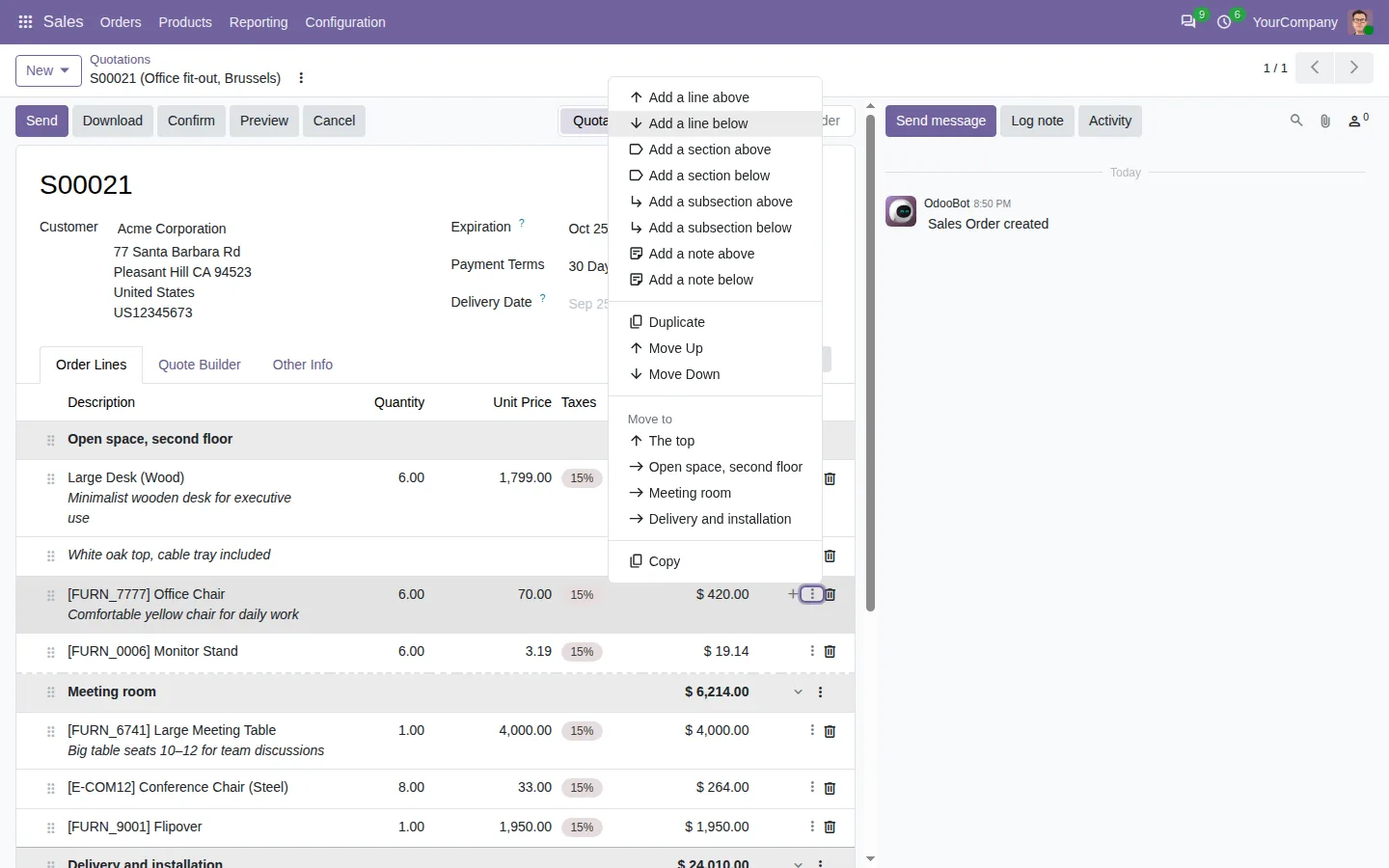
Insert Order Line Anywhere adds a menu on each line of the quotation:
- Move Up and Move Down, or from the keyboard Alt+Shift+Up and Alt+Shift+Down.
- Move to the top of the quotation or to any section, for one line or for several selected lines at once.
- A product line moves with the notes under it and the items of a combo, and a section moves with all its lines.
- Every line of the quotation is loaded before a move, so the order is right across all the lines, not only the page on screen.
- Moved the wrong line? Undo, or Ctrl+Z, puts it back.
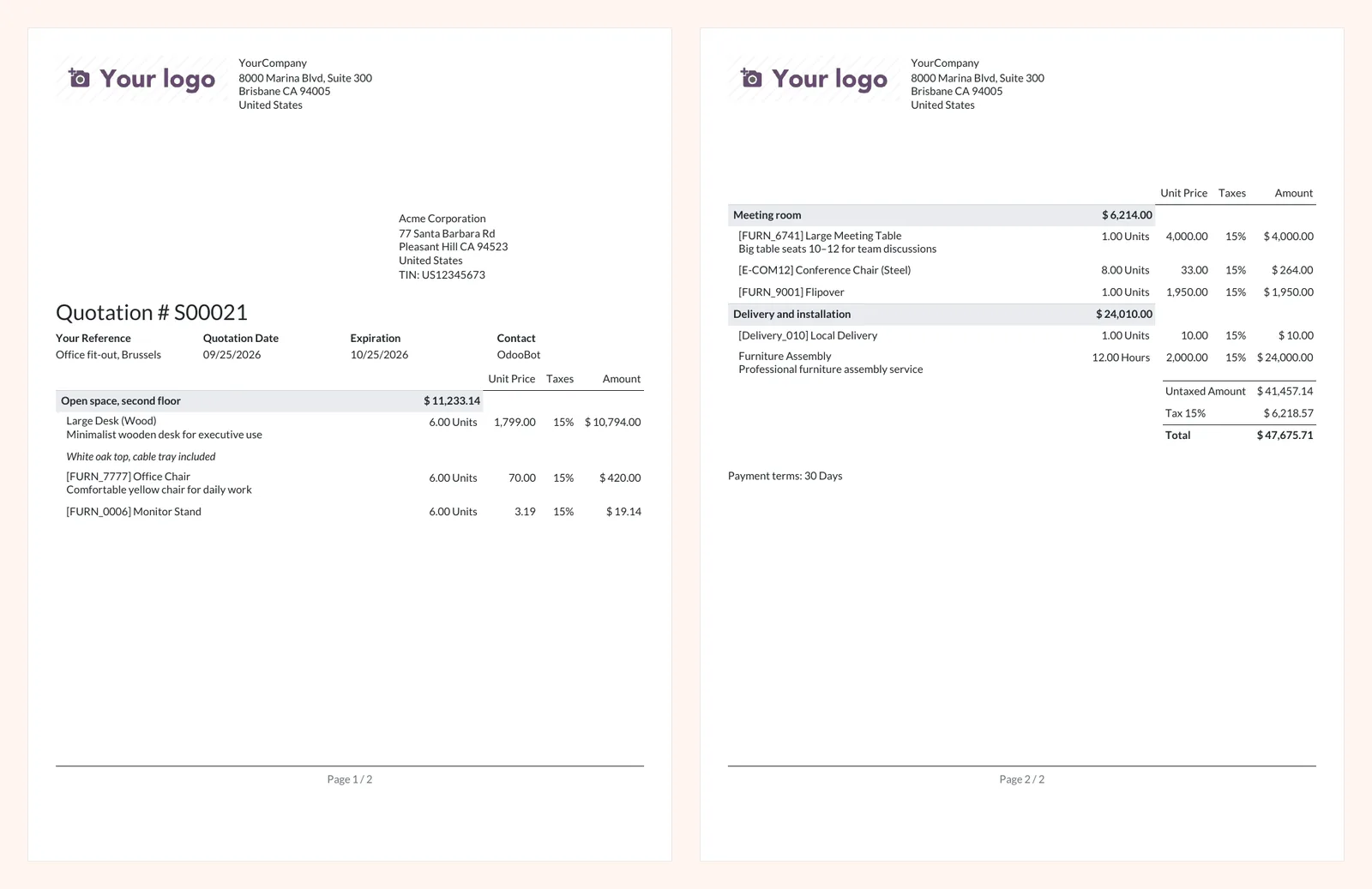
The same order on the printed quotation
The PDF follows the order of the lines, so a clean order on screen is a clean order on paper. On top of that, a section can start a new page of the printed quotation, with the table header repeated.

100% tested
The apps ship with automated tests. No risk.
Questions people ask
Why did the order of my lines change after saving?
Odoo sorts the lines by their sequence number. On a quotation of more than 40 lines, dragging renumbers only the lines of the page on screen, and those numbers can collide with the lines of another page. Moving with the line menu renumbers every line of the quotation.
Can I move a section with all its lines?
Not by dragging: only the section title moves. With Insert Order Line Anywhere, moving a section takes all its lines along, and Move to sends a group of selected lines into another section.
Does it work for purchase orders and invoices?
Yes, with the twin apps for purchase orders and for invoices and bills. They share the same engine, Insert Line Base, which installs with them.
Which Odoo versions?
Odoo 19 and 20, Community and Enterprise, on Odoo.sh or your own server. Not on Odoo Online, which does not accept third-party modules.
The same menu does more than move lines: see how to insert a line between two lines and how to duplicate a line.
The lines in the order you want
Long quotations stay readable when each line is where the customer expects it, on screen and on paper.
Every feature and screenshot on the app page.
A question before you buy? Write to support@sharqix.com, we answer within one business day.