
"How to print shipping labels automatically without using IoT?" is a recent question on the Odoo forum, and a daily need on the dock: validate the delivery, get the delivery slip and the carrier label in your hands. Odoo can produce both, but without an IoT box it hands them to the browser. This guide shows what Odoo does on its own, where it stops, and how to get them straight out of the printers.
What Odoo does on its own
Open Inventory > Configuration > Operation Types > Delivery Orders. Three settings do most of the work:
- Generate Shipping Labels: with a carrier connected to Odoo, such as UPS, FedEx, DHL or Sendcloud, validating the delivery books the shipment. The carrier returns the label, PDF or ZPL depending on the carrier settings, and Odoo attaches it to the chatter of the delivery.
- Print on Validation, in the Hardware tab: the Delivery Slip, the Return Slip and the Package Content are printed when the delivery is validated.
- Print on "Put in Pack", in the same tab: a Package Label, in PDF or ZPL, each time products are put in a pack.
Carrier Labels and Export Documents only appear in that list with the IoT for Delivery module, which needs Odoo Enterprise and an IoT box.
Where it stops: the browser and the chatter
Without an IoT box, here is what happens at each validation:
- The delivery slip arrives as a PDF in the browser, to open and print by hand.
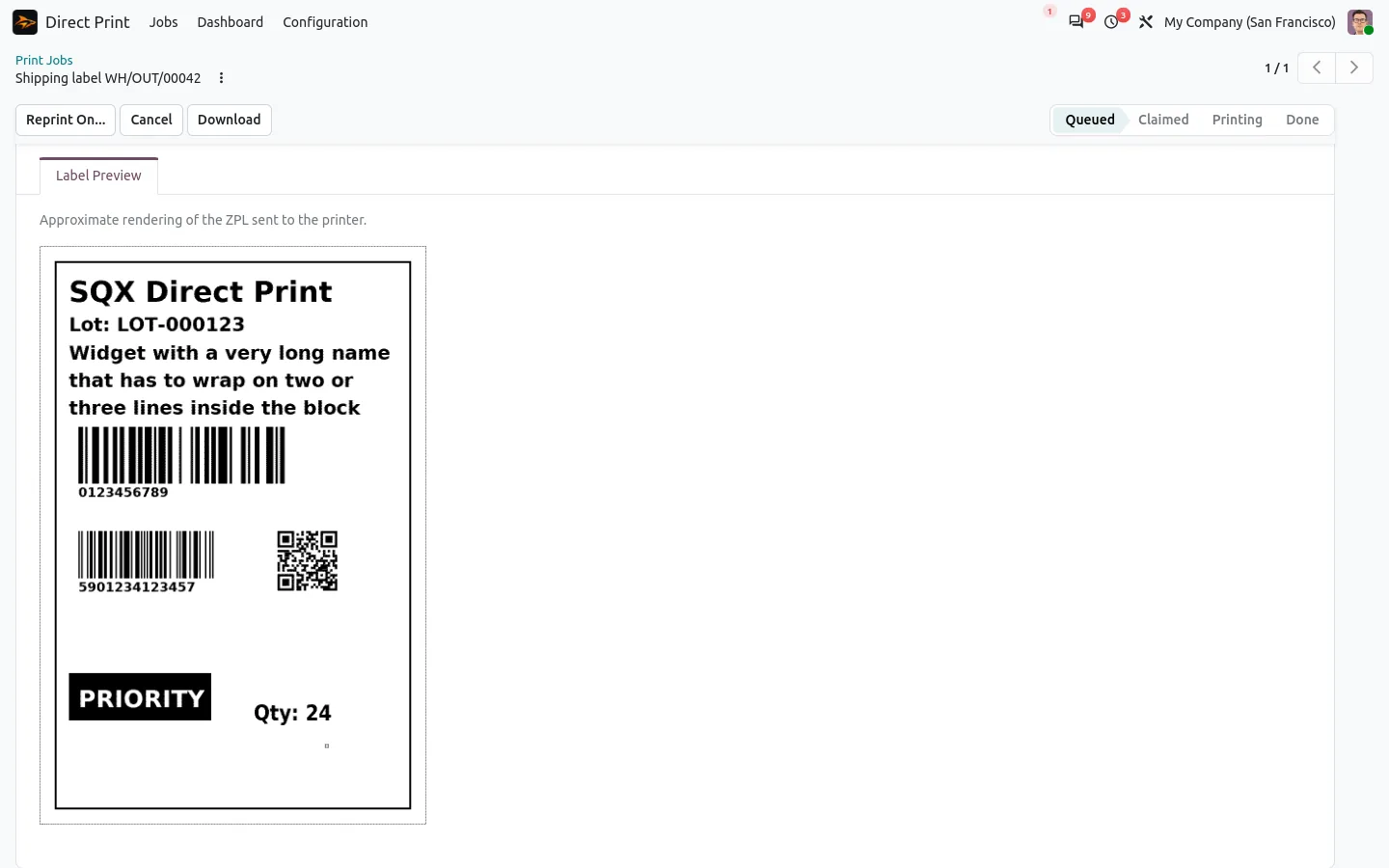
- The carrier label stays in the chatter: someone opens the delivery, downloads the label and sends it to the printer. A ZPL label cannot be printed from the downloads folder.
- Validate from a phone or a barcode scanner, and the documents land on that device, not on the dock printer.
- On Odoo Community, the carrier connectors made by Odoo are not available: they are Enterprise apps.
Before
Validate the delivery. Open the delivery slip and print it. Find the label in the chatter, download it, send it to the Zebra. Then tape it on the parcel.
After
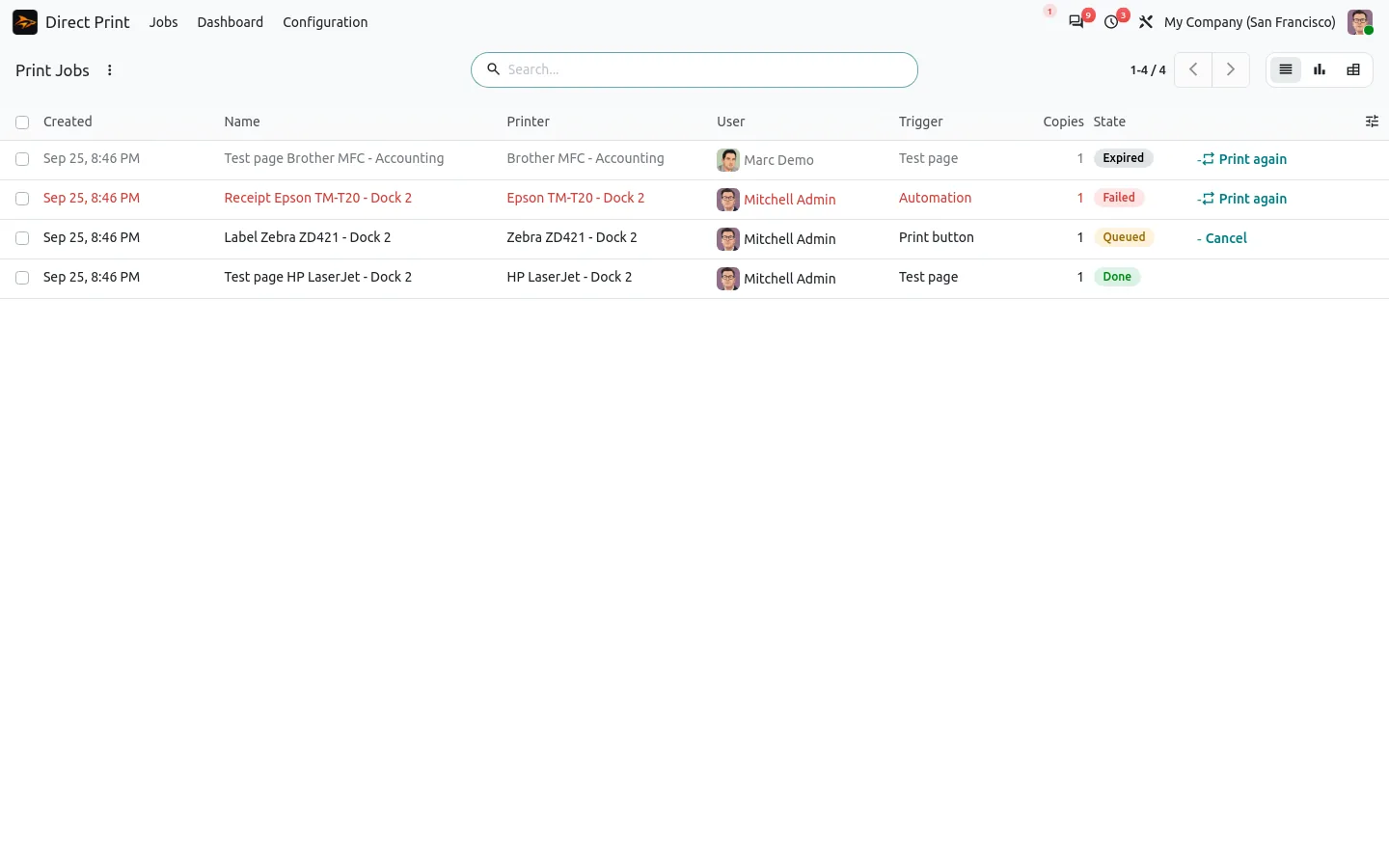
Validate the delivery: the slip comes out of the laser printer, the label out of the Zebra.
One validation, every document of the parcel
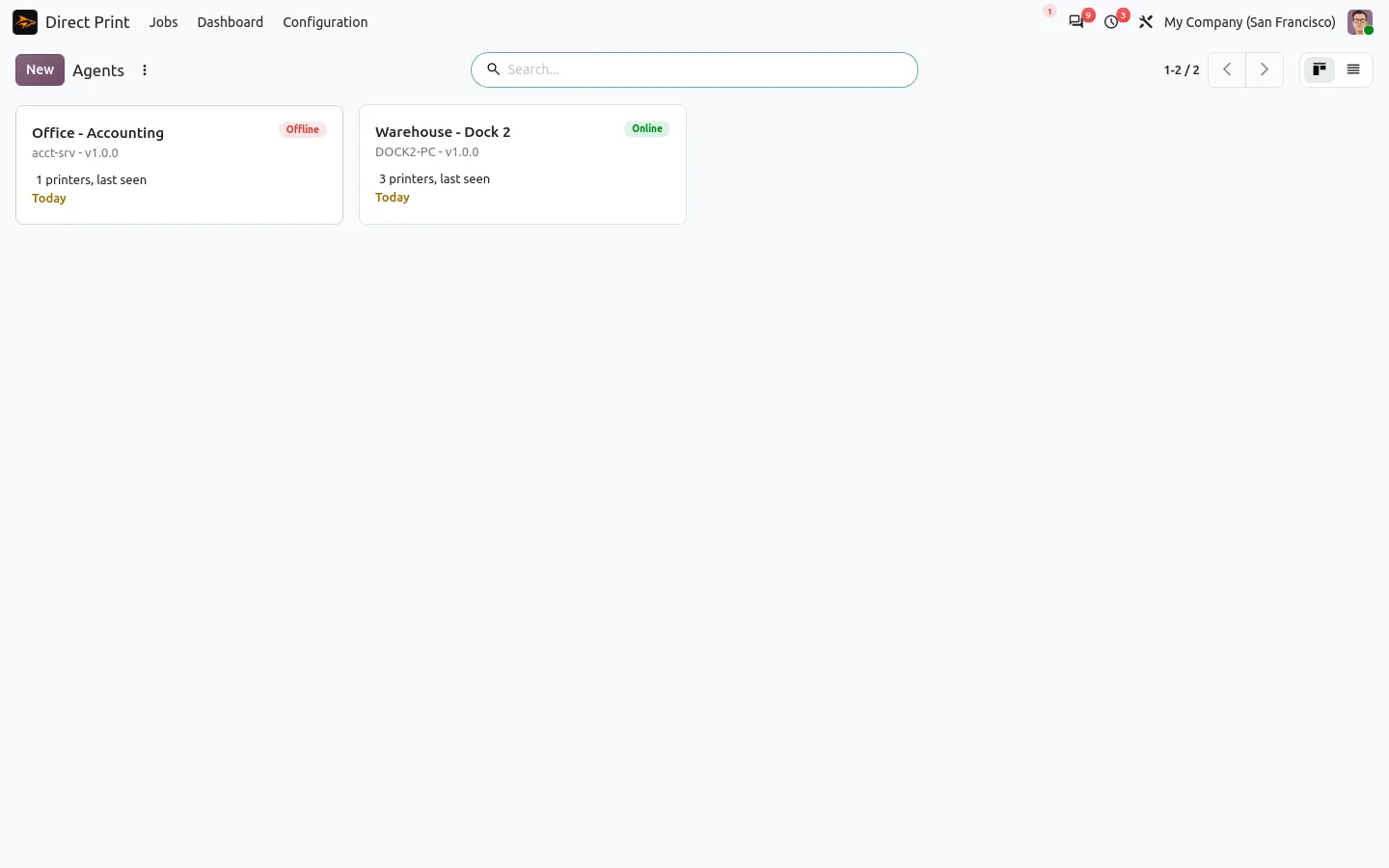
Direct Print adds a small print agent on a PC or a Raspberry Pi next to your printers. Direct Print for Inventory connects it to the dock:
- Carrier labels: as soon as the carrier returns the label, at validation or with the Send to Shipper button, it is printed. By default, a ZPL label goes raw to the label printer and a PDF label to the document printer. Return labels too.
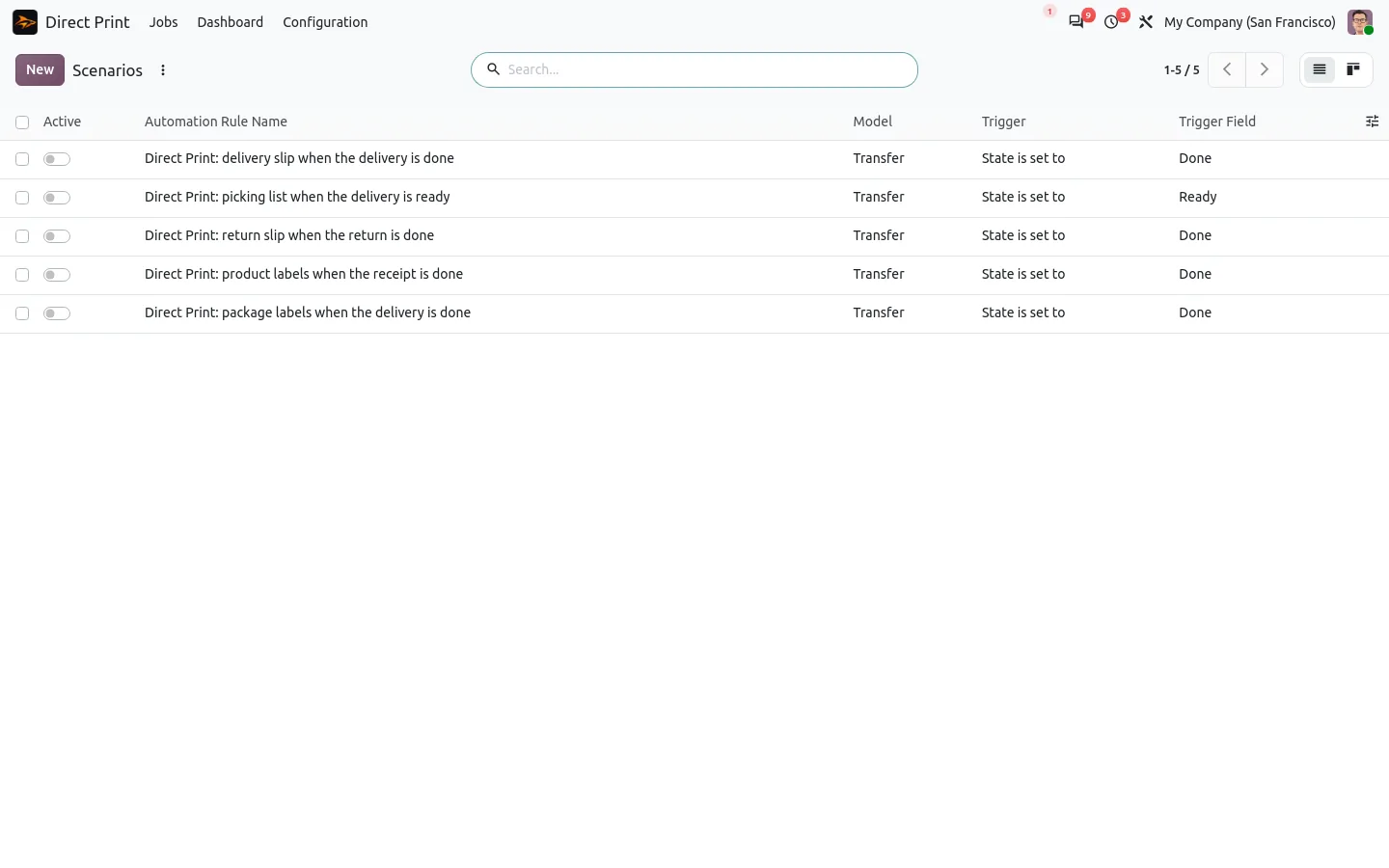
- Delivery slip: switch on the scenario Delivery slip when the delivery is done.
- Other ready-made scenarios: the picking list when the delivery is ready, the return slip when a return is done, the package labels when the delivery is done, or at each put in pack.
- Weight from the scale: the put in pack window reads the scale of the workstation. With Pack on Stable Weight, the package is created as soon as the weight comes back, and its label prints without a click.
- The delivery is validated even if a printer is offline or out of paper: the documents wait in the queue, and a printer problem never blocks the shipment.
The right printer for each document
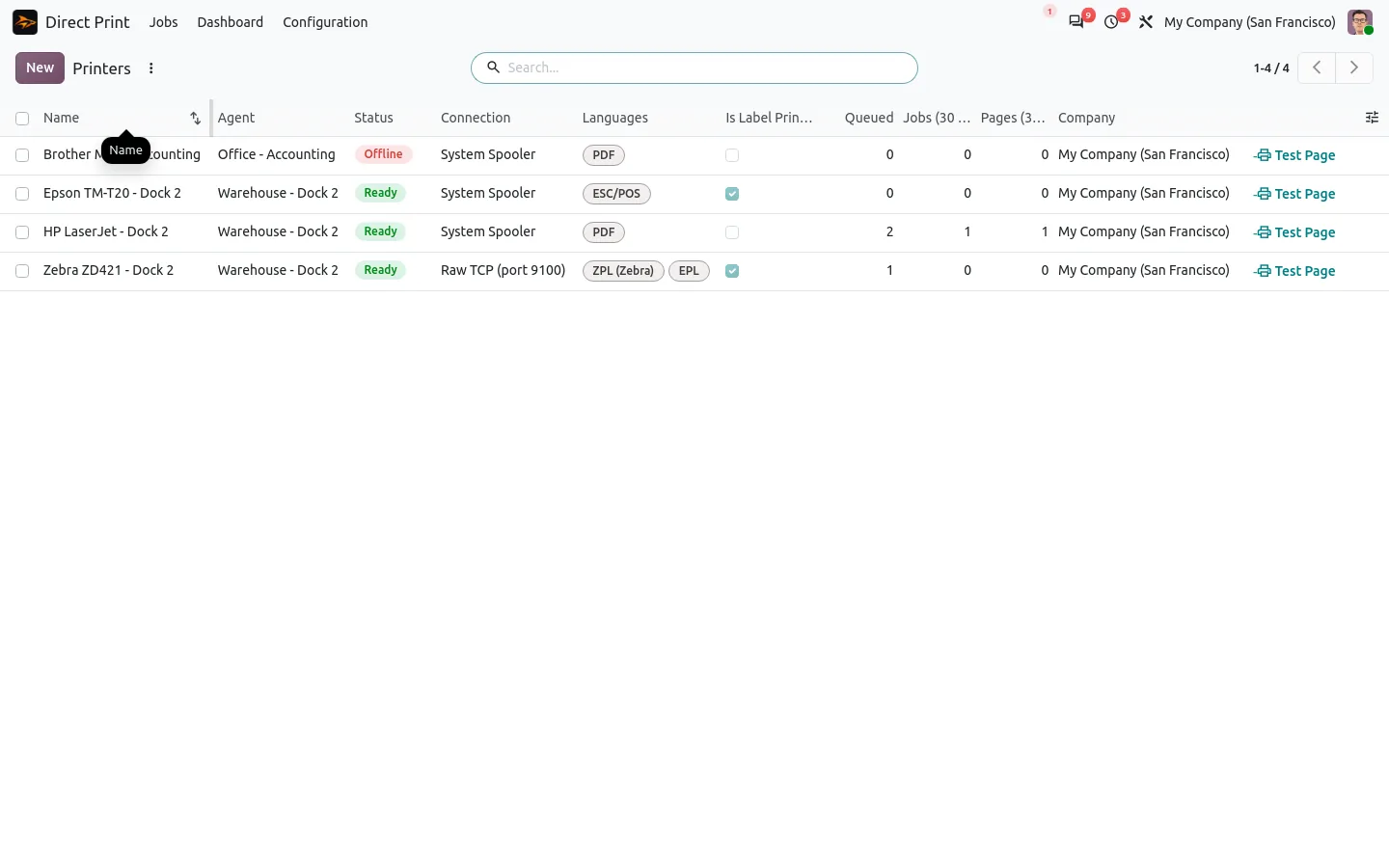
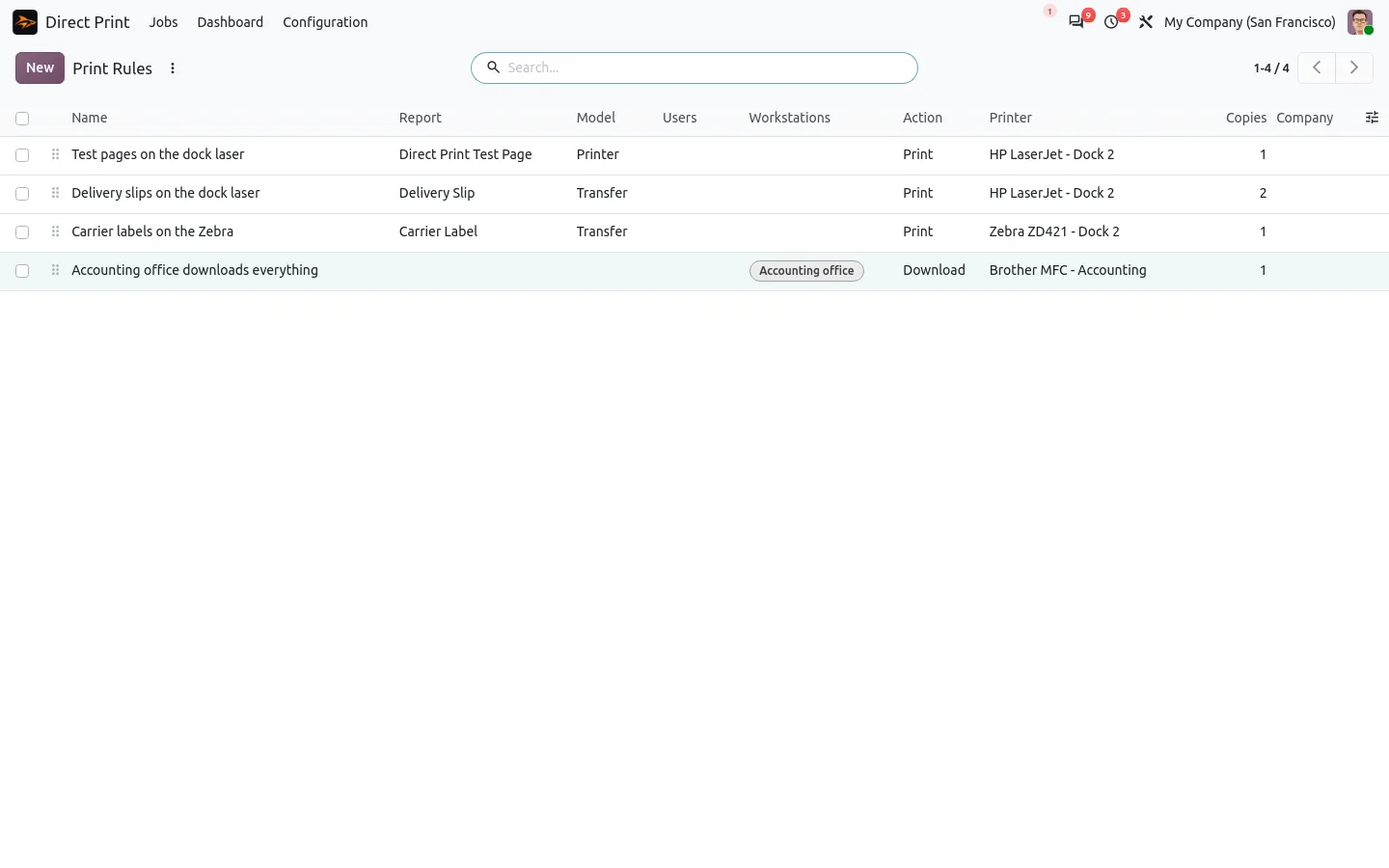
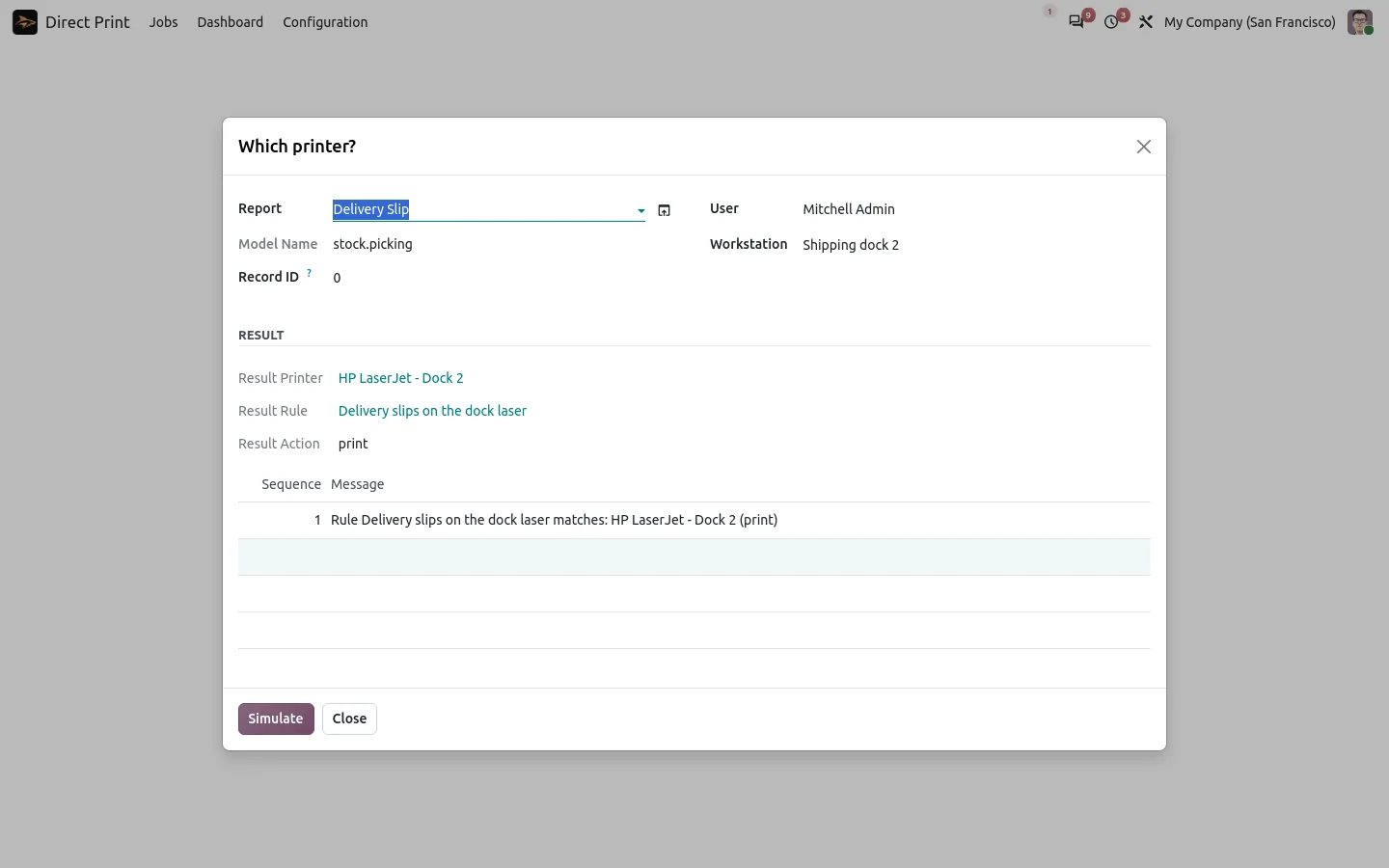
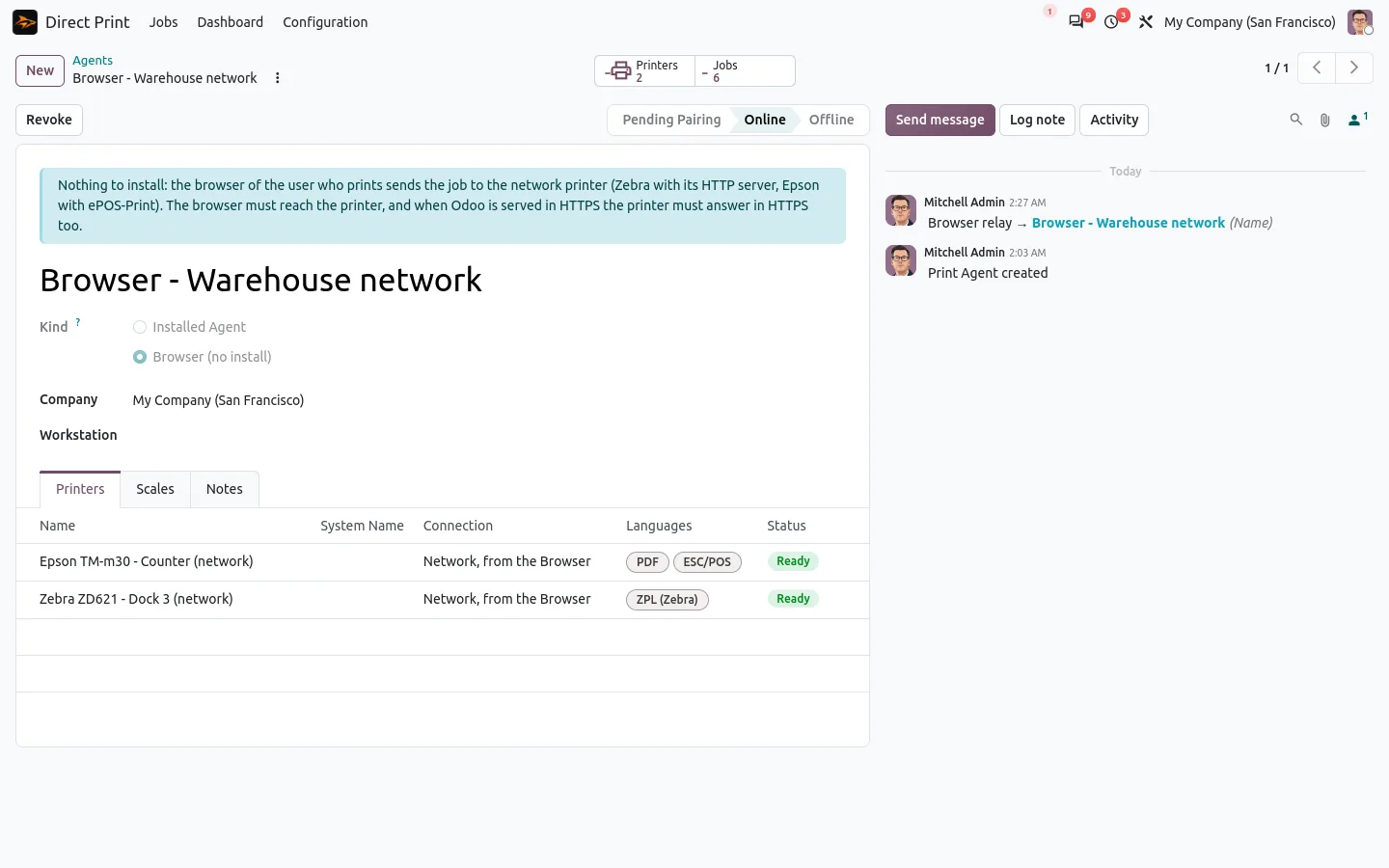
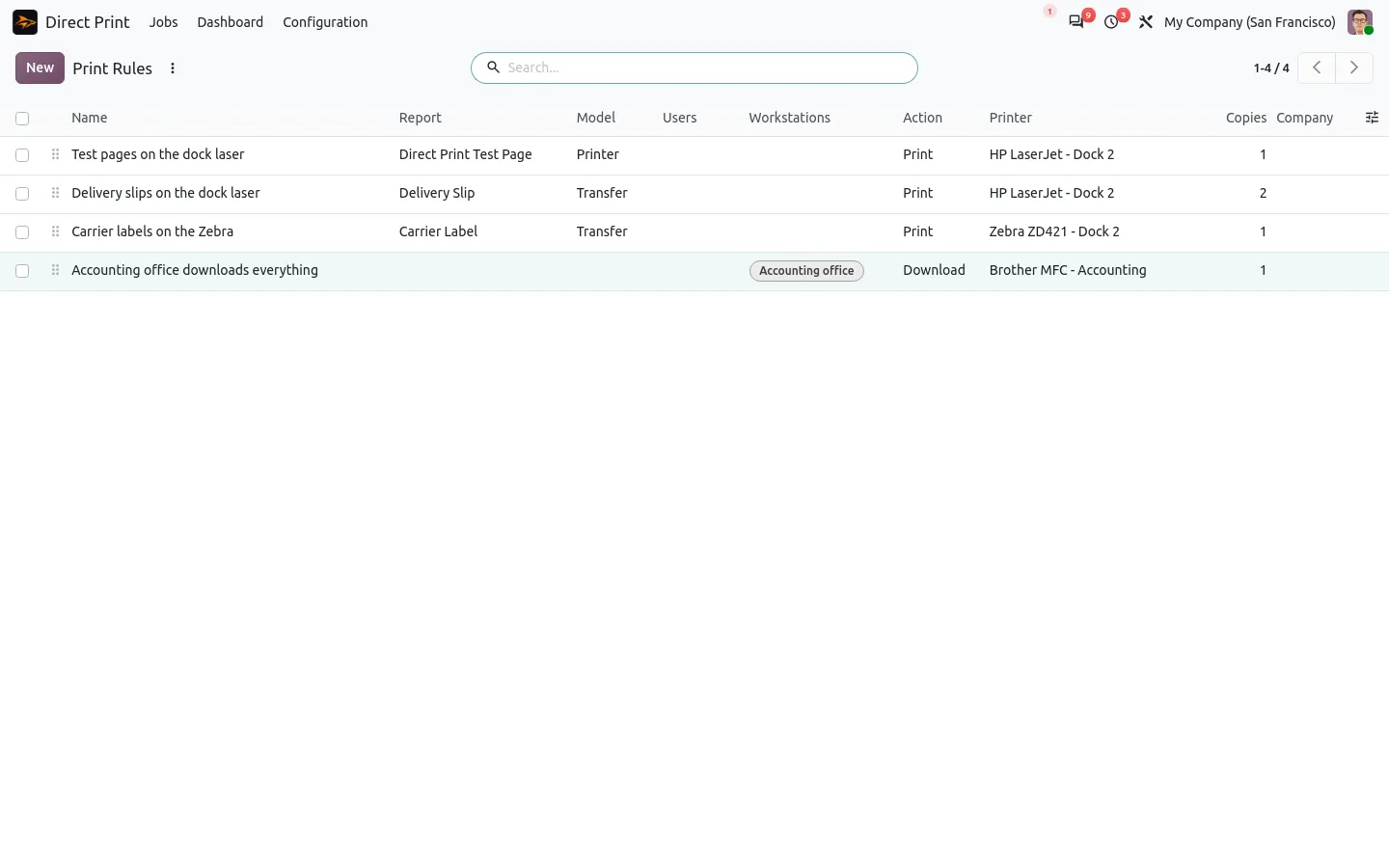
Each user belongs to a workstation, with a document printer and a label printer: what they validate prints there. For a dock shared by several people, or deliveries validated from a phone, print rules choose by document instead of by user: the delivery slips on the dock laser, in two copies, and the carrier labels on the Zebra.
Set it up in five steps
- Install Direct Print and Direct Print for Inventory, then install the agent next to your printers: get it on sharqix.com/direct-print with your order reference.
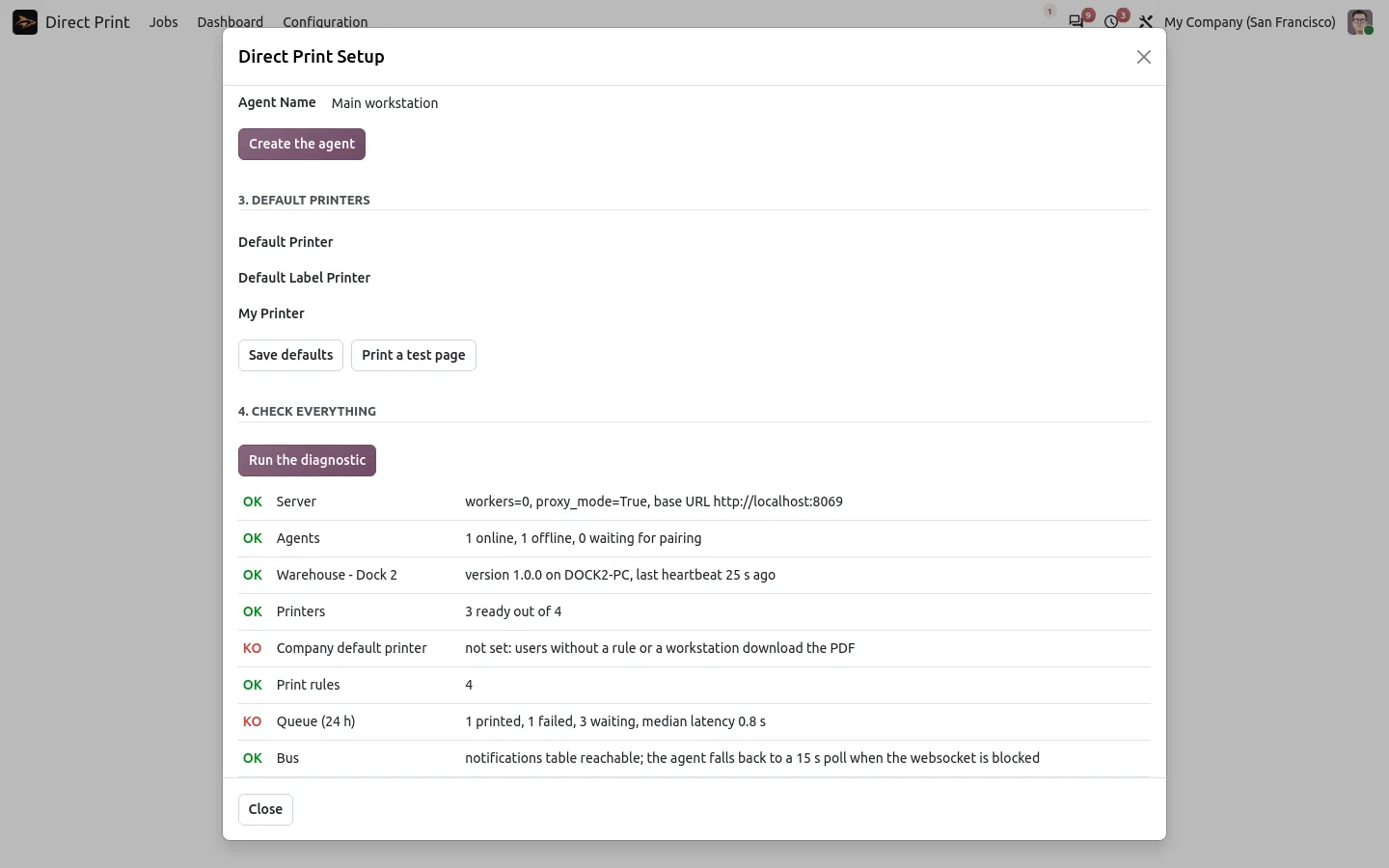
- In Direct Print > Configuration > Workstations, set the laser of the dock as the default printer, the Zebra as the default label printer, and the scale if you have one. Link the users who ship.
- On the Delivery Orders operation type, tick Generate Shipping Labels. In Direct Print > Configuration > Settings, Print Carrier Labels is on by default.
- In Direct Print > Configuration > Scenarios, switch on Delivery slip when the delivery is done.
- Validate a delivery: the slip and the label come out. Leave Delivery Slip unticked under Print on Validation, or the browser gets a second copy.
100% tested
The apps ship with automated tests. No risk.
Which option for which dock
| Option | Good for | Limits |
|---|---|---|
| Print on Validation, without IoT box | The delivery slip at the right time | A PDF in the browser, the carrier label stays in the chatter |
| Odoo with an IoT box | Enterprise, carrier labels on one dock | One box per dock, Enterprise only |
| Direct Print | Community or Enterprise, any number of printers | An agent to install on a PC or a Raspberry Pi |
Questions people ask
Can Odoo print shipping labels automatically without an IoT box?
Odoo gets the label from the carrier when the delivery is validated, but only attaches it to the delivery. To print it automatically, you need the IoT for Delivery module with an IoT box, or a print agent such as Direct Print.
Which carriers work?
Every carrier connector that attaches the label file to the delivery when the shipment is booked, as the connectors made by Odoo do. PDF and ZPL labels print, and EPL or TSPL labels on the printers that read them. Image previews are skipped.
Does it work with Odoo Community?
Direct Print and Direct Print for Inventory work in Community and Enterprise, for Odoo 18, 19 and 20, on Odoo.sh or on your own server. Not on Odoo Online, which does not accept third-party modules. On Community, the shipment must be booked by a third-party connector that attaches the label to the delivery.
Can I print two copies of the delivery slip?
Yes. Create a print rule for the delivery slip and set its number of copies.
What if the printer is offline when the delivery is validated?
The delivery is validated anyway. The documents wait in the queue and print as soon as the printer is back; a job that waited too long is never printed by surprise.
Labels for what you receive? See how to print product labels automatically. Setting up the Zebra itself? See ZPL labels on a Zebra without an IoT box.
The label on the parcel, not in the chatter
Keep the printers you have, skip the box, and let every delivery leave with its slip and its label.
It needs Direct Print, the print agent.
A question before you buy? Write to support@sharqix.com, we answer within one business day.